How To Install SMPlayer on Debian 13

Finding a reliable media player that handles every video format without constant codec hunting can be frustrating. SMPlayer solves this problem elegantly on Debian 13, offering a feature-rich multimedia experience right out of the box. This comprehensive guide walks you through multiple installation methods, from beginner-friendly approaches to advanced techniques, ensuring you can start enjoying your media library within minutes.
Whether you’re migrating from another operating system or simply looking for a better video player on Debian 13 (Trixie), this tutorial covers everything you need to know about installing and configuring SMPlayer.
What is SMPlayer?
SMPlayer stands as one of the most versatile free media players available for Linux systems. Built on the Qt framework, this open-source application uses MPlayer or mpv as its multimedia engine, combining powerful backend processing with an intuitive graphical interface.
What sets SMPlayer apart is its intelligent memory system. The player remembers settings for every file you watch—playback position, audio tracks, subtitles, brightness, and even volume levels. Close a video halfway through, and SMPlayer picks up exactly where you left off next time.
The format support is exceptional. SMPlayer handles virtually every video and audio format imaginable, including AVI, MKV, MPG, MPEG, WMV, DVDs, and even Blu-ray discs. No external codec packs needed. Speed control lets you watch content at 2X or 4X speed, or slow down for detailed analysis. The built-in subtitle search connects directly to OpenSubtitles.org, downloading synchronized subtitles in seconds. Audio and subtitle synchronization tools fix timing issues with simple delay adjustments.
SMPlayer also includes a YouTube browser for streaming online content, supports over 30 languages, and offers customizable themes and skins to match your desktop environment.
Prerequisites and System Requirements
Before diving into installation, verify you’re running Debian 13. Open a terminal and type:
lsb_release -aAlternatively, check your version with:
cat /etc/debian_versionYou should see Debian 13 (Trixie) information displayed. SMPlayer runs smoothly on modest hardware, but ensure your system meets basic multimedia playback requirements.
You’ll need sudo or root access to install system-wide packages. Basic terminal familiarity helps, though we’ll explain every command clearly.
Update your system before proceeding. This prevents dependency conflicts and ensures compatibility:
sudo apt update && sudo apt upgradeWait for the process to complete, confirming any prompts. Fresh package lists make installation smoother.
Installation Method 1: Using Debian’s Default APT Repository
The simplest approach uses Debian’s official repositories. This method prioritizes stability over cutting-edge features, making it ideal for production systems or users who prefer reliability.
Step-by-Step APT Installation
First, refresh your package database:
sudo apt updateNow install SMPlayer along with language packs:
sudo apt install smplayer smplayer-l10nThe smplayer-l10n package adds multilingual support, enabling interface translations for dozens of languages. Press ‘Y’ when prompted to confirm installation.
The package manager downloads SMPlayer and all required dependencies automatically. This typically takes one to three minutes depending on your connection speed.
Verify the installation succeeded:
smplayer --versionYou’ll see version information displayed in the terminal, confirming SMPlayer is ready to use.
Installation Method 2: Using OpenSUSE Build Service Repository
Want the latest SMPlayer version with newest features? The official SMPlayer developer repository through OpenSUSE Build Service provides current releases.
Adding the Official Repository
This method involves adding a third-party repository, so understand the security implications. The repository owner can distribute updates directly to your system.
Add the repository to your sources list:
echo 'deb http://download.opensuse.org/repositories/home:/smplayerdev/Debian_13/ /' | sudo tee /etc/apt/sources.list.d/home:smplayerdev.listThis command creates a new repository configuration file specifically for SMPlayer.
Importing the GPG Security Key
Security matters. Import the repository’s GPG key to verify package authenticity:
curl -fsSL https://download.opensuse.org/repositories/home:smplayerdev/Debian_13/Release.key | gpg --dearmor | sudo tee /etc/apt/trusted.gpg.d/home_smplayerdev.gpg > /dev/nullThis lengthy command downloads the repository’s public key, converts it to the proper format, and installs it in your system’s trusted keyring.
Updating and Installing
Refresh your package index to include the new repository:
sudo apt updateFinally, install SMPlayer:
sudo apt install smplayerConsider installing optional theme packages for interface customization:
sudo apt install smplayer-themes smplayer-skinsThese additional packages provide alternative visual styles and player skins.
Installation Method 3: Using Flatpak (Universal Package)
Flatpak represents modern Linux packaging, offering sandboxed applications that work across distributions. This approach balances latest features with stability through containerized deployment.
Understanding Flatpak Benefits
Flatpak packages run in isolated environments, reducing system conflicts. Updates arrive independently of Debian’s release cycle. The application accesses only explicitly granted resources, enhancing security.
Installing Flatpak Support
If Flatpak isn’t already installed on your Debian 13 system, add it first:
sudo apt install flatpakVerify installation:
flatpak --versionAdding Flathub Repository
Flathub serves as the primary repository for Flatpak applications. Add it with:
flatpak remote-add --if-not-exists flathub https://flathub.org/repo/flathub.flatpakrepoThe --if-not-exists flag prevents errors if Flathub is already configured.
Installing SMPlayer via Flatpak
Now install SMPlayer from Flathub:
flatpak install flathub info.smplayer.SMPlayer -yThe application ID info.smplayer.SMPlayer follows Flatpak’s reverse-domain naming convention. Installation downloads the application and all required runtime dependencies.
Flatpak applications store data separately from system packages, typically in your home directory under .var/app/. File system access works through portals, occasionally requiring permission adjustments.
Installation Method 4: Building from Source (Advanced)
Experienced users wanting maximum control can compile SMPlayer from source code. This advanced method enables custom compilation flags and bleeding-edge development versions.
Prerequisites for Compilation
Install development tools and libraries:
sudo apt install build-essential cmake qt5-qmake qtbase5-dev libqt5script5 zlib1g-devThese packages provide compilers, build systems, and Qt development headers necessary for compilation.
Downloading and Compiling
Visit the official SMPlayer website to download the latest source code. Extract the archive:
tar -xjf smplayer-*.tar.bz2
cd smplayer-*
Create a build directory and configure:
mkdir build
cd build
cmake ..
Compile the source code:
makeCompilation takes several minutes depending on your processor. Finally, install:
sudo make installSource installations require manual updates. You’ll need to repeat this process for new versions, unlike repository-based methods that update automatically.
Launching SMPlayer on Debian 13
Starting from the Application Menu
Find SMPlayer in your desktop environment’s application menu. Look under Multimedia or Sound & Video categories. Debian 13 supports various desktop environments including GNOME, KDE Plasma, Xfce, and others. Menu organization varies slightly between them.
Click the SMPlayer icon to launch the application.
Command Line Launch
Open a terminal and type:
smplayerFor Flatpak installations, use:
flatpak run info.smplayer.SMPlayerLaunch SMPlayer with a specific file:
smplayer /path/to/video.mkvThe command line offers additional options for advanced usage.
First Launch Configuration
SMPlayer presents initial configuration options on first run. The wizard helps select your preferred multimedia engine and basic settings. Most users can accept defaults and adjust preferences later.
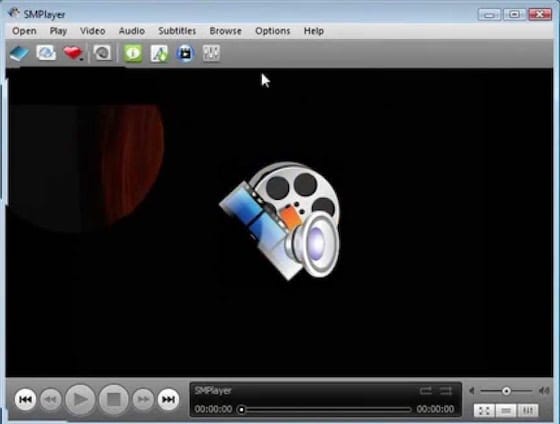
Initial Configuration and Settings
Choosing Your Multimedia Engine
Navigate to Options → Preferences → General. The “Multimedia engine” dropdown lets you select between MPlayer and mpv. Mpv generally offers better performance and modern codec support. Test both to determine which works better with your hardware.
Video Output Configuration
Under Preferences → Video, select an appropriate output driver. Options include X11, OpenGL, Xv, and VDPAU. OpenGL provides excellent compatibility with modern graphics cards. Xv offers good performance on older systems. VDPAU accelerates video decoding on NVIDIA hardware.
Experiment with different drivers if you experience playback issues or poor performance.
Audio Settings
In Preferences → Audio, configure your audio output driver. Select the appropriate output device if you have multiple audio interfaces. Enable volume normalization to maintain consistent volume across different videos.
Subtitle Configuration
SMPlayer’s subtitle features shine with proper configuration. Under Preferences → Subtitles, customize font, size, and color for optimal readability. Set default text encoding for subtitle files. Enable “Autoload subtitles” to automatically load external subtitle files matching your video’s filename.
Configure the OpenSubtitles.org integration under Preferences → Network to enable one-click subtitle downloads.
Troubleshooting Common Issues
SMPlayer Won’t Start or Crashes
If SMPlayer crashes immediately on Debian 13, especially on Wayland sessions, try forcing X11 compatibility:
QT_QPA_PLATFORM=xcb smplayerThis workaround resolves Qt application issues on Wayland compositors. For persistent fixes, add this to your SMPlayer launcher or shell configuration.
Check that your chosen multimedia engine is installed:
which mpv
which mplayer
Install missing engines:
sudo apt install mpvVideo Playback Failures
Encountering “Cannot play video” errors? Switch your multimedia engine. If mpv fails, try MPlayer, or vice versa. Access this setting under Options → Preferences → General.
Update your video output driver. Navigate to Preferences → Video and select different output options systematically until finding one that works.
Audio Synchronization Problems
Audio drifting out of sync? SMPlayer includes built-in delay adjustment. Press ‘+’ or ‘-‘ on your keyboard during playback to fine-tune audio synchronization. Changes apply in millisecond increments.
Persistent audio issues might indicate driver problems. Change your audio output driver in Preferences → Audio.
Dependency Errors During Installation
Broken package dependencies occasionally occur. Fix them with:
sudo apt --fix-broken installClear the APT cache to resolve corrupted download files:
sudo apt clean
sudo apt update
Repository conflicts between Debian official and third-party sources sometimes create issues. Review /etc/apt/sources.list and files in /etc/apt/sources.list.d/ to identify conflicts.
Flatpak-Specific Issues
Flatpak sandboxing sometimes restricts file access. Grant additional permissions using Flatseal, a graphical Flatpak permission manager:
flatpak install flatsealLaunch Flatseal, select SMPlayer, and adjust file system access permissions as needed.
Update Flatpak packages regularly:
flatpak updateUpdating SMPlayer
APT-Based Updates
Regular APT installations update through Debian’s normal update process:
sudo apt update && sudo apt upgradeThis command updates all system packages, including SMPlayer. Debian’s security team provides updates automatically.
Flatpak Updates
Update Flatpak SMPlayer specifically:
flatpak update info.smplayer.SMPlayerUpdate all Flatpak applications at once:
flatpak updateChecking Your Version
Verify your current version through the GUI: Help → About. Alternatively, use the terminal:
smplayer --versionCompare against the latest release on the official SMPlayer website.
Uninstalling SMPlayer (If Needed)
Removing APT Installation
Uninstall SMPlayer while preserving configuration files:
sudo apt remove smplayer smplayer-l10nComplete removal including all configuration:
sudo apt purge smplayer smplayer-l10nClean up unused dependencies:
sudo apt autoremoveRemoving Flatpak Installation
Uninstall the Flatpak package:
flatpak uninstall info.smplayer.SMPlayerRemove unused runtimes:
flatpak uninstall --unusedCleaning Up Repositories
If you added the OpenSUSE Build Service repository, remove it:
sudo rm /etc/apt/sources.list.d/home:smplayerdev.list
sudo rm /etc/apt/trusted.gpg.d/home_smplayerdev.gpg
sudo apt update
This cleans your system completely.
Congratulations! You have successfully installed SMPlayer. Thanks for using this tutorial for installing the latest version of SMPlayer on Debian 13 “Trixie” system. For additional help or useful information, we recommend you check the official SMPlayer website.
