How To Install SMPlayer on Fedora 43

SMPlayer stands as one of the most versatile and powerful media players available for Linux systems today. This free, open-source multimedia player offers exceptional format support, advanced playback controls, and a user-friendly interface that appeals to both beginners and experienced users. Whether you’re looking to play high-definition videos, stream YouTube content, or manage extensive media libraries, SMPlayer delivers reliable performance without the complexity often associated with media player software. This comprehensive guide walks you through multiple installation methods on Fedora 43, ensuring you can choose the approach that best fits your needs and preferences.
What is SMPlayer?
SMPlayer functions as a graphical frontend for MPlayer and MPV, two of Linux’s most robust media playback engines. Built using the Qt framework, it provides cross-platform compatibility while maintaining excellent integration with Linux desktop environments. The application has earned its reputation through years of development and a commitment to supporting virtually every audio and video format available.
The feature set distinguishes SMPlayer from competing media players. It supports 4K video playback at 60 frames per second, ensuring smooth viewing of ultra-high-definition content. One particularly useful capability is its memory function, which remembers where you stopped watching a video and resumes from that exact position when you return. This proves invaluable for long movies, video courses, or any content you consume across multiple sessions.
Beyond basic playback, SMPlayer includes powerful additional features. The built-in subtitle downloader automatically searches for and retrieves subtitles for your videos. Audio and video filters allow precise control over playback quality, while the equalizer enables sound customization to your preferences. Variable speed playback lets you watch content faster or slower without pitch distortion, and frame-by-frame navigation assists with detailed video analysis. The application even supports Chromecast for streaming to compatible devices and offers customizable skins to personalize the interface.
Prerequisites Before Installation
Before diving into the installation process, ensure your system meets the necessary requirements. You’ll need a functioning Fedora 43 installation, whether you’re running the Workstation edition with GNOME or another desktop environment variant. An active internet connection is essential for downloading packages and their dependencies from remote repositories.
Terminal access represents another fundamental requirement. While Fedora provides graphical software centers, the command-line approach offers more control and troubleshooting visibility. You don’t need advanced Linux expertise, but basic familiarity with terminal commands will smooth the process considerably.
Administrative privileges through sudo access are mandatory for system-level installations. Most Fedora installations grant the primary user sudo capabilities by default, but verify you can execute commands with elevated permissions before proceeding. Running a system update before installing new software is strongly recommended. Execute sudo dnf update to bring your system packages to their latest versions, which prevents potential conflicts and ensures compatibility.
Understanding Installation Methods
Fedora 43 offers two primary approaches for installing SMPlayer, each with distinct characteristics that cater to different user preferences and requirements.
The DNF method leverages Fedora’s default package management system. This approach installs SMPlayer directly into your system using packages maintained and tested by the Fedora community. System-level integration means the application shares libraries with other software, resulting in efficient disk space usage. Updates arrive through your regular system update process, keeping everything synchronized. This method suits users who prefer traditional Linux package management and want deep system integration.
The Flatpak method takes a containerized approach. Flatpak packages run in sandboxed environments with controlled access to system resources. This isolation enhances security and prevents application conflicts. Updates happen independently from system upgrades, allowing you to run the latest SMPlayer version regardless of your Fedora release. The Flatpak approach appeals to users who prioritize application isolation, security boundaries, or maintaining cutting-edge software versions.
For most users, the DNF method represents the recommended choice. It provides excellent performance, seamless integration, and straightforward management through familiar system tools. However, Flatpak remains a valid alternative if its specific advantages align with your requirements.
Method 1: Installing SMPlayer Using DNF
The DNF installation method provides the most straightforward path to getting SMPlayer running on your Fedora 43 system.
Update Your System Packages
Begin by updating your system to ensure all existing packages reflect their latest versions. Open your terminal application and execute:
sudo dnf updateThe system will check for available updates across all installed packages. If updates exist, DNF will display them and request confirmation before proceeding. Type ‘y’ and press Enter to approve. This process may take several minutes depending on the number and size of updates. Keeping your system current prevents dependency conflicts and ensures optimal compatibility with new installations.
Install SMPlayer from the Official Repository
Once your system is updated, installing SMPlayer requires just a single command:
sudo dnf install smplayerDNF contacts Fedora’s official repositories and locates the SMPlayer package along with all required dependencies. The system calculates the total download size and disk space requirements, then presents this information for your review. Confirm the installation by typing ‘y’ when prompted.
The package manager downloads SMPlayer and any necessary supporting libraries. It then installs each component, configuring them automatically for your system. The entire process typically completes within a few minutes, though download speeds vary based on your internet connection and server load.
Verify the Installation
After installation completes, verify that SMPlayer installed correctly by checking the installed version:
rpm -q smplayerThis command queries the RPM database for SMPlayer’s package information. You should see output similar to smplayer-25.6.0-2.fc43.x86_64, indicating the version number and architecture. If the command returns “package smplayer is not installed,” something went wrong during the installation process, and you should review any error messages that appeared earlier.
Method 2: Installing SMPlayer Using Flatpak
The Flatpak installation method offers enhanced isolation and independent update management.
Ensure Flatpak is Available
Fedora Workstation includes Flatpak by default, but verify its presence before proceeding. Check your Flatpak version with:
flatpak --versionIf the command returns a version number, Flatpak is ready to use. If you receive a “command not found” error, install Flatpak first with sudo dnf install flatpak.
Add the Flathub Repository
Flathub serves as the primary repository for Flatpak applications. Add it to your system if it’s not already configured:
flatpak remote-add --if-not-exists --system flathub https://flathub.org/repo/flathub.flatpakrepoThe --if-not-exists flag prevents errors if Flathub is already configured. The --system flag makes Flathub available to all users on your system rather than just your user account. This command completes quickly as it only adds repository configuration, not actual software.
Enable Flathub
If Flathub was previously added but disabled, enable it with:
flatpak remote-modify --enable flathubThis step is typically unnecessary on fresh Fedora installations but becomes relevant if you or system policies previously disabled Flathub access.
Install SMPlayer from Flathub
Now install SMPlayer using the Flatpak package manager:
flatpak install --system flathub info.smplayer.SMPlayerFlatpak retrieves package information from Flathub and displays details about SMPlayer, including its download size and required permissions. Confirm the installation when prompted. The initial installation may take longer than the DNF method because Flatpak downloads runtime dependencies that create the application’s execution environment.
Verify Flatpak Installation
Confirm SMPlayer appears in your installed Flatpak applications:
flatpak list | grep -i smplayerYou should see an entry for SMPlayer with its full application ID (info.smplayer.SMPlayer). This confirms the package installed successfully and is ready to launch.
Launching SMPlayer on Fedora 43
With SMPlayer installed, you have multiple options for starting the application.
Launching from the Terminal
Terminal launching provides direct control and displays any error messages that might help troubleshoot issues.
For DNF installations, simply type:
smplayerFor Flatpak installations, use the full application identifier:
flatpak run info.smplayer.SMPlayerThe application window should appear within seconds. Terminal launching proves particularly valuable when troubleshooting because error messages display directly in the terminal window.
Launching from the GNOME Desktop
Most users prefer launching applications through their desktop environment. In GNOME (Fedora Workstation’s default desktop), click Activities in the top-left corner or press the Super key. Type “SMPlayer” in the search field that appears. The SMPlayer icon should appear in the results. Click it to launch the application.
You can also find SMPlayer in your application grid by clicking “Show Applications” at the bottom of the Activities overview. Browse to the Audio & Video category where SMPlayer typically appears. Right-click the icon and select “Add to Favorites” to pin it to your dock for quick access.
First Launch Experience
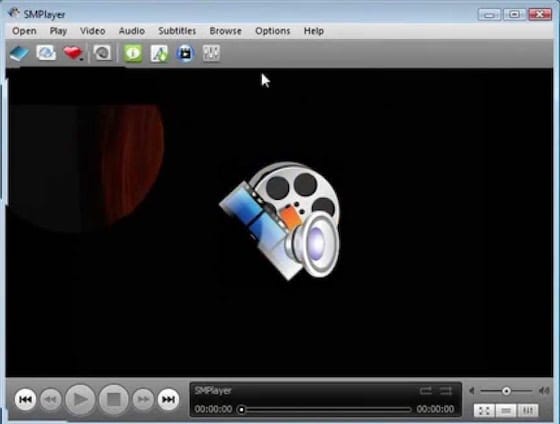
When you first open SMPlayer, the interface presents a clean, intuitive layout. The main viewing area dominates the window, with playback controls along the bottom and menu options across the top. The application uses sensible defaults that work well for most users, though you can customize extensively through the preferences menu. Take a moment to familiarize yourself with the interface before diving into configuration or playback.
Installing Multimedia Codecs on Fedora 43
Fedora’s default installation includes limited codec support due to licensing restrictions on proprietary formats. To unlock SMPlayer’s full potential and ensure it plays all your media files, you’ll need to install additional codecs.
Understanding Codec Requirements
Codecs encode and decode audio and video data. Without proper codecs, media players cannot interpret certain file formats, resulting in playback failures or missing audio/video tracks. Fedora ships only open-source codecs with unrestricted licenses. Popular formats like MP3, H.264 video, and AAC audio require additional codec packages.
Enabling RPM Fusion Repositories
RPM Fusion provides packages that Fedora cannot include directly due to patent or licensing concerns. Enable both the free and non-free RPM Fusion repositories:
sudo dnf install https://download1.rpmfusion.org/free/fedora/rpmfusion-free-release-$(rpm -E %fedora).noarch.rpm
sudo dnf install https://download1.rpmfusion.org/nonfree/fedora/rpmfusion-nonfree-release-$(rpm -E %fedora).noarch.rpm
These commands download and install the repository configuration packages for your specific Fedora version. Once completed, DNF can access thousands of additional packages, including essential multimedia codecs.
Installing Codec Packages
Install comprehensive codec support with these commands:
sudo dnf group install multimediaThis installs the entire multimedia package group, covering most common codecs and media frameworks.
Upgrade FFmpeg to the full-featured version:
sudo dnf swap 'ffmpeg-free' 'ffmpeg' --allowerasingThe swap command replaces Fedora’s limited ffmpeg-free package with RPM Fusion’s complete FFmpeg implementation.
Install GStreamer plugins for enhanced format support:
sudo dnf upgrade @multimedia --setopt="install_weak_deps=False" --exclude=PackageKit-gstreamer-pluginFinally, install the sound and video package group:
sudo dnf group install -y sound-and-videoSupported Formats After Installation
With codecs installed, SMPlayer can handle virtually any media file you encounter. Video format support includes MP4, AVI, MKV, MPEG, FLV, WebM, DVD, and many others. Audio formats encompass MP3, AAC, FLAC, OGG, WAV, WMA, and more. Streaming protocols for online content also function properly.
Test your codec installation by playing various media files. Try different formats to ensure comprehensive support. If specific files still won’t play, verify the codec packages installed correctly and check SMPlayer’s output settings.
Basic SMPlayer Configuration
SMPlayer works well with default settings, but customization enhances your experience.
Accessing Preferences
Click Options in the menu bar and select Preferences to open the configuration window. The preferences dialog organizes settings into categories, making navigation straightforward.
Essential Configuration Options
The General section controls fundamental behavior. Enable “Remember settings for all files” to have SMPlayer recall your preferences for volume, subtitle settings, and playback position across all videos. This feature proves incredibly convenient for resuming content exactly where you left off.
In the Video section, select your preferred output driver. The automatic option usually works well, but if you experience display issues, try different drivers like opengl, x11, or vdpau. Hardware acceleration options appear here as well, potentially improving performance on capable systems.
Audio settings let you choose your output device if you have multiple options (like speakers and headphones). The audio equalizer enables sound customization to match your preferences or compensate for specific hardware characteristics.
The Subtitles section configures automatic subtitle downloading and display options. Enable autoload to have SMPlayer search for subtitle files automatically. Adjust font size, color, and positioning to ensure subtitles remain readable without obscuring important visual content.
Performance settings affect playback smoothness. Cache adjustments can reduce stuttering on slower systems or network streams. Priority settings control how much CPU time SMPlayer receives relative to other applications.
Interface preferences include theme selection and skin options. Choose appearances that match your aesthetic preferences or improve usability based on your monitor and viewing conditions.
Common Troubleshooting Issues
Even with proper installation, occasional problems may arise.
SMPlayer Won’t Launch
If SMPlayer fails to start, first verify it installed correctly. For DNF installations, run rpm -q smplayer again. For Flatpak installations, check flatpak list | grep -i smplayer.
Launch SMPlayer from the terminal to see error messages. These messages often pinpoint the problem. Missing dependencies, permission issues, or corrupted configuration files typically cause launch failures. Reinstalling SMPlayer often resolves mysterious startup problems.
Video or Audio Playback Problems
Playback issues usually stem from missing codecs or incorrect output settings. If you haven’t installed codec packages yet, follow the codec installation section above. Verify RPM Fusion repositories are enabled and all codec packages installed successfully.
Check your video output driver in SMPlayer’s preferences. Try different options if your current selection doesn’t work properly. The MPlayer versus MPV backend choice also affects compatibility with certain files. Switch backends in Preferences > General > Multimedia engine.
Specific Format Issues
MP4 files sometimes cause problems even with codecs installed. This often relates to specific codec variants within the MP4 container. Ensure all codec packages updated to their latest versions. Check that ffmpeg (not ffmpeg-free) is installed.
DVD playback requires libdvdcss, which some repositories don’t include. Search for installation instructions specific to your region’s legal requirements regarding DVD decryption.
YouTube streaming issues typically relate to network connectivity or YouTube format changes. Update SMPlayer to the latest version, as developers regularly adjust the software to accommodate YouTube updates.
Performance Issues
High CPU usage during playback suggests inefficient decoding. Enable hardware acceleration in video preferences if your graphics card supports it. Reduce output quality settings if necessary. Close other resource-intensive applications to free up system resources.
Stuttering or buffering problems often indicate insufficient cache settings or slow storage. Increase cache size in SMPlayer’s preferences. Consider moving media files to faster storage if they’re located on network drives or slow external disks.
Updating SMPlayer
Keep SMPlayer current to benefit from bug fixes, new features, and security patches.
Updating DNF Installations
System-wide updates automatically include SMPlayer:
sudo dnf updateTo update only SMPlayer:
sudo dnf update smplayerDNF checks for newer versions in Fedora’s repositories and installs them if available. Check for updates regularly, particularly after Fedora releases package updates.
Updating Flatpak Installations
Update all Flatpak applications including SMPlayer:
flatpak updateFlatpak checks Flathub for newer versions and presents available updates for your confirmation. Updates happen independently from Fedora system updates, so check periodically even if you recently updated your system.
Configure automatic updates through GNOME Software if you prefer hands-off update management. The Software application can check for and install Flatpak updates automatically.
Uninstalling SMPlayer
Should you need to remove SMPlayer, both installation methods provide clean uninstallation procedures.
Removing DNF Installations
Uninstall SMPlayer with:
sudo dnf remove smplayerClean up orphaned dependencies:
sudo dnf autoremoveThis removes SMPlayer and any dependencies no longer needed by other software. Your personal configuration files remain in your home directory (~/.config/smplayer/) in case you reinstall later. Delete this directory manually for complete removal.
Removing Flatpak Installations
Uninstall the Flatpak version:
flatpak uninstall info.smplayer.SMPlayerRemove unused Flatpak runtimes:
flatpak uninstall --unusedThis frees disk space by removing runtime components that no other Flatpak applications require. Flatpak stores application data in ~/.var/app/info.smplayer.SMPlayer/ which you can delete manually for thorough cleanup.
Congratulations! You have successfully installed SMPlayer. Thanks for using this tutorial for installing the SMPlayer media player on your Fedora 43 Linux system. For additional help or useful information, we recommend you check the official SMPlayer website.
