How To Install Snipe-IT on Rocky Linux 10

Snipe-IT stands as one of the most robust open-source IT asset management solutions available today, offering organizations comprehensive tools to track hardware, software, and digital assets efficiently. Rocky Linux 10, with its enterprise-grade stability and security features, provides an ideal foundation for hosting this powerful asset management platform. This comprehensive installation guide will walk you through every step needed to successfully deploy Snipe-IT on Rocky Linux 10, from initial system preparation to final configuration and security hardening.
Understanding Snipe-IT and Rocky Linux 10
What Makes Snipe-IT Essential for Asset Management
Snipe-IT revolutionizes how organizations handle IT asset tracking and management. This Laravel-based application offers features including asset check-in/check-out functionality, license management, depreciation tracking, and comprehensive reporting capabilities. The platform supports barcode generation, custom fields, and integrates seamlessly with existing IT infrastructure through its robust API.
Organizations benefit from real-time asset visibility, automated workflows, and detailed audit trails that comply with regulatory requirements. The system scales from small businesses managing dozens of assets to enterprise environments tracking thousands of devices across multiple locations.
Why Rocky Linux 10 Excels for Enterprise Applications
Rocky Linux 10 delivers enterprise-class performance with long-term stability, making it perfect for mission-critical applications like Snipe-IT. Built on the same foundation as Red Hat Enterprise Linux, Rocky Linux provides security updates, performance optimizations, and compatibility with enterprise software ecosystems.
The distribution offers enhanced security features, improved container support, and modernized system management tools that streamline server administration. Its predictable release cycle and community-driven development ensure consistent updates without licensing concerns.
Prerequisites and System Requirements
Hardware Specifications for Optimal Performance
Snipe-IT requires specific hardware resources to function effectively across different organizational scales. For small deployments managing up to 1,000 assets, allocate minimum 2GB RAM, dual-core processor, and 20GB storage space. Medium deployments handling 1,000-10,000 assets require 4GB RAM, quad-core processor, and 50GB storage.
Large enterprise installations managing over 10,000 assets demand 8GB+ RAM, 8+ core processors, and 100GB+ storage with SSD drives for optimal database performance. Consider network bandwidth requirements, especially for organizations with remote locations accessing the system regularly.
Database storage grows proportionally with asset count, user activity, and file uploads. Plan for 20-30% additional storage capacity to accommodate future growth and temporary files during maintenance operations.
Essential Software Dependencies
Rocky Linux 10 requires specific software versions for Snipe-IT compatibility. PHP version 8.1.0 or higher is mandatory, with PHP 8.3 recommended for optimal performance and security. The system needs MySQL 5.7+ or MariaDB 10.3+ for database operations.
Web server requirements include Apache 2.4+ or Nginx 1.18+ with proper module support. Essential PHP extensions include OpenSSL, PDO, Mbstring, Tokenizer, XML, Ctype, JSON, BCMath, and GD for image processing functionality.
Composer dependency manager must be available for PHP package installation. Git version control system enables source code management and updates. Additional utilities like curl, wget, and vim facilitate system administration tasks.
Network and Security Prerequisites
Configure firewall rules to allow HTTP (port 80) and HTTPS (port 443) traffic for web access. SSH access (port 22) should be restricted to administrative users with key-based authentication. Consider implementing fail2ban for brute force protection.
SSL certificates from trusted certificate authorities ensure secure data transmission. Domain name configuration with proper DNS records enables user-friendly access. Network time synchronization prevents authentication and logging issues.
Pre-Installation System Setup
Updating Rocky Linux and Package Management
Begin by ensuring your Rocky Linux 10 system has the latest security updates and packages installed:
sudo dnf update -y
sudo dnf install -y epel-release
sudo dnf update -y
Install essential development tools and utilities required for the installation process:
sudo dnf groupinstall "Development Tools" -y
sudo dnf install -y git curl wget vim unzip policycoreutils-python-utils
Configure the system timezone to match your organization’s location:
sudo timedatectl set-timezone America/New_York
sudo timedatectl set-ntp true
User Account Configuration
Create a dedicated user account for running Snipe-IT operations, following security best practices by avoiding root access for application processes:
sudo useradd -m -s /bin/bash snipeit
sudo usermod -aG wheel snipeit
Configure sudo access without password prompts for specific administrative tasks:
echo "snipeit ALL=(ALL) NOPASSWD: /bin/systemctl restart httpd, /bin/systemctl restart mariadb" | sudo tee /etc/sudoers.d/snipeitFirewall Configuration and Security
Configure firewalld to allow necessary network traffic while maintaining security:
sudo systemctl enable firewalld --now
sudo firewall-cmd --permanent --add-service=http
sudo firewall-cmd --permanent --add-service=https
sudo firewall-cmd --permanent --add-service=ssh
sudo firewall-cmd --reload
Implement SELinux security policies for enhanced protection:
sudo setsebool -P httpd_can_network_connect 1
sudo setsebool -P httpd_can_network_connect_db 1
sudo setsebool -P httpd_execmem 1
LAMP Stack Installation and Configuration
Apache Web Server Setup
Install and configure Apache HTTP server for hosting Snipe-IT:
sudo dnf install -y httpd
sudo systemctl enable httpd --now
sudo systemctl status httpd
Configure Apache for optimal performance and security:
sudo nano /etc/httpd/conf/httpd.confAdd or modify these configuration directives:
ServerTokens Prod
ServerSignature Off
KeepAlive On
MaxKeepAliveRequests 100
KeepAliveTimeout 15
Create the main Apache configuration for Snipe-IT:
sudo vim /etc/httpd/conf.d/snipeit.confMariaDB Database Installation
Install MariaDB server and client packages:
sudo dnf install -y mariadb-server mariadb
sudo systemctl enable mariadb --now
sudo systemctl status mariadb
Secure the MariaDB installation by running the security script:
sudo mysql_secure_installationFollow the prompts to:
- Set root password
- Remove anonymous users
- Disable remote root login
- Remove test database
- Reload privilege tables
Configure MariaDB for optimal Snipe-IT performance:
sudo vim /etc/my.cnf.d/server.cnfAdd these optimizations under [mysqld] section:
innodb_buffer_pool_size = 1G
innodb_log_file_size = 256M
max_connections = 300
query_cache_type = 1
query_cache_size = 128M
Restart MariaDB to apply configuration changes:
sudo systemctl restart mariadbPHP Installation and Configuration
Install PHP 8.3 and required extensions for Snipe-IT:
sudo dnf install -y php php-cli php-fpm php-json php-zip php-gd php-mbstring php-curl php-xml php-pear php-bcmath php-json php-mysqlnd php-tokenizer php-openssl php-pdoConfigure PHP settings for optimal Snipe-IT performance:
sudo nano /etc/php.iniModify these important settings:
max_execution_time = 300
memory_limit = 512M
post_max_size = 100M
upload_max_filesize = 100M
max_file_uploads = 20
date.timezone = America/New_York
Restart Apache to load PHP modules:
sudo systemctl restart httpdComposer Installation
Install Composer globally for PHP dependency management:
curl -sS https://getcomposer.org/installer | php
sudo mv composer.phar /usr/local/bin/composer
sudo chmod +x /usr/local/bin/composer
composer --version
Database Setup and Configuration
Creating Snipe-IT Database
Access MariaDB console and create the database structure:
sudo mysql -u root -pExecute these SQL commands:
CREATE DATABASE snipeit CHARACTER SET utf8mb4 COLLATE utf8mb4_unicode_ci;
CREATE USER 'snipeituser'@'localhost' IDENTIFIED BY 'SecurePassword123!';
GRANT ALL PRIVILEGES ON snipeit.* TO 'snipeituser'@'localhost';
FLUSH PRIVILEGES;
EXIT;
Test database connectivity:
mysql -u snipeituser -p snipeitDatabase Performance Optimization
Configure MariaDB settings specifically for Snipe-IT workloads:
sudo vim /etc/my.cnf.d/snipeit.cnfAdd these optimizations:
[mysqld]
innodb_file_per_table = 1
innodb_buffer_pool_instances = 4
innodb_flush_log_at_trx_commit = 2
innodb_log_buffer_size = 32M
tmp_table_size = 64M
max_heap_table_size = 64M
Downloading and Installing Snipe-IT
Source Code Download
Navigate to the web server directory and download Snipe-IT:
cd /var/www
sudo git clone https://github.com/snipe/snipe-it.git snipe-it
cd snipe-it
sudo git checkout master
Verify the download and check the current version:
sudo git log --oneline -5
ls -la
File System Permissions Setup
Configure proper ownership and permissions for security:
sudo chown -R apache:apache /var/www/snipe-it
sudo find /var/www/snipe-it -type f -exec chmod 644 {} \;
sudo find /var/www/snipe-it -type d -exec chmod 755 {} \;
sudo chmod -R 775 /var/www/snipe-it/storage
sudo chmod -R 775 /var/www/snipe-it/bootstrap/cache
Environment Configuration
Copy and configure the environment file:
sudo cp /var/www/snipe-it/.env.example /var/www/snipe-it/.env
sudo vim /var/www/snipe-it/.env
Configure these essential settings:
APP_ENV=production
APP_DEBUG=false
APP_KEY=
APP_URL=https://yourdomain.com
APP_TIMEZONE='America/New_York'

DB_CONNECTION=mysql
DB_HOST=localhost
DB_DATABASE=snipeit
DB_USERNAME=snipeituser
DB_PASSWORD=SecurePassword123!

MAIL_DRIVER=smtp
MAIL_HOST=localhost
MAIL_PORT=587
MAIL_USERNAME=null
MAIL_PASSWORD=null
MAIL_ENCRYPTION=tls
Dependency Installation and Laravel Setup
Installing PHP Dependencies
Install Snipe-IT dependencies using Composer:
cd /var/www/snipe-it
sudo -u apache composer install --no-dev --prefer-source --optimize-autoloader
Handle any permission warnings by ensuring proper ownership:
sudo chown -R apache:apache /var/www/snipe-itLaravel Application Configuration
Generate the Laravel application key:
sudo -u apache php artisan key:generateRun database migrations to create required tables:
sudo -u apache php artisan migrate --forceCreate storage symbolic link:
sudo -u apache php artisan storage:linkFinal Permission Configuration
Set final permissions for optimal security and functionality:
sudo chown -R apache:apache /var/www/snipe-it
sudo chmod -R 755 /var/www/snipe-it
sudo chmod -R 775 /var/www/snipe-it/storage /var/www/snipe-it/bootstrap/cache
sudo restorecon -R /var/www/snipe-it
Web Server Configuration
Apache Virtual Host Setup
Create the Apache virtual host configuration:
sudo nano /etc/httpd/conf.d/snipeit.confAdd this comprehensive configuration:
<VirtualHost *:80>
    ServerName yourdomain.com
    DocumentRoot /var/www/snipe-it/public

    <Directory /var/www/snipe-it/public>
        Options Indexes FollowSymLinks MultiViews
        AllowOverride All
        Require all granted
    </Directory>

    ErrorLog /var/log/httpd/snipeit_error.log
    CustomLog /var/log/httpd/snipeit_access.log combined

    # Security headers
    Header always set X-Content-Type-Options nosniff
    Header always set X-Frame-Options DENY
    Header always set X-XSS-Protection "1; mode=block"
</VirtualHost>
SSL/TLS Configuration
Install SSL certificate (using Let’s Encrypt as example):
sudo dnf install -y certbot python3-certbot-apache
sudo certbot --apache -d yourdomain.com
Configure automatic SSL renewal:
sudo crontab -eAdd this line:
0 2 * * 0 /usr/bin/certbot renew --quietTest Apache configuration and restart:
sudo httpd -t
sudo systemctl restart httpd
Initial Snipe-IT Configuration
Web-Based Setup Wizard
Navigate to your domain in a web browser to begin the setup process. The pre-flight check will verify system requirements including:
- PHP version compatibility
- Required PHP extensions
- Directory permissions
- Database connectivity
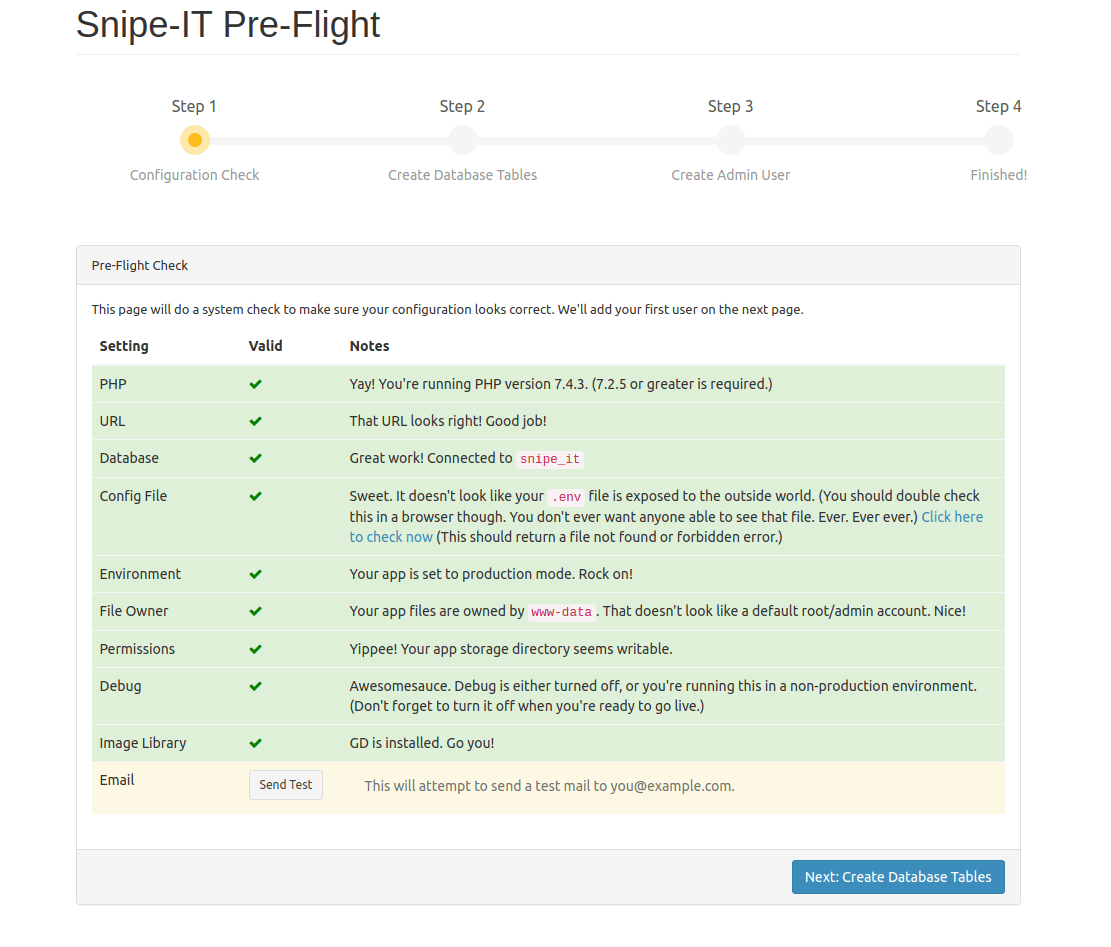
Complete the database configuration by entering the credentials configured earlier. The installer will create necessary database tables and populate initial data.
Administrator Account Creation
Create the initial administrator account with these recommendations:
- Use a complex password with mixed characters
- Enable two-factor authentication immediately
- Choose a non-obvious username for security
- Provide accurate contact information for notifications
Basic Application Settings
Configure fundamental application settings:
Site Configuration:
- Site name reflecting your organization
- Default language and locale settings
- Date format preferences
- Currency settings for asset valuation
Email Configuration:
- SMTP server settings for notifications
- From address and display name
- Test email functionality before proceeding
Post-Installation Security and Optimization
Security Hardening Implementation
Implement comprehensive security measures:
# Configure SELinux contexts
sudo setsebool -P httpd_can_sendmail 1
sudo semanage fcontext -a -t httpd_exec_t "/var/www/snipe-it/storage(/.*)?"
sudo restorecon -R /var/www/snipe-it/storage
Create backup script for automated backups:
sudo vim /usr/local/bin/snipeit-backup.shAdd backup automation:
#!/bin/bash
BACKUP_DIR="/backup/snipeit"
DATE=$(date +%Y%m%d_%H%M%S)
mkdir -p $BACKUP_DIR

# Database backup
mysqldump -u snipeituser -p'SecurePassword123!' snipeit > $BACKUP_DIR/snipeit_db_$DATE.sql

# File backup
tar -czf $BACKUP_DIR/snipeit_files_$DATE.tar.gz /var/www/snipe-it --exclude=/var/www/snipe-it/storage/logs

# Cleanup old backups (keep 30 days)
find $BACKUP_DIR -name "*.sql" -mtime +30 -delete
find $BACKUP_DIR -name "*.tar.gz" -mtime +30 -delete
Make script executable and schedule:
sudo chmod +x /usr/local/bin/snipeit-backup.sh
sudo crontab -e
Add backup schedule:
0 3 * * * /usr/local/bin/snipeit-backup.shPerformance Optimization
Configure caching for improved performance:
cd /var/www/snipe-it
sudo -u apache php artisan config:cache
sudo -u apache php artisan route:cache
sudo -u apache php artisan view:cache
Implement log rotation:
sudo nano /etc/logrotate.d/snipeitAdd log rotation configuration:
/var/www/snipe-it/storage/logs/*.log {
    daily
    missingok
    rotate 14
    compress
    delaycompress
    notifempty
    su apache apache
}
Testing and Verification
Comprehensive System Testing
Verify installation success through systematic testing:
Authentication Testing:
- Administrator login functionality
- Password reset mechanisms
- Session management behavior
- Two-factor authentication operation
Core Functionality Verification:
- Asset creation and management
- User account administration
- Category and manufacturer setup
- Location management features
Integration Testing:
- Email notification delivery
- Barcode generation and scanning
- File upload capabilities
- Report generation functionality
Performance Validation
Monitor system performance metrics:
# Check system resources
htop
iostat -x 1 5
Verify database performance:
mysql -u snipeituser -p snipeit -e "SHOW PROCESSLIST;"
mysql -u snipeituser -p snipeit -e "SHOW ENGINE INNODB STATUS\G"
Test response times and concurrent user handling using appropriate load testing tools.
Troubleshooting Common Issues
Installation-Related Problems
Permission Errors:
sudo chown -R apache:apache /var/www/snipe-it
sudo chmod -R 755 /var/www/snipe-it
sudo chmod -R 775 /var/www/snipe-it/storage /var/www/snipe-it/bootstrap/cache
Database Connection Failures:
Verify database credentials in .env file and test connectivity:
mysql -u snipeituser -p'SecurePassword123!' snipeit -e "SELECT 1;"PHP Extension Issues:
Install missing extensions:
sudo dnf install -y php-extension-name
sudo systemctl restart httpd
Runtime and Performance Issues
500 Internal Server Errors:
Check Apache error logs for detailed information:
sudo tail -f /var/log/httpd/snipeit_error.logCommon solutions include clearing application cache and fixing file permissions.
Slow Performance:
Optimize database queries and implement caching:
sudo -u apache php artisan optimize:clear
sudo -u apache php artisan config:cache
Email Configuration Problems:
Test SMTP settings and verify firewall allows outbound email traffic:
sudo -u apache php artisan tinkerBest Practices and Ongoing Maintenance
Operational Excellence
Implement structured asset management workflows:
Asset Lifecycle Management:
- Standardize asset categories and naming conventions
- Implement approval workflows for asset assignments
- Configure automated depreciation schedules
- Establish regular audit procedures
User Management Strategies:
- Implement role-based access controls
- Regular user account reviews and cleanup
- Integration with corporate directory services
- Multi-factor authentication enforcement
Security Best Practices
Maintain robust security posture:
Regular Updates:
# Update Snipe-IT
cd /var/www/snipe-it
sudo git pull origin master
sudo -u apache composer install --no-dev --prefer-source
sudo -u apache php artisan migrate --force
Security Monitoring:
- Regular log review and analysis
- Failed login attempt monitoring
- File integrity checking
- Security patch management
Access Control:
- Principle of least privilege implementation
- Regular permission audits
- Network segmentation considerations
- API access control and monitoring
Integration and Automation
Leverage Snipe-IT’s API capabilities for:
Third-party Integration:
- Help desk system connectivity
- Network monitoring tool integration
- Procurement system data synchronization
- Human resources system alignment
Automation Opportunities:
- Automated asset discovery
- Lifecycle notifications
- Compliance reporting
- Backup verification processes
Congratulations! You have successfully installed Snipe-IT. Thanks for using this tutorial for installing the Snipe-IT asset management system on your Rocky Linux 10 system. For additional help or useful information, we recommend you check the official Snipe-IT website.
