How To Install SpiderFoot on Ubuntu 24.04 LTS

SpiderFoot stands as one of the most powerful open-source intelligence (OSINT) automation tools available today. Security professionals, penetration testers, and threat intelligence analysts rely on this Python-based reconnaissance platform to map attack surfaces, investigate data breaches, and gather comprehensive intelligence across over 200 different data sources. This comprehensive guide walks you through installing SpiderFoot on Ubuntu 24.04 LTS, from initial setup through your first successful scan. Whether you’re conducting security assessments or building threat intelligence capabilities, you’ll have a fully functional OSINT platform running by the end of this tutorial.
What is SpiderFoot?
SpiderFoot automates the tedious process of gathering intelligence from public sources across the internet. Rather than manually checking dozens of websites and databases, this reconnaissance tool systematically queries hundreds of data sources to build comprehensive profiles of your targets.
The platform excels at discovering information that might otherwise remain hidden. It performs data breach searches, social media enumeration, IP geolocation, port scanning, DNS analysis, and even dark web searches. Its modular architecture provides over 200 different modules that can be activated based on your specific intelligence requirements.
SpiderFoot operates in both active and passive scanning modes. Passive reconnaissance gathers intelligence without directly interacting with targets, while active scanning performs direct queries and connections. This flexibility makes it suitable for sensitive investigations where stealth matters, as well as comprehensive assessments requiring deep visibility.
Security teams use SpiderFoot for vulnerability assessments, digital footprint mapping, and threat intelligence gathering. The tool correlates data from multiple sources, revealing connections and patterns that manual research might miss. Its web-based interface makes scan results easy to visualize, filter, and export for further analysis.
Prerequisites and System Requirements
Before installing SpiderFoot, ensure your Ubuntu 24.04 LTS system meets the necessary requirements. You’ll need at least 2GB of RAM, though 4GB is recommended for optimal performance. Allocate approximately 5GB of free disk space to accommodate the application and its scan databases.
Ubuntu 24.04 LTS ships with Python 3.12, which exceeds SpiderFoot’s minimum requirement of Python 3.7. You’ll also need the pip3 package manager for installing Python dependencies and Git for cloning the repository. A stable internet connection is essential since SpiderFoot queries numerous online sources during scans.
Root or sudo access is required for installation. Basic familiarity with Linux command-line operations will help you navigate the installation process smoothly. If you plan to access SpiderFoot remotely, consider having a domain name or static IP address configured.
Step 1: Update System Packages
Keeping your system updated ensures compatibility and security. Start by refreshing your package repositories. Open your terminal and execute:
sudo apt updateThis command synchronizes your local package index with Ubuntu’s repositories. Next, upgrade installed packages to their latest versions:
sudo apt upgrade -yThe -y flag automatically confirms the upgrade without prompting. This process typically takes a few minutes depending on how many packages require updates. System updates eliminate potential conflicts with SpiderFoot’s dependencies and patch security vulnerabilities that could compromise your OSINT operations.
Step 2: Install Required Dependencies
SpiderFoot requires several system packages to function correctly. Install Python 3, pip3, and Git with a single command:
sudo apt install python3 python3-pip git -yVerify your Python installation by checking its version:
python3 --versionYou should see output showing Python 3.12.x or higher. Confirm pip3 installed correctly:
pip3 --versionSpiderFoot also requires additional development libraries for its Python dependencies. Install these essential packages:
sudo apt install python3-dev libxml2-dev libxslt1-dev libssl-dev libffi-dev -yThese libraries enable XML parsing, SSL connections, and foreign function interfaces that SpiderFoot’s modules utilize. The python3-dev package provides headers needed to compile certain Python extensions during dependency installation.
Step 3: Download SpiderFoot from GitHub
SpiderFoot’s source code lives on GitHub, and you have two methods for obtaining it. The recommended approach uses Git to clone the repository:
git clone https://github.com/smicallef/spiderfoot.gitThis method maintains version control and simplifies future updates. Git downloads the complete repository to a new “spiderfoot” directory in your current location.
Alternatively, download a specific release archive if you prefer:
wget https://github.com/smicallef/spiderfoot/archive/v4.0.tar.gz
tar -xvzf v4.0.tar.gz
The tar command extracts the archive. Navigate into the SpiderFoot directory:
cd spiderfootInside, you’ll find the main application file (sf.py), requirements.txt listing Python dependencies, and directories containing modules and web interface components.
Step 4: Install Python Dependencies
SpiderFoot requires numerous Python libraries to interact with various data sources. The requirements.txt file specifies all necessary packages. Install them using pip3:
pip3 install -r requirements.txtThis command installs critical libraries including lxml for XML processing, netaddr for network address manipulation, cherrypy as the web framework, mako for templating, requests for HTTP operations, and beautifulsoup4 for web scraping. The installation process typically takes 3-5 minutes depending on your internet connection speed.
You may see warnings about packages being installed to locations outside your PATH. These warnings are generally safe to ignore when installing for personal use. Watch for actual error messages, which would indicate dependency conflicts requiring resolution.
If installation completes without errors, all dependencies installed successfully. SpiderFoot is now ready for configuration and launch.
Step 5: Configure SpiderFoot
SpiderFoot works with sensible defaults out of the box, but understanding configuration options helps optimize your installation. By default, the web interface binds to 127.0.0.1 (localhost) on port 5001. This restricts access to the local machine only.
Generate a default configuration file if desired:
python3 sf.py -CKey configuration parameters include the web interface bind address, port number, database storage location, and logging settings. If port 5001 conflicts with another service, you can specify a different port during launch.
For network-accessible installations, you’ll configure the listening address when starting SpiderFoot rather than in a configuration file. Local-only access provides better security for single-user deployments.
Advanced users can configure API keys for premium modules that access paid data sources. Module settings allow enabling or disabling specific reconnaissance capabilities based on your needs. Data retention policies control how long scan results remain stored.
Step 6: Set Up Authentication (Recommended)
Protecting your SpiderFoot installation with authentication prevents unauthorized access. Create a password file to enable login protection:
echo "admin:YourSecurePassword" > passwdReplace “YourSecurePassword” with a strong password combining uppercase, lowercase, numbers, and special characters. The format follows username:password structure. Secure the password file with appropriate permissions:
chmod 600 passwdThis restricts read and write access to the file owner only. You can create multiple user accounts by adding additional lines to the passwd file, each with a username:password pair.
Never use default or weak credentials in production environments. Strong authentication becomes critical when exposing SpiderFoot to network access. Consider restricting access to trusted IP addresses through firewall rules for additional security layers.
Step 7: Launch SpiderFoot
Start the SpiderFoot web server using the sf.py script. For local-only access, use:
python3 sf.py -l 127.0.0.1:5001The -l flag specifies the listening address and port. To allow network access from other machines:
python3 sf.py -l 0.0.0.0:5001Binding to 0.0.0.0 makes SpiderFoot accessible on all network interfaces. You can also specify your server’s exact IP address:
python3 sf.py -l 192.168.1.100:8080Upon successful launch, you’ll see startup messages indicating the web server is running. The terminal displays the address and port where SpiderFoot is listening. Keep this terminal window open—closing it stops SpiderFoot.
For background operation, use screen or nohup commands. Debug mode provides verbose logging if troubleshooting issues:
python3 sf.py -l 127.0.0.1:5001 -dThe -d flag enables debug output showing detailed operation information.
Step 8: Access SpiderFoot Web Interface
Open your web browser and navigate to SpiderFoot’s address. For local installations, visit:
http://127.0.0.1:5001Network installations require your server’s IP address:
http://your-server-ip:5001If you configured authentication, a login page appears. Enter your username and password from the passwd file. Upon successful login, SpiderFoot’s dashboard loads.
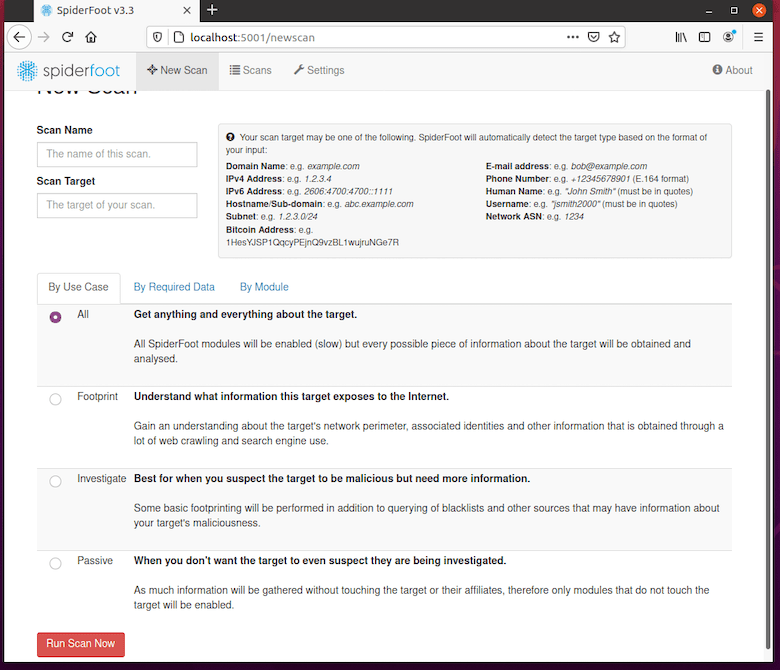
The main interface presents a clean layout with a “New Scan” button prominently displayed. The scan history shows previous reconnaissance operations. Settings menus provide access to module configuration and system preferences. The dashboard organizes your OSINT workspace efficiently, making it easy to launch scans and review results.
First-time users may encounter a brief setup wizard. Follow the prompts to configure basic preferences.
Step 9: Verify Installation with Test Scan
Confirm everything works correctly by running a test scan. Click the “New Scan” button to begin. SpiderFoot prompts you to enter a scan target—try a domain name you own or a well-known public domain for testing purposes.
Select your scan type and modules. Start with a passive scan that won’t directly interact with the target. Choose a few basic modules like DNS resolution, WHOIS lookup, and certificate transparency searches. These provide quick results without aggressive probing.
Click “Run Scan” to begin reconnaissance. SpiderFoot displays real-time progress as modules execute and discover information. Results populate the interface showing data correlations, discovered subdomains, IP addresses, and related entities.
Review the results to verify proper functionality. SpiderFoot should successfully query data sources and display findings. Test the filtering options to sort results by data type or module. Export functionality allows saving results in various formats for reporting.
If the scan completes successfully with expected results, your installation is working correctly. SpiderFoot on Ubuntu 24.04 LTS is now fully operational and ready for security assessments.
Optional: Run SpiderFoot as a System Service
Converting SpiderFoot to a systemd service enables automatic startup on boot and easier process management. Create a service file:
sudo nano /etc/systemd/system/spiderfoot.serviceAdd this configuration:
[Unit]
Description=SpiderFoot OSINT Tool
After=network.target

[Service]
Type=simple
User=youruser
WorkingDirectory=/home/youruser/spiderfoot
ExecStart=/usr/bin/python3 sf.py -l 0.0.0.0:5001
Restart=on-failure

[Install]
WantedBy=multi-user.target
Replace “youruser” with your actual username and adjust the WorkingDirectory path to match your SpiderFoot installation location. Save the file and reload systemd:
sudo systemctl daemon-reloadEnable the service to start at boot:
sudo systemctl enable spiderfootStart SpiderFoot immediately:
sudo systemctl start spiderfootCheck the service status:
sudo systemctl status spiderfootView logs with journalctl for troubleshooting:
sudo journalctl -u spiderfoot -fTroubleshooting Common Issues
Port Already in Use: If SpiderFoot reports the port is unavailable, another service occupies it. Check port usage with netstat -tuln | grep 5001. Either stop the conflicting service or launch SpiderFoot on a different port.
Python Dependency Errors: Occasionally, specific packages fail to install correctly. Reinstall individual packages with pip3 install --upgrade package-name. Consider using Python virtual environments to isolate dependencies and prevent conflicts.
Permission Denied: File permission errors typically stem from incorrect ownership or insufficient privileges. Verify you have read/write access to the SpiderFoot directory. Running certain operations may require sudo access.
Cannot Access Web Interface: If your browser can’t connect, check your firewall configuration. Ubuntu’s ufw firewall may block the port:
sudo ufw allow 5001/tcpVerify SpiderFoot is actually running by checking the terminal where you launched it. Confirm you’re using the correct IP address and port number.
Module Errors During Scans: Some modules require API keys for third-party services. Configure these in the settings menu. Network connectivity issues may prevent modules from reaching data sources. Verify internet access and check if proxy configuration is needed.
Database Errors: Storage permission problems can prevent SpiderFoot from writing scan results. Ensure adequate disk space remains available and the application has write permissions to its database directory.
Congratulations! You have successfully installed SpiderFoot. Thanks for using this tutorial for installing SpiderFoot on your Ubuntu 24.04 LTS system. For additional help or useful information, we recommend you check the official SpiderFoot website.
