How To Install Spotify on Debian 13

Spotify is one of the most widely used music streaming platforms in the world, but if you just upgraded to Debian 13 “Trixie,” you already know it is not sitting in the official Debian repositories waiting to be installed. To install Spotify on Debian 13, you need to either add its official APT repository manually, pull it from the Snap store, or install it via Flatpak from Flathub. This guide walks you through all three methods with exact terminal commands, expected outputs, and fixes for the most common errors you will run into. Pick the method that fits your workflow and have Spotify running in under five minutes.
Prerequisites
Before running any commands, confirm the following are in place:
- Operating System: Debian 13 “Trixie” (released August 9, 2025), running Linux kernel 6.12 LTS. Verify with:
lsb_release -a- System architecture:
amd64orarm64. Spotify does not supporti386, and Debian 13 droppedi386as a regular architecture. Confirm yours with:
dpkg --print-architecture- Sudo privileges: Your user account must be in the sudoers group. Run
sudo whoami— it should returnroot. - Internet connection: Required for downloading packages from Spotify’s repository.
- curl installed: Needed to fetch Spotify’s GPG signing key. Verify with:
curl --versionIf curl is missing, install it first:
sudo apt install curl -y- A Spotify account: Free or Premium. Sign up at spotify.com before you start.
Step 1: Update Your Debian 13 System
Always update your system before installing new software. This prevents dependency conflicts between your current package versions and whatever Spotify needs.
sudo apt update && sudo apt upgrade -yWhat this does:
sudo apt update— refreshes the local package index from all configured repositories.sudo apt upgrade -y— upgrades all installed packages to their latest available versions.- The
-yflag auto-confirms the upgrade so you do not need to manually type “Y”.
Expected output:
Reading package lists... Done
Building dependency tree... Done
Reading state information... Done
X upgraded, X newly installed, 0 to remove and 0 not upgraded.
Once this completes cleanly, you are ready to proceed with your preferred installation method.
Step 2: Install Spotify on Debian 13 via APT (Recommended Method)
The APT method is the recommended path for most Debian 13 users. You are pulling directly from Spotify’s official repository, which means every time you run sudo apt upgrade, Spotify updates automatically alongside the rest of your system.
This is the tightest, most reliable integration you can get on a Debian-based system.
Step 2a: Add the Spotify GPG Signing Key
A GPG key cryptographically verifies that the packages you download from Spotify’s repository have not been tampered with. Without it, APT will refuse to trust the repository.
Run the following command to download and store Spotify’s current signing key:
curl -sS https://download.spotify.com/debian/pubkey_6224F9941A8AA6D1.gpg | sudo gpg --dearmor --yes -o /etc/apt/trusted.gpg.d/spotify.gpgWhat each part does:
curl -sS— downloads the key silently, showing errors if they occur.gpg --dearmor— converts the key from ASCII-armored format to binary format, which APT requires.--yes— overwrites any existing key file without prompting.-o /etc/apt/trusted.gpg.d/spotify.gpg— saves the key to Debian’s trusted keyring directory.
No output means success. If you see a gpg: WARNING about permissions, it is safe to ignore.
Note: Spotify rotates its GPG key fingerprint periodically. Always verify the latest key against the official Spotify Linux download page at spotify.com/download/linux before running this command.
Step 2b: Add the Spotify APT Repository
Now tell APT where to find Spotify packages:
echo "deb https://repository.spotify.com stable non-free" | sudo tee /etc/apt/sources.list.d/spotify.listWhat this does:
- Creates a new file
/etc/apt/sources.list.d/spotify.listcontaining the Spotify repository URL. non-freedoes not mean paid software. In Debian’s classification, “non-free” refers to proprietary software whose source code is not publicly available under a free license.
Confirm the file was created correctly:
cat /etc/apt/sources.list.d/spotify.listExpected output:
deb https://repository.spotify.com stable non-freeStep 2c: Install the Spotify Client
Refresh the APT package index to include the new Spotify repository, then install:
sudo apt-get update && sudo apt-get install spotify-clientAPT will show a confirmation prompt with the download and disk usage estimates:
The following NEW packages will be installed:
  spotify-client
0 upgraded, 1 newly installed, 0 to remove and 0 not upgraded.
Need to get 105 MB of archives.
After this operation, 280 MB of additional disk space will be used.
Do you want to continue? [Y/n]
Type y and press Enter. The installation will pull the package and set up desktop integration automatically.
Step 2d: Launch Spotify
Open Spotify from your desktop environment’s application launcher by searching for “Spotify,” or launch it directly from the terminal:
spotifySign in with your Spotify account credentials. Email/password, Google, or Facebook all work. If you are running a minimal Debian setup without a desktop environment, Spotify requires a graphical session to run.
Step 3: Install Spotify on Debian 13 via Snap
The Snap method is a good option if you prefer sandboxed, containerized applications. Snaps bundle all their dependencies, so the version you install is completely isolated from your system libraries.
Unlike Ubuntu, Debian 13 does not ship with snapd by default. You need to install it manually first.
Step 3a: Install and Enable snapd
sudo apt update
sudo apt install snapd -y
sudo systemctl enable --now snapd.socket
Then install the core snap, which provides the runtime foundation for all other snap packages:
sudo snap install coreAfter this, reboot your system or log out and log back in. This step ensures the snap binary paths are properly loaded into your shell environment.
sudo rebootStep 3b: Install Spotify via Snap
Once snapd is active and your session is refreshed, install Spotify:
sudo snap install spotifyExpected output:
spotify 1.x.xx.xxx from Spotify✓ installedLaunch Spotify from the application menu, or run:
snap run spotifyStep 3c: Keep Spotify Updated via Snap
Snap packages update automatically in the background. To trigger a manual update:
sudo snap refresh spotifyTo check the currently installed version:
snap list spotifyPros and cons of the Snap method on Debian 13:
| Aspect | Detail |
|---|---|
| Sandboxed | Yes — isolated from system libraries |
| Auto-updates | Yes — background updates by default |
| Startup speed | Slightly slower than APT due to snap mount overhead |
| Disk footprint | Larger than APT install |
| snapd on Debian | Not promoted by default; requires manual setup |
Step 4: Install Spotify on Debian 13 via Flatpak
Flatpak is the preferred sandboxing solution among many Debian users, and Debian 13 ships with Flatpak support available directly from its repositories. The Spotify Flatpak package is hosted on Flathub and is maintained by the community, not Spotify directly.
Step 4a: Install Flatpak and Add the Flathub Repository
sudo apt install flatpak -yAdd Flathub as a Flatpak remote source:
flatpak remote-add --if-not-exists flathub https://flathub.org/repo/flathub.flatpakrepo--if-not-exists prevents an error if you have already added Flathub previously. It is safe to run at any time.
Restart your desktop session after this step so the Flatpak application launchers register in your app menu.
Step 4b: Install Spotify via Flatpak
flatpak install flathub com.spotify.ClientType y when prompted to confirm. Flatpak will download the Spotify runtime and the application bundle.
Launch Spotify after installation:
flatpak run com.spotify.Client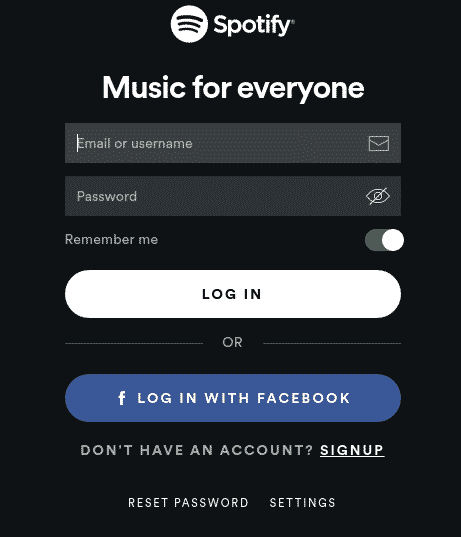
Step 4c: Keep Spotify Updated via Flatpak
Update all Flatpak apps at once:
flatpak updateOr update only Spotify:
flatpak update com.spotify.ClientImportant: The Flatpak version of Spotify is a community-maintained package. It is generally reliable and kept current, but it is not officially supported by Spotify. File any Spotify-specific bugs through Spotify’s official support channels, not through Flathub.
How to Update Spotify on Debian 13
Keeping Spotify current ensures you get new features, bug fixes, and security patches. Here is the update command for each method:
- APT: Spotify updates automatically when you upgrade your system.
sudo apt update && sudo apt upgrade- Snap: Updates run automatically in the background. Force a manual refresh:
sudo snap refresh spotify- Flatpak: Updates do not run automatically by default.
flatpak update com.spotify.ClientTo check your current Spotify version before and after an update:
- APT:
spotify --version - Snap:
snap list spotify - Flatpak:
flatpak list | grep Spotify
How to Uninstall Spotify from Debian 13
If you need to remove Spotify, use the command matching your installation method:
- APT (with config file removal):
sudo apt remove spotify-client --purge- Snap:
sudo snap remove spotify- Flatpak:
flatpak uninstall com.spotify.ClientThen clean up leftover cache and config files regardless of method:
rm -rf ~/.cache/spotify
rm -rf ~/.config/spotify
Uninstalling Spotify from your machine does not delete your Spotify account, playlists, or saved music. Everything tied to your account lives in Spotify’s cloud and will be there when you reinstall or sign in on another device.
Troubleshooting Common Issues
1. GPG Key Error: “NO_PUBKEY” or “The following signatures were invalid”
Cause: Spotify’s GPG key fingerprint on your system is outdated. Spotify rotates signing keys periodically.
Fix: Remove the old key and re-add the latest one:
sudo rm /etc/apt/trusted.gpg.d/spotify.gpg
curl -sS https://download.spotify.com/debian/pubkey_6224F9941A8AA6D1.gpg | sudo gpg --dearmor --yes -o /etc/apt/trusted.gpg.d/spotify.gpg
sudo apt update
Always cross-check the current key fingerprint at spotify.com/download/linux.
2. “Unable to Locate Package spotify-client”
Cause: The Spotify repository was not added correctly, or apt update was not run after adding it.
Fix: Verify the repository file exists and contains the correct URL:
cat /etc/apt/sources.list.d/spotify.listIf the file is missing or empty, re-run Step 2b. Then force a package list refresh:
sudo apt update
sudo apt install spotify-client
3. Spotify Opens to a Black or Blank Screen
Cause: A hardware acceleration conflict. This is more common on Debian 13 due to the newer kernel 6.12 and updated GPU drivers.
Fix: Launch Spotify with GPU acceleration disabled:
spotify --no-sandbox --disable-gpuFor a permanent fix, edit the Spotify desktop launcher:
sudo nano /usr/share/applications/spotify.desktopFind the line starting with Exec= and append --no-sandbox --disable-gpu at the end of the command string. Save and close.
4. Spotify Crashes Immediately on Startup
Cause: Corrupted cache files or a library conflict from a previous install.
Fix: Clear the Spotify cache directory first:
rm -rf ~/.cache/spotifyIf it still crashes, do a clean reinstall:
sudo apt remove spotify-client --purge && sudo apt install spotify-clientFor Snap users:
sudo snap remove spotify && sudo snap install spotify5. No Audio Output from Spotify
Cause: Debian 13 “Trixie” defaults to PipeWire as the audio system. If PipeWire is not configured correctly, Spotify may not find an audio output device.
Fix: Check PipeWire status:
wpctl statusCheck PulseAudio compatibility layer:
pactl infoIf the audio server is not running, start it:
systemctl --user start pipewire pipewire-pulseTest system audio separately to confirm it works outside of Spotify:
speaker-test -t wav -c 2If system audio works but Spotify is silent, try switching the output device inside Spotify under Settings > Audio quality.
Congratulations! You have successfully installed Spotify. Thanks for using this tutorial for installing the latest version of Spotify music streaming on Debian 13 “Trixie” system. For additional help or useful information, we recommend you check the official Spotify website.
