How To Install Stremio on Fedora 43

Stremio has emerged as one of the most versatile media center solutions for Linux users seeking a seamless streaming experience. This powerful application combines torrent streaming, IPTV support, and an extensive add-on ecosystem into a single, elegant interface. For Fedora 43 users, installing Stremio opens the door to thousands of movies, TV shows, live channels, and web content—all accessible from one centralized hub. This comprehensive guide walks through every installation method available, from the recommended Flatpak approach to manual RPM installation, ensuring you can choose the method that best fits your technical expertise and system configuration.
What is Stremio?
Stremio functions as a modern media organizer and streaming platform designed for the digital age. Unlike traditional media players, it aggregates content from multiple sources through its innovative add-on system, allowing users to discover, organize, and watch their favorite entertainment without juggling multiple applications.
The platform’s core strengths include torrent streaming capabilities that eliminate the need for separate download clients, automatic subtitle integration in over 100 languages, and cross-platform synchronization that keeps your library consistent across Linux, Windows, macOS, Android, and iOS devices. Stremio’s open-source foundation has fostered a vibrant community that continuously develops new add-ons, extending functionality far beyond basic video playback.
What sets Stremio apart is its calendar feature that tracks upcoming episodes, integrated player with advanced controls, and native support for casting to smart TVs through DLNA, Chromecast, and AppleTV protocols. The application handles various streaming protocols including HTTP, HLS, and BitTorrent, making it remarkably flexible for different content sources.
Understanding Fedora 43
Fedora 43 represents the latest iteration of Red Hat’s community-driven Linux distribution, released with cutting-edge packages and modern desktop environments. Known for being on the bleeding edge of open-source technology, Fedora provides an excellent foundation for multimedia applications like Stremio.
The distribution’s robust package management through DNF (Dandified YUM) ensures dependency resolution works smoothly, while built-in Flatpak support makes containerized applications readily accessible. Fedora’s commitment to only including free and open-source software by default means some multimedia codecs require additional repositories, a consideration addressed later in this guide.
For media center applications, Fedora 43 offers excellent hardware acceleration support, fast kernel updates, and a well-tuned desktop experience that handles video streaming efficiently. The distribution’s regular six-month release cycle ensures you’re running modern software that takes full advantage of contemporary hardware capabilities.
System Requirements and Prerequisites
Before diving into installation, verify your system meets Stremio’s requirements. The application runs smoothly on modest hardware but benefits from decent specifications for 4K streaming and multiple concurrent streams.
Hardware requirements include:
- Processor: 2GHz dual-core CPU minimum; quad-core recommended for high-definition content
- RAM: 2GB minimum, though 4GB or more ensures smooth playback without buffering
- Storage: 500MB free space for the application and its dependencies
- Graphics: GPU with hardware acceleration support significantly improves performance
Software prerequisites:
Your Fedora 43 installation should be current with the latest updates. Open a terminal and run:
sudo dnf update -yThis command refreshes package repositories and upgrades all installed software to their newest versions. The process may take several minutes depending on how recently you updated. Administrative privileges through sudo access are essential, as all installation methods require system-level package management.
Ensure your internet connection is stable, as downloading Stremio and its dependencies requires approximately 200-300MB of bandwidth. Users behind restrictive firewalls should verify that ports commonly used for package managers are accessible.
Installation Method 1: Flatpak (Recommended)
Flatpak represents the most reliable installation method for Stremio on Fedora 43. This universal packaging format delivers applications in self-contained environments with all dependencies included, eliminating the compatibility issues that sometimes plague traditional package formats.
Why Choose Flatpak?
Flatpak offers several compelling advantages. The sandboxing technology isolates applications from core system files, enhancing security by limiting potential damage from vulnerabilities. Updates happen automatically through Flathub, ensuring you always run the latest version without manual intervention. Cross-version compatibility means the same Flatpak works identically across Fedora 43, 44, and beyond, simplifying upgrades.
Step 1: Enable Flathub Repository
Fedora 43 includes Flatpak by default, but the Flathub repository—where Stremio resides—requires manual addition. Execute this command:
flatpak remote-add --if-not-exists flathub https://flathub.org/repo/flathub.flatpakrepoThe --if-not-exists flag prevents errors if Flathub is already configured. Verify successful addition with:
flatpak remotesYou should see “flathub” listed among available repositories.
Step 2: Install Stremio via Flatpak
With Flathub configured, installing Stremio requires a single command:
flatpak install flathub com.stremio.Stremio -yThe installation process downloads approximately 200MB of data, including the Stremio application and required runtime libraries. Progress indicators show download speed and remaining time. On a typical broadband connection, expect completion within 3-5 minutes.
The system may prompt for administrator password confirmation. Flatpak automatically handles all dependencies, including Qt libraries, multimedia frameworks, and platform runtimes, eliminating manual dependency management.
Step 3: Launch Stremio
Once installation completes, launch Stremio through your application menu or via terminal:
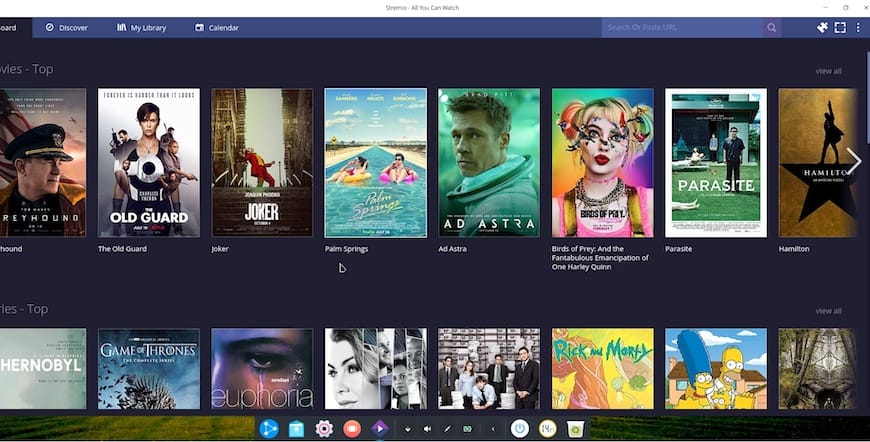
flatpak run com.stremio.StremioThe first launch initializes configuration files and may take slightly longer than subsequent starts. Stremio’s welcome screen appears, prompting account creation or login.
Managing Flatpak Installation
Update Stremio and all Flatpak applications with:
flatpak updateGrant additional permissions if needed using Flatseal, a graphical permissions manager available through Flatpak. This proves useful for accessing external storage locations or enabling features requiring broader filesystem access.
Installation Method 2: Using Installation Scripts
Community-developed installation scripts provide an automated alternative that handles multiple steps simultaneously. The alexandru-balan/Stremio-Install-Scripts GitHub repository offers battle-tested scripts supporting various Linux distributions including Fedora.
When to Use Scripts
Scripts excel for users who want automation but prefer traditional system integration over Flatpak’s sandboxing. This method installs Stremio directly to system directories, potentially offering better integration with desktop environments and file managers.
Step 1: Install Git
Git enables repository cloning. Install it if absent:
sudo dnf install git -yVerify installation:
git --versionStep 2: Clone the Repository
Download the installation scripts:
git clone https://github.com/alexandru-balan/Stremio-Install-Scripts.git
cd Stremio-Install-Scripts
Step 3: Execute the Installation Script
The repository contains distribution-specific scripts. For Fedora, make the script executable and run:
chmod +x install.sh
sudo ./install.sh
The script automatically detects your distribution, downloads appropriate packages, resolves dependencies, and configures desktop integration. Watch terminal output for progress updates and potential prompts requiring user input.
Installation duration varies based on internet speed and system performance, typically completing within 5-10 minutes. The script places executables in /usr/bin/ and desktop entries in standard locations, making Stremio accessible through application menus.
Verification
Confirm successful installation:
which stremio
stremio --version
These commands display Stremio’s installation path and version number respectively.
Installation Method 3: RPM Package (Manual)
Traditional RPM installation offers granular control for advanced users comfortable with manual dependency management. While more complex than Flatpak, this method provides deep system integration and customization options.
Downloading the RPM
Visit Stremio’s official download page or use wget:
wget https://dl.strem.io/linux/v4.4.168/stremio_4.4.168-1_amd64.rpmReplace version numbers with the latest release available. Always download from official sources to ensure authenticity and security.
Installing Dependencies
RPM installation requires manual dependency resolution. Essential packages include:
sudo dnf install libmpv qt5-qtquickcontrols qt5-qtbase qt5-qtwebengine -yUsers may need RPM Fusion repositories for certain multimedia codecs:
sudo dnf install https://download1.rpmfusion.org/free/fedora/rpmfusion-free-release-$(rpm -E %fedora).noarch.rpm -yInstalling the RPM Package
Install the downloaded package:
sudo dnf install ./stremio_4.4.168-1_amd64.rpmDNF automatically attempts dependency resolution. If conflicts arise, error messages indicate missing packages or version mismatches.
Handling Dependency Errors
Common issues include missing libmpv libraries. Resolve with:
sudo dnf install mpv-libs --allowerasingThe --allowerasing flag permits removing conflicting packages if necessary. Exercise caution with this option, reviewing proposed changes before confirming.
Post-Installation Configuration
Proper configuration maximizes Stremio’s capabilities and ensures optimal performance on Fedora 43.
Initial Setup Wizard
Launch Stremio to access the setup wizard. Creating an account, while optional, enables library synchronization across devices and personalized recommendations. Account creation requires only an email address and password.
Privacy-conscious users can skip account creation, though this limits cloud synchronization features. The application functions fully in anonymous mode for local streaming.
Installing and Configuring Add-ons
Add-ons transform Stremio from a simple player into a comprehensive media hub. Access the add-on catalog by clicking the puzzle piece icon in the top-right corner.
Essential add-ons include:
Torrentio: Provides torrent streaming from various indexers. Installation requires visiting the Torrentio configuration page external to Stremio, selecting preferred torrent providers, then installing via the generated URL. This extra step enables customization of streaming quality, debrid service integration, and language preferences.
YouTube: Official add-on for accessing YouTube content directly within Stremio’s interface.
OpenSubtitles: Automatically fetches subtitles in your preferred languages. Configure language priority in add-on settings.
Install add-ons by clicking “Install” buttons in the catalog. Advanced users can install custom add-ons by entering repository URLs in the add-on search field.
Application Settings Optimization
Navigate to Settings (gear icon) for fine-tuning:
Player Settings: Enable hardware acceleration by selecting “Automatic” or specific decoders (VDPAU for NVIDIA, VAAPI for AMD/Intel). Hardware acceleration significantly reduces CPU usage during playback.
Subtitle Preferences: Set default languages, text size, and encoding. Stremio supports customizable subtitle appearance including font, color, and background.
Streaming Quality: Configure default quality preferences (480p, 720p, 1080p, 4K). Higher qualities require faster internet connections and more powerful hardware.
Cache Configuration: Adjust buffer size for smoother playback on slower connections. Larger buffers prevent stuttering but increase memory usage.
Enabling Hardware Acceleration
Fedora 43 requires additional codecs for full hardware acceleration support. Install complete FFmpeg and GStreamer plugins:
sudo dnf install ffmpeg gstreamer1-plugins-{bad-\*,good-\*,base} gstreamer1-plugin-openh264 gstreamer1-libav --exclude=gstreamer1-plugins-bad-free-devel -yNVIDIA users should install proprietary drivers through RPM Fusion:
sudo dnf install akmod-nvidia xorg-x11-drv-nvidia-cudaAMD and Intel users benefit from Mesa drivers, typically pre-installed on Fedora 43:
sudo dnf install mesa-vdpau-drivers mesa-va-driversVerify hardware acceleration by playing high-definition content and monitoring CPU usage with:
topProperly configured hardware acceleration shows minimal CPU usage during video playback.
Troubleshooting Common Issues
Even straightforward installations occasionally encounter problems. These solutions address the most frequent issues.
Dependency Errors
“nothing provides libmpv.so.1” Error: This indicates missing multimedia libraries. Solve by enabling RPM Fusion and installing mpv-libs:
sudo dnf install mpv-libsQt Version Conflicts: Fedora’s rapid update cycle sometimes creates version mismatches. Resolve by updating all Qt packages:
sudo dnf update qt5-\*Flatpak-Specific Problems
Permission Denied Errors: Flatpak’s sandboxing may restrict access to external drives or network shares. Use Flatseal to grant additional permissions, or run with override flags:
flatpak run --filesystem=home com.stremio.StremioRuntime Errors: Update Flatpak runtimes separately from applications:
flatpak update org.kde.PlatformVideo Playback Issues
Black Screen or Codec Errors: Install complete codec suite including patent-encumbered formats:
sudo dnf install ffmpeg --allowerasingNo Hardware Acceleration Detected: Verify graphics drivers are properly installed and loaded. Check with:
vainfo  # For VAAPI
vdpauinfo  # For VDPAU
These commands display supported video acceleration profiles. Missing output indicates driver problems.
Application Won’t Launch
Check logs for specific error messages:
flatpak run com.stremio.Stremio --verboseOr for system installations:
stremio --verboseCommon startup errors relate to missing dependencies or corrupted configuration files. Reset configuration by removing:
rm -rf ~/.config/stremioThis forces Stremio to regenerate configuration files on next launch.
Optimizing Stremio Performance
Maximize streaming quality and responsiveness through these optimizations.
Complete Multimedia Stack
Beyond basic codecs, install comprehensive multimedia support:
sudo dnf groupinstall multimedia
sudo dnf install gstreamer1-{ffmpeg,libav,plugins-{good,ugly,bad{,-free,-nonfree}}} --setopt=strict=0
This ensures compatibility with every video format and streaming protocol Stremio encounters.
Performance Monitoring
Monitor resource usage during streaming using Mission Center (Fedora’s system monitor replacement):
flatpak install flathub io.missioncenter.MissionCenterWatch GPU utilization, temperature, and memory consumption to identify bottlenecks affecting streaming quality.
Updating and Maintaining Stremio
Regular updates ensure security, stability, and access to new features.
Flatpak Updates
Update Stremio specifically:
flatpak update com.stremio.StremioOr update all Flatpak applications simultaneously:
flatpak updateEnable automatic updates through GNOME Software or KDE Discover for hands-free maintenance.
Script-Based Installation Updates
Re-run the installation script periodically:
cd Stremio-Install-Scripts
git pull
sudo ./install.sh
The script detects existing installations and performs upgrades rather than fresh installations.
Uninstallation
Remove Stremio if needed:
Flatpak:
flatpak uninstall com.stremio.StremioSystem Installation:
sudo dnf remove stremioDelete configuration files to completely remove traces:
rm -rf ~/.config/stremio ~/.cache/stremioCongratulations! You have successfully installed Stremio. Thanks for using this tutorial for installing Stremio on Fedora 43 Linux system. For additional help or useful information, we recommend you check the official Stremio website.
