How To Install Stremio on Manjaro

Stremio has become one of the most popular streaming platforms for Linux enthusiasts who want a seamless entertainment experience. This powerful, open-source media center brings together movies, TV shows, web channels, and live television into a single, elegant interface. For Manjaro users, installing Stremio offers unique advantages thanks to the distribution’s Arch-based foundation and access to the extensive Arch User Repository (AUR).
Whether you’re transitioning from proprietary streaming services or simply looking for a versatile media player that respects your freedom, Stremio delivers exceptional functionality without compromise. The platform supports 4K HDR streaming, automatic subtitle downloads, and Chromecast integration, making it a genuine alternative to commercial streaming solutions.
This comprehensive guide walks you through three different installation methods for Stremio on Manjaro. You’ll learn GUI-based installation through Pamac, command-line installation using AUR helpers, and Flatpak installation for those who prefer containerized applications. Beyond installation, we’ll cover essential configuration, troubleshooting common issues, and optimizing performance to ensure you get the best streaming experience possible.
What is Stremio?
Stremio is a modern media center application that aggregates content from various sources through its innovative add-on system. Unlike traditional media players that simply play local files, Stremio connects to streaming services, torrent networks, and web channels to provide access to vast libraries of content.
The platform’s architecture revolves around add-ons that extend functionality beyond basic media playback. These community-developed extensions enable features like torrent streaming, metadata retrieval from databases like IMDb and TMDB, subtitle integration, and synchronization across multiple devices. Users maintain full control over which add-ons to install, creating a customized streaming experience tailored to individual preferences.
What sets Stremio apart is its cross-platform nature and commitment to open-source principles. The application syncs your library and watched status across Windows, macOS, Linux, Android, and iOS devices. This seamless synchronization means you can start watching on your Manjaro desktop and continue on your smartphone without missing a beat.
System Requirements and Prerequisites
Before installing Stremio on your Manjaro system, verify that your hardware meets the minimum specifications. Stremio runs smoothly on most modern computers, requiring at least 2GB of RAM and a dual-core processor. For optimal 4K streaming performance, however, consider having 4GB of RAM or more and a quad-core processor with hardware acceleration support.
Your Manjaro installation should be relatively up-to-date. Run a system update before proceeding:
sudo pacman -SyuFor AUR-based installations, you’ll need the base-devel package group, which includes essential build tools like make, gcc, and patch. Install it with:
sudo pacman -S base-devel gitCertain dependencies enhance Stremio’s functionality. The libappindicator-gtk3 library enables system tray integration, while libsecret manages secure credential storage. Most installation methods handle these automatically, but having them pre-installed prevents potential issues.
Ensure you have a stable internet connection. The installation process downloads packages and dependencies, and streaming naturally requires bandwidth. For smooth HD streaming, a connection speed of at least 5 Mbps is recommended, while 4K content demands 25 Mbps or higher.
Method 1: Installing Stremio via GUI (Pamac/Add/Remove Software)
Manjaro’s graphical package manager, Pamac, provides the most user-friendly installation method. This approach suits users who prefer visual interfaces over terminal commands.
Step 1: Launch the Software Manager
Open the application menu and search for “Add/Remove Software” or “Software Manager”. The Pamac interface appears with a clean, organized layout displaying available applications.
Step 2: Enable AUR Repository Access
Click the three horizontal lines or dots in the top-right corner to access preferences. Navigate to the “Preferences” option and enter your password when prompted. Within the preferences window, locate the “AUR” tab or section.
Toggle the “Enable AUR support” option to activate access to the Arch User Repository. This repository contains thousands of community-maintained packages, including Stremio. After enabling AUR, click “Check for Updates” to rebuild the package cache and refresh the repository databases.
Step 3: Search for Stremio
Return to the main Pamac window and click the “Browse” tab. Select the search icon, typically represented by a magnifying glass, and type “stremio” into the search field. Press Enter to execute the search.
Several results may appear, including different Stremio packages. Look for the standard “stremio” package from AUR, which typically displays the most downloads and highest community ratings.
Step 4: Build and Install the Package
Click on the Stremio package to view its details. Review the package description, dependencies, and build information to confirm it’s the correct application. Click the “Build” button to begin the compilation process.
Pamac displays a summary of packages to be installed and built. Review this list and click “Apply” to proceed. Enter your root password when the authentication dialog appears. The build process begins, compiling Stremio from source code.
Building takes several minutes depending on your system’s performance. Pamac shows progress indicators and compilation output. Wait patiently as the system downloads source files, compiles code, and installs the resulting package.
Step 5: Launch Stremio
Once installation completes successfully, locate Stremio in your application menu under the “Multimedia” or “Internet” category. Click the icon to launch the application for the first time.
Method 2: Installing Stremio via Command Line (AUR Helper)
Command-line installation offers greater control and automation for users comfortable with terminal environments. AUR helpers streamline the process of building and installing packages from the Arch User Repository.
Installing with Yay
Yay (Yet Another Yogurt) is the most popular AUR helper, known for its Pacman-like syntax and reliability. If you don’t have Yay installed, set it up first:
cd /tmp
git clone https://aur.archlinux.org/yay.git
cd yay
makepkg -si
This downloads Yay’s source code, builds it, and installs it on your system. Once Yay is ready, installing Stremio becomes remarkably simple:
yay -S stremioYay automatically resolves dependencies, downloads source files, and manages the build process. When prompted to proceed with installation, type “Y” and press Enter. Review the PKGBUILD file if you want to inspect the build instructions, though most users can safely skip this step by pressing Enter.
The installation proceeds automatically, compiling Stremio and its dependencies. This takes a few minutes. Once complete, Stremio is ready to launch.
Installing with Paru
Paru offers similar functionality to Yay with enhanced features like better PKGBUILD review interfaces. Install Paru first if you prefer it:
sudo pacman -S --needed base-devel
cd /tmp
git clone https://aur.archlinux.org/paru.git
cd paru
makepkg -si
Then install Stremio:
paru -S stremioInstalling with Trizen
Trizen is another solid AUR helper with a focus on security and ease of use. Install Trizen:
cd /tmp
git clone https://aur.archlinux.org/trizen.git
cd trizen
makepkg -sri
Use Trizen to install Stremio:
trizen -S stremioManual Dependency Management
Occasionally, certain dependencies need manual installation before Stremio works correctly. Install these libraries separately:
sudo pacman -S libappindicator-gtk3 libsecretThese packages provide system tray integration and secure credential storage respectively. While most installation methods handle dependencies automatically, pre-installing them prevents potential issues.
Method 3: Installing Stremio via Flatpak
Flatpak provides a distribution-agnostic installation method that sandboxes applications for enhanced security. This approach suits users who prioritize isolation and automatic updates.
Step 1: Install Flatpak
Manjaro typically includes Flatpak support, but verify it’s installed:
sudo pacman -S flatpakAdd the Flathub repository, which hosts thousands of Flatpak applications:
flatpak remote-add --if-not-exists flathub https://flathub.org/repo/flathub.flatpakrepoRestart your system or log out and back in to ensure Flatpak integration works properly.
Step 2: Install Stremio from Flathub
Execute the installation command:
flatpak install flathub com.stremio.StremioConfirm the installation when prompted. Flatpak downloads the Stremio runtime and application, installing them in a sandboxed environment. This approach provides additional security by isolating Stremio from the rest of your system.
Step 3: Launch the Flatpak Version
Run Stremio with:
flatpak run com.stremio.StremioFor easier access, Flatpak creates a desktop entry automatically. Find Stremio in your application menu just like native applications.
Comparing Flatpak and AUR
Flatpak installations update independently from system packages, receiving updates directly from Flathub. AUR packages integrate more deeply with Manjaro, using system libraries and following Arch packaging conventions. Flatpak uses more disk space due to bundled dependencies but offers better isolation. Choose based on your priorities: system integration (AUR) or sandboxing (Flatpak).
First Launch and Initial Setup
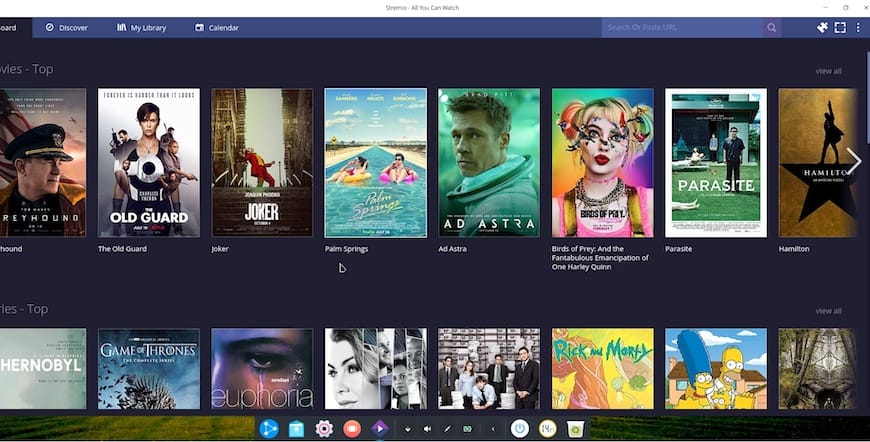
Launching Stremio for the first time presents a clean, modern interface. The application prompts you to create an account or log in with existing credentials. Account creation is free and enables cloud synchronization of your library, watch progress, and add-on configuration across devices.
Register using your email address and a secure password, or use social login options for convenience. Logging in synchronizes your settings and library immediately, so any content you add or watch updates across all devices where you’re logged in.
The Stremio interface consists of four main sections. The “Discover” section showcases trending content and recommendations. “Library” stores content you’ve added to your collection. The “Board” provides notifications and updates. Finally, “Add-ons” manages installed extensions that power Stremio’s functionality.
Navigate to settings by clicking your profile icon. Configure player preferences including default playback quality, subtitle language preferences, and subtitle size. Adjust the cache location if you want Stremio to store temporary files on a different drive or partition.
Enable hardware acceleration if your system supports it, significantly improving playback performance especially for high-resolution content. Set your preferred audio output device and configure network settings if you’re behind a proxy or use a VPN.
Essential Add-ons Installation and Configuration
Stremio’s true power emerges through its add-on ecosystem. These extensions connect to content sources, provide metadata, and enhance functionality beyond basic playback.
Installing Torrentio
Torrentio stands as the most popular add-on for streaming torrented content. Visit the Torrentio configuration page at https://torrentio.strem.fun/configure to customize settings before installation. Select your preferred torrent sources, configure quality filters, and choose language preferences.
For enhanced streaming performance, integrate Real-Debrid or similar premium services. These debrid services download torrents to their servers, allowing you to stream directly from fast HTTP connections rather than P2P networks. This dramatically improves reliability and speed while protecting your IP address.
Copy the generated manifest URL from Torrentio’s configuration page. In Stremio, navigate to the Add-ons section and paste this URL into the search bar. Click install to add Torrentio to your Stremio setup.
Adding Cinemeta and Metadata Providers
Cinemeta serves as Stremio’s official metadata provider, fetching information about movies and TV shows from popular databases. This add-on typically installs by default, but verify it’s active in your add-ons list. Metadata providers enhance your browsing experience by displaying posters, descriptions, ratings, and cast information.
Installing mdblist for Watchlist Integration
The mdblist add-on synchronizes watchlists from IMDb, TMDB, and Trakt. This powerful tool lets you create custom collections and import lists from popular sites. Configure mdblist by creating an account on their website, generating an API key, and entering it during add-on setup. Your watchlists automatically appear in Stremio’s interface.
YouTube and Streaming Services
Install the official YouTube add-on to stream YouTube content directly through Stremio. Additional add-ons connect to various free and subscription streaming services, though availability varies by region and service licensing.
OpenSubtitles for Enhanced Subtitles
While Stremio includes basic subtitle support, the OpenSubtitles add-on provides access to a massive community-driven subtitle database. Install it for improved subtitle availability across multiple languages and better synchronization.
Managing installed add-ons remains straightforward. Click the three dots next to any add-on to access options for updating, reconfiguring, or uninstalling. Regularly review your add-ons to remove unused extensions and update existing ones for optimal performance.
Troubleshooting Common Issues
Even with straightforward installation methods, occasional issues arise. These solutions address the most common problems Manjaro users encounter with Stremio.
“patch: command not found” Error
This error occurs when building AUR packages without the complete base-devel group installed. The patch utility is essential for applying source code modifications during compilation. Resolve it by installing base-devel:
sudo pacman -S base-develThen retry the Stremio installation. This installs all necessary build tools, preventing similar errors with future AUR packages.
Dependency Errors During Installation
Missing dependencies manifest as failed builds or runtime errors. Common missing libraries include libssl1.1, libappindicator-gtk3, and libsecret. Install them manually:
sudo pacman -S libappindicator-gtk3 libsecretFor libssl1.1 on newer systems where it’s deprecated, search AUR for compatibility packages or use Flatpak installation instead, which bundles required dependencies.
“Error Retrieving Information” Message
This frustrating error typically stems from add-on issues or network problems. Start by updating all installed add-ons, as outdated extensions often lose compatibility with Stremio’s core application. Uninstall and reinstall problematic add-ons to refresh their configuration.
DNS issues can also trigger this error. Configure DNS-over-HTTPS in Stremio’s settings or use a reliable public DNS server like Cloudflare (1.1.1.1) or Google (8.8.8.8). Modify your system DNS settings:
sudo nano /etc/resolv.confAdd:
nameserver 1.1.1.1
nameserver 8.8.8.8
Clear Stremio’s cache by navigating to the application data directory and removing cached files. The cache typically resides in ~/.config/stremio or ~/.local/share/stremio.
Application Won’t Launch
When Stremio fails to start, launch it from terminal to view error messages:
stremioor for Flatpak:
flatpak run com.stremio.StremioError output reveals the underlying issue. Common causes include conflicting packages, missing dependencies, or corrupted configuration files. Verify all dependencies are installed and consider reinstalling Stremio if configuration files appear corrupted.
Streaming Performance Issues
Buffering and stuttering usually indicate insufficient bandwidth or suboptimal settings. Adjust cache size in Stremio’s settings, allocating more space for temporary files. Enable hardware acceleration if available, offloading video decoding to your GPU rather than CPU.
Network optimization helps significantly. Close bandwidth-intensive applications, use a wired connection instead of WiFi when possible, and consider using a VPN optimized for streaming if your ISP throttles certain traffic.
Add-on Installation Failures
Invalid manifest URLs or network connectivity problems cause add-on installation failures. Double-check the manifest URL for typos, ensuring you’ve copied the complete address. Test your internet connection and firewall settings to confirm Stremio can reach external servers.
Keeping Stremio Updated
Maintaining current versions ensures you benefit from new features, performance improvements, and security patches.
Updating AUR Installations
AUR packages update through your AUR helper. With Yay:
yay -SyuThis command updates all system packages and AUR packages including Stremio. With Paru:
paru -SyuRegular updates keep your entire system current. Schedule weekly update checks to maintain security and stability.
Updating Flatpak Installations
Flatpak applications update independently from system packages:
flatpak updateThis checks Flathub for updates to all installed Flatpak applications. Enable automatic updates by configuring Flatpak’s systemd timer or using GNOME Software’s automatic update feature if you use GNOME desktop.
Updating Add-ons
Stremio add-ons don’t update automatically. Periodically check the add-ons section for updates. Outdated add-ons cause errors and miss new features. Reinstall add-ons from their original sources to get latest versions.
Monitor Stremio’s changelog on their official website or GitHub repository to learn about new features and improvements. Major updates occasionally require configuration adjustments or offer new optimization options.
Congratulations! You have successfully installed Stremio. Thanks for using this tutorial for installing Stremio on Manjaro Linux system. For additional help or useful information, we recommend you check the official Stremio website.
