How To Install Symfony PHP Framework on Debian 13

Symfony stands as one of the most powerful and flexible PHP frameworks available today. Trusted by enterprises and startups alike, this framework powers thousands of web applications worldwide with its robust architecture and reusable components. Installing Symfony on Debian 13 (Trixie) creates an ideal development environment that combines stability with cutting-edge features.
This comprehensive guide walks through every step of installing Symfony PHP framework on Debian 13. Whether building your first web application or deploying enterprise solutions, you’ll learn to set up a complete Symfony development environment from scratch. The process covers system preparation, PHP configuration, dependency management, and project creation—everything needed to start developing modern PHP applications.
Debian 13 provides an excellent foundation for Symfony development. Its package management system, security updates, and extensive software repositories make it a preferred choice for PHP developers. By the end of this tutorial, you’ll have a fully functional Symfony installation ready for development.
Prerequisites and System Requirements
Before diving into the installation process, ensure your system meets specific requirements. A Debian 13 system with sudo or root access is essential. The server should have at least 2GB of RAM, though 4GB is recommended for smoother development workflows. You’ll also need a stable internet connection to download packages and dependencies.
Basic command-line familiarity helps tremendously. Most Symfony installation steps involve terminal commands, though they’re straightforward and well-explained. Having SSH access configured makes remote server management easier.
Software Requirements Checklist
PHP 8.2 or higher forms the backbone of modern Symfony applications. This version includes performance improvements and security patches crucial for production environments. Several PHP extensions are mandatory:
- php-cli: Command-line interface for PHP execution
- php-mbstring: Handles multibyte string operations for internationalization
- php-xml: XML parsing and manipulation capabilities
- php-zip: Archive file handling for package management
- php-curl: HTTP request functionality for API interactions
- php-intl: Internationalization and localization support
- php-sqlite3: SQLite database driver (alternatively php-mysql or php-pgsql)
Composer, the PHP dependency manager, is non-negotiable. Symfony relies heavily on Composer for package installation and autoloading. Git version control helps manage project code effectively. The Symfony CLI tool, while optional, dramatically simplifies development workflows with built-in servers and debugging tools.
Step 1: Update and Prepare Your Debian 13 System
Fresh installations require proper preparation. Begin by updating system packages to ensure security patches and compatibility. Open your terminal and execute:
sudo apt update && sudo apt upgrade -yThis command refreshes package lists and upgrades existing software. The process typically takes a few minutes depending on your system’s current state. Regular updates prevent compatibility issues and security vulnerabilities.
Next, install essential build tools and utilities:
sudo apt install curl wget unzip git software-properties-common -yEach tool serves a specific purpose. Curl downloads files from URLs, wget handles web retrievals, unzip extracts compressed archives, and git manages version control. The software-properties-common package enables repository management.
Verify successful installation:
git --version
curl --version
Seeing version numbers confirms proper installation. These tools support the entire Symfony ecosystem, from downloading Composer to cloning repositories.
Step 2: Install PHP 8.2 and Required Extensions
Debian 13 repositories include PHP 8.2 by default, simplifying the installation process considerably. Install PHP along with all required extensions in one comprehensive command:
sudo apt install php8.2 php8.2-cli php8.2-common php8.2-mbstring php8.2-xml php8.2-zip php8.2-curl php8.2-intl php8.2-sqlite3 php8.2-mysql php8.2-pgsql php8.2-gd php8.2-opcache -yThis command installs the PHP core and essential extensions. Each extension enables specific functionality. The mbstring extension handles multibyte character encodings crucial for international applications. XML processing requires php-xml for parsing configuration files and handling data formats. The curl extension enables API communications and HTTP requests.
Internationalization features depend on php-intl, which provides locale-specific formatting for dates, numbers, and currencies. Database connectivity requires appropriate drivers—sqlite3 for lightweight development, mysql for traditional databases, or pgsql for PostgreSQL users. The opcache extension improves PHP performance through bytecode caching.
Verify PHP Installation
Confirm PHP installed correctly:
php -vThe output should display PHP 8.2 or higher. Something like “PHP 8.2.15” indicates success. Check installed modules:
php -m | grep -E 'mbstring|xml|curl|intl|zip'This command filters and displays specific extensions. Each required module should appear in the output. Missing extensions cause Symfony installation failures.
Check PHP configuration:
php --iniThis reveals which configuration files PHP loads, useful for troubleshooting and optimization.
Step 3: Install Composer PHP Dependency Manager
Composer revolutionized PHP development by automating dependency management. Symfony applications rely entirely on Composer for package installation, updates, and autoloading.
Download the Composer installer:
curl -sS https://getcomposer.org/installer -o composer-setup.phpThis downloads the official installer script. For added security, verify the installer’s integrity using the official hash, though this step is optional for development environments.
Install Composer globally:
sudo php composer-setup.php --install-dir=/usr/local/bin --filename=composerGlobal installation makes Composer accessible from any directory. The command moves the binary to a system-wide location and names it “composer” for convenience.
Remove the installer script:
rm composer-setup.phpVerify Composer installation:
composer --versionSuccessful installation displays the Composer version, typically something like “Composer version 2.7.1”. Composer updates frequently, so seeing the latest version indicates a fresh installation.
Configure Composer memory limits if needed:
export COMPOSER_MEMORY_LIMIT=-1This removes memory restrictions, preventing installation failures on large projects. Add this to your shell configuration file for persistence.
Step 4: Install Symfony CLI Tool
The Symfony CLI provides development conveniences that streamline workflows. It includes a local web server with TLS support, built-in debugging tools, and project management features.
Download and install the Symfony CLI:
curl -sS https://get.symfony.com/cli/installer | bashThis script downloads and installs the latest Symfony CLI version. The installer provides instructions for adding Symfony to your system PATH.
Move the binary to a system location:
sudo mv ~/.symfony5/bin/symfony /usr/local/bin/symfonyVerify installation:
symfony versionThe output confirms successful installation. Now run the system requirements checker:
symfony check:requirementsThis powerful command analyzes your system configuration, checking PHP version, required extensions, and recommended settings. Green checkmarks indicate proper configuration. Yellow warnings suggest improvements. Red errors require immediate attention before proceeding.
Address any issues the checker identifies. Missing PHP extensions can be installed using apt. Configuration problems often need php.ini adjustments.
Step 5: Create Your First Symfony Project
Symfony offers two project templates. The full web application template includes Twig templating, asset management, and form handling—ideal for traditional websites. The minimal template creates microservices and APIs without frontend dependencies.
Create a Full-Stack Web Application
For complete web applications:
symfony new my_symfony_project --version=stable --webappThis command creates a new directory called “my_symfony_project” with all necessary files and dependencies. The --webapp flag installs additional packages for full-stack development, including Twig templates, asset management, and security components. Installation takes several minutes as Composer downloads dependencies.
Create a Minimal API Project
For lightweight APIs:
symfony new my_api_project --version=stableThis installs only essential components, creating a leaner application perfect for REST APIs and microservices.
Alternative Installation Method
Without Symfony CLI, use Composer directly:
composer create-project symfony/skeleton my_project
composer require webapp
The first command creates a minimal Symfony installation. The second adds web application dependencies.
Navigate to your project directory:
cd my_symfony_projectExamine the directory structure. The /src directory contains application code. Configuration files reside in /config. The /public directory holds web-accessible files, including the front controller index.php. Cache and logs live in /var, while dependencies occupy /vendor.
Step 6: Configure File Permissions Correctly
Proper file permissions prevent security vulnerabilities and runtime errors. Symfony needs write access to specific directories for caching and logging.
Set ownership to your user account:
sudo chown -R $USER:$USER /path/to/my_symfony_projectReplace the path with your actual project location. This ensures your user owns all files, preventing permission conflicts during development.
Grant write permissions to cache and log directories:
chmod -R 775 var/cache var/logThe 775 permission allows user and group write access while restricting others. This balances security with functionality.
Using Access Control Lists (ACL)
For production environments or shared hosting, ACL provides granular control:
sudo setfacl -R -m u:www-data:rwX -m u:$USER:rwX var
sudo setfacl -dR -m u:www-data:rwX -m u:$USER:rwX var
These commands grant both your user and the web server user (www-data) appropriate permissions. The first command sets current file permissions. The second ensures new files inherit correct permissions.
Step 7: Launch the Symfony Development Server
Symfony’s built-in development server eliminates Apache or Nginx configuration during development. Start the server:
symfony serveAlternatively, use:
symfony server:startThe server starts on port 8000 by default, though it automatically selects an available port if 8000 is occupied. The Symfony CLI automatically configures TLS certificates, enabling HTTPS development.
Without Symfony CLI, use PHP’s built-in server:
php -S 127.0.0.1:8000 -t public/Open your web browser and navigate to https://127.0.0.1:8000 or http://127.0.0.1:8000. The Symfony welcome page appears, displaying environment information and quick links to documentation.
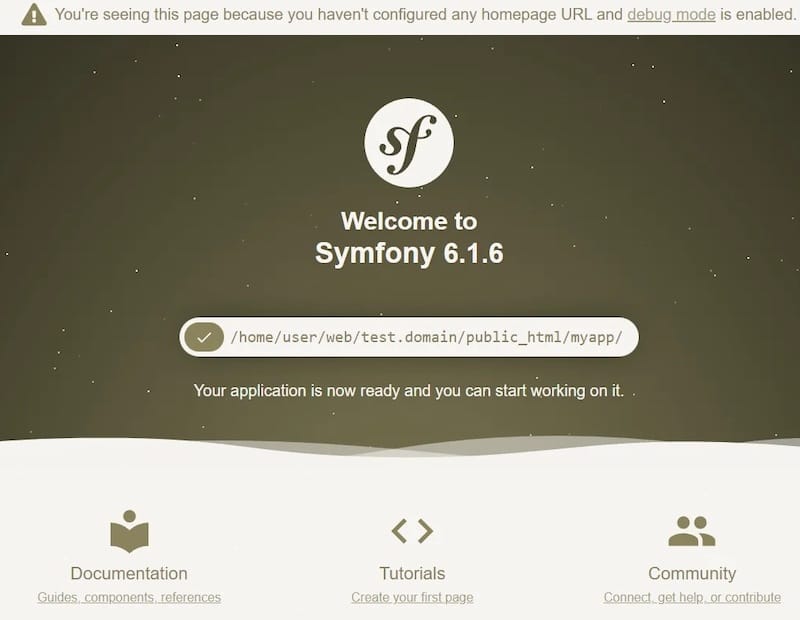
Run Server in Background Mode
For background operation:
symfony server:start -dThe -d flag detaches the process. Check server status:
symfony server:statusStop the background server:
symfony server:stopThe development server reloads automatically when you modify code, streamlining the development workflow significantly.
Step 8: Install Database Support (Optional)
Most applications require database functionality. Symfony supports multiple database systems through Doctrine ORM.
Install MySQL/MariaDB
For MySQL-compatible databases:
sudo apt install mariadb-server php8.2-mysql -ySecure the installation:
sudo mysql_secure_installationFollow prompts to set root password and remove test databases.
Install PostgreSQL
For PostgreSQL:
sudo apt install postgresql postgresql-contrib php8.2-pgsql -yPostgreSQL offers advanced features like JSON fields and full-text search.
Configure Database Connection
Edit the .env file in your project root:
nano .envUpdate the DATABASE_URL variable:
DATABASE_URL="mysql://username:password@127.0.0.1:3306/database_name?serverVersion=10.11&charset=utf8mb4"Replace username, password, and database_name with actual credentials. For PostgreSQL:
DATABASE_URL="postgresql://username:password@127.0.0.1:5432/database_name?serverVersion=15&charset=utf8"Create the database:
php bin/console doctrine:database:createThis command creates the database specified in your DATABASE_URL.
Verify Your Symfony Installation
Comprehensive verification ensures everything works correctly. Run the requirements checker again:
symfony check:requirementsAll critical requirements should pass. Address any remaining warnings for optimal performance.
Test the Symfony console:
php bin/consoleThis displays available Symfony commands. The console provides tools for debugging, database management, cache clearing, and more. Hundreds of commands ship with Symfony, organized into logical namespaces.
List all commands:
php bin/console listClear cache:
php bin/console cache:clearCheck routes:
php bin/console debug:routerThese commands confirm your installation is fully operational.
Troubleshoot Common Installation Issues
Even careful installations encounter occasional problems. Here are solutions to frequent issues.
PHP Version Conflicts
Symptoms include Composer errors about incompatible PHP versions. Check your PHP CLI version:
php -vSometimes multiple PHP versions exist. Specify the correct version:
sudo update-alternatives --config phpSelect PHP 8.2 from the list.
Missing PHP Extensions
Error messages mention missing extensions. Install the specific extension:
sudo apt install php8.2-extension-nameRestart PHP services:
sudo systemctl restart php8.2-fpmPermission Denied Errors
Cache or log write failures indicate permission problems. Verify ownership:
ls -la var/Fix permissions using chmod and chown commands from Step 6. Consider using ACL for persistent solutions.
Port Already in Use
The development server fails to start when port 8000 is occupied. Identify the conflicting process:
sudo lsof -i :8000Kill the process or use a different port:
symfony serve --port=8001Composer Memory Exhaustion
Large projects exceed PHP memory limits. Run Composer with unlimited memory:
php -d memory_limit=-1 /usr/local/bin/composer installThis temporarily removes memory restrictions.
Post-Installation Best Practices
Proper configuration enhances security and productivity.
Security Hardening
Change the default APP_SECRET in .env:
APP_SECRET=your-randomly-generated-secret-keyGenerate strong secrets using:
php bin/console secrets:generate-keysRun security checks:
symfony security:checkThis scans dependencies for known vulnerabilities.
Version Control Setup
Initialize Git:
git initReview .gitignore to ensure sensitive files like .env.local are excluded. Make your initial commit:
git add .
git commit -m "Initial Symfony installation"
Version control tracks changes and enables collaboration.
Environment Configuration
Understand environment files. The .env file contains default values committed to version control. Create .env.local for local overrides:
cp .env .env.localEdit .env.local with environment-specific values. Never commit .env.local to version control—it should contain sensitive credentials and local configuration.
Congratulations! You have successfully installed Symfony. Thanks for using this tutorial to install the latest version of Symfony PHP Framework on Debian 13 “Trixie” system. For additional help or useful information, we recommend you check the official Symfony Framework website.
