How To Install Syncthing on Debian 13

Synchronizing files across multiple devices has become essential in today’s interconnected digital world. Whether you’re managing documents between your laptop and desktop, backing up important files to a server, or collaborating with team members, having a reliable file synchronization solution is crucial. Syncthing stands out as a powerful, open-source, peer-to-peer file synchronization application that prioritizes privacy and security while eliminating the need for cloud-based storage services.
Debian 13 (Trixie), the latest stable release of this renowned Linux distribution, provides an excellent platform for running Syncthing. This comprehensive guide will walk you through the complete installation and configuration process, from initial setup to advanced optimization techniques. You’ll learn multiple installation methods, security best practices, troubleshooting solutions, and performance optimization strategies to ensure your Syncthing deployment runs smoothly and efficiently.
What is Syncthing?
Core Features and Benefits
Syncthing represents a paradigm shift in file synchronization technology. Unlike traditional cloud-based solutions, this innovative application operates on a decentralized model where your data never leaves your control. The software employs end-to-end encryption using TLS protocols, ensuring that all communication between devices remains secure and private.
The application’s architecture eliminates single points of failure by removing the need for central servers. Every device in your Syncthing network communicates directly with others using strong cryptographic authentication. This approach not only enhances security but also improves performance by reducing latency and bandwidth bottlenecks.
Syncthing’s cross-platform compatibility extends across Windows, macOS, Linux, FreeBSD, Solaris, and mobile platforms through dedicated applications. The responsive web interface makes configuration and monitoring straightforward, regardless of your technical expertise level.
Use Cases for Debian Systems
Debian systems excel as Syncthing hosts due to their stability and reliability. Common deployment scenarios include home server implementations where Syncthing manages family photos, documents, and media files across multiple devices. Development teams often utilize Syncthing to maintain synchronized codebases and project files without relying on external services.
Server administrators appreciate Syncthing’s ability to create robust backup solutions. The application can synchronize critical system configurations, databases, and user data between production and backup servers automatically. Small businesses benefit from Syncthing’s cost-effective approach to file sharing, eliminating monthly subscription fees while maintaining complete data ownership.
Prerequisites and System Requirements
System Requirements
Syncthing’s lightweight design makes it suitable for various hardware configurations. Minimum requirements include 512MB of RAM and 100MB of available disk space for the application itself. However, recommended specifications vary based on synchronization volume and device count.
For optimal performance with multiple devices and large file collections, consider allocating at least 2GB of RAM and ensuring adequate network bandwidth. SSD storage improves database operations and initial scanning performance significantly. CPU requirements remain modest, with modern dual-core processors handling most scenarios efficiently.
Pre-installation Checklist
Successful Syncthing installation requires administrative privileges on your Debian 13 system. Ensure you have either root access or sudo privileges before beginning the installation process. Network connectivity is essential for downloading packages and initial device discovery.
Firewall considerations include opening port 8384 for the web interface and port 22000 for device communication. While Syncthing includes UPnP support for automatic port forwarding, manual configuration may be necessary in enterprise environments with restrictive firewall policies.
Basic command-line familiarity helps during installation and troubleshooting. Understanding fundamental Linux concepts like file permissions, systemd services, and package management enhances your ability to customize and maintain your Syncthing installation.
Required Dependencies
Several essential packages must be installed before adding the Syncthing repository. The gnupg2 package provides cryptographic functionality for verifying package signatures. The curl utility downloads GPG keys and repository information securely.
The apt-transport-https package enables APT to communicate with HTTPS repositories, ensuring secure package downloads. These dependencies form the foundation for a secure and reliable installation process.
Installing Syncthing on Debian 13
Method 1: Using Official Repository (Recommended)
The official Syncthing repository provides the most reliable installation method with automatic updates and security patches. Begin by updating your system package index and installing required dependencies:
sudo apt update
sudo apt install gnupg2 curl apt-transport-https -y
Next, download and install the Syncthing GPG signing key using the modern gpg --dearmor method, which replaces the deprecated apt-key approach:
curl -fsSL https://syncthing.net/release-key.txt | gpg --dearmor | sudo tee /etc/apt/trusted.gpg.d/syncthing.gpg > /dev/nullAdd the official Syncthing repository to your APT sources list:
echo "deb https://apt.syncthing.net/ syncthing stable" | sudo tee /etc/apt/sources.list.d/syncthing.listUpdate the package index to include the new repository:
sudo apt updateInstall Syncthing with the following command:
sudo apt install syncthingVerify the installation by checking the installed version:
syncthing --versionThe installation creates the syncthing binary in /usr/bin/syncthing and includes necessary systemd service files for easy service management.
Method 2: Manual Binary Installation
For users preferring direct binary installation or running systems without repository access, downloading the official binary provides an alternative approach. Visit the Syncthing downloads page to obtain the latest release for Linux AMD64 architecture.
Download the compressed archive:
wget https://github.com/syncthing/syncthing/releases/latest/download/syncthing-linux-amd64-v1.X.X.tar.gzExtract the archive and move the binary to a system PATH location:
tar -xzf syncthing-linux-amd64-v1.X.X.tar.gz
sudo mv syncthing-linux-amd64-v1.X.X/syncthing /usr/local/bin/
sudo chmod +x /usr/local/bin/syncthing
This method requires manual updates but provides greater control over the installation process.
Method 3: Building from Source
Advanced users may choose to compile Syncthing from source code. This approach requires the Go programming language and development tools:
sudo apt install golang-go git build-essentialClone the repository and build the application:
git clone https://github.com/syncthing/syncthing.git
cd syncthing
go run build.go
Building from source enables customization and ensures compatibility with specific system configurations.
Initial Configuration and Setup
First-time Startup
Launch Syncthing for the first time using the command line interface. The initial startup generates configuration files, encryption keys, and device certificates automatically:
syncthingDuring first-time execution, Syncthing creates a default configuration directory in ~/.local/share/syncthing and establishes a “Default Folder” in your home directory’s Sync folder. The application outputs important information including your unique device ID and web interface URL.
Monitor the startup output for any error messages or warnings. Successful initialization displays network listener status and GUI accessibility information.
Web UI Access and Security
The Syncthing web interface becomes available at http://localhost:8384 immediately after startup. This responsive interface provides complete control over synchronization settings, device management, and system monitoring.
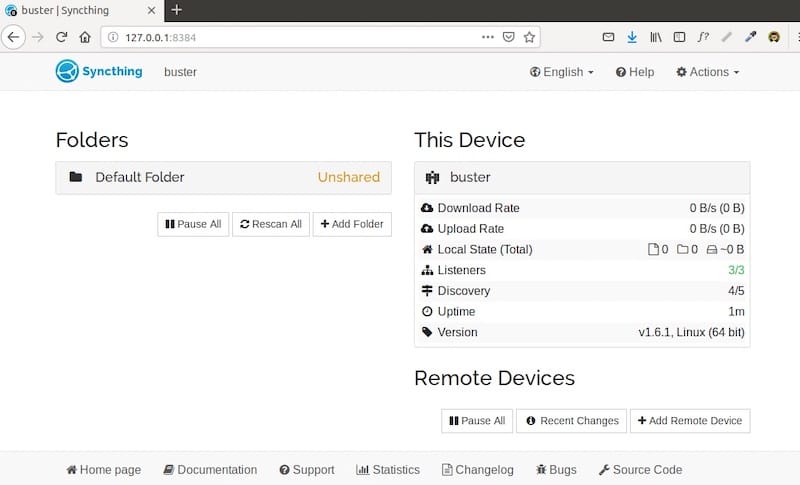
Initial security configuration should include setting up administrative credentials and configuring HTTPS access for enhanced security. Navigate to Actions > Settings > GUI to establish authentication requirements and modify interface binding addresses if needed.
The web interface supports multiple languages and themes, allowing customization based on user preferences. Cookie support is mandatory for proper functionality, so ensure your browser accepts cookies from the localhost domain.
Device ID and Authentication
Every Syncthing installation generates a unique device ID during initial startup. This cryptographically secure identifier enables device recognition and establishes trust relationships between synchronized devices. Device IDs function as public keys in Syncthing’s authentication system.
Access your device ID through the web interface by selecting Actions > Show ID or by examining the startup log output. Device IDs require mutual configuration on both devices before synchronization can occur, ensuring explicit consent for all connections.
Share device IDs securely through trusted communication channels. While device IDs don’t require secrecy, protecting them prevents unauthorized connection attempts.
Basic Folder Configuration
Configure your first shared folder through the web interface’s folder management section. Click “Add Folder” to specify the local directory path, assign a folder label, and configure sharing parameters.
Folder types determine synchronization behavior: send-receive enables bidirectional synchronization, send-only creates read-only destinations, and receive-only establishes write-protected sources. Choose the appropriate type based on your use case requirements.
Configure ignore patterns to exclude specific files or directories from synchronization. Common patterns include temporary files, system directories, and version control metadata. Proper ignore configuration reduces bandwidth usage and prevents synchronization conflicts.
Configuring Syncthing as a System Service
Understanding Service Types
Syncthing supports both system-wide and user-specific service configurations. System services run independently of user sessions, making them ideal for server deployments and always-on synchronization requirements. User services start when users log in and stop when sessions end, suitable for desktop environments.
Choose system services for headless servers, continuous backup solutions, and multi-user environments requiring persistent synchronization. Select user services for personal workstations, temporary synchronization needs, and environments with dynamic user sessions.
Security implications differ between service types. System services require careful user account configuration to prevent privilege escalation, while user services inherit user-level permissions automatically.
Setting Up System Service
Create a dedicated syncthing user account for enhanced security and isolation:
sudo useradd --system --no-create-home --home /var/lib/syncthing syncthing
sudo mkdir -p /var/lib/syncthing
sudo chown syncthing:syncthing /var/lib/syncthing
Create a systemd service file at /etc/systemd/system/syncthing@.service:
[Unit]
Description=Syncthing - Open Source Continuous File Synchronization for %i
Documentation=man:syncthing(1)
After=network.target

[Service]
User=%i
ExecStart=/usr/bin/syncthing serve --no-browser --no-restart --logflags=0
Restart=on-failure
RestartSec=5
SuccessExitStatus=3 4
RestartForceExitStatus=3 4

[Install]
WantedBy=multi-user.target
Enable and start the service for the syncthing user:
sudo systemctl enable syncthing@syncthing.service
sudo systemctl start syncthing@syncthing.service
Setting Up User Service
User services provide simpler configuration for single-user scenarios. Create the service file in the user’s systemd directory:
mkdir -p ~/.config/systemd/userCopy the user service template:
cp /usr/lib/systemd/user/syncthing.service ~/.config/systemd/user/Enable the user service and configure lingering for automatic startup:
systemctl --user enable syncthing.service
systemctl --user start syncthing.service
sudo loginctl enable-linger $USER
Service Management Commands
Essential systemctl commands for managing Syncthing services include status checking, service control, and log examination. Monitor service status with:
sudo systemctl status syncthing@syncthing.serviceControl service operation using standard systemctl commands:
sudo systemctl start syncthing@syncthing.service
sudo systemctl stop syncthing@syncthing.service
sudo systemctl restart syncthing@syncthing.service
Examine service logs using journalctl for troubleshooting and monitoring:
sudo journalctl -u syncthing@syncthing.service -fAdvanced Configuration Options
Configuration File Management
Syncthing stores configuration data in XML format within the application’s configuration directory. The primary configuration file, config.xml, contains device definitions, folder settings, and global preferences.
Configuration file locations vary based on installation method and service type. System services typically use /var/lib/syncthing/.config/syncthing/config.xml, while user installations store configuration in ~/.local/share/syncthing/config.xml.
Implement regular configuration backups to prevent data loss during system upgrades or hardware failures. Configuration migration between systems requires copying the entire configuration directory while updating device-specific paths and settings.
Network and Firewall Configuration
Syncthing requires specific network ports for proper operation. The default web interface uses port 8384, while device communication occurs on port 22000. Configure firewall rules to allow these connections:
sudo ufw allow 8384/tcp
sudo ufw allow 22000/tcp
sudo ufw allow 22000/udp
NAT traversal capabilities enable connections across network boundaries without manual port forwarding. UPnP support automates port forwarding on compatible routers, simplifying home network deployments.
Relay servers provide connectivity fallback when direct connections fail. Configure custom relay servers for enhanced privacy or performance in enterprise environments.
Performance Optimization
Optimize Syncthing performance through database maintenance and configuration tuning. Regular database cleanup improves scanning performance and reduces memory usage:
syncthing cli operations db optimizeAdjust scanning intervals based on file change frequency. Reduce intervals for frequently modified directories while extending them for static content. Balance scanning frequency with system resource consumption.
Configure bandwidth limits to prevent network saturation during large synchronizations. Set upload and download limits through the web interface or configuration file modifications.
Security Hardening
Implement additional security measures beyond default configurations. Generate custom TLS certificates for enhanced security and compliance requirements. Restrict web interface access to specific IP addresses or subnets through configuration modifications.
API key management becomes crucial when integrating Syncthing with external tools or monitoring systems. Generate dedicated API keys for each integration and rotate them regularly following security best practices.
Configure authentication requirements for the web interface in multi-user environments. Enable HTTPS for encrypted web interface communication and consider implementing reverse proxy configurations for additional security layers.
Web Interface Management
Navigation and Interface Overview
The Syncthing web interface provides comprehensive management capabilities through an intuitive dashboard design. The main screen displays folder synchronization status, device connectivity information, and recent activity summaries.
Navigation elements include device management, folder configuration, and system settings sections. The toolbar provides quick access to common functions like adding devices, creating folders, and accessing system logs.
Status indicators use color coding to convey synchronization states: green indicates successful synchronization, yellow shows pending operations, and red highlights errors requiring attention.
Device Management
Add new devices through the device management interface by entering device IDs and configuring sharing permissions. Device naming helps identify systems in multi-device environments while connection status indicators show real-time connectivity information.
Configure device-specific settings including bandwidth limitations, introduction requirements, and address specifications. Advanced options enable custom communication protocols and relay preferences for specific devices.
Remove devices by deleting their configuration entries, which automatically terminates existing connections and prevents future synchronization attempts.
Folder Management and Synchronization
Create folders through the web interface by specifying local paths, assigning labels, and selecting sharing devices. Folder configuration includes synchronization type selection, versioning options, and ignore pattern definitions.
Monitor folder status through detailed progress indicators showing scan completion, synchronization progress, and error conditions. Folder statistics provide insights into file counts, total sizes, and modification timestamps.
Advanced folder options include custom scanning intervals, temporary file handling, and conflict resolution strategies. Configure these settings based on specific use case requirements and performance considerations.
Monitoring and Logs
The web interface provides comprehensive logging and monitoring capabilities. System logs display real-time operational information, error messages, and performance metrics.
Configure log levels to balance information detail with storage requirements. Debug logging provides extensive troubleshooting information while standard logging focuses on operational events and errors.
Export logs for external analysis or support requests. Log rotation prevents storage exhaustion while maintaining historical information for trend analysis and problem resolution.
Troubleshooting Common Issues
Installation Problems
Repository access issues often stem from network connectivity problems or firewall restrictions. Verify internet connectivity and ensure HTTPS traffic can reach the Syncthing repository servers.
GPG key verification failures indicate network interruptions during key download or incorrect key installation. Re-download keys using alternative methods or verify key fingerprints manually against official documentation.
Package dependency conflicts require resolution through package manager tools. Use apt-get -f install to resolve broken dependencies or consider alternative installation methods if repository conflicts persist.
Service Startup Issues
Systemd service failures commonly result from permission problems, configuration errors, or missing dependencies. Examine service logs using journalctl to identify specific error conditions and their underlying causes.
Home directory access problems affect services running under dedicated user accounts. Ensure service users have appropriate permissions for configuration directories and synchronization paths.
Configuration file corruption prevents service startup and requires restoration from backups or manual reconstruction. Validate configuration file syntax using XML tools before attempting service startup.
Connection and Synchronization Problems
Device discovery failures indicate network connectivity issues or firewall blocking. Verify port accessibility using network testing tools and confirm UPnP functionality on network equipment.
Authentication errors suggest device ID mismatches or certificate problems. Verify device ID accuracy and consider regenerating certificates if persistent authentication failures occur.
Synchronization stalls often result from large file operations, insufficient disk space, or network interruptions. Monitor system resources and network connectivity during problematic synchronization attempts.
Performance and Resource Issues
High CPU usage during initial scans is normal behavior that decreases after completion. Persistent high CPU usage indicates configuration problems, database corruption, or excessive file change rates.
Memory consumption grows with folder size and file count. Monitor memory usage and consider reducing simultaneous folder synchronization for systems with limited RAM availability.
Database corruption manifests through scanning errors, synchronization failures, and performance degradation. Reset databases using built-in maintenance tools or restore from clean backups.
Configuration and Permission Problems
File permission errors prevent synchronization and require correction through filesystem tools. Ensure consistent ownership and permissions across synchronized directories on all devices.
Configuration file access problems affect service startup and operation. Verify configuration directory permissions and ownership, particularly for system service deployments.
Folder state errors indicate inconsistencies between configuration and filesystem reality. Resolve through folder re-scanning, configuration verification, or complete folder re-creation in severe cases.
Security Best Practices
Authentication and Access Control
Implement strong authentication for web interface access in network-accessible deployments. Configure username and password requirements through the GUI settings panel and consider certificate-based authentication for enhanced security.
API key management requires careful consideration in automated environments. Generate unique keys for each integration, implement key rotation schedules, and monitor API access through logging mechanisms.
Device trust relationships should follow principle of least privilege. Only share necessary folders with specific devices and regularly audit device permissions to prevent unauthorized access.
Data Protection and Privacy
Syncthing’s design prioritizes data privacy through end-to-end encryption and decentralized architecture. All communication uses TLS encryption with perfect forward secrecy, ensuring intercepted traffic remains unreadable even if keys are compromised.
Consider additional encryption layers for sensitive data using filesystem-level encryption or application-specific solutions. This defense-in-depth approach provides additional protection against physical device compromise.
Regular security updates maintain protection against newly discovered vulnerabilities. Enable automatic updates where possible and monitor security advisories for manual update requirements.
System Security Integration
Integrate Syncthing with existing security frameworks including SELinux policies, AppArmor profiles, and system access controls. Configure appropriate security contexts and policies to prevent privilege escalation.
Implement network segmentation to isolate Syncthing traffic from sensitive network segments. Use VLANs, firewalls, and access control lists to limit communication scope and reduce attack surfaces.
Regular security audits should examine Syncthing configurations, permissions, and access patterns. Document security procedures and incident response plans for security event handling.
Performance Optimization and Maintenance
Regular Maintenance Tasks
Database optimization improves performance and reduces resource consumption. Schedule regular database maintenance using Syncthing’s built-in tools:
syncthing cli operations db optimizeLog rotation prevents storage exhaustion while maintaining troubleshooting capabilities. Configure logrotate rules or implement custom rotation scripts based on organizational requirements.
Configuration backups should occur regularly and include complete configuration directories. Test backup restoration procedures to ensure recovery capability during emergencies.
Performance Tuning
Optimize scanning performance through intelligent interval configuration. Adjust scanning frequencies based on file change patterns, with more frequent scans for active directories and longer intervals for stable content.
Bandwidth management prevents network saturation during large synchronizations. Configure appropriate limits based on available bandwidth and competing network usage requirements.
Storage optimization includes proper filesystem selection and configuration. Use SSD storage for database operations and consider filesystem features like snapshots for backup and recovery capabilities.
Monitoring and Alerting
Implement comprehensive monitoring covering synchronization health, performance metrics, and error conditions. Use Syncthing’s REST API to integrate with existing monitoring solutions and dashboards.
Configure alerting for critical conditions including synchronization failures, connectivity problems, and resource exhaustion. Balance alert sensitivity with operational requirements to prevent alert fatigue.
Performance trend analysis helps identify capacity planning requirements and optimization opportunities. Collect and analyze historical data to inform infrastructure decisions and configuration changes.
Congratulations! You have successfully installed Syncthing. Thanks for using this tutorial for installing the latest version of Syncthing remote file synchronization on Debian 13 “Trixie” system. For additional help or useful information, we recommend you check the official Syncthing website.
