How To Install Syncthing on Fedora 43

Syncthing is a powerful, open-source file synchronization tool that puts you in complete control of your data. Unlike cloud storage services that store your files on third-party servers, Syncthing creates a decentralized, peer-to-peer network between your devices. This tutorial walks you through installing and configuring Syncthing on Fedora 43, ensuring your files sync securely across all your devices without compromising privacy.
Whether you’re a system administrator managing multiple servers, a developer syncing code repositories, or simply someone who values data privacy, Syncthing offers an elegant solution. By the end of this guide, you’ll have a fully operational Syncthing installation with proper security configurations and firewall rules.
What is Syncthing?
Syncthing stands out in the crowded file synchronization landscape by offering true peer-to-peer functionality. Your files transfer directly between your devices without touching external servers. The application uses TLS encryption to protect data during transmission, ensuring nobody can intercept your files mid-transfer.
The software excels at real-time synchronization, automatically detecting file changes and propagating them across connected devices. It includes built-in versioning capabilities, protecting you from accidental deletions or overwrites. When conflicts occur—such as the same file being modified on two devices simultaneously—Syncthing preserves both versions rather than forcing one to overwrite the other.
Key features include cross-platform support spanning Linux, Windows, macOS, Android, and various BSD systems. Each device receives a unique cryptographic identifier called a Device ID, which facilitates secure authentication. The web-based graphical interface makes management straightforward, even for users less comfortable with command-line tools.
Compared to commercial alternatives like Dropbox or Google Drive, Syncthing eliminates subscription fees and data caps. More importantly, it removes the privacy concerns associated with storing sensitive documents on corporate servers. Your organization’s confidential files, personal photos, or proprietary code remain exclusively on devices you control.
Prerequisites and System Requirements
Before beginning the installation, ensure your Fedora 43 system meets the following requirements. You need sudo or root privileges to install packages and modify system configurations. An active internet connection is essential for downloading Syncthing and its dependencies.
Hardware requirements are modest. Syncthing runs comfortably on systems with 1GB RAM, though performance improves with more memory when synchronizing large file collections. Sufficient disk space depends on your synchronization needs—allocate space for both the software itself (minimal) and the folders you plan to sync.
Basic familiarity with the Linux terminal helps, though this guide provides complete commands. If you plan to sync between multiple devices, have at least two systems ready for testing. Fedora 43 uses firewalld for firewall management, which we’ll configure to allow Syncthing traffic.
Installation Methods Overview
Fedora 43 offers multiple paths for installing Syncthing, each with distinct advantages. The DNF package manager method integrates seamlessly with your system, providing automatic updates through Fedora’s standard update mechanisms. This approach suits most users seeking straightforward deployment.
Container-based installation using Podman isolates Syncthing in a controlled environment. This method appeals to users running containerized infrastructure or requiring multiple Syncthing instances with different configurations. Podman provides rootless containers, enhancing security compared to traditional approaches.
Direct binary installation downloads executables straight from the Syncthing project. While this ensures access to the latest version immediately upon release, it requires manual update management. For beginners, the DNF method offers the best balance of convenience and integration with Fedora’s ecosystem.
Method 1: Installing Syncthing via DNF (Recommended)
Update System Packages
Start by refreshing your package cache to ensure you’re working with current repository metadata. Open your terminal and execute:
sudo dnf makecache --refreshThis command queries all configured repositories and downloads the latest package lists. The process typically completes in seconds, depending on your internet connection. You’ll see progress indicators as DNF contacts each repository mirror.
Install Syncthing Package
With updated repository metadata, install Syncthing using the following command:
sudo dnf install syncthingDNF resolves dependencies automatically and presents a summary of packages to be installed. Press ‘y’ when prompted to confirm the installation. The process downloads the Syncthing package and any required dependencies, then installs them system-wide.
During installation, DNF places the Syncthing binary in /usr/bin/, making it accessible from any directory. The package also includes systemd service files for easy service management and comprehensive man pages for reference documentation.
Verify Installation
Confirm successful installation by checking the installed version:
syncthing --versionThis displays the Syncthing version number, build information, and Go runtime version. Next, verify the binary location:
which syncthingThe output should show /usr/bin/syncthing, confirming proper PATH configuration. You can also explore available systemd services:
systemctl --user list-unit-files | grep syncthingThis reveals the user service files included with the package.
Method 2: Installing Syncthing with Podman Containers
Install Podman
For users preferring containerized deployments, first install Podman:
sudo dnf install -y podmanPodman provides Docker-compatible container management without requiring a daemon process. This architecture reduces attack surfaces and enables rootless operation, where containers run with regular user privileges rather than requiring root access.
Set Up Syncthing Container
Pull the official Syncthing container image:
podman pull syncthing/syncthing:latestCreate a persistent directory for Syncthing configuration and data:
mkdir -p ~/syncthing-config ~/syncthing-dataRun the Syncthing container with appropriate port mappings:
podman run -d --name syncthing \
  -p 8384:8384 \
  -p 22000:22000/tcp \
  -p 22000:22000/udp \
  -p 21027:21027/udp \
  -v ~/syncthing-config:/var/syncthing/config \
  -v ~/syncthing-data:/var/syncthing \
  syncthing/syncthing:latest
This command runs Syncthing in detached mode, mapping necessary ports for the web interface and synchronization.
Container Management
Manage your Syncthing container using standard Podman commands. Check container status:
podman psView logs for troubleshooting:
podman logs syncthingStop the container when needed:
podman stop syncthingRestart it with:
podman start syncthingConfiguring Syncthing Service
Enable Systemd User Service
Syncthing operates optimally as a user service, running with your account permissions rather than system-wide. Enable the service to start with your user session:
systemctl --user enable syncthing.serviceStart the service immediately:
systemctl --user start syncthing.serviceVerify the service is running correctly:
systemctl --user status syncthingYou should see “active (running)” in green text, along with recent log entries. For Syncthing to start automatically even when you’re not logged in, enable user lingering:
loginctl enable-linger $USERThis command allows your user services to run from system boot, independent of login sessions. It’s particularly useful for servers or systems where Syncthing should operate continuously.
Systemd System-Wide Service (Alternative)
Some scenarios warrant running Syncthing as a system service. This approach makes sense when synchronizing system files or running Syncthing for multiple users from a single instance. Create a custom service file:
sudo nano /etc/systemd/system/syncthing@.serviceConfigure the service to run as a specific user while starting at boot. After creating the service file, reload systemd:
sudo systemctl daemon-reloadEnable and start the service for a specific user:
sudo systemctl enable syncthing@yourusername.service
sudo systemctl start syncthing@yourusername.service
The user service approach remains preferable for most individual use cases due to its simpler permission model.
Verify Service is Running
Confirm Syncthing is actively running by checking system processes:
ps aux | grep syncthingReview detailed service logs:
journalctl --user -u syncthing -fThe -f flag follows the log in real-time, useful for monitoring startup or troubleshooting issues. Press Ctrl+C to exit log following.
Accessing the Syncthing Web Interface
Once the service is running, access the web interface by opening your browser and navigating to:
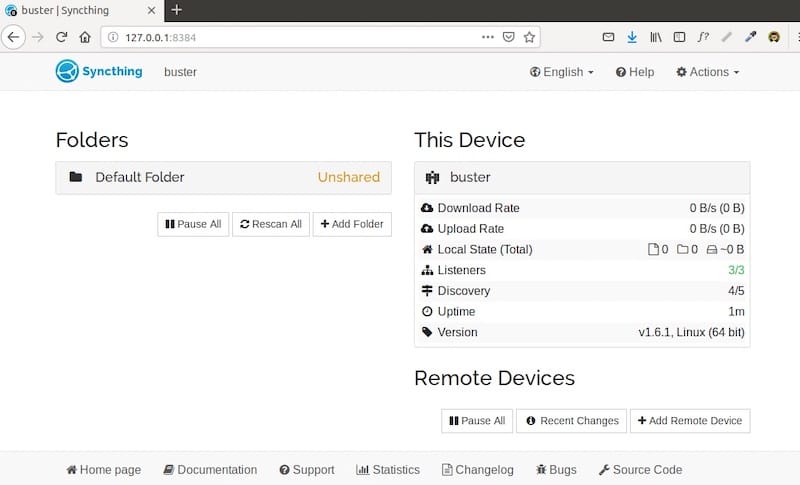
http://127.0.0.1:8384The default configuration binds to localhost only for security. On first access, Syncthing presents a clean, intuitive dashboard. The interface displays your Device ID prominently—you’ll need this when connecting other devices.
Take a moment to explore the dashboard layout. The main screen shows connected devices, shared folders, and synchronization status. The right panel displays global and local file statistics. Navigation menus provide access to settings, device management, and folder configuration.
For security, immediately configure GUI authentication. Click “Actions” in the top-right corner, then “Settings”. Navigate to the GUI tab and set a strong username and password. This prevents unauthorized access if you later enable remote access.
The interface also allows theme customization and language selection. Adjust these preferences under Settings to match your workflow preferences.
Configuring Firewall Rules for Syncthing
Understanding Syncthing Ports
Syncthing uses multiple ports for different functions. Port 8384 serves the web GUI, bound to localhost by default for security. Port 22000 (both TCP and UDP) handles file synchronization traffic between devices. Port 21027 UDP enables local network device discovery, allowing Syncthing instances on the same network to find each other automatically.
Understanding these ports helps when troubleshooting connection issues or configuring network security policies. The GUI port requires opening only if you need remote access. Synchronization ports must be accessible for devices outside your local network to connect.
Configure Firewalld
Fedora 43 uses firewalld for firewall management. Check its status:
sudo firewall-cmd --stateIf running, configure rules for Syncthing. Firewalld includes predefined services for common applications. Add Syncthing sync service:
sudo firewall-cmd --zone=public --add-service=syncthing --permanentIf you need remote GUI access (use cautiously), add:
sudo firewall-cmd --zone=public --add-service=syncthing-gui --permanentApply the changes:
sudo firewall-cmd --reloadVerify the rules took effect:
sudo firewall-cmd --list-servicesYou should see “syncthing” in the output. For environments requiring specific port control, open ports manually:
sudo firewall-cmd --zone=public --add-port=22000/tcp --permanent
sudo firewall-cmd --zone=public --add-port=22000/udp --permanent
sudo firewall-cmd --zone=public --add-port=21027/udp --permanent
sudo firewall-cmd --reload
Basic Syncthing Configuration
Setting Device Name and ID
Each Syncthing instance generates a unique Device ID upon first run—a long alphanumeric string serving as its cryptographic identity. Find your Device ID in the web interface under “Actions” → “Show ID”. This identifier is safe to share with trusted devices you want to connect.
Set a recognizable device name by clicking “Actions” → “Settings” → “General”. Replace the default name with something descriptive like “Fedora-Workstation” or “Server-01”. Meaningful names simplify management when connecting multiple devices.
Device IDs use cryptographic hashing, making them computationally infeasible to forge. Never share your Syncthing configuration files, as they contain the private keys corresponding to your Device ID.
Configuring Remote Access to Web GUI
The default localhost-only GUI access enhances security but limits administration to the local machine. For remote management, modify the configuration. Edit the config file:
nano ~/.config/syncthing/config.xmlLocate the <gui> section and change the address:
<address>0.0.0.0:8384</address>This binds the GUI to all network interfaces. Save the file and restart the service:
systemctl --user restart syncthingSecurity Warning: Remote GUI access exposes the interface to your network. Always use strong authentication and consider restricting access to specific IP addresses. For sensitive environments, access the GUI through SSH tunneling instead:
ssh -L 8384:localhost:8384 user@fedora-serverThis creates a secure tunnel, allowing local browser access without exposing the GUI to the network.
Creating Your First Folder
Add a folder to synchronize by clicking “Add Folder” in the web interface. Specify a folder path, such as /home/yourusername/Documents/Sync. Assign a descriptive Folder Label like “Important Documents”.
Choose a Folder Type based on your needs. “Send & Receive” synchronizes changes bidirectionally—modifications on any device propagate everywhere. “Send Only” makes this device a source, sending files without accepting incoming changes. “Receive Only” accepts files from other devices but doesn’t send local modifications.
The Folder ID auto-generates but can be customized. Keep IDs short and descriptive for easier management. Advanced options include ignore patterns, versioning, and sync intervals, which we’ll explore later.
Connecting Devices and Syncing Files
Adding Remote Devices
To sync with another device, obtain its Device ID. On the remote device, open the Syncthing web interface and click “Actions” → “Show ID”. Copy the displayed ID string.
Return to your Fedora 43 Syncthing interface and click “Add Remote Device”. Paste the Device ID and assign a descriptive name. Configure sharing options—decide which folders this device can access.
The remote device receives a notification about the connection request. Accept it to establish the secure connection. Both devices now appear in each other’s device lists.
Sharing Folders Between Devices
After connecting devices, share specific folders with them. Edit an existing folder and navigate to the “Sharing” tab. Check boxes next to devices that should receive this folder. Save the changes.
The remote device receives a folder share request. Accept it and specify the local path where files should synchronize. Syncthing handles initial synchronization automatically, intelligently transferring only differences.
Folder permissions control how devices interact with shared content. A device with “Send Only” permissions cannot modify files, making it ideal for backup scenarios.
Monitoring Sync Status
The dashboard provides real-time synchronization status. During active syncing, you’ll see progress bars, transfer rates, and file counts. Status indicators include “Scanning” (checking for changes), “Syncing” (transferring files), and “Up to Date” (fully synchronized).
Click folder names to view detailed file lists and synchronization history. The interface shows which files changed recently and their sync status across devices.
Security Best Practices
Syncthing prioritizes security, but proper configuration enhances protection. Always secure the web GUI with strong credentials. Use complex passwords combining uppercase, lowercase, numbers, and symbols.
Carefully manage device authorizations. Only connect trusted devices and regularly review connected devices, removing those no longer needed. Each connection introduces a potential security vector.
Protect Syncthing’s configuration directory (~/.config/syncthing/). These files contain private keys essential for device identity. Set restrictive permissions:
chmod 700 ~/.config/syncthing/Syncthing encrypts all synchronization traffic using TLS, preventing eavesdropping. However, files remain unencrypted on disk unless you use full-disk encryption. Consider LUKS encryption for drives containing sensitive synchronized data.
The global discovery service helps devices find each other across the internet. Disable it if all your devices reside on the same network or can connect directly by IP address. Navigate to “Settings” → “Connections” and uncheck “Enable Global Discovery” for enhanced privacy.
Relay servers facilitate connections when direct peer-to-peer links fail due to NAT or firewall restrictions. While convenient, relays route your encrypted data through third-party servers. Disable relays if your network topology allows direct connections.
Common Troubleshooting Issues
Service Won’t Start
If systemd fails to start Syncthing, check service status first:
systemctl --user status syncthingLook for error messages indicating the problem. Common issues include port conflicts—another application might be using port 8384. Verify port availability:
ss -tlnp | grep 8384If occupied, either stop the conflicting service or configure Syncthing to use an alternative port.
Permission problems can prevent startup. Ensure your user account owns the configuration directory:
ls -la ~/.config/ | grep syncthingFix ownership if necessary:
chown -R $USER:$USER ~/.config/syncthing/Corrupted configuration files cause startup failures. Syncthing creates backups automatically. Restore a backup if configuration issues persist:
cp ~/.config/syncthing/config.xml.v0 ~/.config/syncthing/config.xmlCannot Access Web GUI
When the browser fails to load the Syncthing interface, verify the service is running. Check if Syncthing is listening on the expected port:
ss -tlnp | grep syncthingYou should see port 8384 in the output. Firewall rules might block access—temporarily disable firewalld for testing:
sudo systemctl stop firewalldIf the GUI becomes accessible, firewall rules need adjustment. Re-enable firewalld and configure proper rules as described earlier.
Browser cache sometimes causes display issues. Clear browser cache or test with a private/incognito window. Verify address and port configuration in ~/.config/syncthing/config.xml matches your browser URL.
Devices Won’t Connect
Connection failures between devices typically stem from firewall blocking, incorrect Device IDs, or network issues. Verify firewall rules on both devices allow Syncthing traffic through ports 22000 and 21027.
Double-check Device IDs match exactly—a single character mistake prevents connection. The IDs are long and error-prone when manually transcribed. Use QR codes if available or copy-paste to avoid mistakes.
Network connectivity issues manifest as devices remaining “Disconnected”. Test basic network connectivity between devices:
ping remote-device-ipIf devices reside on different networks without direct connectivity, Syncthing attempts relay connections. Verify relay settings under “Settings” → “Connections”. Enable relays if direct connections fail, but be aware of privacy implications discussed earlier.
Check device addresses. By default, Syncthing uses dynamic discovery. For consistent connections, configure static addresses under device settings. Add tcp://device-ip:22000 to force direct connections.
Advanced Configuration Tips
Syncthing offers extensive customization beyond basic synchronization. File versioning protects against accidental deletions or unwanted changes. Configure versioning by editing a folder and selecting the “File Versioning” tab. Options include Simple File Versioning (keeps a specified number of old versions) and Staggered File Versioning (maintains versions based on age).
Ignore patterns prevent certain files from synchronizing. Create a .stignore file in your synchronized folder root. Use standard wildcard patterns:
*.tmp
.DS_Store
~*
*.swp
This excludes temporary files, system files, and editor backups from synchronization.
Bandwidth limiting prevents Syncthing from saturating your internet connection. Under “Settings” → “Connections”, set upload and download rate limits. This ensures other applications maintain usable bandwidth during large synchronizations.
Adjust scanning intervals to balance responsiveness against CPU usage. Frequent scans catch changes quickly but consume more resources. Navigate to folder settings and modify “Rescan Interval” based on your needs.
Syncthing logs provide valuable debugging information. Increase log verbosity under “Settings” → “General” when troubleshooting complex issues. Remember to reduce verbosity afterward to prevent excessive log growth.
Uninstalling Syncthing (Optional)
Stop and Disable Service
Before removing Syncthing, stop the running service:
systemctl --user stop syncthingDisable it from starting automatically:
systemctl --user disable syncthingIf you enabled lingering, disable it:
loginctl disable-linger $USERRemove Package
Uninstall Syncthing using DNF:
sudo dnf remove syncthingConfirm removal when prompted. For Podman installations, remove the container:
podman stop syncthing
podman rm syncthing
Remove the container image:
podman rmi syncthing/syncthingClean Up Configuration Files
DNF removal leaves configuration files intact, allowing reinstallation without losing settings. To completely remove Syncthing traces, delete the configuration directory:
rm -rf ~/.config/syncthing/Backup Warning: This deletion is permanent. If you might reinstall Syncthing later, backup the configuration first:
tar -czf syncthing-config-backup.tar.gz ~/.config/syncthing/Remove synchronized data if desired, but verify you have backups on other devices before deleting files.
Congratulations! You have successfully installed Syncthing. Thanks for using this tutorial for installing Syncthing on Fedora 43 Linux system. For additional help or useful information, we recommend you check the official Syncthing website.
