How To Install Syncthing on Linux Mint 22

Linux Mint 22 users seeking a reliable, secure file synchronization solution will find Syncthing to be an exceptional choice. This peer-to-peer synchronization tool eliminates dependency on cloud storage providers while maintaining enterprise-level security and performance. Unlike traditional cloud services, Syncthing creates direct connections between devices, ensuring your data remains under your complete control.
Syncthing transforms the way users manage files across multiple devices by establishing encrypted connections that synchronize data seamlessly. The application supports continuous file synchronization, selective sync patterns, and bidirectional data exchange without requiring central servers or third-party services.
What is Syncthing?
Syncthing represents a revolutionary approach to file synchronization technology, operating as a decentralized, peer-to-peer application that connects devices directly. This open-source software enables users to maintain synchronized folders across Linux, Windows, macOS, Android, and other supported platforms without relying on external cloud infrastructure.
The application employs robust TLS encryption for all data transmissions, ensuring complete privacy during file transfers. Unlike centralized solutions such as Dropbox or Google Drive, Syncthing processes data exclusively through direct device connections, eliminating potential privacy concerns associated with third-party data storage.
Syncthing’s architecture includes support for relay servers when direct connections prove impossible, maintaining connectivity even through complex network configurations. The software provides selective synchronization capabilities, allowing users to exclude specific files or directories using ignore patterns similar to Git repositories.
Prerequisites and System Requirements
Linux Mint 22 installation requires minimal system resources, making Syncthing accessible across various hardware configurations. Users need administrative privileges through sudo access, basic command-line familiarity, and approximately 50MB of available storage space for the application installation.
Network connectivity requirements include open internet access for initial setup and device discovery processes. Firewall configurations may require adjustments to accommodate Syncthing’s default ports: TCP 22000 for data transfer, UDP 22000 for local discovery, and UDP 21027 for global discovery services.
Essential prerequisite packages include curl for downloading GPG keys, apt-transport-https for secure repository connections, and ca-certificates for SSL verification. These components ensure secure communication channels during installation and ongoing operations.
Installation Methods Overview
Syncthing installation on Linux Mint 22 supports multiple approaches, each offering distinct advantages depending on user requirements and system configurations. The official repository method provides automatic updates and seamless integration with system package management, while manual installation offers greater control over version selection and deployment timing.
Repository-based installation remains the recommended approach for most users, ensuring consistent security updates and simplified maintenance procedures. This method integrates Syncthing into the standard package management workflow, enabling updates through conventional apt commands.
Manual installation becomes preferable when specific version requirements exist or when working with air-gapped systems requiring offline deployment capabilities.
Method 1: Installing via Official Repository
Adding the GPG Key
Security-conscious installation begins with proper GPG key verification, ensuring authentic package sources and preventing potential supply chain attacks. Open a terminal window using Ctrl+Alt+T and install the curl utility if not already available.
sudo apt install curlDownload and import the official Syncthing GPG key using the following command sequence:
curl -s https://syncthing.net/release-key.txt | sudo apt-key add -Successful key importation displays “OK” in the terminal output, confirming proper cryptographic verification capabilities. This GPG key ensures all subsequent package downloads maintain authenticity and integrity throughout the installation process.
Alternative key importation methods include downloading the key file separately and importing through gpg commands, providing additional verification opportunities for security-critical environments.
Adding the Repository
Repository configuration requires creating appropriate source list entries and ensuring HTTPS transport capabilities. Execute the following command to add the official Syncthing repository:
echo "deb https://apt.syncthing.net/ syncthing stable" | sudo tee /etc/apt/sources.list.d/syncthing.listInstall the apt-transport-https package to enable secure repository connections:
sudo apt install apt-transport-httpsThe apt-transport-https package provides essential SSL/TLS support for encrypted repository communications, ensuring secure package downloads and metadata verification. This component prevents potential man-in-the-middle attacks during package retrieval operations.
Verify repository addition by examining the created source list file:
cat /etc/apt/sources.list.d/syncthing.listInstalling Syncthing
Complete the installation process by updating local package indices and installing Syncthing:
sudo apt update
sudo apt install syncthing
Package installation includes all necessary dependencies, configuration files, and systemd service definitions. The installation process typically completes within 2-3 minutes depending on network connection speed and system performance characteristics.
Verify successful installation by checking the installed version:
syncthing --versionThe version command output confirms proper installation and provides build information useful for troubleshooting and compatibility verification purposes.
Method 2: Manual Installation
Manual installation provides flexibility for specific deployment scenarios or when repository access remains unavailable. Visit the official Syncthing downloads page and select the appropriate Linux binary for your architecture.
Download the latest release using wget:
wget https://github.com/syncthing/syncthing/releases/download/v2.0.9/syncthing-linux-amd64-v2.0.9.tar.gzExtract the downloaded archive:
tar -xzf syncthing-linux-amd64-v2.0.9.tar.gzMove the binary to a system PATH location:
sudo cp syncthing-linux-amd64-v2.0.9/syncthing /usr/local/bin/
sudo chmod +x /usr/local/bin/syncthing
Manual installation requires periodic updates through repeated download and installation procedures, unlike repository-based installations that receive automatic updates.
Setting Up Syncthing as a System Service
Understanding User vs System Service
Syncthing supports both user-specific and system-wide service configurations, each serving distinct operational requirements. User services operate within individual user sessions, providing desktop integration and personal folder access, while system services run independently of user logins, suitable for server environments.
User service configuration maintains compatibility with desktop environments and provides seamless integration with user-specific file permissions and access controls. This approach proves ideal for personal workstations and single-user systems requiring direct desktop interaction.
System service deployment enables multi-user environments and headless server operations, running Syncthing as a dedicated system daemon with elevated privileges and persistent operation capabilities.
Enabling the Systemd Service
Configure Syncthing as a user service using systemd’s user service management capabilities:
systemctl --user enable syncthing.service
systemctl --user start syncthing.service
Verify service status and operational state:
systemctl --user status syncthing.serviceSuccessful service activation displays active (running) status with recent log entries confirming proper initialization. Service logs provide detailed information about startup processes, configuration loading, and potential error conditions.
Enable lingering for the user account to ensure service persistence across login sessions:
sudo loginctl enable-linger $USERLingering allows user services to continue running even when the user account remains logged out, providing consistent synchronization capabilities regardless of desktop session status.
Configuring Autostart
Desktop environment integration requires additional configuration steps for seamless user experience. Create a desktop autostart entry:
mkdir -p ~/.config/autostartCreate the autostart desktop file:
cat > ~/.config/autostart/syncthing.desktop << EOF
[Desktop Entry]
Type=Application
Name=Syncthing
Exec=/usr/bin/syncthing -no-browser
Hidden=false
NoDisplay=false
X-GNOME-Autostart-enabled=true
EOF
Alternative autostart methods include shell script execution in user profile configurations or integration with desktop environment-specific startup mechanisms.
Initial Configuration
Accessing the Web Interface
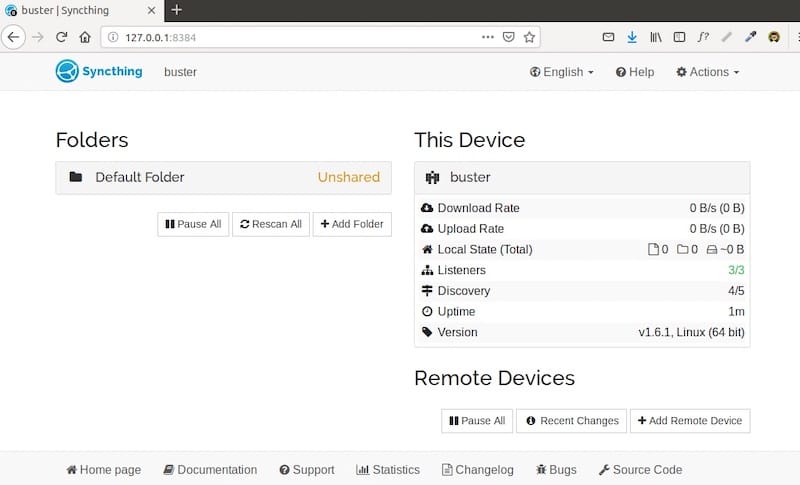
Syncthing’s web-based configuration interface provides comprehensive management capabilities through any modern web browser. Start the application and access the interface at localhost:8384:
firefox http://localhost:8384The web interface initializes with a setup wizard guiding users through essential configuration steps including device naming, folder selection, and initial security settings. First-time access triggers automatic configuration file generation in ~/.config/syncthing/
Initial web interface access may display security warnings about untrusted certificates, which users can safely accept for localhost connections. The interface provides intuitive navigation through device management, folder configuration, and advanced settings panels.
Basic Settings Configuration
Device identification requires meaningful naming for easy recognition across synchronized devices. Navigate to Actions > Settings > General and configure:
- Device Name: Choose descriptive names like “Desktop-Office” or “Laptop-Home”
- Default Folder Path: Specify synchronized directory locations
- Global Discovery: Enable for automatic device discovery across networks
Default folder creation establishes the primary synchronization directory, typically located at ~/Sync. Users can modify default locations through the folder configuration interface, supporting custom directory structures and multiple synchronized folders.
Configuration changes require application restart to take effect. The web interface provides restart options through the Actions menu, ensuring configuration updates apply properly without manual service management.
Security Configuration
Setting Up Authentication
Web interface protection requires username and password configuration to prevent unauthorized access, particularly important on shared systems or networks. Navigate to Actions > Settings > GUI and configure authentication credentials.
Enable “Use HTTPS for GUI” and set strong authentication credentials:
Username: admin
Password: [strong-password-here]
Authentication configuration creates encrypted sessions and prevents unauthorized configuration changes. Strong password requirements include minimum 12 characters with mixed case letters, numbers, and special characters.
API key protection provides additional security layers for programmatic access and third-party integrations. The web interface displays the API key in Settings > General, which should be treated as sensitive credential information.
HTTPS Configuration
HTTPS encryption protects web interface communications from network eavesdropping and man-in-the-middle attacks. Syncthing generates self-signed certificates automatically, providing encryption without requiring external certificate authorities.
Browser security warnings for self-signed certificates are expected and can be safely accepted for localhost connections. Advanced users may configure custom certificates through the web interface certificate management section.
Network Security Considerations
Device key management forms the foundation of Syncthing’s security architecture. Each installation generates unique cryptographic keys for device identification and encrypted communication channels. These keys should never be shared between devices or transmitted through insecure channels.
Connection security relies on Transport Layer Security (TLS) encryption for all device communications. Syncthing automatically negotiates secure connections and verifies device authenticity through cryptographic key exchange protocols.
Firewall Configuration
UFW Configuration
Uncomplicated Firewall (UFW) configuration ensures proper network communication while maintaining system security. Syncthing requires specific port access for optimal operation across different network configurations.
Enable UFW if not already active:
sudo ufw enableConfigure required Syncthing ports:
sudo ufw allow 22000/tcp
sudo ufw allow 22000/udp
sudo ufw allow 21027/udp
These port configurations enable:
- TCP 22000: Direct device communication and data transfer
- UDP 22000: Local network device discovery
- UDP 21027: Global discovery service communication
Verify firewall rules:
sudo ufw statusAdvanced firewall configurations may restrict access to specific IP addresses or network ranges, providing additional security for sensitive environments.
Port Management
Port customization supports environments with specific networking requirements or port conflicts. Modify port configurations through the web interface Settings > Connections panel.
Custom port assignments require corresponding firewall rule updates and may affect automatic device discovery capabilities. Document port changes for troubleshooting and future configuration references.
Adding Devices and Sharing Folders
Device Discovery and Pairing
Device pairing establishes secure communication channels between synchronized systems through cryptographic key exchange. Access the web interface and select “Add Remote Device” to begin the pairing process.
Device ID exchange requires secure communication channels to prevent unauthorized access. Each device displays its unique identifier in Actions > Show ID, typically presented as a QR code for mobile device pairing or text string for manual entry.
Remote device addition requires mutual acceptance from both systems. Device requests appear in the web interface notification area, requiring explicit approval before establishing synchronized connections.
Folder Sharing Setup
Folder configuration supports multiple synchronization modes including bidirectional, send-only, and receive-only operations. Create new shared folders through “Add Folder” interface options, specifying local directory paths and synchronization parameters.
Folder sharing requires invitation and acceptance workflows similar to device pairing. Share folders with connected devices through the folder configuration interface, selecting appropriate devices from available connection lists.
Advanced folder options include:
- Ignore patterns for selective synchronization
- Versioning for file history management
- Scanning intervals for change detection optimization
Advanced Configuration Options
Ignore Patterns
Selective synchronization through ignore patterns prevents unwanted file transfers and reduces bandwidth consumption. Create .stignore files within synchronized folders to specify exclusion rules using glob patterns.
Common ignore patterns include:
*.tmp
.DS_Store
node_modules/
*.log
.git/
Pattern syntax supports wildcards, directory specifications, and regular expressions for flexible file filtering. Ignore pattern changes apply automatically during subsequent synchronization cycles.
Bandwidth and Performance Settings
Performance optimization balances synchronization speed with system resource consumption. Configure bandwidth limits through Settings > Connections to prevent network saturation during large file transfers.
Connection limits control concurrent transfer operations and scanning intervals affect change detection responsiveness. Adjust these parameters based on system capabilities and network characteristics for optimal performance.
Relay and Discovery Settings
Relay server configuration enables connectivity through restrictive network environments including corporate firewalls and NAT configurations. Global discovery services facilitate automatic device location across internet connections.
Custom relay servers provide enhanced privacy and performance for specialized deployment scenarios. Configure relay preferences through Settings > Connections > Global Discovery and Relay Configuration panels.
Troubleshooting Common Issues
Web GUI Access Problems
Localhost connectivity issues may result from service startup failures, port conflicts, or browser compatibility problems. Verify service status using systemctl commands and check port availability with netstat.
Common solutions include:
- Restart the Syncthing service
- Clear browser cache and cookies
- Verify firewall port configurations
- Check for conflicting applications using port 8384
Configuration file corruption may require manual restoration from backup copies located in ~/.config/syncthing/backup/
Service Startup Issues
Systemd service failures often indicate permission problems, configuration errors, or dependency conflicts. Examine service logs for detailed error information:
systemctl --user status syncthing.service
journalctl --user -u syncthing.service
Permission-related errors require verification of file ownership and access rights within the Syncthing configuration directory. Ensure the user account has appropriate read/write permissions for all synchronized folders.
Sync and Connection Problems
Device connectivity issues may stem from network configuration problems, firewall restrictions, or incorrect device credentials. Verify device IDs match exactly between systems and check network connectivity between synchronized devices.
Connection troubleshooting steps include:
- Verify device IDs and acceptance status
- Check firewall configurations on all devices
- Test direct network connectivity between systems
- Review global discovery service availability
Permission and File Access Issues
File permission conflicts prevent proper synchronization and may cause partial transfer failures. Ensure consistent user ownership and appropriate access permissions across all synchronized directories.
Resolve permission issues through:
sudo chown -R $USER:$USER ~/Sync
chmod -R 755 ~/Sync
Performance Optimization
Syncthing performance optimization focuses on efficient resource utilization while maintaining synchronization reliability. Database optimization through periodic maintenance improves scanning performance and reduces memory consumption.
Scanner configuration affects system resource usage and synchronization responsiveness. Adjust scan intervals based on file change frequency and system capabilities to balance performance with accuracy requirements.
Network optimization includes bandwidth limiting, connection prioritization, and relay server selection. Configure these parameters through the web interface to match specific network conditions and usage patterns.
Security Best Practices
Comprehensive security implementation protects synchronized data and prevents unauthorized access across all connected devices. Regular key rotation, access control reviews, and configuration audits maintain security posture over time.
Essential security practices include:
- Strong authentication credentials for web interface access
- Regular configuration backups and restore testing
- Network segmentation for synchronized device isolation
- Monitoring of device connection logs for suspicious activity
Device key protection requires secure storage and transmission practices. Never share device keys between installations or transmit keys through unencrypted channels.
Maintenance and Updates
Regular maintenance ensures optimal Syncthing performance and security through systematic update procedures and configuration monitoring. Repository-based installations receive automatic updates through standard system update processes.
Maintenance tasks include:
- Weekly configuration backup verification
- Monthly log file review and cleanup
- Quarterly performance optimization assessment
- Annual security configuration audit
Update procedures for manual installations require periodic download and installation of newer releases. Monitor the official Syncthing website for security updates and feature releases requiring immediate attention.
Congratulations! You have successfully installed Syncthing. Thanks for using this tutorial for installing the latest version of Syncthing remote file synchronization on Linux Mint 22 system. For additional help or useful information, we recommend you check the official Syncthing website.
