How To Install Taiga on Debian 13

Taiga stands out as a powerful open-source project management platform designed specifically for agile teams who need robust tools without recurring subscription costs. This comprehensive guide walks you through installing Taiga on Debian 13, transforming your server into a self-hosted project management powerhouse that rivals commercial solutions like Jira, Trello, and Asana. Whether you’re managing Scrum sprints, Kanban boards, or hybrid workflows, you’ll discover how to deploy a production-ready Taiga instance with proper security configurations and performance optimization. By following this step-by-step tutorial, you’ll gain complete control over your project data while building expertise in Linux server administration.
Understanding Taiga Architecture
Before diving into the installation process, understanding Taiga’s architecture helps you troubleshoot issues and customize your deployment effectively.
Core Components
Taiga operates through three primary components that work in harmony. The taiga-back serves as the backend API, built on Django and Python, handling all business logic, authentication, and database operations. The taiga-front provides the user-facing interface, constructed with Angular to deliver a responsive and intuitive experience. Finally, the optional taiga-events component functions as a WebSocket gateway, enabling real-time updates across team members’ browsers without manual refreshing.
System Architecture Overview
The complete Taiga stack comprises multiple layers working together seamlessly. PostgreSQL forms the database layer, storing all project data, user information, and configurations. Python virtual environments isolate the application layer, preventing dependency conflicts with system packages. Nginx acts as the reverse proxy and web server, efficiently serving static files while routing API requests to the backend. For installations requiring real-time collaboration, RabbitMQ provides message queue functionality, enabling instant notifications and updates. This layered architecture ensures scalability, allowing your Taiga instance to grow alongside your organization’s needs.
Prerequisites and System Requirements
Hardware Requirements
Your server must meet minimum specifications for stable Taiga operation. Allocate at least 2GB of RAM, though 4GB or more is strongly recommended for production environments handling multiple concurrent users. Reserve 10GB of storage space minimum, with additional capacity depending on expected file uploads and attachments. A dual-core processor suffices for small teams, but consider quad-core CPUs for larger organizations. Remember that compiling certain Python packages during installation temporarily increases resource demands.
Software Requirements
Start with a fresh Debian 13 installation to avoid conflicts with existing services. You’ll need root access or sudo privileges throughout this installation process. Having a domain name or static IP address ready facilitates access and SSL certificate configuration. While optional for testing environments, SSL certificates are essential for production deployments to protect sensitive project data.
Required Knowledge
This guide assumes familiarity with basic Linux command-line operations. You should feel comfortable using text editors like nano or vim to modify configuration files. Understanding fundamental networking concepts helps when configuring Nginx and firewall rules. Basic database management knowledge proves valuable during PostgreSQL setup, though we’ll cover each step in detail.
Step 1: Initial System Preparation
Update System Packages
Begin by refreshing your package repositories to ensure you’re installing the latest software versions:
sudo apt update
sudo apt upgrade -y
This critical security step patches known vulnerabilities and prevents compatibility issues. The process may take several minutes depending on your system’s current state.
Install Essential Dependencies
Taiga requires numerous development libraries and tools. Install everything needed with this comprehensive command:
sudo apt install -y build-essential git python3 python3-pip python3-dev python3-venv \
postgresql postgresql-contrib postgresql-server-dev-all libpq-dev \
libjpeg-dev libpng-dev libfreetype6-dev zlib1g-dev \
libxml2-dev libxslt1-dev libssl-dev libffi-dev curl
Each package serves specific purposes: build-essential provides compilation tools, git enables repository cloning, Python packages support the backend, PostgreSQL libraries facilitate database connectivity, and image processing libraries handle user avatars and file uploads.
Step 2: PostgreSQL Database Setup
Install and Configure PostgreSQL
Debian 13 includes PostgreSQL in its default repositories. Start and enable the database service:
sudo systemctl start postgresql
sudo systemctl enable postgresql
sudo systemctl status postgresql
The status command should confirm PostgreSQL is running actively. Green “active (running)” status indicates successful initialization.
Create Taiga Database and User
Switch to the PostgreSQL system user and access the database prompt:
sudo -u postgres psqlExecute these SQL commands to establish Taiga’s database infrastructure:
CREATE DATABASE taiga;
CREATE USER taiga WITH PASSWORD 'StrongPassword123!';
GRANT ALL PRIVILEGES ON DATABASE taiga TO taiga;
\q
Replace ‘StrongPassword123!’ with a genuinely strong, randomly generated password. Store this credential securely; you’ll need it for backend configuration. Strong passwords combine uppercase, lowercase, numbers, and special characters, minimizing unauthorized access risks.
Test your database connection to verify proper setup:
psql -U taiga -d taiga -h localhostEnter your password when prompted. Successful login confirms your database is ready.
Step 3: Create Taiga System User
Running services under dedicated user accounts follows security best practices by limiting potential damage from compromised processes. Create the taiga user:
sudo adduser --system --group --home /home/taiga taigaThis command creates a system account without login capabilities, enhancing security. Switch to this user for installation steps:
sudo su - taigaCreate necessary directory structures within the taiga home:
mkdir -p ~/logs ~/media ~/staticThese directories segregate log files, user uploads, and static assets, simplifying backups and maintenance.
Step 4: Install and Configure Taiga Backend
Clone Backend Repository
Navigate to the taiga user’s home directory and clone the official repository:
cd /home/taiga
git clone https://github.com/kaleidos-ventures/taiga-back.git taiga-back
cd taiga-back
git checkout stable
The stable branch receives thorough testing before release, making it appropriate for production deployments. Development branches contain cutting-edge features but may include bugs.
Set Up Python Virtual Environment
Virtual environments prevent dependency conflicts between Taiga and other Python applications:
python3 -m venv .venv
source .venv/bin/activate
Your prompt should now display “(.venv)” indicating activation. Install backend dependencies:
pip install --upgrade pip wheel
pip install -r requirements.txt
This installation process downloads and compiles numerous packages. Expect 5-10 minutes on modest hardware. If errors occur, verify all system dependencies installed correctly in Step 1.
Configure Backend Settings
Create the settings directory and configuration file:
mkdir -p ~/taiga-back/settings
nano ~/taiga-back/settings/config.py
Add this configuration, adjusting values for your environment:
from .common import *

DATABASES = {
    'default': {
        'ENGINE': 'django.db.backends.postgresql',
        'NAME': 'taiga',
        'USER': 'taiga',
        'PASSWORD': 'StrongPassword123!',
        'HOST': 'localhost',
        'PORT': '5432',
    }
}

SECRET_KEY = 'your-generated-secret-key-here'
DEBUG = False
PUBLIC_REGISTER_ENABLED = True

SITES = {
    "front": {
        "scheme": "http",
        "domain": "your-domain.com",
        "name": "taiga"
    },
    "api": {
        "scheme": "http",
        "domain": "your-domain.com",
        "name": "taiga"
    }
}

MEDIA_URL = "http://your-domain.com/media/"
STATIC_URL = "http://your-domain.com/static/"
Generate a secure SECRET_KEY using Python:
python -c 'import secrets; print(secrets.token_urlsafe(50))'The SECRET_KEY protects session data and cryptographic operations. Never share this value publicly or commit it to version control.
Step 5: Initialize Database and Backend
Run Database Migrations
With your virtual environment still activated, initialize the database schema:
cd ~/taiga-back
source .venv/bin/activate
python manage.py migrate --noinput
Migrations create tables, indexes, and relationships required for Taiga’s operation. You’ll see numerous “Applying…” messages as Django builds your database structure.
Load Initial Data
Populate essential reference data:
python manage.py loaddata initial_user
python manage.py loaddata initial_project_templates
python manage.py loaddata initial_role
python manage.py createsuperuser
The createsuperuser command prompts for administrator credentials. Use a strong password and valid email address. This account provides full system access for initial configuration.
Collect static files into your designated directory:
python manage.py collectstatic --noinput
python manage.py compilemessages
These commands gather CSS, JavaScript, and translation files, preparing them for efficient serving by Nginx.
Step 6: Test Backend Installation
Verify your backend functions correctly before proceeding:
python manage.py runserver 0.0.0.0:8000Open a web browser and navigate to http://your-server-ip:8000/api/v1/. You should see JSON output listing API endpoints. This confirms successful backend installation. Press Ctrl+C to stop the development server. Never use runserver in production; we’ll configure proper process management later.
Step 7: Install and Configure Taiga Frontend
Install Node.js and npm
Exit the taiga user session and return to your administrative account:
exitInstall Node.js from the official repository:
curl -fsSL https://deb.nodesource.com/setup_18.x | sudo -E bash -
sudo apt install -y nodejs
node --version
npm --version
Verify Node.js version 18 or higher installed successfully. Version compatibility matters for building frontend assets properly.
Clone and Configure Frontend
Switch back to the taiga user:
sudo su - taiga
cd /home/taiga
git clone https://github.com/kaleidos-ventures/taiga-front-dist.git taiga-front-dist
cd taiga-front-dist
git checkout stable
Create the configuration file:
nano ~/taiga-front-dist/dist/conf.jsonInsert this configuration:
{
    "api": "http://your-domain.com/api/v1/",
    "eventsUrl": null,
    "debug": false,
    "publicRegisterEnabled": true,
    "feedbackEnabled": true,
    "privacyPolicyUrl": null,
    "termsOfServiceUrl": null,
    "maxUploadFileSize": 104857600,
    "contribPlugins": []
}
Set eventsUrl to your WebSocket URL if you’ll install taiga-events later. The maxUploadFileSize value controls attachment limits in bytes (100MB in this example).
Step 8: Install and Configure RabbitMQ (Optional)
Real-time updates require RabbitMQ and taiga-events. Skip this section if immediate notifications aren’t essential for your workflow.
Install RabbitMQ
Return to your administrative user and install RabbitMQ:
exit
sudo apt install -y rabbitmq-server
sudo systemctl start rabbitmq-server
sudo systemctl enable rabbitmq-server
RabbitMQ runs as a background service, handling message delivery between Taiga components.
Configure Taiga Events
Switch back to taiga user and clone the events repository:
sudo su - taiga
cd /home/taiga
git clone https://github.com/kaleidos-ventures/taiga-events.git
cd taiga-events
git checkout stable
npm install
Create the configuration file:
nano ~/taiga-events/config.jsonAdd connection details:
{
    "url": "amqp://guest:guest@localhost:5672",
    "secret": "your-same-secret-key-from-backend",
    "webSocketServer": {
        "port": 8888
    }
}
The secret value must match your backend SECRET_KEY exactly. This authenticates event publishing between components.
Step 9: Configure Nginx Web Server
Install Nginx
Install and start Nginx:
exit
sudo apt install -y nginx
sudo systemctl start nginx
sudo systemctl enable nginx
Create Taiga Server Block
Create a new Nginx configuration:
sudo nano /etc/nginx/sites-available/taigaAdd this comprehensive server block:
server {
    listen 80;
    server_name your-domain.com;

    large_client_header_buffers 4 32k;
    client_max_body_size 100M;
    charset utf-8;

    access_log /home/taiga/logs/nginx.access.log;
    error_log /home/taiga/logs/nginx.error.log;

    # Frontend
    location / {
        root /home/taiga/taiga-front-dist/dist/;
        try_files $uri $uri/ /index.html;
    }

    # Backend API
    location /api {
        proxy_set_header Host $http_host;
        proxy_set_header X-Real-IP $remote_addr;
        proxy_set_header X-Scheme $scheme;
        proxy_set_header X-Forwarded-Proto $scheme;
        proxy_set_header X-Forwarded-For $proxy_add_x_forwarded_for;
        proxy_pass http://127.0.0.1:8001/api;
        proxy_redirect off;
    }

    # Admin panel
    location /admin {
        proxy_set_header Host $http_host;
        proxy_set_header X-Real-IP $remote_addr;
        proxy_set_header X-Scheme $scheme;
        proxy_set_header X-Forwarded-Proto $scheme;
        proxy_set_header X-Forwarded-For $proxy_add_x_forwarded_for;
        proxy_pass http://127.0.0.1:8001/admin;
        proxy_redirect off;
    }

    # Static files
    location /static {
        alias /home/taiga/taiga-back/static;
    }

    # Media files
    location /media {
        alias /home/taiga/taiga-back/media;
    }

    # Events (if installed)
    location /events {
        proxy_pass http://127.0.0.1:8888/events;
        proxy_http_version 1.1;
        proxy_set_header Upgrade $http_upgrade;
        proxy_set_header Connection "upgrade";
        proxy_connect_timeout 7d;
        proxy_send_timeout 7d;
        proxy_read_timeout 7d;
    }
}
Enable the site and test configuration:
sudo ln -s /etc/nginx/sites-available/taiga /etc/nginx/sites-enabled/
sudo nginx -t
sudo systemctl reload nginx
The nginx -t command validates syntax before applying changes, preventing service disruptions from configuration errors.
For production deployments, obtain free SSL certificates from Let’s Encrypt:
sudo apt install -y certbot python3-certbot-nginx
sudo certbot --nginx -d your-domain.com
Certbot automatically modifies your Nginx configuration to enable HTTPS and redirect HTTP traffic.
Step 10: Set Up Process Management with Systemd
Development servers aren’t suitable for production. Systemd ensures Taiga starts automatically and restarts after crashes.
Create Backend Service
Create the backend service file:
sudo nano /etc/systemd/system/taiga-back.serviceInsert this configuration:
[Unit]
Description=Taiga Backend
After=network.target postgresql.service

[Service]
Type=simple
User=taiga
Group=taiga
WorkingDirectory=/home/taiga/taiga-back
Environment="PYTHONUNBUFFERED=1"
ExecStart=/home/taiga/taiga-back/.venv/bin/gunicorn \
    --workers 4 \
    --timeout 60 \
    --bind 127.0.0.1:8001 \
    --log-level=info \
    --access-logfile /home/taiga/logs/gunicorn-access.log \
    --error-logfile /home/taiga/logs/gunicorn-error.log \
    taiga.wsgi
Restart=always
RestartSec=3

[Install]
WantedBy=multi-user.target
Install Gunicorn first:
sudo su - taiga
cd ~/taiga-back
source .venv/bin/activate
pip install gunicorn
exit
Create Events Service (Optional)
If you installed taiga-events, create its service file:
sudo nano /etc/systemd/system/taiga-events.serviceAdd this configuration:
[Unit]
Description=Taiga Events
After=network.target rabbitmq-server.service

[Service]
Type=simple
User=taiga
Group=taiga
WorkingDirectory=/home/taiga/taiga-events
ExecStart=/usr/bin/node /home/taiga/taiga-events/index.js
Restart=always
RestartSec=3

[Install]
WantedBy=multi-user.target
Enable and start all services:
sudo systemctl daemon-reload
sudo systemctl start taiga-back
sudo systemctl enable taiga-back
sudo systemctl start taiga-events  # if applicable
sudo systemctl enable taiga-events  # if applicable
sudo systemctl status taiga-back
Check logs if services fail to start:
sudo journalctl -u taiga-back -fStep 11: Security Hardening
Firewall Configuration
Protect your server with a properly configured firewall:
sudo apt install -y ufw
sudo ufw allow 22/tcp
sudo ufw allow 80/tcp
sudo ufw allow 443/tcp
sudo ufw enable
sudo ufw status
UFW blocks all ports except those explicitly allowed. SSH access (port 22) remains available for remote administration.
Additional Security Measures
Change default PostgreSQL authentication by editing pg_hba.conf to use md5 instead of trust for local connections. Set restrictive file permissions:
sudo chmod 750 /home/taiga/taiga-back/settings
sudo chmod 640 /home/taiga/taiga-back/settings/config.py
Implement regular backup schedules using cron jobs. Export your database nightly:
sudo -u postgres pg_dump taiga > /backups/taiga-$(date +%Y%m%d).sqlConfigure Nginx security headers by adding these lines to your server block:
add_header X-Frame-Options "SAMEORIGIN" always;
add_header X-Content-Type-Options "nosniff" always;
add_header X-XSS-Protection "1; mode=block" always;
Keep Taiga updated by regularly checking the official repository for new stable releases.
Step 12: Post-Installation Configuration
Access Taiga Interface
Open your web browser and navigate to your configured domain. You’ll see Taiga’s login screen. Use the superuser credentials created earlier to sign in.
The first login presents a configuration wizard. Set your organization name, default language, and timezone. Change the default admin password immediately through the user profile settings. Strong password practices prevent unauthorized access to your project management system.
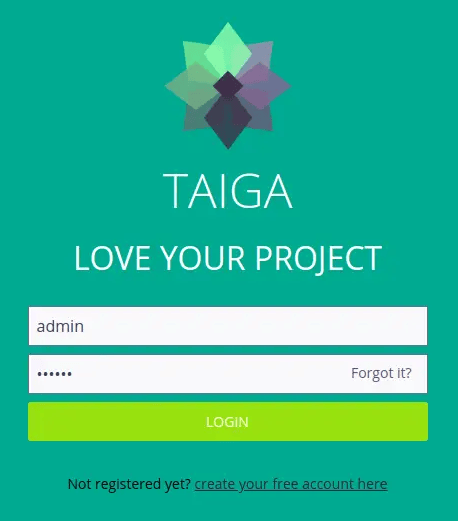
Initial Configuration
Create your first project by clicking the “New Project” button. Choose between Scrum, Kanban, or Issue tracking templates depending on your workflow preferences. Invite team members via email addresses. They’ll receive registration links to join your Taiga instance.
Configure email notifications through the Django admin panel at /admin/. Navigate to Settings → Email and enter your SMTP server details. Proper email configuration enables password resets, task assignments, and comment notifications.
Set up automated backups for both the database and media files. Create a backup script:
sudo nano /usr/local/bin/backup-taiga.shAdd backup logic:
#!/bin/bash
BACKUP_DIR="/backups/taiga"
DATE=$(date +%Y%m%d_%H%M%S)

# Database backup
sudo -u postgres pg_dump taiga | gzip > $BACKUP_DIR/db-$DATE.sql.gz

# Media files backup
tar -czf $BACKUP_DIR/media-$DATE.tar.gz /home/taiga/taiga-back/media/

# Cleanup old backups (keep 30 days)
find $BACKUP_DIR -type f -mtime +30 -delete
Make executable and schedule:
sudo chmod +x /usr/local/bin/backup-taiga.sh
sudo crontab -e
Add this cron entry for daily 2 AM backups:
0 2 * * * /usr/local/bin/backup-taiga.shTroubleshooting Common Issues
Backend Issues
Database connection errors typically indicate incorrect credentials in config.py. Verify your PostgreSQL password matches exactly, including case sensitivity. Test database connectivity manually using psql.
Python dependency conflicts arise from version mismatches. Recreate your virtual environment and reinstall requirements.txt if pip reports incompatibilities. Always activate the virtual environment before running Django commands.
Static files not loading suggests collectstatic didn’t run successfully or Nginx can’t access the static directory. Check file permissions ensure the taiga user owns all files:
sudo chown -R taiga:taiga /home/taiga/taiga-back/staticFrontend Issues
API connection failures manifest as spinning loaders that never complete. Inspect your browser’s developer console for errors. Verify conf.json contains the correct API URL including the trailing slash.
CORS errors prevent frontend-backend communication. Ensure your config.py SITES settings match your actual domain exactly. Protocol mismatches (http vs https) commonly cause CORS problems.
Asset loading problems appear as unstyled pages or missing functionality. Clear your browser cache and verify Nginx serves files from the correct taiga-front-dist/dist/ directory.
Nginx and Network Issues
502 Bad Gateway errors indicate Nginx cannot reach the backend. Confirm taiga-back service runs properly:
sudo systemctl status taiga-backCheck that Gunicorn listens on 127.0.0.1:8001 by examining process bindings:
sudo netstat -tlnp | grep 8001Timeout errors during large file uploads require increasing client_max_body_size in your Nginx configuration. Match this value with maxUploadFileSize in frontend conf.json.
WebSocket connection failures prevent real-time updates. Verify taiga-events service runs and RabbitMQ accepts connections. Test WebSocket connectivity using browser developer tools’ Network tab.
Review logs systematically when troubleshooting:
# Backend logs
sudo journalctl -u taiga-back -n 100

# Nginx logs
sudo tail -f /home/taiga/logs/nginx.error.log

# Events logs (if applicable)
sudo journalctl -u taiga-events -n 100
Maintenance and Updates
Keep your Taiga installation healthy through regular maintenance. Update the backend by pulling the latest stable branch:
sudo su - taiga
cd ~/taiga-back
source .venv/bin/activate
git pull origin stable
pip install -r requirements.txt --upgrade
python manage.py migrate
python manage.py collectstatic --noinput
exit
sudo systemctl restart taiga-back
Update the frontend similarly:
sudo su - taiga
cd ~/taiga-front-dist
git pull origin stable
exit
sudo systemctl reload nginx
Back up your database before major updates. PostgreSQL provides consistent backups even while Taiga runs:
sudo -u postgres pg_dump taiga | gzip > /backups/taiga-pre-update.sql.gzMonitor Taiga performance using system tools. Watch CPU and memory usage:
htopHigh memory consumption might indicate insufficient worker processes or memory leaks requiring service restarts.
Configure log rotation to prevent disk space exhaustion:
sudo nano /etc/logrotate.d/taigaAdd rotation rules:
/home/taiga/logs/*.log {
    daily
    rotate 14
    compress
    delaycompress
    notifempty
    missingok
    copytruncate
}
Upgrade Debian system packages quarterly to maintain security:
sudo apt update
sudo apt upgrade -y
sudo apt autoremove -y
Congratulations! You have successfully installed Taiga. Thanks for using this tutorial for installing the Taiga project management tool on the Debian 13 “Trixie” system. For additional help or useful information, we recommend you check the official Taiga website.
