How To Install Taiga on Fedora 43

Managing software projects without the right tools leads to missed deadlines, scattered task ownership, and frustrated teams. If your team is still juggling spreadsheets or disconnected chat threads, you need a proper project management platform. Taiga is a free, open-source solution built for agile teams, and installing it on your own server gives you full control over your data with zero monthly fees. This guide walks you through exactly how to install Taiga on Fedora 43 using Docker, covering everything from system prerequisites to your first login.
What Is Taiga and Why Should You Self-Host It?
Taiga is an open-source project management tool built specifically for agile workflows. It supports both Scrum and Kanban methodologies out of the box, making it a strong alternative to Jira or Trello for teams that want flexibility without vendor lock-in.
The platform is made up of three core services working together:
- taiga-back — the Django/Python backend that handles all business logic, the REST API, and database operations
- taiga-front — the Angular-based frontend that serves the web interface users interact with
- taiga-events — a WebSocket gateway that delivers real-time updates like notifications, live board changes, and comment feeds
Self-hosting Taiga means your project data never leaves your infrastructure. You avoid per-seat licensing costs, maintain complete privacy, and can customize the platform to fit your workflows. For small dev teams and sysadmins running their own Fedora 43 servers, this is a compelling setup.
Key features you get out of the box:
- Full Scrum backlog and sprint management
- Visual Kanban boards with customizable columns
- Built-in issue tracking and bug management
- Team wiki for project documentation
- GitHub and GitLab integration for linking commits to tasks
- Real-time collaboration with comments and @mentions
- Custom workflows, statuses, and tags
Why Fedora 43 Is a Solid Choice for This Setup
Fedora 43 is a cutting-edge, RPM-based Linux distribution that ships with modern kernel features and excellent Docker support. Docker CE 29.x and Docker Compose Plugin v5.x are fully available on Fedora 43 through the official Docker repository, meaning you are working with current, stable packages rather than outdated distribution-bundled versions.
Fedora also ships with SELinux enabled by default. This adds mandatory access control on top of standard Linux permissions, giving your Taiga deployment an extra layer of security without requiring additional configuration work. For developers and sysadmins who want a production-grade self-hosted setup, Fedora 43 is a practical and well-maintained choice.
Prerequisites
Before you run a single command, confirm your environment meets these requirements:
- Operating System: Fedora 43 (fresh or updated install). Verify with:
cat /etc/fedora-release - Architecture: 64-bit x86_64. Verify with:
uname -mExpected output:
x86_64 - RAM: Minimum 2 GB (4 GB recommended for smooth performance)
- Disk Space: At least 20 GB free
- User Account: A non-root user with
sudoprivileges. Taiga must not run as root - Internet Access: Required for downloading Docker packages and container images
- Open Ports: Port 80 (HTTP) must be accessible through your firewall. Port 443 for HTTPS if needed
If your server does not meet these requirements, the installation will likely fail partway through, particularly during the Docker pull stage or during container initialization.
Step 1: Update Your Fedora 43 System
Starting with a fully updated system prevents dependency conflicts and ensures you are working with the latest security patches.
Run the system update:
sudo dnf -y updateThis refreshes your package database and upgrades all installed packages. Depending on how many updates are pending, this may take a few minutes.
If the kernel was updated, reboot before continuing:
sudo rebootAfter rebooting, confirm you are still on Fedora 43:
cat /etc/fedora-releaseExpected output: Fedora release 43 (Thirty Three)
Step 2: Install Git on Fedora 43
Git is required to clone the official Taiga Docker repository. Most minimal Fedora installs do not include Git by default.
Install Git:
sudo dnf install -y gitVerify the installation:
git --versionExpected output:
git version 2.x.xYou only need Git to pull down the Taiga configuration files. Once cloned, Git is not actively required to run Taiga.
Step 3: Install Docker Engine on Fedora 43
Docker is the backbone of this entire Taiga setup. The official Taiga production method uses Docker Compose to orchestrate all of Taiga’s services as containers. This means you need Docker CE and the Docker Compose plugin properly installed before proceeding.
Remove Conflicting Packages
Fedora’s default repositories may include older or conflicting Docker-related packages. Remove them first to avoid installation errors:
sudo dnf remove docker docker-client docker-client-latest docker-common \
  docker-latest docker-latest-logrotate docker-logrotate \
  docker-selinux docker-engine-selinux docker-engine
If none of these packages are installed, dnf will report nothing to remove. That is fine — continue to the next step.
Add the Official Docker Repository
Fedora’s default repos do not always carry the latest Docker CE releases. Add Docker’s official stable repository:
sudo dnf config-manager addrepo \
  --from-repofile https://download.docker.com/linux/fedora/docker-ce.repo
Verify the repository was added:
sudo dnf repolistYou should see docker-ce-stable Docker CE Stable - x86_64 in the output.
Install Docker CE and the Compose Plugin
Now install all Docker components in a single command:
sudo dnf install docker-ce docker-ce-cli containerd.io \
  docker-buildx-plugin docker-compose-plugin
When prompted to accept the GPG key, verify the fingerprint matches:
060A 61C5 1B55 8A7F 742B 77AA C52F EB6B 621E 9F35Type y to accept and continue.
Here is what each package does:
docker-ce— the core Docker Engine runtimedocker-ce-cli— the command-line interface for managing containerscontainerd.io— the low-level container runtimedocker-buildx-plugin— enables advanced multi-platform image buildsdocker-compose-plugin— allows runningdocker composecommands for multi-service orchestration
Start and Enable the Docker Service
Docker installs but does not start automatically. Enable it now and configure it to start on every boot:
sudo systemctl enable --now dockerCheck that it is running:
sudo systemctl status dockerExpected output includes:
Active: active (running)Add Your User to the Docker Group
Running Docker commands as a non-root user requires adding your account to the docker group:
sudo usermod -aG docker $(whoami)
newgrp docker
Log out and back in to apply the group change. Then verify both Docker and Compose are installed:
docker --version
docker compose version
Expected output:
Docker version 29.1.4, build 0e6fee6
Docker Compose version v5.0.1
Step 4: Clone the Taiga Docker Repository
Taiga provides an official Docker Compose configuration on GitHub. This repository contains all the docker-compose.yml files and environment templates needed to spin up the full Taiga stack.
Move to the /opt directory and clone the repository:
cd /opt
sudo git clone https://github.com/kaleidos-ventures/taiga-docker.git
cd taiga-docker
List the contents to understand the structure:
ls -laKey files you will work with:
docker-compose.yml— defines all Taiga services and their relationshipsdocker-compose-inits.yml— runs one-time database initialization tasks.env.example— the template for all configuration variables
Step 5: Configure the Taiga Environment File
This is the step where most failed installations originate. Every critical setting — your domain, secret keys, database passwords — lives in the .env file. Getting this right before launching the stack saves you from debugging broken containers later.
Copy the example file:
cp .env.example .envOpen it for editing:
nano .envCritical Variables to Change
Work through these settings carefully:
TAIGA_SECRET_KEY— Generate a strong random value and paste it here:openssl rand -hex 32TAIGA_SITES_DOMAIN— Set this to your server’s IP address or domain name. For example:192.168.1.100ortaiga.yourdomain.com. For local testing,localhostworks.TAIGA_URL— The full URL of your Taiga instance:http://192.168.1.100TAIGA_WEBSOCKETS_URL— The WebSocket URL. This must start withws://, nothttp://:ws://192.168.1.100POSTGRES_PASSWORD— Set a strong, unique database passwordRABBITMQ_PASS— Set a strong password for the RabbitMQ message broker
Save the file after making your changes (Ctrl+O, then Enter, then Ctrl+X in nano).
A misconfigured .env is the single most common reason Taiga containers fail to start. Double-check every value before moving to the next step.
Step 6: Initialize and Launch Taiga
With Docker installed and the environment file configured, you are ready to bring the full Taiga stack online. This happens in two stages: database initialization, then the full stack launch.
Run Database Initialization
This step seeds the PostgreSQL database with the initial schema, user roles, and project templates. It must run before the main stack starts.
sudo docker compose -f docker-compose.yml -f docker-compose-inits.yml up -dDocker will pull all required images on the first run. This can take several minutes depending on your connection speed. Wait until the process completes before continuing.
Start All Taiga Services
Bring up the full Taiga stack:
sudo docker compose up -dVerify all containers are running:
docker compose psYou should see these containers all with a status of Up:
taiga-db— PostgreSQL databasetaiga-back— Django backend APItaiga-async— Async task processortaiga-async-rabbitmq— Message broker for async taskstaiga-events— WebSocket event servertaiga-events-rabbitmq— Message broker for eventstaiga-front— Frontend web applicationtaiga-gateway— Nginx reverse proxy that ties everything together
If any container shows a restart loop or Exited status, check its logs immediately:
docker compose logs taiga-backStep 7: Configure the Fedora Firewall
Fedora 43 uses firewalld by default, which blocks all inbound traffic unless explicitly allowed. This step is skipped in many guides, leading to the frustrating experience of a running Taiga stack that is completely unreachable from a browser.
Allow HTTP traffic on port 80:
sudo firewall-cmd --permanent --add-service=httpIf you plan to configure HTTPS later, allow port 443 now as well:
sudo firewall-cmd --permanent --add-service=httpsReload the firewall to apply the changes:
sudo firewall-cmd --reloadVerify the rules took effect:
sudo firewall-cmd --list-allYou should see http and https listed under services: in the output.
Step 8: Access Taiga and Complete Initial Setup
Open a web browser and navigate to your server’s address:
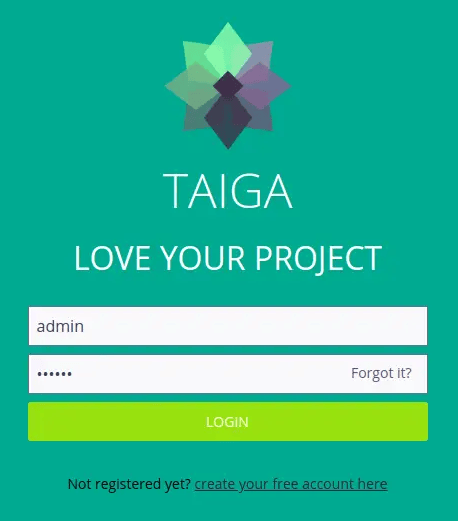
http://your-server-ipThe Taiga login page will appear. Log in with the default admin credentials:
- Username:
admin - Password:
123123
Change this password immediately. Go to Profile Settings > Change Password and set a strong, unique password before doing anything else. Leaving the default credentials in place on a networked server is a serious security risk.
After logging in, you will land on the Taiga dashboard. From here you can:
- Create new projects (Scrum or Kanban)
- Invite team members by email
- Configure project settings, custom statuses, and tags
Create Your First Project
Click New Project from the dashboard. Choose your project type:
- Scrum — for sprint-based development with a structured backlog and sprint planning board
- Kanban — for continuous workflow management with visual columns representing work stages
Enter a project name, add a description, and invite team members. The core project views you will use daily:
- Backlog — manage user stories and assign story points
- Sprint Board — visual drag-and-drop task board for active sprints
- Issues — track bugs and operational issues
- Wiki — built-in documentation for your project
To connect Taiga to GitHub or GitLab so commits link to issues, go to Settings > Integrations and follow the prompts.
Troubleshooting Common Errors on Fedora 43 Taiga Setup
Even with careful configuration, things can go wrong. Here are the most common problems and how to fix them:
Problem: Containers fail to start or immediately exit
Check the logs for the failing container:
docker compose logs taiga-backA misconfigured TAIGA_SECRET_KEY or an incorrect domain in TAIGA_SITES_DOMAIN is the most frequent cause. Review your .env file carefully, correct the value, and re-run docker compose up -d.
Problem: Cannot reach Taiga in the browser (connection refused)
Confirm the firewall allows port 80:
sudo firewall-cmd --list-allAlso verify the taiga-gateway container is in a running state with docker compose ps. The gateway container is the entry point — if it is down, nothing will load.
Problem: Database connection error in taiga-back logs
This usually means POSTGRES_PASSWORD in .env is inconsistent across services. Bring the stack down, delete the volumes, and re-initialize:
docker compose down -v
sudo docker compose -f docker-compose.yml -f docker-compose-inits.yml up -d
Problem: Real-time updates and notifications not working
Verify TAIGA_WEBSOCKETS_URL in your .env starts with ws:// and not http://. The value must also match the domain or IP you set in TAIGA_SITES_DOMAIN.
Problem: SELinux blocking Docker operations
Check for recent SELinux denials:
sudo ausearch -m avc -ts recentIf Docker is being blocked, temporarily set SELinux to permissive mode for diagnostic purposes:
sudo setenforce 0If the issue resolves in permissive mode, generate and apply the appropriate SELinux policy rather than leaving it permanently permissive.
How To Update Taiga on Fedora 43
Keeping Taiga updated ensures you get bug fixes, security patches, and new features. The Docker Compose setup makes updates straightforward.
Always back up your database before updating:
docker compose exec taiga-db pg_dump -U taiga taiga > taiga_backup_$(date +%F).sqlThen run the update sequence:
cd /opt/taiga-docker
docker compose down
git pull
docker compose pull
docker compose up -d
This pulls the latest docker-compose.yml changes from the repository and downloads updated container images. Check the Taiga Docker releases page on GitHub for changelog notes before each update so you know what is changing.
Congratulations! You have successfully installed Taiga. Thanks for using this tutorial for installing the Taiga project management tool on Fedora 43 Linux system. For additional help or useful information, we recommend you check the official Taiga website.
