How To Install Thunderbird on Fedora 43

Thunderbird stands as one of the most trusted open-source email clients available for Linux systems today. Developed by Mozilla, this powerful application offers users complete control over their email communications while maintaining a strong focus on privacy and security. For Fedora 43 users seeking a reliable, feature-rich email solution, Thunderbird delivers exceptional performance with seamless desktop integration.
This comprehensive guide walks you through multiple installation methods for Thunderbird on Fedora 43, ensuring you can choose the approach that best fits your needs and technical preferences. Whether you’re managing personal email accounts, coordinating professional communications, or handling multiple email addresses simultaneously, Thunderbird provides the flexibility and tools necessary for efficient email management. You’ll discover step-by-step instructions for DNF package manager installation, Flatpak containerized deployment, manual installation from source, and alternative Snap methods.
Prerequisites and System Requirements
Before beginning the installation process, verify that your Fedora 43 system meets the necessary requirements for running Thunderbird smoothly.
Fedora 43 System Requirements
Fedora 43 requires a minimum of a 2GHz dual-core processor, 2GB of RAM, and 15GB of available storage space. For optimal performance when running Thunderbird alongside other applications, consider a system with a 2GHz quad-core processor, 4GB of RAM, and 40GB of storage. These specifications ensure responsive email management even with large mailboxes.
Thunderbird System Requirements
Thunderbird operates efficiently on Linux systems meeting specific software dependencies. Your Fedora 43 installation should include glibc 2.17 or higher, GTK+ 3.14 or newer, libglib 2.42 or above, libstdc++ 4.8.1 or later, and X.Org 1.0 or newer. Hardware-wise, Thunderbird recommends a 1GHz processor, 1-2GB of RAM, and approximately 500MB of disk space, plus additional storage for your email archives.
Required Access Permissions
Most installation methods require root or sudo privileges for system-wide deployment. Ensure you have terminal access and an active internet connection before proceeding. Home directory installations offer alternatives for users without administrative access.
Method 1: Installing Thunderbird via DNF Package Manager
The DNF package manager represents the most straightforward and reliable method for installing Thunderbird on Fedora 43. This approach leverages official Fedora repositories, ensuring optimal compatibility and seamless system integration.
Why Choose DNF Installation
Installing through DNF provides several significant advantages. The method offers automatic dependency resolution, eliminating manual configuration of required libraries. Updates arrive through the standard Fedora update mechanism, keeping your email client current with security patches and new features. Additionally, DNF installation ensures the best stability and compatibility with your Fedora 43 system.
Step 1: Update Your System
Begin by updating your system packages to prevent conflicts during installation. Open your terminal and execute the following command:
sudo dnf upgrade --refreshThis command refreshes your package repositories and upgrades existing software to the latest versions. The process may take several minutes depending on your system’s current state and available updates. Wait for the upgrade to complete before proceeding.
Step 2: Install Thunderbird
With your system updated, install Thunderbird using this simple command:
sudo dnf install thunderbirdThe DNF package manager will automatically resolve dependencies, download the necessary packages, and prepare for installation. When prompted, type ‘y’ and press Enter to confirm the installation. The download and installation typically complete within a few minutes, depending on your internet connection speed.
Step 3: Verify Installation
After installation completes, verify that Thunderbird installed correctly by checking the package information:
dnf info thunderbirdThis command displays detailed information about the installed package, including version number, release date, and installation status. You should see confirmation that Thunderbird is installed and ready for use.
Advantages of DNF Method
The DNF installation method provides seamless integration with your Fedora 43 desktop environment. You benefit from official Fedora support and testing, ensuring compatibility with system libraries and frameworks. Security updates arrive automatically through regular system updates, protecting against vulnerabilities. Unlike containerized solutions, DNF installation avoids containerization overhead, offering direct access to system resources.
Method 2: Installing Thunderbird via Flatpak
Flatpak offers a modern approach to software deployment on Linux systems, providing sandboxed applications with enhanced security and access to the latest software versions.
Understanding Flatpak Installation
Flatpak creates isolated environments for applications, separating them from system libraries and other software. This sandboxing approach enhances security while allowing users to run newer application versions than those available in official repositories. Choose Flatpak when you prioritize having the latest Thunderbird features or prefer additional security isolation.
Step 1: Enable Flathub Repository
Fedora 43 typically includes Flatpak support by default. However, you must enable the Flathub repository to access Thunderbird. Execute this command:
sudo flatpak remote-add --if-not-exists flathub https://flathub.org/repo/flathub.flatpakrepoThis command adds Flathub to your system’s Flatpak remotes if it isn’t already configured. The --if-not-exists flag prevents errors if Flathub is already enabled.
Step 2: Install Thunderbird via Flatpak
Install Thunderbird from Flathub using the following command:
flatpak install flathub org.mozilla.ThunderbirdThe Flatpak system will download Thunderbird along with required runtime dependencies. You’ll see several confirmation prompts during installation—respond affirmatively to proceed. The initial Flatpak installation may require downloading significant runtime components, potentially taking longer than traditional package installations.
Step 3: Grant Necessary Permissions
Flatpak’s sandboxing restricts application access to system resources by default. If you have an existing Thunderbird profile in your home directory, grant the Flatpak version access using Flatseal, a graphical permission management tool:
flatpak install flathub com.github.tchx84.FlatsealLaunch Flatseal, select Thunderbird from the application list, and enable filesystem access to your home directory or specific Thunderbird profile locations. This step ensures the Flatpak version can access your existing email data.
Common Flatpak Troubleshooting
Users occasionally encounter the error message “Unable to load summary from remote flathub” during installation. This indicates that the Flathub remote is disabled. Resolve this issue by enabling Flathub:
flatpak remote-modify --enable flathubAfter enabling the remote, retry the installation command. Verify your Flatpak applications by listing them:
sudo flatpak list --appThis command displays all installed Flatpak applications, helping confirm successful installation.
Flatpak Advantages and Considerations
Flatpak installations provide access to newer Thunderbird features faster than traditional repositories. The sandboxed environment offers enhanced security through application isolation. However, consider that Flatpak applications may have slightly different system integration compared to native packages. Some users prefer Flatpak for non-critical applications while using native packages for core system software.
Method 3: Manual Installation from Mozilla
Manual installation offers maximum control over Thunderbird deployment, proving particularly useful for specific version requirements or non-standard configurations.
When to Use Manual Installation
Consider manual installation when you need a specific Thunderbird version not available in repositories. Users without root access benefit from home directory installation options. Advanced users running multiple Thunderbird versions simultaneously also prefer this method.
System-Wide Manual Installation
Step 1: Download Thunderbird
Navigate to Mozilla’s official Thunderbird download page using your web browser. Download the Linux version packaged as a compressed tar.bz2 archive. Ensure you select the correct architecture (typically 64-bit for modern systems) matching your Fedora 43 installation.
Step 2: Extract the Archive
Open a terminal and navigate to your Downloads directory:
cd ~/DownloadsExtract the downloaded archive:
tar xjf thunderbird-*.tar.bz2This command extracts all Thunderbird files into a new directory. The asterisk wildcard matches any version number in the filename. Optionally, remove the archive after successful extraction to free disk space.
Step 3: Move to System Location
Move the extracted Thunderbird directory to /opt, the standard location for manually installed software:
sudo mv thunderbird /optThe /opt directory provides a clean separation between manually installed applications and package-managed software. This organization simplifies system maintenance and prevents conflicts with package managers.
Step 4: Create Symbolic Link
Create a symbolic link allowing easy command-line execution:
sudo ln -s /opt/thunderbird/thunderbird /usr/local/bin/thunderbirdThis symlink enables launching Thunderbird by simply typing thunderbird in any terminal. The /usr/local/bin directory appears in most users’ PATH variable by default, providing convenient access.
Home Directory Installation (Non-Root Users)
Users without sudo privileges can install Thunderbird entirely within their home directory. Extract the archive to a location like $HOME/thunderbird instead of /opt. Create a local symlink or add the Thunderbird directory to your PATH variable. This approach requires no administrative access while providing full Thunderbird functionality.
Updating Manually Installed Thunderbird
Update manual installations by removing the old version and extracting the new one:
sudo rm -rf /opt/thunderbirdThen repeat the extraction and symbolic link creation steps with the newer version. Your user profiles remain safe in separate directories, preserving all email data, settings, and configurations.
Method 4: Installing Thunderbird via Snap (Alternative)
Snap provides another containerized application format similar to Flatpak, offering cross-distribution compatibility and automatic updates.
Snap Installation Overview
Install Snap support on Fedora 43 if not already present:
sudo dnf install snapdAfter installation, log out and log back in to update your PATH variable. Then install Thunderbird:
sudo snap install thunderbirdSnap handles all dependencies and configuration automatically.
When to Consider Snap
Snap excels at providing automatic background updates without user intervention. The format works consistently across different Linux distributions, benefiting users who work with multiple systems. However, Snap applications typically require more disk space than traditional packages and may exhibit different performance characteristics.
Launching Thunderbird
Command Line Launch Methods
Launch Thunderbird from the terminal using commands matching your installation method. DNF and manual installations use:
thunderbirdFlatpak installations require:
flatpak run org.mozilla.ThunderbirdThese commands work from any terminal regardless of your current directory.
GUI Launch Method
Most users prefer launching applications through the desktop environment. Navigate through Activities, select Show Applications, and click the Thunderbird icon. Add Thunderbird to your favorites or dock for quick access. Right-click the icon while running and select “Add to Favorites” in GNOME.
Autostart Configuration
Configure Thunderbird to launch automatically at login through GNOME’s Startup Applications preferences. Search for “Startup Applications” in Settings, click Add, and specify the Thunderbird executable path. This convenience ensures immediate email access after logging in.
Initial Setup and Configuration
First-Time Launch Experience
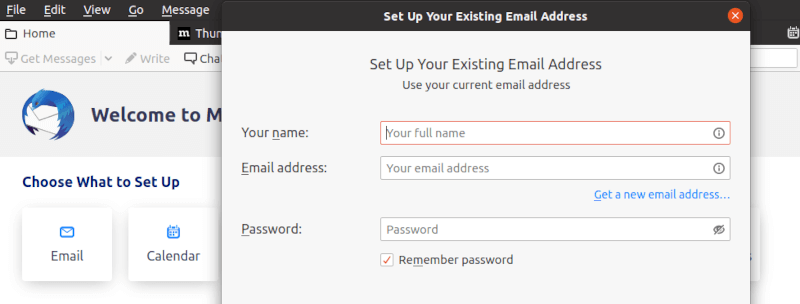
Thunderbird’s initial launch presents an account setup wizard. Enter your email address and password in the provided fields. Thunderbird automatically detects server settings for popular email providers like Gmail, Outlook, and Yahoo. Click through the wizard to complete basic configuration.
Manual Configuration Options
Automatic detection occasionally fails with custom or less common email providers. Click “Manual Configuration” to specify server details directly. Choose between IMAP (synchronizes email across devices) and POP3 (downloads email to one device) protocols. Enter incoming server addresses, outgoing SMTP server information, port numbers, and security settings provided by your email service.
Adding Multiple Email Accounts
Thunderbird excels at managing multiple email accounts from various providers simultaneously. Add additional accounts through Account Settings or by clicking “Get a new email address” in the main window. Configure a unified inbox to view messages from all accounts in one location. This feature streamlines email management for users juggling personal, professional, and other accounts.
Calendar and Task Setup
Enable Thunderbird’s integrated calendar for appointment and event management. Import calendars from email accounts supporting CalDAV protocol. The task management system helps organize to-do items alongside your email. These integrated tools eliminate the need for separate calendar applications.
Profile and Data Location
Thunderbird stores user data in profile directories separate from the application itself. Fedora systems typically place profiles in ~/.thunderbird/ for traditional installations. Flatpak installations use different profile locations within sandboxed directories. Understanding profile locations proves essential for backup and troubleshooting purposes.
Additional Commands and Management
Updating Thunderbird
Keep Thunderbird current with regular updates. DNF installations update through standard system updates:
sudo dnf update thunderbirdFlatpak versions update separately:
flatpak update org.mozilla.ThunderbirdCheck for updates manually through Thunderbird’s Help menu. Consider which update channel matches your stability preferences.
Removing Thunderbird
Uninstall DNF installations with:
sudo dnf remove thunderbirdRemove Flatpak installations using:
flatpak uninstall org.mozilla.ThunderbirdThese commands remove the application but preserve user profiles and data. Manually delete configuration files in your home directory if you want complete removal.
Viewing Installation Information
Check your Thunderbird version from the command line:
thunderbird --versionView detailed package information:
dnf info thunderbirdFor Flatpak installations:
flatpak info org.mozilla.ThunderbirdThese commands help verify installations and troubleshoot version-specific issues.
Troubleshooting Common Issues
Thunderbird Won’t Start
First, verify whether Thunderbird is already running. Check active processes:
ps aux | grep thunderbirdKill stuck processes if necessary. Profile lock files sometimes prevent launching—delete lock and parent.lock files in your profile directory. Flatpak users experiencing launch failures should verify permissions using Flatseal. Downgrade to previous Flatpak versions if recent updates introduced bugs.
Profile Lost After Fedora 43 Upgrade
System upgrades occasionally affect Flatpak profile access. Locate backup profiles in standard Thunderbird directories. Copy profile data to the correct location for your installation method. Migrating between installation methods requires moving profile directories and potentially adjusting permissions.
Flatpak-Specific Issues
Access existing ~/.thunderbird directories by granting appropriate permissions. Install and configure Flatseal to manage filesystem access. Resolve sandbox restrictions by enabling specific permission overrides. These adjustments balance security with necessary functionality.
Email Synchronization Problems
Verify IMAP or POP3 settings match your provider’s requirements. Check port configurations and ensure firewall rules permit email traffic. Authentication failures often result from incorrect passwords or outdated app-specific passwords for services with two-factor authentication.
Performance Issues
Optimize Thunderbird’s database through the Tools menu. Disable or remove conflicting add-ons that slow performance. Clear message cache periodically to improve responsiveness. Large mailboxes benefit from archiving old messages.
Security and Privacy Best Practices
Built-in Security Features
Thunderbird includes robust security measures protecting your communications. Configure end-to-end encryption using OpenPGP or S/MIME standards. Enable phishing protection to identify suspicious messages. Adjust spam filtering sensitivity to reduce unwanted email.
Privacy Considerations
Mozilla collects minimal user data compared to commercial alternatives. Review and opt out of telemetry data collection through Privacy settings. Utilize Thunderbird’s secure password management features. These privacy-focused approaches align with open-source principles.
Recommended Security Add-ons
Explore encryption extensions from Mozilla’s official add-on repository. Add-ons like Enigmail enhance encryption capabilities. Research add-ons carefully to avoid compromising security. Install only extensions from trusted sources.
Congratulations! You have successfully installed Thunderbird. Thanks for using this tutorial for installing Thunderbird Mail on the Fedora 43 Linux system. For additional help or useful information, we recommend you check the official Thunderbird website.
