
Managing email efficiently remains a critical task for professionals and enthusiasts alike. Thunderbird Mail, Mozilla’s free and open-source email client, offers a robust solution for Rocky Linux 10 users seeking reliable email management. This comprehensive guide walks through multiple installation methods, configuration steps, and best practices for deploying Thunderbird on Rocky Linux 10 “Red Quartz.”
Whether you’re migrating from a web-based email interface or setting up a fresh system, Thunderbird provides enterprise-grade features including support for multiple accounts, advanced encryption, spam filtering, and calendar integration. Rocky Linux 10, released in June 2025 as a downstream rebuild of RHEL 10, delivers a stable foundation for running modern desktop applications like Thunderbird with long-term support extending until 2035.
Prerequisites and System Requirements
Before beginning the installation process, ensure your Rocky Linux 10 system meets the necessary requirements. You’ll need a fresh or updated Rocky Linux 10 installation with either a desktop environment like GNOME, KDE Plasma, Xfce, or MATE already configured. Administrative access through sudo privileges is essential for system-wide installations.
Your system should have at least 2GB of RAM and 500MB of available disk space dedicated to Thunderbird and its dependencies. An active internet connection enables package downloads from repositories. Basic familiarity with the Linux command-line interface proves helpful, though graphical installation methods exist for those preferring GUI-based approaches.
Update your system packages before proceeding to avoid compatibility issues. Open a terminal and execute the system update commands to ensure all existing packages reach their latest versions. This preventive step minimizes dependency conflicts during installation.
Understanding Thunderbird Mail Client
What is Thunderbird?
Thunderbird stands as one of the most popular open-source email clients available for Linux systems. Developed and maintained by the Mozilla Foundation since 2004, this cross-platform application runs seamlessly on Linux, Windows, and macOS. The community-driven development model ensures regular updates, security patches, and feature enhancements based on user feedback.
Unlike proprietary email solutions, Thunderbird respects user privacy by storing emails locally and offering complete control over data. The extensible architecture supports thousands of add-ons and themes, allowing customization to match specific workflow requirements. For Rocky Linux users, Thunderbird integrates naturally with the desktop environment while providing professional-grade capabilities suitable for both personal and enterprise deployments.
Key Features of Thunderbird
Thunderbird manages multiple email accounts from different providers through a unified interface. Support for IMAP, POP3, and SMTP protocols ensures compatibility with virtually any email service, from Gmail and Outlook to self-hosted mail servers. The intelligent quick search functionality helps locate specific messages within seconds, even across extensive email archives.
Built-in security features include SSL/TLS encryption for secure server connections, S/MIME and OpenPGP support for message encryption, and phishing protection. Spam filtering learns from user behavior to improve accuracy over time. The integrated calendar and task manager eliminate the need for separate productivity applications, consolidating communication and scheduling in one place.
Advanced message filtering creates automated workflows for incoming emails, sorting them into designated folders based on sender, subject, or content. Attachment reminders prevent forgotten files, while the tabbed interface allows simultaneous viewing of multiple messages. Virtual folders save complex search queries for instant access to categorized emails.
Understanding Rocky Linux 10
Rocky Linux 10 “Red Quartz” arrived in June 2025 as a production-ready enterprise operating system. This release rebuilds Red Hat Enterprise Linux 10 sources, maintaining binary compatibility while offering a community-supported alternative. Support extends through May 2030 for general updates and May 2035 for security fixes, providing a decade of reliable operation.
The distribution supports multiple architectures including x86_64_v3, aarch64, ppc64le, and s390x, accommodating diverse hardware configurations. DNF package manager serves as the primary tool for software installation and system maintenance, offering improved dependency resolution and faster operations compared to older package managers.
Rocky Linux 10 ships with updated system libraries, enhanced security features, and modernized development tools. New official repositories provide access to extended software collections including the Plus repository for additional packages, the Code Ready Builder for development dependencies, and specialized repositories for NFV and real-time computing.
Note that direct upgrades from Rocky Linux 8 or 9 to version 10 aren’t supported. Fresh installations or migration procedures are required for existing systems running earlier versions.
Method 1: Install Thunderbird Using DNF Package Manager (Recommended)
Why Choose DNF Method
The DNF package manager represents the most straightforward installation approach for Rocky Linux 10 users. This native method automatically resolves dependencies, pulling required libraries and components without manual intervention. Desktop integration happens automatically, creating menu entries and file associations for seamless system integration.
Updates flow through the standard system update process, ensuring Thunderbird stays current alongside other installed packages. The method requires minimal commands and works reliably across different Rocky Linux configurations. System administrators appreciate the centralized management that DNF provides for enterprise deployments.
Step 1: Update System Packages
Keeping your system updated prevents installation conflicts and ensures compatibility. First, check for available updates by opening a terminal window. Execute the update check command to see which packages need refreshing:
sudo dnf check-updateThis command queries configured repositories and displays outdated packages. Next, apply all available updates with:
sudo dnf update -yThe -y flag automatically confirms prompts, streamlining the process. DNF downloads updated packages, verifies integrity, and installs them systematically. Depending on your internet speed and the number of updates, this process may take several minutes. Some updates might require a system reboot, particularly kernel updates or core system library changes.
After updating completes, consider installing DNF utilities for enhanced package management capabilities:
sudo dnf install dnf-utils -yThese utilities provide additional commands for repository management and package queries.
Step 2: Install Thunderbird from Rocky Linux Repositories
With your system fully updated, install Thunderbird directly from the official Rocky Linux repositories. Execute the installation command:
sudo dnf install thunderbird -yDNF contacts configured repositories, locates the Thunderbird package, and calculates dependencies automatically. The package manager downloads approximately 100-150MB of data depending on already-installed libraries. Installation typically completes within 2-5 minutes on standard internet connections.
Watch the terminal output for any errors during installation. Successful completion displays a “Complete!” message. Verify installation by checking the installed version:
thunderbird --versionThis command returns the currently installed Thunderbird version number. Note that repository versions may lag slightly behind the absolute latest Thunderbird releases, typically running 1-2 versions behind bleeding-edge builds while prioritizing stability.
Step 3: Launch Thunderbird
Access Thunderbird through multiple methods. Click the “Activities” button in the GNOME desktop environment or open your application menu in other desktop environments. Type “Thunderbird” in the search field to locate the application icon quickly.
Alternatively, launch Thunderbird directly from the terminal:
thunderbirdAdding an ampersand runs Thunderbird in the background, freeing your terminal for other commands:
thunderbird &The first launch triggers a setup wizard asking whether to configure an email account immediately or skip to explore the interface. Thunderbird opens to its main window displaying the menu bar, toolbar, and message pane layout.
Method 2: Install Thunderbird Using Snap
Understanding Snap Packages
Snap packages offer a containerized application delivery system gaining popularity across Linux distributions. Each snap bundles the application with all dependencies, eliminating compatibility concerns across different Linux versions. This isolation provides security benefits by restricting application access to system resources.
Snap applications receive automatic updates directly from publishers, often delivering newer versions faster than traditional repositories. The centralized Snap Store provides a curated collection of applications with verified publishers. For Thunderbird specifically, Mozilla maintains the official snap package, ensuring authenticity and timely updates.
Step 1: Install Snapd on Rocky Linux 10
Rocky Linux 10 doesn’t include snapd by default, requiring manual installation. Install the snap daemon using DNF:
sudo dnf install snapd -yEnable and start the snapd service to ensure it runs automatically at boot:
sudo systemctl enable --now snapd.socketCreate a symbolic link connecting the snap installation directory to the standard location:
sudo ln -s /var/lib/snapd/snap /snapReboot your system to complete the snapd initialization:
sudo rebootThis reboot enables the snap environment fully, configuring necessary paths and services. After rebooting, verify snapd operates correctly:
snap versionStep 2: Install Thunderbird via Snap
Search available Thunderbird packages in the Snap Store:
sudo snap find thunderbirdInstall the official Mozilla Thunderbird snap:
sudo snap install thunderbirdSnap downloads the latest stable Thunderbird release, typically 200-300MB in size. The containerized nature means this download includes all dependencies regardless of system-installed libraries. Installation progress displays in the terminal with a progress bar.
Step 3: Launch and Verify Snap Installation
Launch Thunderbird from your application menu or execute it via terminal:
thunderbirdFor snap-specific execution, use:
snap run thunderbirdVerify the snap installation lists correctly:
snap list thunderbirdThis command displays version information, revision number, and installation channel. Snap automatically updates Thunderbird in the background, though you can manually trigger updates:
sudo snap refresh thunderbirdMethod 3: Install Thunderbird Using Flatpak
About Flatpak Installation
Flatpak provides another universal packaging format emphasizing sandboxing and application isolation. Flatpak applications access system resources through portals, enhancing security by limiting attack surfaces. The Flathub repository serves as the primary distribution channel for thousands of applications including Thunderbird.
Flatpak proves particularly valuable for users wanting the latest application versions while maintaining system stability. Desktop integration works smoothly, with flatpak applications appearing alongside traditionally installed programs.
Step 1: Ensure Flatpak is Installed
Check whether Flatpak already exists on your system:
flatpak --versionIf Flatpak isn’t installed, add it through DNF:
sudo dnf install flatpak -yConfigure the Flathub repository, which hosts Thunderbird and thousands of other applications:
flatpak remote-add --if-not-exists flathub https://flathub.org/repo/flathub.flatpakrepoThe --if-not-exists flag prevents errors if Flathub was previously configured. Verify the repository addition:
flatpak remotesFlathub should appear in the output list. Some systems may require a logout and login or reboot for Flatpak integration to complete fully.
Step 2: Install Thunderbird from Flathub
Install Thunderbird using the Flatpak command:
flatpak install flathub org.mozilla.Thunderbird -yFlatpak downloads the Thunderbird runtime environment and application package. The initial installation includes shared runtimes that other Flatpak applications may leverage, potentially exceeding 500MB for first-time Flatpak users. Subsequent Flatpak installations become faster by reusing these runtimes.
Accept any prompts regarding required permissions or runtime installations. The installation process displays download progress and size information.
Step 3: Launch Flatpak Thunderbird
Access Thunderbird through your normal application menu. For command-line launching, execute:
flatpak run org.mozilla.ThunderbirdCreate a convenient desktop shortcut or application alias if preferred. Flatpak applications update independently of system packages:
flatpak update org.mozilla.ThunderbirdUpdate all installed Flatpak applications simultaneously with:
flatpak updateMethod 4: Manual Installation from Mozilla
When to Use Manual Installation
Manual installation suits users requiring the absolute latest Thunderbird release or specific beta/nightly builds. This method provides maximum control over installation location and configuration. Advanced users comfortable with command-line operations benefit from the flexibility manual installation offers.
System administrators managing multiple workstations might prefer manual installation for standardized deployment across machines. The approach also works when repository versions lag significantly behind current releases or when testing pre-release features.
Step 1: Download Thunderbird Archive
Visit the official Mozilla Thunderbird download page using your web browser. Select the Linux 64-bit download link, which provides a compressed tar.bz2 archive. Save the file to your Downloads directory or another accessible location.
Alternatively, download directly via terminal using wget:
cd ~/Downloads
wget "https://download.mozilla.org/?product=thunderbird-latest&os=linux64&lang=en-US" -O thunderbird-latest.tar.bz2
Verify the download completed successfully by checking file size and integrity. Mozilla provides SHA256 checksums on their download page for verification purposes.
Step 2: Extract and Install
Navigate to your download location:
cd ~/DownloadsExtract the compressed archive:
tar xjf thunderbird-*.tar.bz2This creates a “thunderbird” directory containing all application files. Remove the archive to save space:
rm thunderbird-*.tar.bz2Move Thunderbird to the /opt directory, a standard location for manually installed applications:
sudo mv thunderbird /optCreate a symbolic link making Thunderbird accessible system-wide:
sudo ln -s /opt/thunderbird/thunderbird /usr/local/bin/thunderbirdThis symbolic link allows launching Thunderbird simply by typing “thunderbird” in any terminal.
Step 3: Create Desktop Entry
Download the official desktop entry file for proper menu integration:
sudo wget https://raw.githubusercontent.com/mozilla/sumo-kb/main/installing-thunderbird-linux/thunderbird.desktop -P /usr/local/share/applicationsAlternatively, create a desktop file manually using a text editor:
sudo nano /usr/local/share/applications/thunderbird.desktopAdd the following content:
[Desktop Entry]
Name=Thunderbird Mail
Comment=Send and receive mail with Thunderbird
GenericName=Mail Client
Exec=/opt/thunderbird/thunderbird %u
Icon=/opt/thunderbird/chrome/icons/default/default128.png
Terminal=false
Type=Application
Categories=Network;Email;
MimeType=x-scheme-handler/mailto;
StartupNotify=true
Save and exit the editor. Update the desktop database:
sudo update-desktop-databaseThunderbird now appears in your application menu with proper icon and categorization.
Configuring Thunderbird After Installation
First Launch Setup
Launching Thunderbird for the first time presents a welcome screen with options to configure an existing email account or skip setup. The interface displays a clean layout with the menu bar across the top, a folder pane on the left, message list in the center, and reading pane on the right.
Choose whether to set Thunderbird as your default email client when prompted. This setting handles mailto: links in web browsers and other applications. The initial wizard guides you through basic preferences including whether to enable message indexing for faster searches and whether to download global search index for advanced filtering.
Explore the interface toolbar featuring buttons for common actions: Get Messages, Write, Address Book, and Settings. Customize the toolbar by right-clicking and selecting “Customize” to add or remove buttons matching your workflow.
Basic Configuration Settings
Access comprehensive settings by clicking the menu button (three horizontal lines) and selecting “Settings” or “Preferences.” The General section controls startup behavior, file handling, and notification preferences. Configure whether Thunderbird checks for new messages automatically and at what intervals.
The Privacy & Security section manages stored passwords, junk mail settings, and security warnings. Enable or disable remote content in messages to prevent tracking pixels and external images. Configure phishing detection to warn about suspicious messages attempting to steal credentials.
Composition settings determine whether emails are sent as HTML or plain text by default. HTML messages support formatting, colors, and embedded images, while plain text ensures maximum compatibility and privacy. Set up spell checking dictionaries for your preferred languages and configure automatic quote insertion when replying.
Configure calendar integration by accessing the Calendar tab. Set your working hours, default reminder times, and calendar view preferences. Thunderbird’s built-in calendar syncs with various services through add-ons or standard protocols like CalDAV.
Setting Up Email Accounts in Thunderbird
Understanding Email Protocols
Email accounts utilize three primary protocols for communication. IMAP (Internet Message Access Protocol) keeps messages synchronized between the server and your client, allowing access from multiple devices with consistent folder structures and read status. Changes made on one device reflect across all connected clients, making IMAP ideal for users accessing email from multiple locations.
POP3 (Post Office Protocol version 3) downloads messages to your local device and typically removes them from the server. This protocol suits users working primarily from a single computer who want complete local control over email archives. POP3 requires less server storage but lacks multi-device synchronization.
SMTP (Simple Mail Transfer Protocol) handles outgoing message delivery. Both IMAP and POP3 accounts require SMTP server configuration for sending emails. Modern email systems encrypt these connections using SSL/TLS protocols, protecting messages during transmission between your client and mail servers.
Automatic Email Account Configuration
Click the menu button and navigate to “Account Settings,” then select “Account Actions” and “Add Mail Account.” Enter your full name as you want it to appear in sent messages, your complete email address, and your account password.
Click “Continue” to initiate automatic configuration. Thunderbird queries Mozilla’s ISP database, which contains settings for thousands of email providers. For common services like Gmail, Outlook, Yahoo, and major hosting providers, configuration completes automatically within seconds.
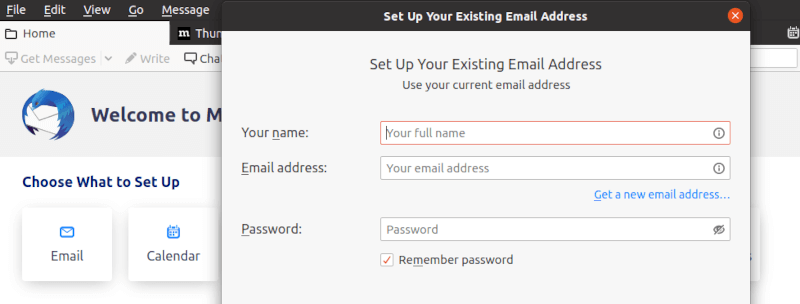
The wizard displays detected settings showing incoming server type (IMAP or POP3), server address, port, security method (SSL/TLS or STARTTLS), and authentication type. Review these settings to ensure they match your provider’s recommendations. Select IMAP over POP3 when both options are available unless specific reasons dictate otherwise.
Gmail users receive a browser popup requesting permission for Thunderbird to access the account. Click “Allow” to authorize the connection using OAuth2 authentication, which avoids storing your actual Gmail password in Thunderbird. Other providers may use similar OAuth implementations or traditional password authentication.
Click “Done” to complete setup. Thunderbird downloads recent messages and synchronizes folder structures. The new account appears in the folder pane, ready for use.
Manual Email Account Configuration
Some email providers or custom mail servers require manual configuration. When automatic detection fails, click “Manual Config” in the account setup wizard. This displays editable fields for all connection parameters.
Enter your incoming mail server hostname provided by your email administrator or hosting provider. Select protocol type between IMAP and POP3. Common IMAP ports include 143 for STARTTLS and 993 for SSL/TLS. POP3 typically uses port 110 for STARTTLS or 995 for SSL/TLS. Choose SSL/TLS for maximum security when your server supports it.
Configure the outgoing SMTP server with its hostname. SMTP ports vary: port 587 with STARTTLS represents the modern standard, while port 465 uses SSL/TLS, and port 25 works for unencrypted connections (not recommended). Set authentication method to “Normal password” for basic username/password authentication, or “OAuth2” for services supporting it.
Enter your username, which may be your full email address or just the portion before the @ symbol, depending on server configuration. Test the settings by clicking “Re-test” before saving. Thunderbird attempts connection to both incoming and outgoing servers, verifying credentials and port accessibility.
Troubleshoot connection failures by checking firewall settings, verifying server addresses, and confirming with your email provider that you’re using correct ports and security methods. Some providers require enabling “less secure apps” or generating application-specific passwords for third-party email clients.
Security Best Practices for Thunderbird
Email Encryption
Protect sensitive communications using Thunderbird’s built-in encryption capabilities. OpenPGP integration allows generating encryption key pairs directly within Thunderbird. Access encryption settings through Account Settings, selecting your account, and navigating to “End-To-End Encryption.”
Generate a new OpenPGP key by clicking “Add Key” and following the wizard. Create a strong passphrase protecting your private key. Distribute your public key to correspondents who need to send encrypted messages to you. Import others’ public keys to encrypt messages destined for them.
S/MIME provides alternative encryption using certificate authorities. Organizations often issue S/MIME certificates to employees for corporate email security. Import your S/MIME certificate through the encryption settings section, then configure message composition to sign and encrypt by default.
Digital signatures prove message authenticity and detect tampering. Recipients verify signatures using your public key, confirming you sent the message and it wasn’t altered in transit.
Connection Security
Always enable SSL/TLS for both incoming and outgoing server connections. This encrypts the communication channel between Thunderbird and mail servers, preventing eavesdropping on credentials and message content during transmission. Port 993 for IMAP and 995 for POP3 provide direct SSL/TLS connections.
STARTTLS upgrades initially unencrypted connections to encrypted channels. While functional, direct SSL/TLS connections on dedicated encrypted ports offer slightly better security. Verify server certificates when prompted, ensuring they’re issued by trusted certificate authorities and match your server hostname.
Configure authentication methods appropriately for your mail provider. OAuth2 provides enhanced security for services like Gmail by eliminating password storage in Thunderbird. Traditional password authentication remains necessary for many providers but should always combine with encrypted connections.
Privacy and Spam Protection
Configure junk mail settings through the Account Settings panel. Enable adaptive junk mail controls, which learn from your classifications over time. Mark suspected spam as junk to train the filter. Thunderbird analyzes message characteristics including sender reputation, content patterns, and header information.
Whitelist trusted senders by adding them to your address book. Messages from address book contacts automatically bypass junk filtering. Create custom filters for additional control over message classification and routing.
Block remote content in HTML messages to prevent tracking pixels and automatic image loading that confirms message reading to senders. Enable this privacy feature in Settings under Privacy & Security. Load remote content selectively for trusted senders when needed.
Enable phishing detection to warn about suspicious messages attempting credential theft. Thunderbird analyzes message content for common phishing indicators like mismatched URLs and impersonated sender addresses.
Essential Thunderbird Features and Customization
Unified Inbox and Account Management
Unify multiple accounts into a single inbox view by accessing View > Folders > Unified. This consolidates incoming messages from all accounts, reducing clutter while maintaining individual account organization in the folder pane. Unified folders support subfolders for drafts, sent items, archives, and trash.
Manage multiple identities within single accounts through Account Settings. Add identities representing different roles or departments, each with customized sender names and reply-to addresses. Select the appropriate identity when composing messages for context-appropriate communication.
Create folders for organized email management. Right-click accounts in the folder pane to add subfolders matching your organizational scheme. Establish message filters that automatically route incoming messages to appropriate folders based on sender, subject, or content criteria.
Add-ons and Extensions
Access Thunderbird’s add-on ecosystem through the menu button, selecting “Add-ons and Themes.” Browse featured extensions, search for specific functionality, or explore categories like productivity, privacy, and appearance customization.
Popular productivity add-ons enhance functionality with features like send later scheduling, template management, and enhanced signature tools. Security-focused extensions provide additional encryption options and privacy protection. Calendar extensions sync with various services and provide advanced scheduling features.
Install themes to customize Thunderbird’s visual appearance. Dark themes reduce eye strain in low-light environments, while colorful themes add personality to your email client. Theme changes apply instantly without requiring application restart.
Search and Productivity Features
The quick search box above the message list provides instant filtering across current folders. Type sender names, subjects, or content keywords to narrow displayed messages immediately. Click the search filter dropdown to refine searches by date, tags, attachments, or read status.
Create virtual folders saving complex search queries for repeated access. These saved searches appear in the folder pane like regular folders but display dynamic results matching specified criteria across multiple accounts or folders.
Apply tags to messages for flexible organization beyond folder structures. Create custom tags with colors and keyboard shortcuts for rapid classification. Filter and search by tags to locate related messages quickly regardless of folder location.
Master keyboard shortcuts for efficient navigation. Press C to compose new messages, R to reply, F to forward, and Delete to remove messages. Customize shortcuts through Settings to match personal preferences and established muscle memory from other applications.
Troubleshooting Common Issues
Installation Problems
Package not found errors indicate repository configuration issues. Verify repository enablement by checking /etc/yum.repos.d/ directory contents. Enable required repositories using dnf config-manager commands:
sudo dnf config-manager --set-enabled crbDependency conflicts arise from incompatible package versions. Resolve by updating all system packages before attempting Thunderbird installation. Review conflict messages carefully, noting which packages require updates or removal.
Permission denied errors during manual installation indicate insufficient privileges. Ensure sudo usage for commands requiring elevated access. Verify user membership in appropriate groups for file system access.
Configuration and Connection Issues
“Failed to find settings” errors during automatic account configuration require manual setup. Gather server information from your email provider’s documentation including server hostnames, ports, and security methods. Enter these details through manual configuration workflow.
IMAP or POP3 connection failures stem from various causes. Verify server addresses match provider specifications exactly, including proper domain names. Confirm firewall rules allow outbound connections on required ports. Check SELinux policies that might block mail client connections:
sudo setsebool -P selinuxuser_use_imap onSMTP authentication errors often result from incorrect username formats or password issues. Some providers require application-specific passwords rather than account passwords. Gmail, Yahoo, and others generate these special passwords through account security settings.
Certificate verification problems occur with self-signed certificates or expired SSL certificates. Add security exceptions for trusted servers with non-standard certificates, though verify server authenticity first to prevent man-in-the-middle attacks.
Performance and Display Issues
Slow startup or freezing often relates to large mailbox sizes or corrupted indexes. Compact folders through Folder Properties to reclaim space and rebuild indexes. Disable message indexing temporarily if it consumes excessive resources.
High memory usage affects systems with numerous accounts or large message archives. Adjust cache settings in Settings > General > Network & Disk Space to limit memory consumption. Reduce the number of messages displayed per folder and disable automatic message preview.
Corrupt profile data causes various misbehaviors. Create new Thunderbird profiles through Profile Manager launched with:
thunderbird -ProfileManagerMigrate data from the old profile to the new one selectively to identify corrupted components.
Display rendering issues on Wayland compositors sometimes require forcing X11 compatibility mode. Launch Thunderbird with environment variables:
GDK_BACKEND=x11 thunderbirdUpdating and Maintaining Thunderbird
Updating via DNF
Maintain your DNF-installed Thunderbird alongside system updates. Check specifically for Thunderbird updates:
sudo dnf check-update thunderbirdUpdate Thunderbird individually:
sudo dnf update thunderbirdOr update all packages system-wide:
sudo dnf updateConfigure automatic security updates using dnf-automatic for hands-free maintenance:
sudo dnf install dnf-automatic
sudo systemctl enable --now dnf-automatic.timer
Edit /etc/dnf/automatic.conf to configure update behavior, download timing, and whether to automatically apply updates or just download them for manual review.
Updating via Snap/Flatpak
Snap packages update automatically by default. The snapd service checks for updates multiple times daily, downloading and installing them during low-usage periods. Manually refresh snaps:
sudo snap refresh thunderbirdRefresh all installed snaps simultaneously:
sudo snap refreshFlatpak requires manual update initiation. Update Thunderbird specifically:
flatpak update org.mozilla.ThunderbirdUpdate all Flatpak applications:
flatpak updateBacking Up Thunderbird Data
Thunderbird stores profiles in ~/.thunderbird containing emails, settings, add-ons, and calendars. Back up this entire directory to preserve your complete Thunderbird environment:
tar czf thunderbird-backup-$(date +%F).tar.gz ~/.thunderbirdThis creates a timestamped compressed archive. Store backups on external drives or network locations for disaster recovery.
Export address books separately through Address Book > Tools > Export to create portable vCard or CSV files. Export calendars through Calendar > Events and Tasks > Export for iCalendar format backups.
Restore from backup by replacing the .thunderbird directory with backed-up contents after fresh Thunderbird installation. Ensure Thunderbird isn’t running during restoration.
Uninstalling Thunderbird
Removing DNF Installation
Remove Thunderbird installed via DNF:
sudo dnf remove thunderbirdThis removes the application but preserves your profile data for future reinstallation. Clean up orphaned dependencies:
sudo dnf autoremoveCompletely remove configuration files and user data:
rm -rf ~/.thunderbirdRemoving Snap Installation
Uninstall the Thunderbird snap:
sudo snap remove thunderbirdSnap removal automatically deletes application data and configurations. No additional cleanup steps are necessary. Remove snapd entirely if no longer needed:
sudo dnf remove snapdRemoving Flatpak Installation
Uninstall Thunderbird Flatpak:
flatpak uninstall org.mozilla.ThunderbirdRemove unused Flatpak dependencies and runtimes:
flatpak uninstall --unusedRemoving Manual Installation
Delete the manually installed Thunderbird directory:
sudo rm -rf /opt/thunderbirdRemove the symbolic link:
sudo rm /usr/local/bin/thunderbirdDelete the desktop file:
sudo rm /usr/local/share/applications/thunderbird.desktopRemove user profile data:
rm -rf ~/.thunderbirdCongratulations! You have successfully installed Thunderbird. Thanks for using this tutorial for installing Thunderbird Mail on your Rocky Linux 10 system. For additional help or useful information, we recommend you check the official Thunderbird website.


