How To Install Tor Browser on Fedora 43

Protecting your online privacy has become increasingly critical in today’s digital landscape. Tor Browser stands as one of the most effective tools for anonymous web browsing, routing your internet traffic through multiple encrypted layers to shield your identity and activity from surveillance. If you’re running Fedora 43, installing this privacy-focused browser is straightforward, with multiple methods available to suit different user preferences and technical comfort levels.
This comprehensive guide walks you through four proven installation methods for Tor Browser on Fedora 43, from the simplest package manager approach to manual installation for advanced users. You’ll learn not only how to install the browser but also how to configure it properly, troubleshoot common issues, and follow security best practices for maximum anonymity. Whether you’re bypassing censorship, protecting sensitive research, or simply valuing your digital privacy, this tutorial provides everything you need to get started with Tor on your Fedora system.
What is Tor Browser?
Tor Browser is a specialized web browser designed to protect your anonymity and privacy online through the Tor network. Built on Mozilla Firefox ESR (Extended Support Release), it routes your internet traffic through a distributed network of volunteer-operated servers called relays, encrypting your data multiple times in a process known as onion routing. Each relay peels away one layer of encryption, making it extremely difficult to trace the connection back to you.
Unlike standard browsers that connect directly to websites, Tor Browser creates a random pathway through at least three relays before reaching your destination. This architecture masks your IP address, making it nearly impossible for websites, internet service providers, or surveillance systems to identify your location or track your browsing habits. The browser comes pre-configured with privacy-enhancing extensions including NoScript for blocking malicious scripts and HTTPS Everywhere to enforce secure connections.
Tor Browser serves various legitimate purposes beyond accessing .onion sites on the dark web. Journalists use it to communicate with sources confidentially, activists bypass government censorship in restrictive countries, researchers conduct sensitive investigations without leaving digital footprints, and privacy-conscious individuals protect their personal information from corporate tracking and data harvesting. The Tor Project, a nonprofit organization, maintains the browser and network with a strong commitment to digital rights and internet freedom.
Key Features and Benefits of Tor Browser
Tor Browser delivers robust anonymity through multi-layered encryption that wraps your data like an onion, with each relay removing one layer. This sophisticated approach prevents any single point in the network from knowing both your identity and your destination, creating a powerful shield against surveillance and traffic analysis.
The browser automatically routes all connections through the Tor network without requiring manual configuration. Your IP address remains hidden from websites you visit, replaced by the IP address of the exit relay. This geographic obfuscation allows you to bypass regional restrictions and access content that might be blocked in your location.
Anti-fingerprinting measures built into Tor Browser make it difficult for websites to identify you based on your browser configuration, screen resolution, installed fonts, or other unique characteristics. The browser automatically isolates cookies and site data, clearing them when you close the application. Each browsing session starts fresh, preventing cross-site tracking and correlation attacks.
Security updates arrive regularly through automatic updates, ensuring you stay protected against newly discovered vulnerabilities. The browser includes three security levels—Standard, Safer, and Safest—allowing you to balance functionality with security based on your threat model. The Tor Project’s transparent development process and open-source code enable independent security audits, building trust within the privacy community.
Cross-platform compatibility means your privacy practices remain consistent across Fedora 43, other Linux distributions, Windows, macOS, and Android. The browser requires no personal information for installation or use, collecting no telemetry or usage statistics. This commitment to privacy extends throughout the entire Tor ecosystem.
Prerequisites Before Installation
Before installing Tor Browser on your Fedora 43 system, ensure you have a fully updated operating system. Run system updates regularly to maintain security patches and compatibility with the latest software packages. An active, stable internet connection is essential for downloading installation files and connecting to the Tor network.
You’ll need either root access or sudo privileges to install system packages through DNF or enable repositories. Basic familiarity with the terminal proves helpful, though the commands provided are straightforward enough for beginners to follow. Most modern computers meet the minimum system requirements: at least 2GB of RAM and 200MB of free storage space for the browser itself.
Creating a system backup before making significant changes represents good practice, particularly if you’re new to Linux administration. While Tor Browser installation poses minimal risk to your system, backups provide peace of mind and recovery options if unexpected issues arise.
For security-conscious users planning manual installation, understanding GPG signature verification adds an extra layer of assurance that your downloaded files haven’t been tampered with. This optional step requires basic knowledge of cryptographic verification, though this guide provides clear instructions for the process.
Method 1: Installing Tor Browser Using DNF Package Manager
Introduction to DNF Method
The DNF package manager represents the recommended installation approach for most Fedora users. This method provides seamless system integration, automatic dependency resolution, and simplified updates through Fedora’s repository system. The torbrowser-launcher package handles downloading and configuring the official Tor Browser, ensuring you receive authentic software directly from the Tor Project.
Step 1: Update Your Fedora 43 System
Open your terminal and refresh your system packages to ensure compatibility and security. Execute the following command:
sudo dnf update && sudo dnf upgradeThis command checks for available updates and applies them to your system. The update process may take several minutes depending on your internet connection and the number of packages requiring updates. Enter your password when prompted. You’ll see package download progress and installation confirmations as DNF processes the updates.
System updates prevent potential conflicts with outdated libraries and ensure you have the latest security patches. Keeping Fedora current improves overall stability and reduces troubleshooting requirements for new software installations.
Step 2: Install Torbrowser-Launcher Package
Install the torbrowser-launcher utility from Fedora’s official repositories:
sudo dnf install torbrowser-launcherDNF displays package information including the installation size, typically around 100KB for the launcher itself. Type ‘y’ and press Enter when prompted to confirm the installation. The package manager automatically resolves dependencies and downloads required components.
The torbrowser-launcher package serves as a helper application that downloads, verifies, and launches the official Tor Browser. It handles signature verification automatically, ensuring you receive authentic software from the Tor Project. This approach combines the convenience of package management with the security of official Tor releases.
Step 3: Launch Tor Browser for First Time
Start the torbrowser-launcher from your terminal or application menu:
torbrowser-launcherDuring the initial launch, the launcher downloads the complete Tor Browser package directly from the Tor Project’s servers. A progress window displays download status and verification steps. This process typically requires 80-150MB of bandwidth depending on the current browser version.
The launcher verifies the downloaded package’s GPG signature automatically, confirming its authenticity. Select your preferred language when prompted. The verification process ensures no malicious modifications have been made to the browser package during transmission or storage.
Once verification completes, Tor Browser extracts to your home directory, typically in ~/.local/share/torbrowser/. The launcher creates desktop integration files, adding Tor Browser to your application menu for convenient future access.
Step 4: Configure Tor Connection Settings
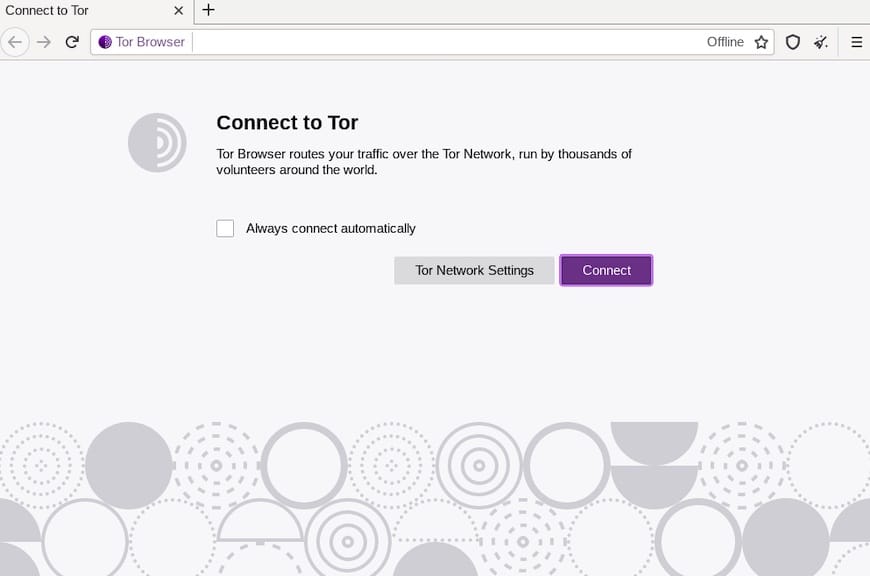
The Tor Browser connection screen offers two primary options. For most users in regions without internet censorship, click “Connect” to establish a direct connection to the Tor network. The browser automatically selects entry guards and builds circuits through the relay network.
If you’re in a country that blocks Tor or your internet service provider restricts access, click “Configure” to set up bridge relays. Bridges are unlisted Tor relays that help circumvent censorship by making your Tor usage less detectable. You can request bridge addresses from the Tor Project or use built-in bridge options like obfs4, which disguises Tor traffic as regular internet activity.
The initial connection takes 10-30 seconds as Tor Browser establishes encrypted pathways through multiple relays. A green onion icon in the toolbar indicates successful connection. You’ll see the Tor Browser homepage with information about your new privacy-protected browsing environment.
Step 5: Verify Installation
Test your Tor Browser installation by checking the circuit display. Click the onion icon in the toolbar to view the current circuit path, showing the three relays your traffic passes through before reaching websites. Each circuit refreshes periodically or when you request a new identity.
Visit check.torproject.org to verify you’re successfully connected through the Tor network. The page displays a green confirmation message and shows the exit node IP address visible to websites you visit. This verification confirms your real IP address remains hidden.
Test basic browsing functionality by visiting a few websites. Note that browsing may feel slower than regular browsers due to the multiple relay hops, but this trade-off provides the anonymity Tor offers.
Method 2: Installing Tor Browser Using Flatpak
Introduction to Flatpak Method
Flatpak offers an alternative installation approach with enhanced application sandboxing and isolation. This universal package format works across different Linux distributions, providing consistent behavior regardless of your base system. Flatpak applications run in containerized environments, adding an extra security layer by limiting access to system resources.
Step 1: Install Flatpak on Fedora 43
Fedora 43 includes Flatpak by default, but verify its presence with:
sudo dnf install flatpakIf already installed, DNF confirms the package is current and no action is required. Flatpak enables access to thousands of applications through repositories like Flathub, the primary Flatpak application distribution platform.
Step 2: Enable Flathub Repository
Add the Flathub repository to access the torbrowser-launcher Flatpak:
flatpak remote-add --if-not-exists flathub https://flathub.org/repo/flathub.flatpakrepoThis command safely checks for existing Flathub configuration before adding it, preventing duplicate repository entries. Flathub maintains a curated collection of Flatpak applications, including privacy tools and popular software across various categories.
The --if-not-exists flag ensures the command runs safely even if you’ve previously enabled Flathub. Repository addition requires no system restart or logout.
Step 3: Install Tor Browser Launcher via Flatpak
Download and install the torbrowser-launcher Flatpak package:
flatpak install flathub com.github.micahflee.torbrowser-launcher -yFlatpak downloads the application and its runtime dependencies, creating an isolated environment for Tor Browser. The -y flag automatically confirms installation prompts, streamlining the process. Installation size typically ranges from 100-200MB including the Flatpak runtime components.
Flatpak handles all dependencies within its containerized environment, preventing conflicts with system libraries or other applications. This isolation enhances security by limiting potential attack surfaces.
Step 4: Launch Tor Browser from Flatpak
Start Tor Browser using the Flatpak run command:
flatpak run com.github.micahflee.torbrowser-launcherLike the DNF method, the first launch triggers downloading the complete Tor Browser from the Tor Project’s official servers. The Flatpak version includes identical verification and setup steps, ensuring authentic software installation.
Access Tor Browser from your application menu after the initial setup completes. The launcher integrates with your desktop environment, appearing alongside other installed applications. You can create custom keyboard shortcuts or pin it to your panel for quick access.
Step 5: Verify Flatpak Installation
Check installed Flatpak applications with:
flatpak listThis command displays all Flatpak packages on your system, including com.github.micahflee.torbrowser-launcher. Verify the version number matches current releases by visiting the Flathub website or running:
flatpak info com.github.micahflee.torbrowser-launcherThe Flatpak method provides excellent sandboxing for privacy-focused applications, though it requires slightly more disk space than native packages due to runtime dependencies. Updates arrive through regular Flatpak update cycles.
Method 3: Manual Installation from Official Tor Project Website
Introduction to Manual Method
Manual installation gives you direct control over the Tor Browser version and installation location. This method appeals to advanced users who prefer downloading directly from the source, want the absolute latest release before package repositories update, or need portable installations that don’t require system integration.
Step 1: Download Tor Browser Package
Open Firefox or your default browser and navigate to www.torproject.org. Click “Download Tor Browser” on the homepage, then select the Linux 64-bit version from the download options. The download typically saves to your ~/Downloads directory.
The Linux package arrives as a compressed .tar.xz archive, a highly efficient compression format common in Linux environments. File sizes range from 80-150MB depending on the current Tor Browser version. Wait for the download to complete before proceeding to extraction.
Step 2: Verify Download Signature (Optional but Recommended)
For maximum security, verify the download’s cryptographic signature. Download the signature file (.asc) from the same page, typically linked near the main download button. Import the Tor Project’s signing keys:
gpg --auto-key-locate nodefault,wkd --locate-keys torbrowser@torproject.orgNavigate to your Downloads directory and verify the signature:
cd ~/Downloads
gpg --verify tor-browser-linux-x86_64-*.tar.xz.asc tor-browser-linux-x86_64-*.tar.xz
A successful verification displays “Good signature from ‘Tor Browser Developers'”. This confirms the package hasn’t been modified or corrupted during download. While optional, signature verification represents a crucial security practice for privacy-focused software.
Step 3: Extract Tor Browser Archive
Extract the downloaded archive using the tar command:
tar -xvJf tor-browser-linux-x86_64-*.tar.xzThe -x flag extracts files, -v displays verbose output showing extraction progress, -J handles xz compression, and -f specifies the filename. The asterisk wildcard matches any version number in the filename, eliminating the need to type the complete name.
Extraction creates a tor-browser directory in your current location. The process completes in seconds, unpacking all Tor Browser components including the browser itself, Tor daemon, and required libraries.
Step 4: Move to Preferred Location
Organize your applications by moving Tor Browser to a dedicated directory:
mkdir -p ~/Apps
mv tor-browser ~/Apps/
The mkdir -p command creates the Apps directory if it doesn’t exist, with the -p flag preventing errors if the directory is already present. Storing applications in your home directory keeps them accessible without requiring root privileges for updates or modifications.
You can choose any location for Tor Browser. Some users prefer ~/.local/share/, while others create custom directories like ~/Programs/ or ~/Software/. The installation works from any location since it’s self-contained and portable.
Step 5: Register Tor Browser with Desktop Environment
Navigate into the Tor Browser directory:
cd ~/Apps/tor-browser/Register the application with your desktop environment:
./start-tor-browser.desktop --register-appThis command creates menu entries and registers Tor Browser with your application launcher. The --register-app flag generates proper .desktop files in your system’s application directory, making Tor Browser appear in your menu alongside other installed software.
Desktop integration enables launching Tor Browser from your application menu, creating panel shortcuts, and setting file associations if needed. The registration respects your desktop environment’s conventions whether you use GNOME, KDE Plasma, Xfce, or other desktop environments common on Fedora.
Step 6: Launch and Configure
Search for “Tor Browser” in your application menu or run it directly:
./start-tor-browser.desktopThe first launch presents the connection wizard. Configure your connection preferences, select language options, and establish your initial Tor circuit. Manual installations receive updates directly through Tor Browser’s built-in update mechanism, independent of Fedora’s package repositories.
Method 4: Installing via COPR Repository
Introduction to COPR Method
COPR (Cool Other Package Repo) provides community-maintained packages for Fedora. The linux-tor-browser-installer COPR repository offers an alternative automated installation script maintained by community developers. This method suits users comfortable with third-party repositories who want automated installation handling.
Step 1: Enable COPR Repository
Enable the linux-tor-browser-installer COPR repository:
sudo dnf copr enable youssefmsourani/linux-tor-browser-installer -yCOPR displays repository information and requests confirmation. The -y flag automatically accepts the prompt. Community repositories undergo less rigorous testing than official Fedora packages, but COPR repositories are generally reliable for popular tools like Tor Browser.
Repository activation adds configuration files to /etc/yum.repos.d/, allowing DNF to fetch packages from the COPR server. The repository provides updated packages as new Tor Browser versions release.
Step 2: Install Tor Browser Installer
Install the linux-tor-browser-installer package:
sudo dnf install linux-tor-browser-installer -yThis Python-based installer automates the download and setup process. Package size is minimal since it functions as an installer script rather than containing the complete browser. DNF resolves any Python dependencies automatically.
Step 3: Run Installer and Launch
Execute the installer script:
linux-tor-browser-installerThe script handles downloading the official Tor Browser, verifying signatures, extracting files, and configuring desktop integration automatically. Follow any on-screen prompts for language selection or installation location preferences. The installer streamlines the entire process into a single command.
After installation completes, launch Tor Browser from your application menu. The COPR method combines automation convenience with official Tor Browser packages, offering a middle ground between package manager simplicity and manual control.
Configuring Tor Browser After Installation
Once installed, Tor Browser requires minimal configuration for typical use. The initial connection screen offers “Connect” for standard connections or “Configure” for custom settings. Most users should select Connect for immediate access to the Tor network.
Security levels control JavaScript functionality and other features that might compromise anonymity. Access security settings by clicking the shield icon in the toolbar. Standard mode enables all browser features for normal browsing. Safer mode disables JavaScript on non-HTTPS sites and disables some fonts and symbols. Safest mode disables JavaScript entirely, some images, and media rendering, maximizing security at the cost of functionality.
Choose your security level based on your threat model. Casual privacy-seekers typically use Standard mode. Safer provides balanced protection for sensitive browsing without breaking most websites. Safest suits high-risk scenarios or accessing untrusted sites, though many modern websites won’t function correctly with JavaScript disabled.
Tor bridges help users in censored regions where internet service providers block Tor network access. Configure bridges through the connection settings, accessible via the onion menu. Built-in bridge options include obfs4, meek-azure, and snowflake transports that disguise Tor traffic as regular internet communication. Request private bridges from bridges.torproject.org if built-in options are blocked.
The “New Identity” feature creates a completely fresh Tor circuit, clearing cookies and site data for maximum anonymity. Access this function through the onion menu. Use New Identity when you want to separate browsing activities and prevent correlation between different sessions.
Security Best Practices for Using Tor Browser
Maintaining security with Tor Browser requires following proven practices beyond installation. Keep Tor Browser updated by checking for updates regularly through the browser’s built-in update system. Security vulnerabilities are patched quickly, making timely updates crucial for protection.
Never maximize the browser window. Tor Browser’s default window size prevents websites from using screen resolution as a fingerprinting vector. Resizing the window, especially maximizing it, makes your browser configuration more unique and potentially identifiable.
Avoid logging into personal accounts through Tor Browser. Connecting to Facebook, Google, or email accounts ties your anonymous browsing to your real identity, defeating Tor’s purpose. If you must access accounts, use them only for activities you want associated with your real identity, never mixing anonymous and identified browsing.
Don’t install additional browser extensions or plugins. Tor Browser comes pre-configured with necessary privacy extensions, and adding others can create unique fingerprints that identify you across sessions. Extensions also introduce potential security vulnerabilities and may leak identifying information.
Use HTTPS websites whenever possible. While Tor encrypts your traffic through the Tor network, the connection between the exit node and destination website uses standard protocols. HTTPS adds encryption for this final leg, protecting your data from exit node monitoring. The HTTPS Everywhere extension included with Tor Browser automatically upgrades connections when possible.
Avoid downloading files through Tor Browser. Downloaded files may contain tracking elements, and opening them outside Tor Browser can trigger network requests that reveal your real IP address. If downloads are necessary, use extreme caution and scan files with antivirus software before opening.
Never use BitTorrent or other file-sharing protocols through Tor. These protocols leak your real IP address and generate enormous bandwidth load that degrades network performance for all users. The Tor network is designed for web browsing, not large file transfers.
Understand that your internet service provider can see you’re using Tor, though they cannot see what you’re accessing. Tor usage isn’t illegal in most countries, but in some restrictive regions, you may want to use bridges to disguise Tor traffic.
Enable JavaScript only when necessary. JavaScript can be exploited for sophisticated fingerprinting and de-anonymization attacks. Use higher security levels that disable JavaScript for sensitive activities, accepting the trade-off that some websites won’t function fully.
Troubleshooting Common Installation Issues
Issue 1: “Signature Verification Failed” Error
Signature verification failures occur when GPG cannot validate the downloaded package. This may indicate a corrupted download or, less commonly, a compromised package. Delete the downloaded file and download again from torproject.org. Verify your internet connection stability to prevent corruption during transfer.
If re-downloading doesn’t resolve the issue, manually import Tor Browser signing keys using the GPG commands outlined in the manual installation section. Network issues or outdated GPG keyrings sometimes prevent automatic verification. As a workaround, use one of the package manager methods that handle verification automatically.
Issue 2: Tor Browser Won’t Connect
Connection failures often stem from network restrictions or firewall configurations. Check your internet connection by visiting regular websites in another browser. If standard browsing works but Tor doesn’t connect, your network may block Tor traffic. Configure bridges through the connection wizard to circumvent blocking.
System clock synchronization affects Tor connections since the network uses SSL/TLS certificates with time-based validation. Incorrect system time prevents successful connections. Verify your system clock is accurate:
timedatectl statusEnable automatic time synchronization if disabled:
sudo timedatectl set-ntp trueFirewall rules may block Tor ports. Temporarily disable your firewall to test:
sudo systemctl stop firewalldIf Tor connects with the firewall disabled, create specific rules allowing Tor traffic. Re-enable your firewall after testing to maintain system security.
Issue 3: DNF Package Not Found
Package availability issues typically arise from outdated repository caches. Refresh DNF’s package database:
sudo dnf clean all
sudo dnf makecache
Verify your Fedora version matches the guide (Fedora 43). Check your version with:
cat /etc/fedora-releaseIf torbrowser-launcher remains unavailable, the package may not yet exist in Fedora 43 repositories. Use alternative installation methods like Flatpak or manual installation while waiting for repository updates.
Issue 4: Slow Connection Speeds
Tor Browser naturally operates slower than direct connections due to multiple relay hops and encryption overhead. Expect speeds roughly 10-30% of your regular connection speed. This performance trade-off enables the anonymity Tor provides and represents normal behavior, not a problem requiring fixing.
If Tor feels exceptionally slow, try requesting a new identity to build fresh circuits. Poor-performing relays occasionally enter the network, and new circuits might route through faster paths. Click the onion icon and select “New Identity” to rebuild your connection.
Time of day affects Tor network performance. Peak usage hours may cause slowdowns as more users share relay bandwidth. Consider sensitive activities during off-peak hours for better performance.
Issue 5: Application Menu Entry Missing
Desktop integration issues sometimes prevent Tor Browser from appearing in application menus. For manual installations, re-run the registration command:
cd ~/Apps/tor-browser/
./start-tor-browser.desktop --register-app
Refresh your desktop environment’s application cache. In GNOME, press Alt+F2, type ‘r’, and press Enter to restart the shell. Other desktop environments may require logging out and back in or rebooting.
Manually create a .desktop file if automatic registration fails. Copy the start-tor-browser.desktop file to your local applications directory:
cp ~/Apps/tor-browser/start-tor-browser.desktop ~/.local/share/applications/Updating Tor Browser on Fedora 43
Tor Browser includes automatic update functionality that checks for new versions when you launch the browser. Update notifications appear as a banner within the browser window. Click the banner to download and install updates automatically. This built-in updater works regardless of your installation method.
For DNF installations, update torbrowser-launcher through regular system updates:
sudo dnf update torbrowser-launcherThe launcher then downloads the latest Tor Browser version on next launch. DNF updates don’t include the browser itself, only the launcher utility.
Flatpak installations update through Flatpak’s update system:
flatpak update com.github.micahflee.torbrowser-launcherRun this command periodically alongside system updates to maintain current software. Flatpak can configure automatic updates through GNOME Software or KDE Discover, checking for updates in the background.
Manual installations rely entirely on Tor Browser’s internal updater. Check for updates manually by clicking the hamburger menu, selecting “Help,” then “About Tor Browser.” The about page displays your current version and checks for available updates.
Security updates receive priority in Tor Browser development. Critical vulnerabilities are patched quickly, making regular updates essential for maintaining anonymity and protection. Configure automatic updates whenever possible to ensure you’re never running vulnerable software.
Uninstalling Tor Browser from Fedora 43
Remove Tor Browser completely using commands matching your installation method. For DNF installations, uninstall the torbrowser-launcher package:
sudo dnf remove torbrowser-launcherDNF removes the launcher but leaves downloaded Tor Browser files in your home directory. Delete these manually:
rm -rf ~/.local/share/torbrowser/Flatpak uninstallation removes the package and its runtime dependencies:
flatpak uninstall com.github.micahflee.torbrowser-launcherConfirm removal when prompted. Clean up unused runtimes to free disk space:
flatpak uninstall --unusedManual installations simply require deleting the installation directory:
rm -rf ~/Apps/tor-browser/Remove desktop integration files:
rm ~/.local/share/applications/start-tor-browser.desktopFor complete removal, delete configuration files stored in your home directory:
rm -rf ~/.tor-browser/This removes all settings, bookmarks, and cached data. Exercise caution with rm commands, ensuring paths are correct before execution to avoid accidentally deleting important files.
Congratulations! You have successfully installed Tor Browser. Thanks for using this tutorial for installing the Tor Browser on your Fedora 43 Linux system. For additional help or useful information, we recommend you check the official Tor Browser website.
