How To Install Transmission on Fedora 43

Transmission stands as one of the most efficient BitTorrent clients available for Linux users, and Fedora 43 provides multiple pathways to get it running on your system. This lightweight torrent client delivers exceptional performance without consuming excessive system resources, making it ideal for both desktop users and server administrators. Whether you’re managing downloads on a graphical desktop environment or running a headless server with remote access capabilities, Transmission offers flexible solutions that adapt to your specific needs.
This comprehensive guide walks you through every step of installing Transmission on Fedora 43, from initial system preparation to advanced daemon configuration. You’ll discover multiple installation methods, learn how to configure firewall rules properly, and gain troubleshooting insights that save time when issues arise.
Prerequisites and System Requirements
Before diving into the installation process, ensure your Fedora 43 system meets the necessary requirements. You’ll need an active Fedora 43 installation with internet connectivity and sudo or root access privileges to install packages and modify system configurations.
Transmission runs efficiently even on modest hardware. The application typically requires minimal RAM—around 256 MB for the GUI version and even less for the daemon. Disk space needs vary based on your torrent downloads, but the application itself occupies roughly 10-15 MB. If you plan to use the Flatpak installation method, ensure you have Flatpak configured on your system, though Fedora Workstation includes it by default.
Basic familiarity with terminal commands enhances your experience, particularly when configuring the daemon version or troubleshooting potential issues.
Understanding Transmission Package Options
Fedora 43 repositories offer several Transmission packages, each designed for specific use cases. Understanding these options helps you choose the right installation for your environment.
- transmission-gtk serves desktop users running GNOME or other GTK-based environments. This version provides a complete graphical interface with intuitive controls for managing torrents, adjusting bandwidth settings, and monitoring transfer statistics.
- transmission-qt targets KDE Plasma and Qt-based desktop users. It offers identical functionality to the GTK version but integrates seamlessly with Qt theming, providing better visual consistency on KDE systems.
- transmission-daemon operates without a graphical interface, perfect for servers or headless systems. This lightweight daemon runs as a background service and includes a web-based interface accessible from any browser on your network.
- transmission-cli provides command-line tools for users who prefer terminal-based workflows. These utilities include transmission-remote for controlling running instances and transmission-create for generating torrent files.
- transmission-common contains shared utilities automatically installed as a dependency with other Transmission packages.
The current Transmission version in Fedora 43 repositories is 4.0.6-12.fc43, which includes modern features, security updates, and performance improvements over previous releases.
Installing Transmission via DNF
The official Fedora repositories provide the most straightforward installation method through the DNF package manager. This approach ensures system integration, automatic updates through your standard system maintenance routine, and proper dependency handling.
Updating Your System
Start by refreshing your system packages. Open your terminal and execute:
sudo dnf upgrade --refreshThis command updates your package cache and installs any pending system updates. The process typically takes a few minutes depending on your internet speed and the number of updates available. Keeping your system current before installing new software prevents potential compatibility issues and ensures you’re working with the latest package versions.
Installing Transmission GTK for Desktop Users
GNOME users and those running GTK-based desktop environments should install the GTK version:
sudo dnf install transmission-gtk -yThe -y flag automatically confirms the installation, eliminating the need to manually approve the process. DNF downloads the necessary packages and their dependencies, including transmission-common, which provides shared utilities.
Verify the installation succeeded by checking the version:
transmission-gtk --versionYou should see output displaying the Transmission version number, confirming successful installation.
Installing Transmission Qt for KDE Users
KDE Plasma users gain better desktop integration with the Qt version:
sudo dnf install transmission-qt -yThis variant respects your KDE theme settings, ensuring visual consistency with other Qt applications. The functionality remains identical to the GTK version, but the interface follows Qt design patterns rather than GTK conventions.
Confirm installation with:
transmission-qt --versionInstalling Transmission Daemon for Servers
Server administrators and users wanting remote access capabilities should install the daemon:
sudo dnf install transmission-daemon -yThis command installs the headless version along with a systemd service for automated startup and management. The installation process automatically creates a dedicated system user named “transmission” with its home directory at /var/lib/transmission. This security-conscious approach isolates Transmission from other system processes and user accounts.
The daemon installation includes everything needed for remote management through the built-in web interface, accessible via any modern browser.
Installing Transmission via Flatpak
Flatpak offers an alternative installation method with distinct advantages. This containerized approach provides the latest upstream Transmission releases independent of Fedora’s release cycle, enhanced security through sandboxing, and simpler dependency management.
Enabling Flathub Repository
Fedora Workstation includes Flatpak support by default, but you need to enable the Flathub repository:
flatpak remote-add --if-not-exists flathub https://flathub.org/repo/flathub.flatpakrepoThis command adds Flathub as a remote repository, giving you access to thousands of applications including Transmission.
Installing Transmission from Flathub
Install Transmission through Flatpak with:
flatpak install flathub com.transmissionbt.Transmission -yThe first Flatpak application installation downloads the GNOME runtime environment, approximately 600 MB, which subsequent Flatpak applications share. This initial download only occurs once.
Verify the installation:
flatpak list | grep -i transmissionThis command displays installed Flatpak applications matching “transmission,” confirming successful installation.
Comparing Installation Methods
DNF installation provides tighter system integration, automatic updates through regular system maintenance, and slightly faster launch times. Choose this method if you prefer native package management and don’t need the absolute latest upstream releases.
Flatpak installation offers newer versions, stronger application isolation, and independence from system libraries. Select this approach if you want cutting-edge features or prefer containerized applications.
Both methods work reliably on Fedora 43. Your choice depends on personal preferences regarding update schedules, system integration depth, and security models.
Launching Transmission
After installation completes, launching Transmission requires no system restart or logout.
Launching from Your Desktop Environment
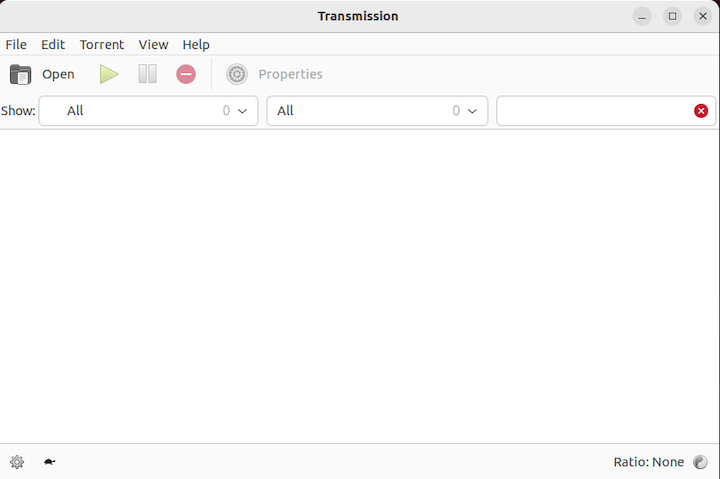
Click the Activities button in GNOME (or your desktop’s application launcher), then search for “Transmission.” The application appears immediately in search results. Click the icon to launch the graphical interface.
The interface opens quickly, presenting a clean window ready for torrent management.
Launching from Terminal
Terminal users can launch Transmission with simple commands.
For the GTK version:
transmission-gtk &For the Qt version:
transmission-qt &For the Flatpak version:
flatpak run com.transmissionbt.Transmission &The ampersand (&) runs the application in the background, freeing your terminal for additional commands. Without it, the terminal remains occupied by the application process.
Configuring Transmission Daemon for Remote Access
The daemon version requires additional configuration for remote access, but the setup process remains straightforward.
Starting and Enabling the Service
Enable and start the Transmission daemon service with systemd:
sudo systemctl enable --now transmission-daemonThis single command both enables the service for automatic startup at boot and starts it immediately. The --now flag eliminates the need for separate enable and start commands.
Check the service status:
systemctl status transmission-daemonLook for “active (running)” in the output, indicating the daemon operates correctly.
Modifying Configuration Settings
Stop the daemon before editing configuration files:
sudo systemctl stop transmission-daemonTransmission overwrites configuration changes made while the service runs, so stopping it first prevents your modifications from being lost.
Edit the configuration file:
sudo nano /var/lib/transmission/.config/transmission-daemon/settings.jsonThis JSON file contains numerous settings controlling daemon behavior. Key parameters include:
download-dir specifies where completed downloads save. Change this from the default to your preferred location:
"download-dir": "/home/youruser/Downloads",incomplete-dir holds in-progress downloads:
"incomplete-dir": "/home/youruser/Downloads/.incomplete",rpc-username and rpc-password control web interface authentication:
"rpc-username": "admin",
"rpc-password": "yourpassword",
Note: Transmission encrypts the password automatically after the first service start.
rpc-whitelist-enabled restricts web interface access by IP address. Set to false for broader access:
"rpc-whitelist-enabled": false,rpc-port determines the web interface port (default 9091):
"rpc-port": 9091,Maintain proper JSON syntax with commas between entries but not after the last item. Invalid JSON prevents the service from starting.
Save the file (Ctrl+X, then Y, then Enter in nano) and restart the daemon:
sudo systemctl start transmission-daemonAccess the web interface by opening your browser and navigating to:
http://localhost:9091For remote access from other computers on your network:
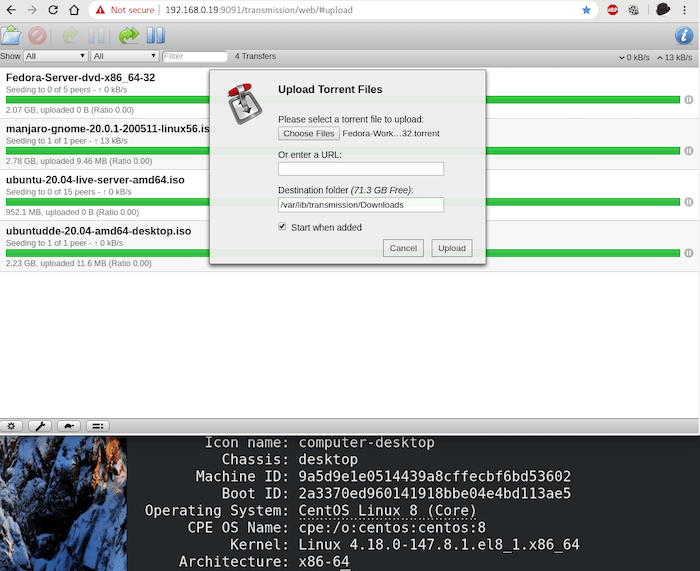
http://your_server_ip:9091Enter your configured username and password when prompted. The web interface provides comprehensive torrent management capabilities matching the desktop versions.
Configuring Firewall Rules
Fedora’s firewall blocks incoming connections by default. Opening the appropriate ports ensures proper Transmission functionality.
Opening Peer Connection Ports
Transmission uses port 51413 for peer connections. Open both TCP and UDP protocols:
sudo firewall-cmd --permanent --add-port=51413/tcp
sudo firewall-cmd --permanent --add-port=51413/udp
The --permanent flag saves these rules across system reboots.
Opening Web Interface Port
If you’re running the daemon and need remote web interface access:
sudo firewall-cmd --permanent --add-port=9091/tcpApplying Firewall Changes
Reload the firewall to activate your new rules:
sudo firewall-cmd --reloadVerify the ports opened successfully:
sudo firewall-cmd --list-portsYou should see 51413/tcp, 51413/udp, and 9091/tcp (if added) in the output.
If you’re behind a router and want to accept incoming connections from peers outside your local network, configure port forwarding in your router settings to direct external traffic on port 51413 to your Fedora system’s internal IP address.
Using Transmission for Your First Download
With Transmission installed and configured, you’re ready to start downloading torrents.
Click the “Open” button or use File > Open Torrent to add a torrent file from your computer. Alternatively, click “Open URL” to add a magnet link directly.
The interface displays active torrents with progress bars, download speeds, upload speeds, and peer counts. Click any torrent to view detailed statistics including tracker information, file lists, and peer connections.
Set download locations per-torrent or use the default specified in preferences. Adjust bandwidth limits in Edit > Preferences > Speed to prevent Transmission from consuming all available bandwidth.
Monitor upload ratios and seed completed torrents to maintain healthy torrent ecosystems. Many private trackers require minimum upload ratios for continued membership.
Always download legally distributed content. Transmission serves as a protocol tool, and users bear responsibility for ensuring their downloads comply with copyright laws and regulations.
Troubleshooting Common Issues
Permission Errors
Download directory permission problems prevent Transmission from saving files. Ensure the transmission user has write permissions:
sudo chown -R transmission:transmission /path/to/downloads
sudo chmod -R 755 /path/to/downloads
These commands set appropriate ownership and permissions for the download directory.
Service Won’t Start
If the daemon fails to start, check systemd logs:
journalctl -u transmission-daemon -n 50This displays the last 50 log entries for the Transmission service. Common issues include JSON syntax errors in settings.json or port conflicts with other applications.
Validate your JSON configuration using online JSON validators if you suspect syntax problems.
Web Interface Not Accessible
When the web interface won’t load, verify the service is running:
systemctl status transmission-daemonIf running, check firewall rules with sudo firewall-cmd --list-ports. Ensure port 9091 appears in the list.
Clear your browser cache and try accessing the interface from a different browser. Some browsers cache authentication failures aggressively.
Review RPC settings in settings.json. Ensure rpc-enabled is set to true and rpc-whitelist-enabled allows your IP address or is set to false.
Slow Download Speeds
Slow downloads often result from peer availability rather than configuration issues. Check torrent health—seeders and leechers count—before troubleshooting.
If speeds remain slow with healthy torrents, verify your firewall rules allow incoming connections on port 51413. Configure router port forwarding if applicable.
Adjust peer limits in preferences. Increasing maximum peers per torrent can improve speeds on well-seeded torrents.
Congratulations! You have successfully installed Transmission. Thanks for using this tutorial for installing the Transmission BitTorrent client on your Fedora 43 Linux system. For additional help or useful information, we recommend you check the official Transmission website.
