How To Install Umami Analytics on AlmaLinux 10

If you’re tired of handing your website visitor data over to third parties, it’s time to take back control. Installing Umami Analytics on AlmaLinux 10 gives you a fast, privacy-focused web analytics platform that lives entirely on your own server — no cookies, no GDPR headaches, and no Google watching over your shoulder. This step-by-step tutorial walks you through the complete setup process, from a fresh AlmaLinux 10 server to a fully operational analytics dashboard protected by SSL.
What Is Umami Analytics?
Umami is a free, open-source, self-hosted web analytics platform built as a modern alternative to Google Analytics. Designed with privacy at its core, it collects only the essential metrics you actually need — page views, visitor counts, referral sources, device types, and session behavior — without relying on cookies or storing personally identifiable information.
Because the entire platform runs on your own infrastructure, your data never leaves your server. That makes Umami ideal for businesses, developers, and agencies operating under privacy regulations like GDPR or CCPA. The tracking script weighs just 2KB, loads lightning fast, and won’t slow down your website. Umami also supports unlimited websites, multiple user accounts, custom event tracking, real-time data views, and even bypasses most ad-blockers since the script is served from your own domain.
Put simply: Umami delivers what you need and nothing more.
Prerequisites
Before starting the installation, make sure the following requirements are in place.
System requirements:
- AlmaLinux 10 (dedicated server or KVM VPS)
- Minimum 2 GB RAM and 20 GB available disk space
- Root or sudo user access
- Basic Linux command-line familiarity
Software requirements:
- Docker Engine and Docker Compose plugin
- PostgreSQL (handled automatically via Docker, minimum v12.14 for source installs)
- Nginx web server (used as a reverse proxy)
- Certbot for free SSL/TLS certificates
- A registered domain name with an A record pointing to your server’s IP address
With these in place, you’re ready to begin.
Step 1: Update the AlmaLinux 10 System
Always start with a fully updated system. This prevents version conflicts and closes known security vulnerabilities before any new software is installed.
sudo dnf update -yIf a kernel update is applied, reboot the server before continuing:
sudo rebootWait a moment for the server to come back online, then reconnect via SSH.
Step 2: Install Docker and Docker Compose
Umami runs beautifully inside Docker containers. This approach keeps the application isolated, portable, and simple to update later.
Add the Docker Repository
First, install the plugin that lets DNF manage additional repositories:
sudo dnf -y install dnf-plugins-coreNow add the official Docker CE repository. Using the official source ensures you get the latest stable release rather than an outdated distribution package:
sudo dnf config-manager --add-repo https://download.docker.com/linux/centos/docker-ce.repoInstall Docker Engine
sudo dnf install docker-ce docker-ce-cli containerd.io docker-compose-plugin -yStart Docker and configure it to launch automatically on every system reboot:
sudo systemctl enable --now dockerVerify the Installation
Confirm both Docker Engine and Docker Compose are working correctly:
docker --version
docker compose version
You should see version output for both. If Docker Compose reports a missing command, double-check that docker-compose-plugin was included during installation.
Step 3: Create the Umami Project Directory
Keeping all Umami-related files in a single dedicated directory makes management, backups, and updates far easier down the line.
mkdir ~/umami && cd ~/umamiAll configuration files created in the following steps will live here. Think of it as your Umami workspace.
Step 4: Generate Secure Secrets
Umami requires two secrets: one for the application itself and one for the PostgreSQL database password. Generating these with OpenSSL ensures they are cryptographically random and strong.
export UMAMI_APP_SECRET=$(openssl rand -hex 32)
export POSTGRES_PASSWORD=$(openssl rand -hex 24)
These values exist only in your current shell session for now. The next step writes them to a persistent configuration file.
Step 5: Create the Environment Configuration File
The .env file stores all environment variables that both Docker containers will use at runtime. Create it with a single heredoc command:
cat > .env <<EOF
UMAMI_DATABASE_URL=postgresql://umami:${POSTGRES_PASSWORD}@umami-db:5432/umami
UMAMI_APP_SECRET=${UMAMI_APP_SECRET}
UMAMI_PORT=3000
DOMAIN=analytics.example.com
EOF
Replace analytics.example.com with your actual domain or subdomain. Each variable serves a specific purpose: UMAMI_DATABASE_URL tells the app where to find its PostgreSQL database, UMAMI_APP_SECRET secures session tokens, UMAMI_PORT defines the port the application listens on inside the container, and DOMAIN holds your public-facing analytics URL.
Security tip: Never commit your .env file to a public Git repository. Add it to .gitignore if you manage your configuration in version control.
Step 6: Create the Docker Compose Configuration
The docker-compose.yml file defines your entire application stack — the database and the analytics application — as two linked containers. Open a new file with your preferred text editor:
nano docker-compose.ymlPaste in the following configuration:
services:
  umami-db:
    image: postgres:15
    restart: unless-stopped
    environment:
      POSTGRES_DB: umami
      POSTGRES_USER: umami
      POSTGRES_PASSWORD: ${POSTGRES_PASSWORD}
    volumes:
      - db_data:/var/lib/postgresql/data

  umami:
    image: ghcr.io/umami-software/umami:postgresql-latest
    restart: unless-stopped
    env_file: .env
    environment:
      DATABASE_URL: ${UMAMI_DATABASE_URL}
      DATABASE_TYPE: postgresql
      APP_SECRET: ${UMAMI_APP_SECRET}
      PORT: ${UMAMI_PORT}
    depends_on:
      - umami-db
    ports:
      - "127.0.0.1:3000:3000"

volumes:
  db_data:
Save the file and exit (Ctrl+X, then Y, then Enter in nano).
The depends_on directive ensures PostgreSQL starts before Umami attempts to connect. Binding the port to 127.0.0.1:3000 means the application is only accessible locally — Nginx will handle all public traffic through a reverse proxy, which is the correct and secure approach.
Step 7: Launch the Umami Containers
Start both containers in detached mode so they run in the background:
docker compose up -dGive them 15–20 seconds to initialize, then check the status:
docker compose psBoth containers should display a running or Up status. If you want to watch the Umami container come online in real time, stream the logs:
docker compose logs -f umamiLook for a message indicating the server is listening on port 3000. Once you see it, press Ctrl+C to stop following logs.
Step 8: Create or Secure the Admin Account
On first startup, Umami automatically creates a default admin account with the username admin and password umami. This is a well-known default that should never remain unchanged on a production server.
To create a custom admin user manually instead, run:
docker compose exec umami npx umami create-admin-userFollow the prompt to set your preferred username and a strong password. If you prefer using the default account, log in immediately after the setup is complete and change the password from the Settings panel.
Step 9: Install and Configure Nginx as a Reverse Proxy
Nginx will sit in front of Umami, forwarding incoming HTTPS requests to the application running on port 3000.
Install Nginx and Certbot
sudo dnf install -y nginx certbot python3-certbot-nginx
sudo systemctl enable --now nginx
Configure SELinux
AlmaLinux 10 ships with SELinux enforcing by default. Without this setting, Nginx will be blocked from proxying traffic to the local application:
sudo setsebool -P httpd_can_network_connect 1This is a common stumbling point on RHEL-based systems. The -P flag makes the change permanent across reboots.
Create the Nginx Site Configuration
sudo nano /etc/nginx/conf.d/umami.confPaste the following server block:
server {
    listen 80;
    server_name analytics.example.com;

    location / {
        proxy_pass http://127.0.0.1:3000;
        proxy_set_header Host $host;
        proxy_set_header X-Forwarded-For $proxy_add_x_forwarded_for;
        proxy_set_header X-Forwarded-Proto $scheme;
    }

    location = /umami.js {
        proxy_pass http://127.0.0.1:3000/umami.js;
    }
}
Replace analytics.example.com with your actual domain. The dedicated /umami.js location block ensures the tracking script is served correctly and consistently to all monitored websites.
Test the configuration for syntax errors, then reload Nginx:
sudo nginx -t
sudo systemctl reload nginx
Step 10: Configure the Firewall
Open HTTP and HTTPS ports so external traffic can reach the server:
sudo firewall-cmd --add-port={80,443}/tcp --permanent
sudo firewall-cmd --reload
Verify the rules are active:
sudo firewall-cmd --list-portsYou should see 80/tcp and 443/tcp listed in the output.
Step 11: Enable HTTPS with Let’s Encrypt
A valid SSL certificate is non-negotiable for a production analytics platform. Certbot makes this process nearly automatic:
sudo certbot --nginx -d analytics.example.com --agree-tos -m admin@example.com --non-interactiveCertbot will obtain a free certificate from Let’s Encrypt, automatically update your Nginx configuration to redirect HTTP traffic to HTTPS, and configure auto-renewal via a cron job.
Once complete, visit https://analytics.example.com in your browser. You should see a padlock icon in the address bar confirming the SSL certificate is active.
Step 12: Access the Umami Dashboard and Add Your Website
Open your browser and navigate to your analytics subdomain. Log in with your admin credentials.
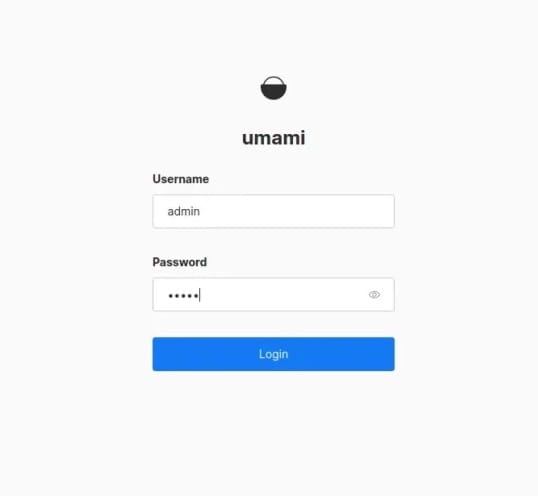
Once inside the dashboard, click Settings → Websites → Add Website. Fill in:
- Name — a label for internal reference
- Domain — your website’s full URL (e.g.,
https://yourdomain.com)
Save the entry. Umami will generate a unique website ID and a ready-to-use tracking snippet.
Step 13: Implement the Tracking Script
Copy the tracking code from the Umami dashboard and paste it into your website’s HTML, just before the closing </head> tag:
<script defer src="https://analytics.example.com/umami.js" data-website-id="YOUR-WEBSITE-ID"></script>Replace YOUR-WEBSITE-ID with the unique identifier generated for your site. The defer attribute ensures the script loads after your page content, so it never impacts page load performance.
Once deployed, visit your website and then check the Umami Realtime view. Page views should appear almost instantly, confirming the tracker is working.
Step 14: Back Up the Analytics Database
Data loss is always a risk without a backup strategy. Create a backup directory and take your first snapshot:
mkdir -p ~/umami/backups

docker compose exec umami-db \
pg_dump -U umami umami > ~/umami/backups/umami-$(date +%F-%H%M).sql
To automate daily backups, add a cron job:
crontab -eAdd this line to run a backup every day at 2:00 AM:
0 2 * * * docker compose -f /root/umami/docker-compose.yml exec -T umami-db pg_dump -U umami umami > /root/umami/backups/umami-$(date +\%F-\%H\%M).sqlConsider also copying backup files to an off-site location — an S3 bucket, a remote server, or cold storage — for full disaster recovery protection.
Step 15: Keeping Umami Updated
Updating Umami is as simple as pulling fresh images and restarting the stack:
cd ~/umami
docker compose pull
docker compose up -d
Docker Compose handles the rolling restart cleanly. Your database volume is preserved across updates, so no data is lost. Check the Umami GitHub releases page periodically to stay informed about new features and security patches.
Troubleshooting Common Issues
Even careful setups occasionally run into problems. Here are the most common issues and how to resolve them quickly.
Containers fail to start:
Run docker compose logs umami and look for error messages. Most failures trace back to a malformed .env file, a missing variable, or a port already bound by another process. Confirm port 3000 is free with ss -tlnp | grep 3000.
Cannot access the dashboard in the browser:
Verify the Nginx configuration with sudo nginx -t and check SELinux with getsebool httpd_can_network_connect. Confirm DNS is resolving correctly with dig analytics.example.com.
Tracking script not recording visits:
Open your browser’s developer console and look for network errors on the umami.js request. Confirm the data-website-id matches the ID shown in the Umami dashboard. Also verify the script is placed in the <head> section and the defer attribute is present.
SSL certificate errors:
Make sure port 80 is open and your DNS A record points to the correct server IP before running Certbot. If the certificate has expired, run sudo certbot renew --force-renewal.
Database connection refused:
Run docker compose ps to confirm the umami-db container is running. Check that the UMAMI_DATABASE_URL in your .env file uses the correct hostname (umami-db), username (umami), and database name (umami).
Congratulations! You have successfully installed Umami Analytics. Thanks for using this tutorial for installing the Umami modern analytics platform on AlmaLinux OS 10 system. For additional help or useful information, we recommend you check the official Umami website.
