How To Install UNetbootin on Fedora 43

If you work with Linux regularly, you already know how often you need to flash an ISO to a USB drive. Whether you are testing a new distribution, setting up a recovery environment, or deploying a fresh OS on a server, having a reliable USB creation tool matters. UNetbootin (Universal Netboot Installer) is one of the most widely used open-source utilities for this job, and knowing how to install UNetbootin on Fedora 43 correctly will save you time and frustration. This guide walks you through three proven installation methods, covers the full usage workflow, and includes a dedicated troubleshooting section for issues specific to Fedora 43’s Wayland-only session.
Fedora 43, released in October 2025, ships with GNOME 49 and a fully Wayland-based desktop environment. That change is important because some GUI tools that rely on Qt or X11 behave differently under Wayland compared to older Fedora releases. UNetbootin falls into that category. The good news is that the fix is straightforward, and this guide covers it completely.
By the end of this tutorial, you will have UNetbootin installed, running, and ready to create a bootable USB drive on your Fedora 43 system.
What Is UNetbootin and Why Use It on Fedora 43?
UNetbootin is a free, cross-platform tool that creates bootable Live USB drives for Ubuntu, Fedora, Debian, Arch Linux, and over 20 other distributions, without burning a CD. It runs on Windows, macOS, and Linux, and it works in two modes: you can either download a distribution directly from inside the app, or point it to an ISO file you already have on disk.
Fedora 43 ships with Fedora Media Writer pre-installed, which works well for Fedora ISOs specifically. But if you regularly work with other distributions or need to flash custom ISO files, UNetbootin gives you broader flexibility. It also supports system rescue utilities like SystemRescueCD, Parted Magic, and Super Grub Disk, making it a practical tool for sysadmins who manage multiple machines.
UNetbootin is available directly in Fedora’s official package repositories, which means the DNF installation method is the cleanest and most reliable option for most users.
Prerequisites Before You Start
Before running any commands, confirm you have everything ready. Skipping this step is the most common reason the installation or USB creation fails.
System requirements:
- Fedora 43 installed and fully updated
- A user account with
sudoprivileges - Active internet connection (for DNF and RPM methods)
- Terminal access (GNOME Terminal, Kitty, or any other)
USB drive requirements:
- Minimum 8 GB USB flash drive
- Formatted as FAT32 (UNetbootin will not detect NTFS or ext4 drives in its device list)
- All existing data on the drive backed up, since the process will overwrite it
Optional but recommended:
- SHA256 checksum of your target ISO file to verify integrity before writing
- An ISO file already downloaded to your local disk (saves time during the creation step)
Step 1: Update Your Fedora 43 System
Before installing any new package, update your system. This refreshes the package metadata and ensures you pull the latest available version of UNetbootin and its dependencies.
Open a terminal and run:
sudo dnf update -yWhat this does: The dnf update command checks all enabled repositories for package updates and applies them. The -y flag automatically confirms all prompts so you do not have to type “yes” repeatedly.
Expected output: You will see a list of packages being updated, followed by a “Complete!” message. If the system was already up to date, you will see “Nothing to do.”
After the update finishes, proceed to the next step.
Step 2: Verify UNetbootin Is Available in Your Repositories
Before installing, confirm that the UNetbootin package is present in your enabled Fedora repositories. This takes five seconds and avoids a confusing “package not found” error later.
sudo dnf search unetbootinExpected output:
============= Name Exactly Matched: unetbootin =============
unetbootin.x86_64 : Create bootable Live USB drives for a variety of Linux distributions
If you see this output, UNetbootin is in the official Fedora repository and you can install it immediately. If you get no results, jump to the troubleshooting section below where we cover how to enable the correct repository.
Step 3: Install UNetbootin on Fedora 43 Using DNF (Recommended Method)
The DNF method is the recommended approach for most users. It installs UNetbootin directly from Fedora’s official repositories, handles all dependency resolution automatically, and keeps the package managed under your system’s update cycle.
Run the following command:
sudo dnf install unetbootin -yWhat this does: DNF contacts the Fedora package repository, downloads the UNetbootin package along with any required dependencies (including Qt5 libraries), and installs them on your system. The -y flag skips confirmation prompts.
Expected output:
Installed:
  unetbootin-702-4.fc43.x86_64

Complete!
The version number may differ depending on when you run this command, but the “Complete!” line confirms a successful installation.
Verify the installation by checking the version:
unetbootin --versionYou should see the version string printed to the terminal.
Step 4: Install UNetbootin Using the Official RPM Binary (Alternative Method)
If you want the latest upstream version directly from the UNetbootin GitHub releases page rather than waiting for the Fedora repo to update, use the RPM binary method.
Step 4.1: Download the RPM Package
Go to https://github.com/unetbootin/unetbootin/releases and download the latest .rpm file. You can also use wget directly from the terminal:
wget https://github.com/unetbootin/unetbootin/releases/latest/download/unetbootin-linux64.rpmReplace the filename with the exact .rpm filename listed on the releases page.
Step 4.2: Install the RPM with DNF
Use DNF to install the downloaded RPM file. Using dnf instead of raw rpm ensures dependencies are automatically resolved:
sudo dnf install ./unetbootin-linux64.rpm -yStep 4.3: Install Missing Qt Dependencies If Needed
If the installation fails due to missing Qt libraries, install them manually:
sudo dnf install qt5-qtbase qt5-qtbase-gui -yWhat this does: These packages provide the Qt5 GUI framework that UNetbootin requires to render its interface on Linux.
After the dependencies are installed, retry the RPM installation command above.
Step 5: Install UNetbootin Using the Standalone Binary (No Package Manager Required)
This method works on any Linux distribution and requires no package manager. It downloads a self-contained executable binary directly from the official UNetbootin website. This is useful if you are on a restricted system where DNF access is limited.
Step 5.1: Download the 64-bit Linux Binary
Navigate to https://unetbootin.github.io/linux_download.html in your browser and download the 64-bit binary file named unetbootin-linux64. Or use wget:
wget -O unetbootin-linux64 "https://unetbootin.github.io/linux_download.html"Step 5.2: Make the Binary Executable
After downloading, the file is not executable by default. Change its permissions:
chmod +x ./unetbootin-linux64What this does: The chmod +x command adds execute permission to the file, allowing you to run it as a program. Without this step, the system treats it as a plain data file.
Alternatively, right-click the file in GNOME Files (Nautilus), open Properties, go to the Permissions tab, and check “Allow executing file as program.”
Step 5.3: Move the Binary to Your PATH (Optional but Convenient)
If you want to run UNetbootin from anywhere on the system without specifying its full path each time, move it to /usr/local/bin:
sudo mv unetbootin-linux64 /usr/local/bin/unetbootinNow you can launch it with just sudo unetbootin from any directory.
Step 6: Launch UNetbootin on Fedora 43
Regardless of which installation method you used, launching UNetbootin on Fedora 43 requires root privileges. Without root, UNetbootin cannot read block devices or write to USB drives.
sudo unetbootinImportant note for Fedora 43 Wayland users: Fedora 43 runs a Wayland-only session. UNetbootin uses the Qt framework and may fail to open its GUI window under Wayland with the following error:
qt.qpa.plugin: Could not load the Qt platform plugin "xcb"
This application failed to start because no Qt platform plugin could be initialized.
If you see this error, force UNetbootin to use the XCB (X11) backend by setting the QT_QPA_PLATFORM environment variable:
sudo QT_QPA_PLATFORM=xcb unetbootinWhat this does: The QT_QPA_PLATFORM=xcb variable tells the Qt framework to use the XCB/X11 platform plugin instead of defaulting to Wayland. Fedora 43’s Wayland session still supports XWayland for X11 applications, so this workaround runs reliably.
The UNetbootin graphical interface should now open successfully.
Step 7: Create a Bootable USB Drive with UNetbootin
With UNetbootin open and your USB drive inserted, follow these steps to write a bootable image.
Step 7.1: Prepare and Format the USB Drive
Before writing, make sure the USB drive is formatted as FAT32. Open a terminal and identify your USB device:
lsblkLook for your USB drive in the output (typically /dev/sdb or /dev/sdc). Then format it:
sudo mkfs.vfat -F 32 /dev/sdXReplace /dev/sdX with your actual device identifier. Double-check this before running the command. Formatting the wrong device will erase its data permanently.
Step 7.2: Select Your ISO Source in UNetbootin
In the UNetbootin window, you have two options:
Option A: Use a local ISO file you already downloaded
- Select the “Diskimage” radio button
- Click the browse button (
...) next to the ISO field - Navigate to your downloaded ISO file and select it
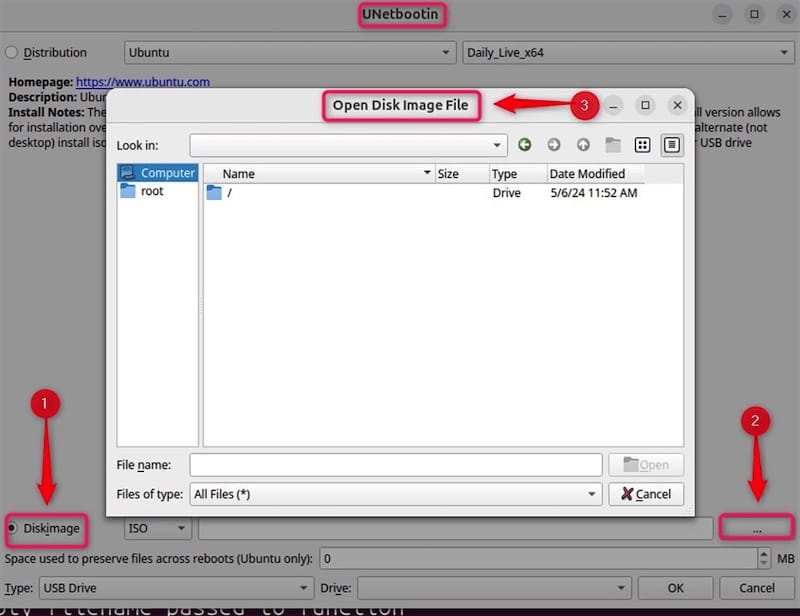
Option B: Download a distribution directly inside UNetbootin
- Select the “Distribution” radio button
- Choose your distribution from the first dropdown (e.g., Ubuntu, Fedora, Debian)
- Select the version from the second dropdown
- UNetbootin will download the ISO automatically
Step 7.3: Select the Target USB Drive
At the bottom of the UNetbootin window, find the “Drive” dropdown. Select your USB device from the list. If your drive does not appear, it is likely not formatted as FAT32. Go back to Step 7.1 and reformat it.
Step 7.4: Start the Write Process
Click OK to begin. UNetbootin will extract files, install the bootloader, and write everything to the USB drive. This typically takes 3-10 minutes depending on the ISO size and USB drive speed.
Do not remove the USB drive while this is in progress.
Step 7.5: Reboot and Test the USB
When the process finishes, click “Reboot Now” or manually restart your system. During the POST screen, press the boot menu key for your system (commonly F12, Esc, or F2 depending on the manufacturer) and select the USB drive from the boot options list.
Troubleshooting Common Issues on Fedora 43
Even with a clean setup, you may run into a few specific issues on Fedora 43. Here are the most common ones and how to fix them.
Issue 1: UNetbootin Package Not Found During DNF Install
Symptom: sudo dnf install unetbootin returns “No match for argument: unetbootin.”
Fix: Check that your Fedora repositories are properly enabled:
sudo dnf repolistYou should see fedora and updates in the list. If UNetbootin is missing, try enabling the testing repo temporarily:
sudo dnf install unetbootin --enablerepo=updates-testingIssue 2: GUI Does Not Open Under Wayland
Symptom: Running sudo unetbootin produces a Qt platform plugin error and no window appears.
Fix:
sudo QT_QPA_PLATFORM=xcb unetbootinIf this still fails, install the XCB Qt plugin explicitly:
sudo dnf install qt5-qtbase-xcb-private-devel -yThen retry the launch command.
Issue 3: USB Drive Not Showing in UNetbootin’s Drive List
Symptom: The “Drive” dropdown is empty or does not list your USB device.
Fix:
- Confirm you are running UNetbootin with
sudo; without root, it cannot enumerate block devices - Reformat the USB drive as FAT32 using
sudo mkfs.vfat -F 32 /dev/sdX - Restart UNetbootin after reformatting
Issue 4: Bootable USB Does Not Boot on Target Machine
Symptom: The machine either ignores the USB or shows a boot error.
Fix:
- Verify the ISO file integrity with its official SHA256 checksum before blaming UNetbootin
- Some systems with UEFI Secure Boot enabled will refuse to boot from UNetbootin-created drives; disable Secure Boot temporarily in BIOS/UEFI settings
- Try reformatting the USB and writing the image again
Issue 5: “Permission Denied” When Running the Binary Method
Symptom: Running ./unetbootin-linux64 returns a permission denied error.
Fix:
chmod +x ./unetbootin-linux64
sudo ./unetbootin-linux64
The file must have execute permission set and must be run as root.
UNetbootin Alternatives for Fedora 43
UNetbootin is a solid tool, but it is not the only option. Here is a quick reference if you need something different for a specific use case.
| Tool | Best Use Case | Notes |
|---|---|---|
| Fedora Media Writer | Flashing official Fedora ISOs | Pre-installed on Fedora 43, Wayland-native |
| Ventoy | Multi-boot USB with multiple ISOs | No reformatting needed between ISO changes |
dd command |
Any ISO, advanced users | Fast and reliable, no GUI, high risk of data loss if wrong device |
| Balena Etcher | Beginners, cross-platform | Clean GUI, available as AppImage |
If you regularly work with multiple ISO files and want to avoid reformatting the USB between each write, Ventoy is worth exploring. For quick single-ISO tasks, UNetbootin or dd covers most needs.
Congratulations! You have successfully installed UNetbootin. Thanks for using this tutorial for installing UNetbootin on the Fedora 43 Linux system. For additional help or useful information, we recommend you check the official UNetbootin website.
