How To Install Uptime Kuma on AlmaLinux 10

Monitoring your website’s uptime is critical for maintaining a reliable online presence. Downtime can cost businesses thousands of dollars and damage their reputation. Uptime Kuma offers a powerful, self-hosted solution for tracking your infrastructure’s availability without recurring subscription fees. This comprehensive guide walks you through the complete installation and configuration process on AlmaLinux 10, from initial setup to securing your monitoring dashboard with SSL certificates.
AlmaLinux 10 provides a stable, enterprise-grade platform perfect for hosting monitoring tools. Combined with Uptime Kuma’s feature-rich interface and extensive notification options, you’ll have a professional monitoring system running in under an hour. Whether you’re managing a single website or an entire server infrastructure, this tutorial equips you with the knowledge to deploy and maintain your own monitoring solution.
What is Uptime Kuma?
Uptime Kuma is a free, open-source, self-hosted monitoring application that tracks the availability of your websites, APIs, servers, and services. Built with Node.js and Vue.js, it provides a modern, responsive interface that works seamlessly across desktop and mobile devices. The application functions similarly to commercial alternatives like UptimeRobot, Pingdom, or Better Uptime, but gives you complete control over your monitoring data.
The platform supports multiple monitoring protocols including HTTP/HTTPS, TCP ports, ping (ICMP), DNS records, Docker containers, and even database connections. Real-time status updates appear on your dashboard with customizable intervals as low as 20 seconds. You can create public status pages to communicate service availability to your customers or team members.
One of Uptime Kuma’s standout features is its support for over 78 notification services. Whether you prefer email, Slack, Discord, Telegram, Microsoft Teams, or dozens of other platforms, you’ll receive instant alerts when services go down. The system includes built-in SSL certificate monitoring with expiration warnings, two-factor authentication for enhanced security, and a beautiful dark mode interface.
Prerequisites
Before beginning the installation process, ensure your system meets these requirements:
- A fresh or existing AlmaLinux 10 server installation with root or sudo privileges
- Minimum 1GB RAM and 25GB available storage space (2GB RAM recommended for monitoring multiple services)
- Stable internet connection for downloading packages and dependencies
- Basic familiarity with Linux command-line operations
- A registered domain name pointed to your server IP address (optional, but required for SSL certificate setup)
- Firewall access to configure incoming connections
This guide assumes you’re working with a dedicated server or KVM-based virtual private server. OpenVZ containers may experience compatibility issues with certain monitoring features.
Step 1: Update AlmaLinux 10 System
Keeping your system updated ensures you have the latest security patches and bug fixes before installing new software. AlmaLinux 10 uses the DNF package manager, which replaces the older YUM system while maintaining backward compatibility.
Connect to your server via SSH and execute the following command to update all installed packages:
sudo dnf update -y && sudo dnf upgrade -yThe update process may take several minutes depending on how many packages require updating. Once completed, install essential development tools and utilities:
sudo dnf install -y tar curl wget git dnf-plugins-coreThese packages provide compression utilities, HTTP clients, version control, and additional repository management capabilities. Restart your server if kernel updates were installed to ensure all changes take effect:
sudo rebootStep 2: Install Node.js and npm
Uptime Kuma is built entirely on Node.js, making it a critical dependency for the application to function. The Node Package Manager (npm) comes bundled with Node.js and handles installing JavaScript dependencies.
For optimal compatibility and long-term support, install Node.js version 20.x LTS from the official NodeSource repository. First, add the NodeSource repository to your system:
curl -fsSL https://rpm.nodesource.com/setup_20.x | sudo bash -This script automatically configures the repository and GPG keys for package verification. Now install Node.js with a single command:
sudo dnf install -y nodejsThe installation includes both the Node.js runtime and npm package manager. Verify the successful installation by checking the installed versions:
node --version
npm --version
You should see output displaying version numbers (e.g., v20.x.x for Node.js and 10.x.x for npm). These version numbers confirm that both tools are correctly installed and accessible from your command line.
Step 3: Install Git Version Control
Git enables you to clone the Uptime Kuma repository from GitHub and manage future updates efficiently. Version control systems like Git track changes to your application files and simplify the upgrade process.
Install Git using the DNF package manager:
sudo dnf install -y gitConfirm the installation completed successfully:
git --versionThe output displays the installed Git version, typically 2.x or higher on AlmaLinux 10. With Git installed, you can now clone repositories and pull updates whenever new Uptime Kuma versions are released.
Step 4: Clone and Install Uptime Kuma
Navigate to a directory where you want to store the Uptime Kuma application files. Many administrators choose /opt or their home directory:
cd /optClone the official Uptime Kuma repository from GitHub:
git clone https://github.com/louislam/uptime-kuma.gitThis command downloads all application files, including the source code, dependencies list, and configuration templates. Move into the newly created directory:
cd uptime-kumaExecute the setup script to install all required Node.js dependencies and build the application:
npm run setupThis process downloads and compiles hundreds of JavaScript packages listed in the package.json file. The initial setup typically takes 5-10 minutes depending on your server’s CPU and internet connection speed. You’ll see progress messages as npm processes each dependency.
The setup command performs three operations: installing production dependencies, installing development dependencies, and building the frontend assets. Wait patiently until you see a success message indicating the build completed without errors.
Step 5: Install and Configure PM2 Process Manager
PM2 (Process Manager 2) ensures Uptime Kuma runs continuously in the background, automatically restarting if it crashes and launching on system boot. Without a process manager, your monitoring tool would stop whenever you close your SSH session.
Install PM2 globally on your system:
sudo npm install pm2 -gThe -g flag installs PM2 system-wide, making it accessible from any directory. Start Uptime Kuma with PM2 using a descriptive process name:
pm2 start server/server.js --name uptime-kumaThis command launches the application and registers it with PM2’s process list. Check the process status:
pm2 statusYou should see “uptime-kuma” listed with an “online” status and uptime counter. Configure PM2 to start automatically when your server boots:
pm2 startup systemdPM2 displays a command specific to your system configuration. Copy and execute that command (it typically starts with sudo env). Finally, save the current process list:
pm2 saveThis creates a snapshot of running processes that PM2 will restore after system reboots. Useful PM2 commands for managing Uptime Kuma include:
- pm2 restart uptime-kuma – Restart the application
- pm2 stop uptime-kuma – Stop the monitoring service
- pm2 logs uptime-kuma – View real-time application logs
- pm2 monit – Display CPU and memory usage statistics
For log rotation to prevent disk space issues, install the PM2 log rotation module:
pm2 install pm2-logrotateStep 6: Configure Firewall Rules
AlmaLinux 10 includes firewalld as the default firewall management system. You need to open specific ports to access Uptime Kuma through your web browser.
Open port 3001, which Uptime Kuma uses by default:
sudo firewall-cmd --permanent --zone=public --add-port=3001/tcpIf you plan to configure a reverse proxy (recommended for production), also open HTTP and HTTPS ports:
sudo firewall-cmd --permanent --zone=public --add-port=80/tcp
sudo firewall-cmd --permanent --zone=public --add-port=443/tcp
The –permanent flag ensures these rules survive system reboots. Reload the firewall configuration to apply changes immediately:
sudo firewall-cmd --reloadVerify the ports are open:
sudo firewall-cmd --list-portsYou should see 3001/tcp 80/tcp 443/tcp in the output. Test initial access by opening your web browser and navigating to:
http://your-server-ip:3001Replace your-server-ip with your actual server’s IP address. If everything is configured correctly, the Uptime Kuma setup page loads in your browser.
Step 7: Configure SELinux (Optional)
Security-Enhanced Linux (SELinux) provides mandatory access control security on AlmaLinux systems. When running Nginx as a reverse proxy, SELinux may block connections between Nginx and Uptime Kuma.
Check your current SELinux status:
sestatusIf SELinux is enabled and enforcing, configure it to allow Nginx to make network connections:
sudo setsebool -P httpd_can_network_connect 1This boolean setting permits HTTP daemons to initiate network connections to upstream servers. The -P flag makes the change permanent across reboots.
Alternatively, you can set SELinux to permissive mode, though this reduces your server’s security posture and isn’t recommended for production environments:
sudo setenforce 0For maximum security, keep SELinux enforcing and configure specific policies as needed.
Step 8: Install and Configure Nginx Reverse Proxy
Running Uptime Kuma behind a reverse proxy provides several advantages: custom domain support, SSL/TLS encryption, additional security layers, and better performance through caching. Nginx is lightweight, fast, and ideal for this purpose.
Install Nginx from the default AlmaLinux repositories:
sudo dnf install -y nginxCreate a new configuration file for Uptime Kuma:
sudo nano /etc/nginx/conf.d/uptime-kuma.confAdd the following configuration, replacing yourdomain.com with your actual domain name:
server {
    listen 80;
    server_name yourdomain.com;

    location / {
        proxy_pass http://localhost:3001;
        proxy_http_version 1.1;
        proxy_set_header Upgrade $http_upgrade;
        proxy_set_header Connection "upgrade";
        proxy_set_header Host $host;
        proxy_set_header X-Real-IP $remote_addr;
        proxy_set_header X-Forwarded-For $proxy_add_x_forwarded_for;
        proxy_set_header X-Forwarded-Proto $scheme;
        proxy_set_header X-Forwarded-Host $host;
        proxy_set_header X-Forwarded-Port $server_port;
    }
}
This configuration handles WebSocket connections required for real-time updates in Uptime Kuma’s interface. The Upgrade and Connection headers enable WebSocket protocol switching. Proxy headers pass client information to the backend application.
Save the file and test your Nginx configuration for syntax errors:
sudo nginx -tIf the test succeeds, enable Nginx to start on boot and start the service:
sudo systemctl enable nginx
sudo systemctl start nginx
Access Uptime Kuma through your domain name:
http://yourdomain.comStep 9: Secure with SSL/TLS Certificate
HTTPS encryption protects sensitive data like login credentials and prevents man-in-the-middle attacks. Let’s Encrypt provides free SSL certificates with automated renewal.
Install Certbot and the Nginx plugin:
sudo dnf install -y certbot python3-certbot-nginxEnsure your domain’s DNS A record points to your server’s IP address before proceeding. Obtain and install an SSL certificate:
sudo certbot --nginx -d yourdomain.comCertbot prompts you for an email address for renewal notifications and asks you to agree to the terms of service. It automatically modifies your Nginx configuration to enable HTTPS and redirects HTTP traffic to HTTPS.
The certificate is valid for 90 days, but Certbot installs a systemd timer for automatic renewal. Test the renewal process:
sudo certbot renew --dry-runIf this command succeeds, your certificates will renew automatically. Access your monitoring dashboard securely:
https://yourdomain.comYour browser should display a padlock icon confirming the secure connection.
Step 10: Initial Uptime Kuma Configuration
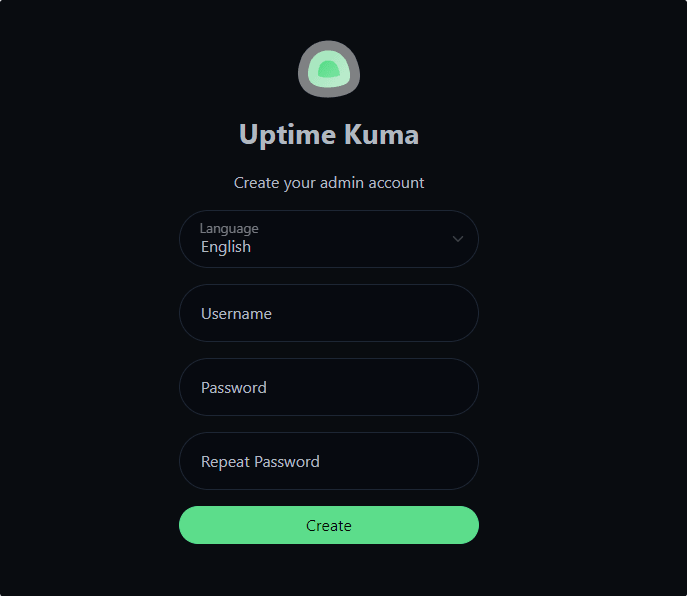
Open your web browser and navigate to your Uptime Kuma installation (either https://yourdomain.com or http://your-server-ip:3001). The first-time setup screen prompts you to create an administrator account.
Enter your desired username and a strong password. Uptime Kuma doesn’t send any data externally, so your credentials remain completely private. The password should be at least 12 characters long and include uppercase, lowercase, numbers, and special characters.
After creating your account, you’re logged into the main dashboard. Take a moment to explore the clean, intuitive interface. The sidebar displays navigation options for monitors, status pages, settings, and documentation.
Navigate to Settings to configure general preferences:
- Language: Select your preferred interface language from over 20 available translations
- Theme: Choose between light, dark, and auto (system preference) modes
- Timezone: Set your local timezone for accurate timestamp display
- Search Engine Index: Disable if you don’t want your status pages appearing in search results
Enable two-factor authentication (2FA) for enhanced account security. Navigate to your profile settings and follow the prompts to set up authenticator app-based 2FA.
Step 11: Creating Your First Monitor
Click the green “Add New Monitor” button to begin tracking a service. The monitor configuration form presents numerous options depending on your monitoring needs.
Start by selecting a Monitor Type from the dropdown menu:
- HTTP(s): Monitor website availability and response time
- TCP Port: Check if specific ports are accepting connections
- Ping: Basic ICMP connectivity testing
- DNS: Verify DNS resolution for domains
- Docker Container: Monitor Docker container health status
- Steam Game Server: Track gaming server availability
- And many more specialized types
For an HTTP/HTTPS monitor, fill in these fields:
- Friendly Name: A descriptive label like “Main Website” or “API Endpoint”
- URL: The complete URL including protocol (https://example.com)
- Heartbeat Interval: How often to check (default 60 seconds)
- Retries: Number of failed attempts before marking as down (default 1)
- Heartbeat Retry Interval: Seconds between retry attempts
- Accepted Status Codes: HTTP codes considered successful (default 200-299)
Expand the Advanced section for additional options:
- Keyword: Search for specific text in the response body
- Invert Keyword: Alert if the keyword is NOT found
- Ignore TLS/SSL Error: Skip certificate validation (not recommended)
- Certificate Expiry Notification: Receive alerts before SSL certificates expire
- Custom HTTP Headers: Add authentication tokens or API keys
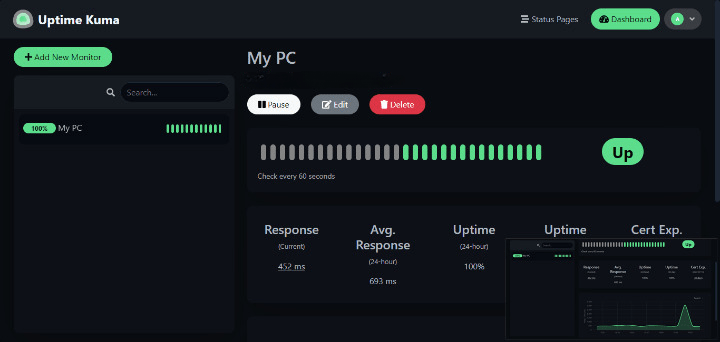
Click Save to activate the monitor. Within seconds, you’ll see status updates on your dashboard with response time graphs, uptime percentage, and recent heartbeat history. Green indicates UP status, red shows DOWN, and orange warns of certificate issues.
Step 12: Configure Notifications
Notifications ensure you’re immediately aware when services experience problems. Uptime Kuma supports over 78 notification providers, making it incredibly versatile.
Click Setup Notification or navigate to Settings > Notifications. Click Add to create a new notification channel. Select your preferred service from the extensive list:
Email (SMTP): Configure your mail server settings including hostname, port, security type (TLS/STARTTLS), username, and password. Send a test email to verify the configuration works.
Telegram: Create a bot through BotFather, obtain your bot token, and enter your chat ID. Telegram provides instant mobile notifications with delivery confirmation.
Discord: Create a webhook in your Discord server settings and paste the webhook URL into Uptime Kuma. Messages appear in your designated channel whenever status changes occur.
Slack: Generate an incoming webhook in your Slack workspace and configure the target channel. Slack notifications integrate seamlessly with team communication workflows.
After configuring a notification method, apply it to your monitors. Edit each monitor and select which notification channels should receive alerts for that specific service. You can assign different notification groups to different monitors based on priority or responsibility.
Configure notification thresholds to reduce alert fatigue. Instead of alerting on the first failed check, wait for multiple consecutive failures or a specific downtime duration. This prevents false alarms from temporary network hiccups.
Step 13: Setting Up Public Status Pages
Status pages provide transparency by allowing customers, team members, or stakeholders to view service availability without accessing your monitoring dashboard. Creating a status page takes just minutes.
Navigate to Status Pages in the sidebar and click Add New Status Page. Configure these settings:
- Slug: URL-friendly name (e.g., “company-status” becomes yourdomain.com/status/company-status)
- Title: Display name shown at the top of the page
- Description: Optional text explaining the page’s purpose
- Theme: Match your branding with color customization
- Password Protection: Require authentication to view the page
- Search Engine Indexing: Control whether search engines can discover the page
Add monitors to your status page by dragging them from the available list. Arrange monitors in logical groups like “Core Services,” “APIs,” or “Regional Servers”. Each monitor displays its current status, uptime percentage, and recent incident history.
Share the status page URL with relevant parties. The page updates in real-time, so viewers see status changes immediately without refreshing. You can embed status badges in external websites or documentation using the provided HTML snippet.
Maintenance and Best Practices
Regular maintenance ensures your monitoring system remains reliable and secure. Establish a routine schedule for these tasks:
Update Uptime Kuma regularly to receive new features, bug fixes, and security patches. Navigate to your installation directory and pull the latest changes:
cd /opt/uptime-kuma
git pull
npm install --production
npm run build
pm2 restart uptime-kuma
Check the GitHub releases page before updating to review changes and potential breaking modifications.
Monitor system resources consumed by Uptime Kuma itself. Use pm2 monit to track CPU and memory usage. A typical installation monitoring 20-30 services uses approximately 100-200MB of RAM.
Implement log rotation to prevent disk space exhaustion. PM2’s log rotation module automatically archives old logs:
pm2 set pm2-logrotate:max_size 10M
pm2 set pm2-logrotate:retain 7
This configuration limits individual log files to 10MB and keeps logs for 7 days.
Backup your monitoring data regularly. Uptime Kuma stores all data in SQLite database files located in the data directory. Create periodic backups:
sudo cp -r /opt/uptime-kuma/data /backup/uptime-kuma-$(date +%Y%m%d)Optimize monitoring intervals based on your actual needs. Checking every 60 seconds works well for most scenarios, while critical services might warrant 20-30 second intervals. Less critical services can use 5-minute intervals to reduce resource consumption.
Review security configurations periodically: ensure firewall rules remain appropriate, SSL certificates renew automatically, and only authorized users have dashboard access. Change default passwords, enable 2FA, and audit notification channels for security.
Troubleshooting Common Issues
Uptime Kuma won’t start: Check PM2 status with pm2 status and view logs using pm2 logs uptime-kuma. Common causes include port conflicts, missing dependencies, or insufficient permissions. Restart the service: pm2 restart uptime-kuma.
Port 3001 already in use: Another application is occupying the port. Identify the conflicting process with sudo lsof -i :3001 and either stop that service or configure Uptime Kuma to use a different port.
WebSocket connection failures behind reverse proxy: Verify your Nginx configuration includes the Upgrade and Connection headers. WebSocket support is essential for real-time dashboard updates. Check the browser console for specific error messages.
False positive DOWN alerts: Monitors show services as unavailable despite them functioning correctly. Increase retry attempts and retry intervals to account for network latency. Adjust accepted status codes if your application returns non-standard HTTP codes.
SSL certificate renewal fails: Certbot requires ports 80 and 443 accessible from the internet. Verify firewall rules allow incoming connections and your domain’s DNS records point correctly. Check Certbot logs at /var/log/letsencrypt/letsencrypt.log.
High CPU or memory usage: Reduce the number of monitors or increase checking intervals. Each active monitor consumes resources, especially those performing complex checks or connecting to slow remote services. Monitor system performance with htop or pm2 monit.
Notifications not delivering: Test notification channels using the “Test” button in notification settings. Verify API keys, tokens, or SMTP credentials are correct. Check application logs for error messages related to notification failures.
Database corruption: If Uptime Kuma fails to start citing database errors, restore from your most recent backup. In extreme cases, you may need to reinitialize the database, losing historical data but preserving monitor configurations if exported.
Congratulations! You have successfully installed Uptime Kuma. Thanks for using this tutorial to install the latest version of the Uptime Kuma monitoring tool on AlmaLinux OS 10. For additional help or useful information, we recommend you check the official Uptime Kuma website.
