How To Install Uptime Kuma on Linux Mint 22

Your website goes down at 2 AM. Nobody notices until a client emails you the next morning. That single gap in visibility can cost you users, revenue, and reputation — and it’s 100% preventable. In this Linux server tutorial, you’ll learn exactly how to install Uptime Kuma on Linux Mint 22 using both the Node.js and Docker methods, configure PM2 for process persistence, set up an Nginx reverse proxy, and get your first monitor running in under 30 minutes.
Uptime Kuma is a free, open-source, self-hosted monitoring tool built by Louis Lam that rivals paid services like Pingdom and UptimeRobot — without the monthly subscription fee. It supports HTTP(s), TCP, Ping, DNS, Docker container health checks, and 78+ notification integrations including Telegram, Slack, Discord, and email. On Linux Mint 22 — built on the Ubuntu 24.04 LTS (Noble Numbat) base — every dependency in this guide installs cleanly through the standard APT ecosystem, making it one of the best platforms for this kind of self-hosted setup.
Prerequisites
Before you run a single command, make sure you have the following ready:
- OS: Linux Mint 22 (fresh install recommended, desktop or server edition)
- User privileges: A non-root user account with
sudoaccess - Internet connection: Required to download packages and clone the repository
- Terminal access: Basic comfort with the Linux command line
- Hardware minimum: 1 vCPU, 512 MB RAM, 1 GB free disk space
- Optional: A registered domain name or static IP for remote access
- Optional: Docker installed if you prefer the containerized installation method
Step 1: Update Your Linux Mint 22 System
Before installing any new software, always bring your system fully up to date. This prevents dependency conflicts and ensures you’re working with the latest security patches.
sudo apt update && sudo apt upgrade -yWhat this does: apt update refreshes your local package index from all configured repositories. apt upgrade -y then upgrades every installed package without prompting for confirmation.
Expected output:
Reading package lists... Done
Building dependency tree... Done
...
0 upgraded, 0 newly installed, 0 to remove and 0 not upgraded.
Pro tip: If the upgrade includes a kernel update, reboot before continuing:
sudo rebootStep 2: Install Required Dependencies
Uptime Kuma needs two tools before you can proceed: curl and git. You use curl to fetch the Node.js setup script from NodeSource, and git to clone the Uptime Kuma repository from GitHub.
sudo apt install curl git -yVerify both tools installed correctly:
curl --version
git --version
Expected output:
curl 8.5.0 (x86_64-pc-linux-gnu)
git version 2.43.0
These two lines confirm everything is in order before moving on.
Step 3: Install Node.js (v22 LTS)
Node.js is the runtime environment that powers Uptime Kuma. The default APT version bundled with most Debian-based distros is outdated — Uptime Kuma requires Node.js v14 or higher, and v18+ is strongly recommended for stability and performance. You’ll use the NodeSource repository to install the current LTS release (v22).
Step 3.1: Add the NodeSource Repository
curl -fsSL https://deb.nodesource.com/setup_22.x -o nodesource_setup.sh
sudo -E bash nodesource_setup.sh
What this does: The first command downloads the NodeSource setup script to a local file. The second executes it with root privileges and registers the NodeSource APT repository on your system.
Step 3.2: Install Node.js
sudo apt install nodejs -yStep 3.3: Verify the Installation
node -v
npm -v
Expected output:
v22.x.x
10.x.x
Both version numbers confirm that Node.js and npm (Node Package Manager) installed successfully.
Step 4: Clone and Set Up Uptime Kuma
With Node.js ready, you can now pull the Uptime Kuma source code directly from the official GitHub repository. Always use the official louislam/uptime-kuma repository — avoid third-party forks, which may contain unreviewed or tampered code.
Step 4.1: Clone the Repository
git clone https://github.com/louislam/uptime-kuma.git
cd uptime-kuma
What this does: git clone downloads the full Uptime Kuma source code into a new uptime-kuma/ directory. cd uptime-kuma moves you into that directory for the next steps.
Step 4.2: Run the Setup Script
npm run setupWhat this does: This single command installs all required npm packages and compiles the frontend assets (Vue.js dashboard). Expect this to take 2–5 minutes depending on your internet speed and machine specs.
Expected output (last few lines):
...
added 312 packages, and audited 313 packages in 47s
found 0 vulnerabilities
Step 4.3: Test That Uptime Kuma Starts
Run a quick test launch before handing control over to PM2:
node server/server.jsOpen your browser and navigate to http://localhost:3001. You should see the Uptime Kuma registration screen. Press CTRL+C to stop the process — this was just a verification run.
Step 5: Run Uptime Kuma as a Background Service with PM2
If you close your terminal session, any process you started manually stops immediately. PM2 is a production-grade Node.js process manager that keeps your application running in the background, restarts it on crashes, and launches it automatically at every system boot.
Step 5.1: Install PM2 Globally
sudo npm install pm2 -gStep 5.2: Start Uptime Kuma Under PM2
pm2 start server/server.js --name uptime-kumaWhat this does: PM2 launches the Uptime Kuma server as a named background process called uptime-kuma.
Step 5.3: Enable Auto-Start on System Boot
pm2 startup
pm2 save
What this does: pm2 startup generates and registers a system init script so PM2 restarts all saved processes after a reboot. pm2 save snapshots the current process list to disk.
Step 5.4: Verify the Service is Running
pm2 statusExpected output:
┌─────┬────────────────┬─────────────┬──────┬───────────┬──────────┬──────────┐
│ id  │ name           │ namespace   │ mode │ pid       │ status   │ uptime   │
├─────┼────────────────┼─────────────┼──────┼───────────┼──────────┼──────────┤
│ 0   │ uptime-kuma    │ default     │ fork │ 12345     │ online   │ 0s       │
└─────┴────────────────┴─────────────┴──────┴───────────┴──────────┴──────────┘
A status of online means Uptime Kuma is running and will survive reboots.
Step 6: Configure the Firewall
If UFW (Uncomplicated Firewall) is active on your Linux Mint machine, you must allow traffic through port 3001 — the default port Uptime Kuma listens on.
sudo ufw allow 3001/tcp
sudo ufw reload
Verify the rule was added:
sudo ufw statusExpected output:
3001/tcp ALLOW AnywhereSecurity note: If you’re deploying on a public VPS, restrict access to trusted IP addresses only:
sudo ufw allow from YOUR_IP to any port 3001Step 7: Install Uptime Kuma Using Docker (Optional)
If you prefer containers over a direct Node.js installation, Docker offers a clean, isolated deployment that’s especially useful in homelab or multi-service environments.
Step 7.1: Install Docker on Linux Mint 22
curl -fsSL https://get.docker.com | sudo sh
sudo usermod -aG docker $USER
newgrp docker
What this does: The first line installs Docker Engine using the official convenience script. The second adds your user to the docker group so you can run Docker commands without sudo.
docker --versionStep 7.2: Run the Uptime Kuma Container
docker run -d \
  --restart=always \
  -p 3001:3001 \
  -v uptime-kuma:/app/data \
  --name uptime-kuma \
  louislam/uptime-kuma:1
Flag breakdown:
| Flag | Purpose |
|---|---|
-d |
Run in detached (background) mode |
--restart=always |
Auto-restart on crash or reboot |
-p 3001:3001 |
Map host port 3001 to container port 3001 |
-v uptime-kuma:/app/data |
Persist all data to a named Docker volume |
Step 7.3: Use Docker Compose (Optional)
For cleaner management, create a docker-compose.yml file:
version: '3.3'
services:
  uptime-kuma:
    image: louislam/uptime-kuma:1
    container_name: uptime-kuma
    volumes:
      - uptime-kuma:/app/data
    ports:
      - "3001:3001"
    restart: always
volumes:
  uptime-kuma:
Start it with:
docker compose up -dDocker Compose is the preferred approach when Uptime Kuma is one service among many in your stack.
Step 8: Set Up Nginx as a Reverse Proxy
Running Uptime Kuma directly on port 3001 works fine for local access. But for production use — especially if you want a clean domain URL and HTTPS — you need an Nginx reverse proxy.
Step 8.1: Install Nginx
sudo apt install nginx -y
sudo systemctl enable nginx
sudo systemctl start nginx
Step 8.2: Create the Uptime Kuma Server Block
sudo nano /etc/nginx/sites-available/uptime-kumaPaste the following configuration:
server {
    listen 80;
    server_name your-domain.com;

    location / {
        proxy_pass         http://localhost:3001;
        proxy_http_version 1.1;
        proxy_set_header   Upgrade $http_upgrade;
        proxy_set_header   Connection 'upgrade';
        proxy_set_header   Host $host;
        proxy_cache_bypass $http_upgrade;

        proxy_set_header X-Real-IP $remote_addr;
        proxy_set_header X-Forwarded-For $proxy_add_x_forwarded_for;
        proxy_set_header X-Forwarded-Proto $scheme;
        proxy_buffering off;
    }
}
Replace your-domain.com with your actual domain. The Upgrade and Connection headers are critical — Uptime Kuma uses WebSockets for real-time dashboard updates, and without these headers the dashboard will not load correctly.
Step 8.3: Enable the Config and Reload Nginx
sudo ln -s /etc/nginx/sites-available/uptime-kuma /etc/nginx/sites-enabled/
sudo nginx -t
sudo systemctl reload nginx
Expected output:
nginx: the configuration file /etc/nginx/nginx.conf syntax is ok
nginx: configuration file /etc/nginx/nginx.conf test is successful
Secure with HTTPS: Install Certbot and get a free Let’s Encrypt SSL certificate:
sudo apt install certbot python3-certbot-nginx -y
sudo certbot --nginx -d your-domain.com
Step 9: First Login and Configure Uptime Kuma
Open your browser and go to http://localhost:3001 (or your domain if you configured Nginx).
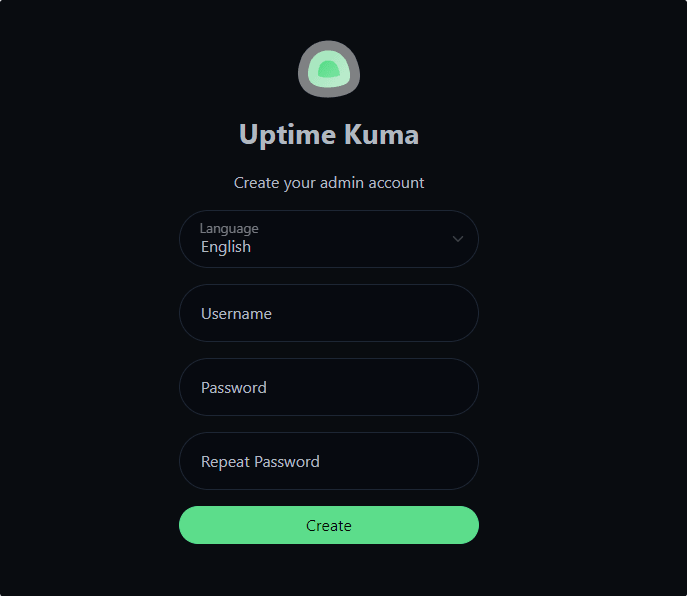
Step 9.1: Create Your Admin Account
On first load, Uptime Kuma presents a registration screen. Enter a strong username and password — this is the only admin account, so store these credentials securely in a password manager.
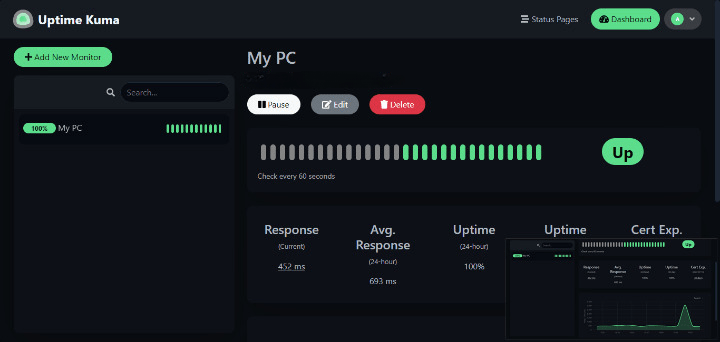
Step 9.2: Add Your First Monitor
- Click “Add New Monitor”
- Select a monitor type:
HTTP(s),TCP Port,Ping,DNS, etc. - Fill in the Friendly Name (e.g., “My Website”) and the target URL
- Set the Heartbeat Interval (default: 60 seconds)
- Click Save
Your monitor activates immediately and starts checking your target.
Step 9.3: Set Up Notifications
Navigate to Settings → Notifications and configure at least one alert channel. Uptime Kuma supports 90+ providers including Telegram, Slack, Discord, PagerDuty, and SMTP email. Without a notification channel, you’ll only spot downtime after manually checking the dashboard.
Troubleshooting Common Issues
Even clean installs hit snags. Here are the five most common problems you’ll encounter when you configure Uptime Kuma on Linux Mint — and how to fix them fast.
- Port 3001 not accessible from another machine
Cause: UFW is blocking inbound traffic on port 3001.
Fix:sudo ufw allow 3001/tcp && sudo ufw reload node: command not foundafter installation
Cause: Node.js isn’t in your$PATH, or the NodeSource script didn’t execute properly.
Fix: Re-run the NodeSource setup:curl -fsSL https://deb.nodesource.com/setup_22.x -o nodesource_setup.sh && sudo -E bash nodesource_setup.sh && sudo apt install nodejs -y- Uptime Kuma doesn’t start after a system reboot
Cause:pm2 startupandpm2 saveweren’t both executed.
Fix: Runpm2 startup, execute the output command it gives you, then runpm2 save - Nginx gateway error or dashboard not loading
Cause: WebSocket headers missing from the Nginx config, or Nginx hasn’t reloaded.
Fix: Confirm theUpgradeandConnectionheaders are in your server block, then runsudo systemctl reload nginx - Docker container exits immediately
Cause: Volume permission conflict or port already in use.
Fix: Rundocker logs uptime-kumaand verify port 3001 is free withsudo lsof -i :3001
For Node.js installations, always check PM2 logs first:
pm2 logs uptime-kumaHow to Update Uptime Kuma
Keeping Uptime Kuma up to date ensures you get the latest monitor types, notification integrations, and security fixes. Always back up your data volume before a major version upgrade.
Node.js method:
cd ~/uptime-kuma
git pull
npm run setup
pm2 restart uptime-kuma
Docker method:
docker pull louislam/uptime-kuma:1
docker restart uptime-kuma
Check the official GitHub releases page before upgrading to review changelogs and breaking changes for your current version.
Congratulations! You have successfully installed Uptime Kuma. Thanks for using this tutorial to install the latest version of the Uptime Kuma monitoring tool on Linux Mint 22 system. For additional help or useful information, we recommend you check the official Uptime Kuma website.
