How To Install Ventoy on Debian 13

If you’ve ever struggled with reformatting USB drives repeatedly to test different Linux distributions, you’ll appreciate what Ventoy brings to the table. This open-source bootable USB solution eliminates the tedious cycle of writing and rewriting ISO images. Instead of formatting your drive for each new operating system, Ventoy allows you to copy multiple ISO files directly onto a single USB drive and boot from any of them. This comprehensive guide walks you through installing Ventoy on Debian 13 Trixie, covering multiple installation methods and best practices.
What is Ventoy?
Ventoy is an innovative open-source tool designed to create bootable USB drives with a significant difference from traditional utilities. Unlike conventional bootable USB creators like Rufus or Etcher that require reformatting for each new ISO, Ventoy operates on a simple principle: install once, then drag-and-drop as many ISO files as your USB capacity allows.
The tool directly boots from ISO, WIM, IMG, VHD(x), and EFI files without extracting them. System administrators, IT professionals, Linux enthusiasts, and multi-distribution testers find this particularly valuable. You can maintain an entire collection of operating system installers, rescue tools, and diagnostic utilities on a single USB drive.
Ventoy supports both x86 Legacy BIOS and UEFI firmware, including Secure Boot compatibility. The project has gained widespread adoption in the Linux community due to its reliability and extensive feature set.
Key Features and Benefits
Ventoy’s multi-boot capability stands out as its primary advantage. You can store dozens of different ISO files simultaneously and select which one to boot at startup. The software doesn’t require extraction of ISO contents, saving time and preserving the integrity of original images.
Your USB drive maintains dual functionality—the data partition remains accessible for regular file storage while the Ventoy partition handles bootable images. This practical design maximizes the utility of your USB hardware.
The tool supports both MBR and GPT partition schemes, accommodating various system configurations. Architecture compatibility extends across x86, IA32, x86_64, ARM64, and MIPS64EL platforms. Whether your hardware uses Legacy BIOS or modern UEFI with Secure Boot enabled, Ventoy adapts seamlessly.
Large file support allows ISO images exceeding 4GB, essential for modern operating systems with extensive installation media. The plugin system provides advanced customization options for power users. Ventoy even supports write-protected USB drives and includes a local disk browser for additional flexibility.
System Requirements
Before installing Ventoy on Debian 13 Trixie, verify your system meets these specifications. Your Debian installation should run on a 64-bit system, either x86_64 or ARM64 architecture. You’ll need root or sudo privileges to execute the installation commands.
The minimum USB drive size is 256MB, though 8GB or larger is recommended for practical use. Ensure your USB drive functions properly without bad sectors. Counterfeit or generic USB sticks often cause installation failures.
Back up any existing data on your USB drive before proceeding. The standard installation method formats the entire device. Debian 13 includes the tar utility by default, which you’ll use for extracting the Ventoy package. Terminal access or a file manager completes the basic requirements.
Prerequisites Before Installation
Identify Your USB Drive
Connect your USB drive and open a terminal. Run the lsblk command to list all block devices. The output shows device names like /dev/sdb or /dev/sdc, along with their partitions and mount points.
Alternatively, use GParted for a graphical representation of storage devices. Launch GParted from your application menu and select your USB device from the dropdown. Pay careful attention to device identification—selecting the wrong device can result in data loss on your hard drive.
Backup Important Data
The standard Ventoy installation performs a destructive format. Copy all valuable files from your USB drive to another location. This step cannot be skipped if you want to preserve existing data. Consider using the non-destructive installation method if you absolutely must keep current USB contents.
Check USB Drive Health
Test your USB drive’s authenticity and health before installation. Fake or failing drives frequently cause the installation to freeze around 40% completion. Quality USB drives from reputable manufacturers provide the most reliable results.
Update System Packages
Maintain system security and compatibility by updating your Debian packages. Open a terminal and execute:
sudo apt update && sudo apt upgradeThis ensures all system components remain current before installing Ventoy.
Method 1: Installing Ventoy Using GUI (VentoyGUI)
Download Ventoy
Navigate to the official Ventoy website Locate the download section and select the Linux version, which comes as a tar.gz archive. The current release version downloads to your Downloads folder by default. For security-conscious administrators, verify the download integrity using provided checksums.
Extract the Archive
Open your file manager and navigate to the Downloads directory. Right-click the ventoy tar.gz file and select “Extract Here” from the context menu. For terminal users, execute this command:
tar xvzf ~/Downloads/ventoy*.tar.gz -C ~This extracts the archive to your home directory. You can alternatively extract to /tmp for temporary use or any custom directory of your choice.
Launch VentoyGUI
Navigate to the extracted ventoy-x.x.xx folder. Look for the file named VentoyGUI.x86_64. If the file doesn’t execute when double-clicked, grant executable permissions:
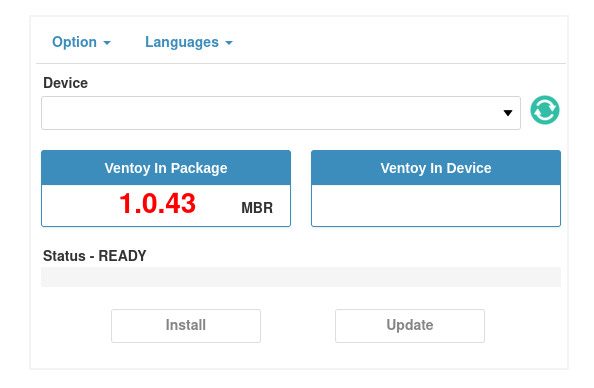
chmod +x VentoyGUI.x86_64Double-click the file to launch the graphical interface. The Ventoy window opens, displaying available USB devices and installation options.
Configure Installation Settings
The GUI presents a dropdown menu listing connected USB devices. Select your target USB drive carefully—this cannot be undone. Choose your preferred partition scheme from the options. GPT works best for modern systems, while MBR maintains compatibility with older hardware.
The file system option defaults to exFAT, which provides excellent cross-platform compatibility. Adjust the Secure Boot option based on your system requirements. Double-check your device selection before proceeding.
Install Ventoy
Click the “Install” button to begin the process. A warning dialog appears, reminding you that all data on the device will be destroyed. Confirm your selection to proceed. The installation progress bar appears, showing the current status.
The process typically completes within 2-3 minutes. When finished, a success message displays: “Ventoy has been successfully installed”. Your USB drive now contains the Ventoy bootloader and is ready to receive ISO files.
Method 2: Installing Ventoy Using CLI (Command Line)
Download and Extract
Command-line enthusiasts can streamline the installation process using terminal commands. Download the Ventoy package from the official website. Navigate to your Downloads directory and extract the archive:
tar xvzf ~/Downloads/ventoy-*.tar.gz -C ~Verify the extraction by listing the contents with ls ~/ventoy-*. System administrators often prefer the CLI method for its efficiency and scriptability.
Navigate to Ventoy Directory
Change to the extracted Ventoy directory using the cd command:
cd ~/ventoy-1.0.xx/Replace the version number with your actual downloaded version. List the directory contents to confirm the presence of Ventoy2Disk.sh script.
Identify USB Device
Before installation, precisely identify your USB device name. Execute either command:
lsblkor
sudo fdisk -lThese commands display all connected storage devices. USB drives typically appear as /dev/sdb, /dev/sdc, or similar names. Triple-check the device name to prevent accidentally formatting your hard drive.
Run Installation Script
With your device identified, execute the Ventoy installation script. The basic syntax is:
sudo ./Ventoy2Disk.sh -i /dev/sdXReplace /dev/sdX with your actual device name. For GPT partition scheme, add the -g flag:
sudo ./Ventoy2Disk.sh -g -i /dev/sdXEnable Secure Boot support by adding the -s flag. If the script lacks executable permissions, grant them first:
chmod +x Ventoy2Disk.shConfirm Installation
The script prompts you to confirm the destructive operation. Type ‘y’ and press Enter to proceed. Monitor the terminal output for any error messages. A successful installation displays confirmation messages and creates the VENTOY partition.
Method 3: Installing Ventoy Using Web Interface
Debian 13 users have access to a third installation method through Ventoy’s web interface. This modern approach combines CLI flexibility with GUI convenience.
Extract the Ventoy package as described in previous methods. Navigate to the Ventoy directory in your terminal. Locate the VentoyWeb.sh script and execute:
sudo bash VentoyWeb.shThe script launches a local web server. Open your web browser and navigate to the localhost URL displayed in the terminal. The web interface loads, presenting a clean, modern GUI for device selection and installation options.
Select your USB device from the interface and click the installation button. The web method offers remote installation capability, useful for managing multiple systems from a central workstation. Choose this method when you need GUI convenience with CLI-level control.
Post-Installation: Adding ISO Files
Unplug your USB drive and reconnect it to mount the newly created VENTOY partition. Your file manager displays the VENTOY partition alongside any other mounted drives.
Adding bootable ISO files couldn’t be simpler. Open the VENTOY partition in your file manager. Copy ISO files directly onto the partition using standard file operations—drag-and-drop, copy-paste, or command-line tools all work perfectly. No extraction, conversion, or special tools required.
Ventoy supports multiple file formats beyond ISO, including WIM, IMG, VHD, VHDX, and EFI files. The system handles files larger than 4GB without issues. Create folders within the VENTOY partition to organize different operating systems by category—for example, separate folders for Linux distributions, Windows installers, and rescue tools.
The partition remains functional for regular file storage alongside your bootable images. Test your setup with popular distributions like Debian, Ubuntu, or Fedora. Consider your USB capacity when building your ISO collection.
Booting from Ventoy USB Drive
Insert your Ventoy USB drive and restart your computer. Access your system’s boot menu by pressing the appropriate key during startup—commonly F12, F2, ESC, or DEL, depending on your motherboard manufacturer. The boot menu lists available boot devices.
Select your Ventoy USB drive from the list. If you encounter issues, enter BIOS/UEFI settings to configure boot options. Disable Secure Boot temporarily during initial testing if necessary. Enable UEFI boot mode for modern systems. Adjust boot priority to place USB devices first in the boot order.
The Ventoy boot menu appears, displaying all ISO files present on your USB drive. Navigate using arrow keys and select your desired ISO. Ventoy offers multiple boot modes for each ISO: Normal mode, grub2 mode, and WIMBOOT mode. Most ISOs work with Normal mode. Some distributions require grub2 mode for proper booting.
After completing your live session or installation, you can re-enable Secure Boot in your BIOS settings if you had disabled it.
Advanced Configuration and Customization
Power users can extend Ventoy’s functionality through its comprehensive plugin system. Create a ventoy.json configuration file in the root of your VENTOY partition. This file controls advanced features and customizations.
Theme customization transforms the default Ventoy boot menu appearance. Modify menu layouts, colors, and backgrounds to match your preferences. Menu customization allows you to control which ISOs appear and in what order.
Persistence support enables live Linux sessions to save changes between boots. Configure auto-installation scripts to automate repetitive deployment tasks. Password protection secures your Ventoy USB in sensitive environments.
File injection plugins add drivers or configuration files directly into ISO images without unpacking them. The local disk boot feature allows booting from hard drive partitions through Ventoy. For users who cannot perform destructive installation, the non-destructive mode preserves existing USB data while adding Ventoy capabilities.
Common Issues and Troubleshooting
Ventoy Not Booting
When your system fails to boot from Ventoy, check UEFI/BIOS settings first. Verify that USB boot is enabled and appears in the boot priority list. Disable Secure Boot temporarily to isolate compatibility issues.
Try alternative boot modes from the Ventoy menu. Some distributions work better with grub2 mode than Normal mode. USB drive health problems can prevent booting entirely.
USB Drive Not Recognized
Physical connection issues sometimes prevent USB recognition. Unplug the drive and reconnect it to a different port. Check for bad sectors using disk diagnostic tools. Counterfeit USB drives frequently exhibit recognition problems. Test the drive on another computer to rule out system-specific issues.
Installation Fails at 40%
Generic or fake USB sticks commonly cause installation to freeze around 40% completion. The solution involves using legitimate, quality USB drives from reputable manufacturers. Format the drive using diskpart or GParted before attempting Ventoy installation. Disable Windows Security or antivirus software temporarily if you’re preparing the drive on a Windows system.
Specific Linux Distros Won’t Boot
Not all Linux distributions boot identically from Ventoy. Try different boot modes from the Ventoy menu when encountering problems. Most compatibility issues resolve by selecting grub2 mode instead of Normal mode. Edit ventoy.json to create custom boot configurations for problematic distributions. Note that certain distributions like openSUSE have known compatibility challenges.
“Ventoy Directory Does Not Exist” Error
This error indicates extraction or path problems. Verify the extraction path matches where you’re executing commands. Check file permissions to ensure your user can read the Ventoy files. Re-extract the archive to your home directory and try again.
Ventoy vs Other Bootable USB Tools
Comparing Ventoy with alternatives highlights its unique advantages. Rufus excels at single-ISO installations, completing the process in approximately 2 minutes compared to Ventoy’s 3 minutes. However, Rufus creates single-boot USB drives, requiring reformatting for each new ISO. Ventoy supports unlimited ISOs without reformatting.
YUMI offers multi-boot capability but struggles with UEFI support compared to Ventoy’s superior implementation. Legacy systems work well with YUMI, but modern hardware performs better with Ventoy. Etcher provides exceptional simplicity for beginners but lacks the flexibility that makes Ventoy appealing to system administrators.
For single-ISO deployments prioritizing speed, Rufus remains the tool of choice. Multi-boot scenarios consistently favor Ventoy for its efficiency and ease of use. The ability to simply copy ISO files makes Ventoy the clear winner for maintaining collections of bootable media.
Congratulations! You have successfully installed Ventoy. Thanks for using this tutorial for installing the Ventoy bootable USB drive on the Debian 13 “Trixie” system. For additional help or useful information, we recommend you check the Ventoy website.
