How To Install VeraCrypt on Fedora 43

Data breaches are no longer a question of if — they are a question of when. Whether you are a developer protecting client credentials, a sysadmin securing sensitive configs, or a privacy-conscious Fedora user, disk encryption is one of the most effective defenses you can deploy. VeraCrypt is the industry-standard open-source encryption tool trusted by security professionals worldwide, and this guide walks you through exactly how to install VeraCrypt on Fedora 43 — including three tested installation methods, volume creation via GUI and CLI, mounting, USB encryption, and a practical troubleshooting section to handle the most common pitfalls.
Fedora 43 introduced several notable system-level changes — including RPM 6.0 with stricter package signing validation and an updated DNF 5 package manager — which means older installation instructions may not work cleanly on your system. This guide is written specifically for Fedora 43 and verified against current sources so you do not waste time chasing dead ends.
By the end of this tutorial, you will have VeraCrypt fully operational on your Fedora 43 machine. You will know how to create encrypted containers, mount and unmount volumes, encrypt a USB drive, and recover from common errors — all from the perspective of a working sysadmin, not a textbook author.
Prerequisites Before You Begin
- Operating System: Fedora 43 Workstation or Server (any spin — KDE, GNOME, XFCE)
- Architecture: x86_64 (most desktops/laptops) or ARM64/aarch64 (e.g., Raspberry Pi, some servers)
- Sudo privileges: All commands below require root-level access
- Active internet connection: Required for downloading packages
dnf-plugins-corepackage: Needed for the COPR method (covered in Step 1)- Disk space: At least 50 MB free for VeraCrypt binaries, plus space for encrypted volumes
- Terminal emulator: GNOME Terminal, Konsole, or any terminal of your choice
- Optional: Confirm your Fedora version by running
cat /etc/fedora-release
Step 1: Update Your System and Install Dependencies
Always start by updating your system. This ensures you are working with the latest packages and avoids dependency mismatches — especially important on Fedora 43 where DNF 5 handles resolution differently than older versions.
sudo dnf update -yThis command pulls all pending package upgrades and applies them. The -y flag auto-confirms prompts so you do not have to sit and watch.
Next, install dnf-plugins-core. This package provides the dnf copr subcommand, which you need in Method 1.
sudo dnf install dnf-plugins-core -yExpected output:
Last metadata expiration check: 0:02:14 ago on Tue 10 Mar 2026.
Dependencies resolved.
Nothing to do.
Complete!
If you already have it installed, DNF will report “Nothing to do.” — that is perfectly fine. Now install FUSE (Filesystem in Userspace), which VeraCrypt requires to mount encrypted volumes as virtual drives. Without it, VeraCrypt installs successfully but fails silently at mount time.
sudo dnf install fuse fuse-devel -yStep 2: Choose Your Installation Method
There are three supported ways to install VeraCrypt on Fedora 43. Each has trade-offs depending on your environment and preferences.
| Method | Best For | Difficulty |
|---|---|---|
| COPR Repository | Most users — easy updates via DNF | ⭐ Easiest |
| Official RPM Package | Users wanting the official upstream binary | ⭐⭐ Moderate |
| Generic Linux Installer | Servers, minimal installs, ARM systems | ⭐⭐ Moderate |
Method 1 (COPR) is recommended for Fedora 43 Workstation users because it integrates natively with DNF and keeps VeraCrypt updated automatically.
Step 3: Install VeraCrypt via COPR Repository (Method 1 — Recommended)
COPR (Community Projects) is Fedora’s official platform for community-maintained package repositories — the trusted equivalent of a PPA for Ubuntu users. The architektapx/veracrypt COPR repository is actively maintained, supports both x86_64 and ARM64, and builds directly for Fedora.
Step 3a — Enable the COPR Repository
sudo dnf copr enable architektapx/veracryptDNF will prompt you to confirm adding the repository. Type y and press Enter.
Expected output:
Enabling a Copr repository. Please note that this repository is not part
of the main Fedora distribution, and quality may vary.

The Fedora Project does not exercise any quality control over the content
of this repository. The Fedora Project does not provide any guarantees of
its functionality or security, and by enabling this repository, you agree
to use it at your own risk.

Do you want to continue? [y/N]: y
Repository successfully enabled.
This is Fedora’s standard COPR disclaimer — it is expected, not alarming.
Step 3b — Refresh the Package Index
sudo dnf check-updateThis refreshes package metadata from all enabled repos, including the COPR repo you just added.
Step 3c — Install VeraCrypt
sudo dnf install veracrypt -yDNF resolves all dependencies and installs the latest available build for Fedora 43.
Step 3d — Verify the Installation
veracrypt --versionExpected output:
VeraCrypt 1.26.24You can also launch VeraCrypt from the GNOME or KDE application menu by searching “VeraCrypt.”
Step 4: Install VeraCrypt via Official RPM Package (Method 2)
If you prefer to install directly from the VeraCrypt project without relying on a third-party COPR repo, the official RPM is your best path. The latest stable release is VeraCrypt 1.26.24.
Note: The official downloads page lists RPMs for Fedora 40 and CentOS 8. The Fedora 40 RPM is generally compatible with Fedora 43 — verify before installing on a production system.
Step 4a — Import the VeraCrypt GPG Public Key
This step verifies that the RPM you download came from the official VeraCrypt team. Do not skip it.
sudo rpm --import https://amcrypto.jp/VeraCrypt/VeraCrypt_PGP_public_key.ascAfter importing, verify the fingerprint matches the official one:
5069 A233 D55A 0EEB 174A 5FC3 821A CD02 680D 16DEDo not proceed if the fingerprint does not match. This is your trust anchor.
Step 4b — Download the RPM Package
wget https://launchpad.net/veracrypt/trunk/1.26.24/+download/veracrypt-1.26.24-Fedora-40-x86_64.rpmStep 4c — Install with DNF
Use dnf instead of rpm -i to automatically resolve and pull any missing dependencies.
sudo dnf install ./veracrypt-1.26.24-Fedora-40-x86_64.rpm -yStep 4d — Verify
veracrypt --versionStep 5: Install via Generic Linux Installer (Method 3 — Headless/Servers)
This method works well for Fedora 43 Server installs, minimal desktop environments, or ARM-based systems where COPR and RPM methods are unavailable. VeraCrypt provides a universal .tar.bz2 installer for these scenarios.
Step 5a — Download and Extract
wget https://launchpad.net/veracrypt/trunk/1.26.24/+download/veracrypt-1.26.24-setup.tar.bz2
mkdir -p ~/veracrypt-setup
tar -xf veracrypt-1.26.24-setup.tar.bz2 -C ~/veracrypt-setup
cd ~/veracrypt-setup
Step 5b — Run the Installer
For GUI systems, run the GTK3 GUI installer:
sudo ./veracrypt-1.26.24-setup-gtk3-gui-x64For headless or console-only systems (servers, SSH sessions):
sudo ./veracrypt-1.26.24-setup-console-x64Follow the on-screen prompts. Accept the license agreement and select “Install VeraCrypt” when prompted.
Step 5c — Confirm Installation Path
which veracryptExpected output:
/usr/bin/veracryptStep 6: Create Your First Encrypted Volume on Fedora 43
With VeraCrypt installed, the next step in your VeraCrypt Fedora 43 setup is creating an encrypted volume. You have two options: a graphical workflow for desktop users and a CLI workflow for sysadmins and power users.
Step 6a — Create an Encrypted Container via GUI
- Open VeraCrypt from the applications menu
- Click “Create Volume”
- Select “Create an encrypted file container” → click Next
- Choose “Standard VeraCrypt volume” → click Next
- Click “Select File”, navigate to your desired location, and give the container a name (e.g.,
secure-data.vc) → click Next - Leave encryption at AES and hash at SHA-512 (recommended defaults) → click Next
- Set your desired volume size (e.g., 2 GB) → click Next
- Enter a strong passphrase — minimum 20 characters mixing letters, numbers, and symbols → click Next
- Move your mouse randomly inside the window to generate entropy, then click “Format”
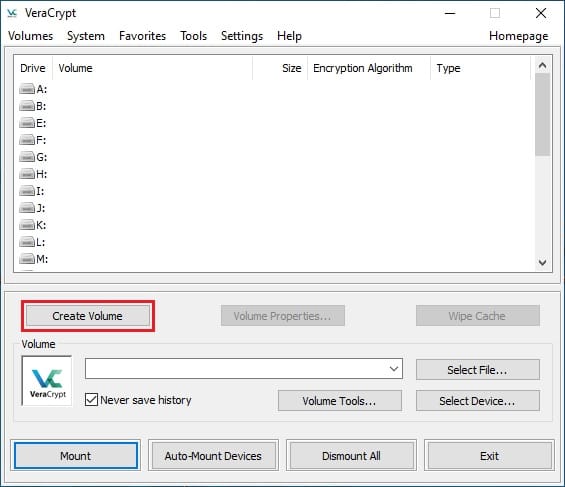
Your encrypted container is now ready at the path you specified.
Step 6b — Create an Encrypted Container via CLI
veracrypt --text --create ~/secure-data.vcFollow the interactive prompts:
Volume type:
 1) Normal
 2) Hidden
Select [1]: 1

Enter volume size (sizeK/size[M]/sizeG): 2G

Encryption Algorithm:
 1) AES
 2) Serpent
 3) Twofish
Select [1]: 1

Hash algorithm:
 1) SHA-512
 2) Whirlpool
 3) SHA-256
Select [1]: 1

Filesystem:
 1) None
 2) FAT
 3) Linux Ext4
Select [3]: 3

Enter password: [your strong passphrase]
Re-enter password: [confirm]

Enter PIM: [press Enter to use default]
Enter keyfile path [none]: [press Enter]

Done: 100.000%  Speed: 400 MiB/s
VeraCrypt uses PBKDF2 key derivation with a 512-bit salt and up to 500,000 iterations by default, making brute-force attacks computationally infeasible.
Step 7: Mount and Unmount Encrypted Volumes
Mounting is how you access your encrypted data. VeraCrypt decrypts on-the-fly — your files are only accessible while the volume is mounted with the correct passphrase.
Step 7a — Mount via GUI
- Open VeraCrypt
- Select an available slot number (e.g., Slot 1)
- Click “Select File” and navigate to your
.vccontainer - Click “Mount” and enter your passphrase
- Your volume appears under
/media/veracrypt1
Step 7b — Mount via CLI
sudo mkdir -p /mnt/veracrypt
sudo veracrypt ~/secure-data.vc /mnt/veracrypt
Enter your passphrase when prompted. Access your files at /mnt/veracrypt.
Step 7c — Unmount via CLI
sudo veracrypt -d /mnt/veracryptTo dismount all currently mounted VeraCrypt volumes at once:
sudo veracrypt -dAlways unmount before physically removing external drives or shutting down to prevent data corruption.
Step 8: Encrypt a USB Drive or External Disk
VeraCrypt can encrypt entire physical drives — useful for portable encrypted storage that also works on Windows and macOS.
⚠️ Warning: This process erases all data on the target device. Back up your USB drive before proceeding.
Step 8a — Find Your USB Device Name
lsblkLook for your USB device — it appears as something like /dev/sdb or /dev/sdc. Double-check the device name. Encrypting the wrong device permanently destroys data.
Step 8b — Encrypt the USB Drive via GUI
- Click “Create Volume” → “Encrypt a non-system partition/drive”
- Select the device (e.g.,
/dev/sdb) - Follow the same steps as creating a container (encryption algorithm, password, format)
Step 8c — Encrypt the USB Drive via CLI
sudo veracrypt -t -c /dev/sdbStep 8d — Mount the Encrypted USB
sudo mkdir -p /mnt/usb
sudo veracrypt /dev/sdb /mnt/usb
Access your encrypted files at /mnt/usb. Unmount with:
sudo veracrypt -d /mnt/usbThe volume is fully cross-platform — you can open it on Windows and macOS with VeraCrypt installed on those systems as well.
Troubleshooting Common VeraCrypt Issues on Fedora 43
Even with a clean Fedora 43 install, you may encounter a few snags. Here are the most common errors and their verified fixes.
Error 1: libfuse.so.2: cannot open shared object file
This is the most common runtime error on Fedora 42 and 43 after installing from the official RPM.
Fix:
sudo dnf install fuse fuse-devel fuse-libs -yIf the error persists on a 64-bit system, try the 32-bit compat library:
sudo dnf install fuse-libs.i686 -yError 2: COPR Repository Not Found / dnf copr Command Missing
Cause: dnf-plugins-core is not installed.
Fix:
sudo dnf install dnf-plugins-core -y
sudo dnf copr enable architektapx/veracrypt
Error 3: RPM Package Signature Verification Failed
Fedora 43’s RPM 6.0 enforces stricter GPG key validation. If you see a signature error during RPM installation, import the key first.
Fix:
sudo rpm --import https://amcrypto.jp/VeraCrypt/VeraCrypt_PGP_public_key.asc
sudo dnf install ./veracrypt-1.26.24-Fedora-40-x86_64.rpm -y
Only use --nogpgcheck as an absolute last resort in an isolated test environment — never on a production system.
Error 4: VeraCrypt GUI Fails to Launch (GTK3 Error)
Cause: GTK3 libraries are missing or the DISPLAY variable is unset.
Fix:
sudo dnf install gtk3 -yIf running over SSH, make sure X11 forwarding is enabled, or switch to the console version:
veracrypt --textError 5: Mount Failed — device-mapper: create ioctl on veracrypt1 failed
Cause: The dm_crypt kernel module is not loaded.
Fix:
sudo modprobe dm_cryptTo make this persistent across reboots:
echo "dm_crypt" | sudo tee /etc/modules-load.d/dm_crypt.confCongratulations! You have successfully installed VeraCrypt. Thanks for using this tutorial for installing VeraCrypt free and open-source disk encryption software on Fedora 43 Linux system. For additional help or useful information, we recommend you check the official VeraCrypt website.
