How To Install VidCutter on Debian 13

If you need to trim, cut, or join video clips on Linux without dealing with a bloated video editor, VidCutter is exactly what you need. It is a free, open-source video cutting tool built on FFmpeg and libmpv, and it gets the job done in minutes. This guide walks you through how to install VidCutter on Debian 13 (codename Trixie) using three clean, dependency-safe methods: Snap, Flatpak, and AppImage.
Debian 13 Trixie was officially released on August 9, 2025, and the latest point release, 13.4, dropped on March 14, 2026. The system ships with Linux Kernel 6.12, GNOME 48, and APT 3.0, making it one of the most capable Debian releases yet. However, VidCutter is not available in Debian 13’s official APT repositories, so you cannot simply run sudo apt install vidcutter and call it done.
That is the exact problem this guide solves. By the end of this tutorial, you will have a fully working VidCutter setup on Debian 13, and you will understand which method best fits your workflow.
What Is VidCutter and Why Should You Use It on Debian 13?
VidCutter is a lightweight, open-source video editor focused on one job: cutting and joining video clips quickly without re-encoding the entire file. It is built around FFmpeg and libmpv, which means it handles hardware-accelerated playback and supports a wide range of formats including MP4, AVI, MOV, and FLV.
The tool’s standout feature is SmartCut, a frame-accurate cutting mode that lets you split a video at a precise frame without re-encoding the whole file. This saves significant time when working with large video files, and it preserves the original video quality since the codec data is not touched outside the cut points.
Here is what VidCutter offers out of the box:
- Frame-accurate cutting with SmartCut technology
- Backend powered by FFmpeg and libmpv
- OpenGL-accelerated video rendering
- Support for MP4, AVI, FLV, MOV, and more
- Drag-and-drop video loading
- Multi-segment clip joining in a single export pass
- Lightweight Qt5-based interface
- Fully free and open-source under GPL
For sysadmins and developers who occasionally need to cut screen recordings, clip demos, or trim training videos without learning a full NLE like Kdenlive or DaVinci Resolve, VidCutter is the right tool for the job.
Why the Standard APT Method Fails on Debian 13
On older Debian versions like Debian 11, some users installed VidCutter by mixing packages from different release branches. This creates what the Debian community calls a “FrankenDebian” setup, where conflicting package versions break system stability over time.
On Debian 13 Trixie, attempting this APT-based approach is even riskier because the dependency chain for VidCutter references libraries from older releases that conflict with current system packages. The three methods in this guide avoid that problem entirely by using containerized or self-contained package formats.
Prerequisites for This VidCutter on Debian 13 Setup
Before you start any installation step, make sure your system meets these requirements:
- Operating System: Debian 13 Trixie (desktop installation with a GUI)
- User Privileges: A non-root user account with
sudoaccess - Internet Connection: Required for downloading packages and repositories
- Terminal Access: Open with Ctrl + Alt + T or from your application launcher
- Disk Space: At least 500 MB free for the application and its dependencies
- System Status: Fully updated before beginning
Run this command to update your system first:
sudo apt update && sudo apt upgrade -yThis pulls the latest package metadata and applies pending security and feature updates. You only need to pick one installation method below. There is no need to install all three.
Step 1: Update Your System Package List
Before installing any new software on Debian 13, always refresh the local package index. This ensures APT knows about the latest versions of all available packages and prevents version mismatch errors during dependency resolution.
sudo apt updateExpected output: You will see a list of package sources being fetched, ending with a summary like All packages are up to date or a count of upgradeable packages.
If upgrades are available, apply them before continuing:
sudo apt upgrade -yThe -y flag confirms all prompts automatically. Once your system is current, choose the installation method that fits your setup.
Step 2: Choose Your Installation Method
Debian 13 does not include VidCutter in its official repositories, so you have three reliable options. Here is a quick comparison to help you decide:
| Method | Auto-Updates | System Integration | Best For |
|---|---|---|---|
| Snap | Yes (background) | Sandboxed | Users who want set-and-forget updates |
| Flatpak | Yes (manual trigger) | Better GNOME fit | Most Debian 13 desktop users |
| AppImage | No (manual) | Portable, no install | Testing or restricted environments |
Pick one method and follow the steps for that section only.
Step 3: How To Install VidCutter on Debian 13 via Snap
Snapd is Canonical’s universal package manager. It is not bundled with Debian by default, unlike Ubuntu, so you need to install it manually first.
Install Snapd
sudo apt install snapd -yThis installs the Snap daemon, which manages downloading, mounting, and auto-updating Snap packages on your system.
Install the Snap Core Runtime
sudo snap install snapdRunning this after the APT install ensures the snapd binary is on the latest Snap-managed version, not just the APT-packaged one. This two-step process is specifically required on Debian.
Install VidCutter via Snap
sudo snap install vidcutterSnap downloads VidCutter from the Snap Store, verifies the package signature, and installs it in a confined sandbox at /snap/vidcutter/.
Expected output:
vidcutter 5.5.0 from Pete Lonsdale (ozmartian) installedReboot Your System
sudo rebootRebooting loads the Snap environment paths into your shell session. Without this step, the terminal may not resolve the vidcutter command, and the application launcher may not display the icon.
Launch VidCutter
vidcutterOr search for “VidCutter” in your GNOME application launcher. The application window opens immediately if the installation succeeded.
Step 4: Install VidCutter on Debian 13 via Flatpak
Flatpak is the preferred sandboxed package format for most GNOME-based desktop distributions, and Debian 13’s default desktop is GNOME 48. Flatpak packages integrate more naturally with GNOME than Snap does, which is why many experienced Debian users choose this method.
Install Flatpak
sudo apt install flatpak -yThis installs the Flatpak runtime and the flatpak command-line tool from Debian’s official repositories.
Add the Flathub Repository
sudo flatpak remote-add --if-not-exists flathub https://flathub.org/repo/flathub.flatpakrepoFlathub is the primary community-maintained Flatpak repository where VidCutter is actively published and maintained. The --if-not-exists flag prevents an error if Flathub is already added.
Install VidCutter from Flathub
flatpak install flathub com.ozmartians.VidCutter -yFlatpak pulls the VidCutter package from Flathub along with any required runtime dependencies. The -y flag skips confirmation prompts.
Expected output:
Installing 1/1 com.ozmartians.VidCutter...
[##########] 100%
Installation complete.
Reboot Your System
sudo rebootLaunch VidCutter
flatpak run com.ozmartians.VidCutterAfter rebooting, VidCutter also appears in your GNOME application launcher automatically.
Step 5: Install VidCutter on Debian 13 via AppImage
AppImage packages everything the application needs into a single executable file. Nothing gets written to your system’s package database, and no system libraries change. This makes AppImage the cleanest and most portable option.
Download the AppImage
Visit the official VidCutter GitHub releases page at https://github.com/ozmartian/vidcutter/releases and download the latest .AppImage file for x86_64. You can also do this from the terminal:
cd ~/Downloads
wget https://github.com/ozmartian/vidcutter/releases/latest/download/VidCutter-x86_64.AppImage
Make the File Executable
chmod +x ~/Downloads/VidCutter-*.AppImageThe chmod +x command grants execute permission to the file. Without this step, Linux will treat the file as a plain data file and refuse to run it.
Install FUSE 2 (Required on Debian 13)
Debian 13 does not ship FUSE 2 by default, but AppImage requires it to mount and run the self-contained package:
sudo apt install libfuse2 -ySkipping this step causes a FUSE error when you try to run the AppImage.
Run VidCutter
./VidCutter-*.AppImageVidCutter launches immediately with no further setup.
Optional: Create a Persistent Desktop Launcher
To make VidCutter accessible from your GNOME app menu:
mkdir -p ~/Applications
mv ~/Downloads/VidCutter-*.AppImage ~/Applications/VidCutter.AppImage
Then create a .desktop entry:
nano ~/.local/share/applications/vidcutter.desktopPaste the following content:
[Desktop Entry]
Name=VidCutter
Exec=/home/YOUR_USERNAME/Applications/VidCutter.AppImage
Icon=video-editor
Type=Application
Categories=AudioVideo;Video;
Replace YOUR_USERNAME with your actual username. Save and close the file, then log out and back in for the launcher icon to appear.
Step 6: Verify the Installation
After installing with any method, confirm VidCutter is working correctly before using it on real project files.
For Snap:
snap list | grep vidcutterFor Flatpak:
flatpak list | grep VidCutterFor AppImage: Launch the app and click Help > About to confirm the version number loads correctly.
If VidCutter opens without errors and successfully loads a test video file, the installation is complete and working.
Step 7: Basic Usage — Getting Started with VidCutter
Once VidCutter is running, the workflow is straightforward. Open a video by clicking the Open Media button or dragging a video file directly into the window.
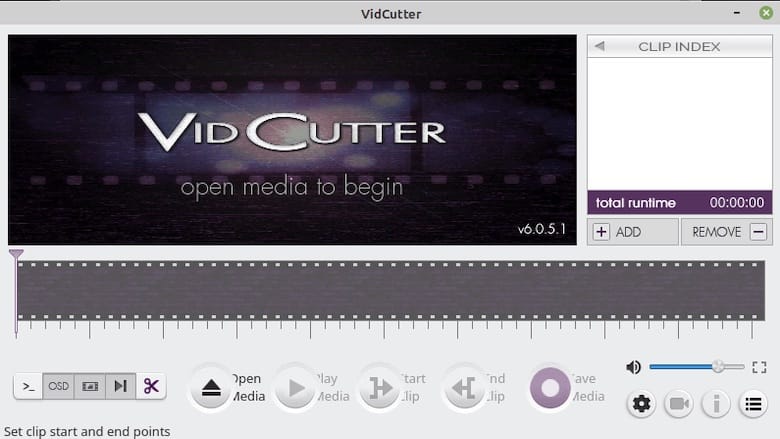
To cut a clip:
- Scrub the timeline to your desired start point
- Click the Start Clip button (or press
S) - Scrub to your desired end point
- Click the End Clip button (or press
E) - The clip segment appears in the right-hand clip list
- Repeat for additional segments
To join multiple clips into one output file:
- Reorder clips in the list by dragging them up or down
- Click Save Video to encode and export all clips in sequence
Enable SmartCut mode in settings to cut without re-encoding. This preserves full original video quality and cuts export time significantly on large files.
Troubleshooting Common Issues
VidCutter Fails to Launch After Snap Install
If the vidcutter command returns “command not found” after installation, the Snap paths have not loaded into your shell session yet. Reboot the system and try again.
If the issue persists, run:
sudo systemctl enable --now snapd.socket
sudo reboot
AppImage Exits Immediately with a FUSE Error
This is a known issue on Debian 13 because FUSE 2 is not included by default. Install it with:
sudo apt install libfuse2 -yThen re-run the AppImage.
No Audio or Video Playback Inside VidCutter
This usually points to a missing codec or an incompatible libmpv version bundled with the package. Try switching installation methods. For example, if you installed via Snap and face playback issues, uninstall it and use Flatpak instead:
sudo snap remove vidcutter
flatpak install flathub com.ozmartians.VidCutter -y
Flatpak bundles its own runtime dependencies separately, which resolves most codec conflicts.
VidCutter Does Not Appear in the Application Launcher
Log out of your desktop session and log back in. Both Snap and Flatpak register their .desktop entries during the first login after installation. A full reboot also works.
Flatpak Install Fails with “Remote Not Found” Error
This means the Flathub remote was not added correctly. Re-add it with:
sudo flatpak remote-add --if-not-exists flathub https://flathub.org/repo/flathub.flatpakrepoThen retry the install command.
How to Update VidCutter on Debian 13
Keeping VidCutter updated ensures you get bug fixes, format support improvements, and security patches.
Snap (automatic background updates, or force manually):
sudo snap refresh vidcutterFlatpak:
flatpak update com.ozmartians.VidCutterAppImage: AppImage has no built-in update mechanism. Download the latest release from the GitHub releases page and replace the old .AppImage file in ~/Applications/.
How to Uninstall VidCutter on Debian 13
If you want to remove VidCutter cleanly:
Snap:
sudo snap remove vidcutterFlatpak:
flatpak uninstall --delete-data com.ozmartians.VidCutter
flatpak remove --unused
The --delete-data flag removes user data stored by the app. The second command cleans up unused Flatpak runtimes to free disk space.
AppImage: Simply delete the .AppImage file. No other system files were modified during the install.
Congratulations! You have successfully installed VidCutter. Thanks for using this tutorial for installing the VidCutter on Debian 13 “Trixie” system. For additional help or useful information, we recommend you check the official VidCutter website.
