How To Install VLC Media Player on Fedora 43

VLC Media Player stands as one of the most versatile and powerful multimedia applications available for Linux systems. This free, open-source player handles virtually every video and audio format without requiring additional codec packs. However, Fedora 43 doesn’t include VLC in its default repositories due to licensing restrictions on proprietary multimedia codecs.
Installing VLC on Fedora 43 requires enabling third-party repositories or using alternative package management systems. This comprehensive guide walks you through three proven installation methods: RPM Fusion, Flatpak, and Snap. Each approach offers distinct advantages depending on your system preferences and security requirements.
Whether you’re a newcomer to Fedora or an experienced Linux user, you’ll find detailed step-by-step instructions, configuration tips, and troubleshooting solutions. By the end of this tutorial, you’ll have a fully functional VLC Media Player ready to handle all your multimedia needs on Fedora 43.
What is VLC Media Player?
VLC Media Player is a cross-platform multimedia framework developed by the VideoLAN project. Since its initial release, VLC has become the go-to solution for playing media files across Windows, macOS, Linux, Android, and iOS platforms.
The player’s strength lies in its comprehensive format support. VLC plays MKV, MP4, AVI, FLV, MOV, WEBM, and dozens of other video containers without external dependencies. Audio format support is equally impressive, covering MP3, FLAC, AAC, OGG, WAV, and more.
VLC incorporates hardware decoding capabilities that leverage your system’s GPU for smoother playback of high-resolution content. The application includes advanced features like video transcoding, network stream playback, IPTV support, and subtitle synchronization. Users can customize the interface with skins, install extensions for added functionality, and adjust numerous playback parameters.
Unlike proprietary media players, VLC contains no spyware, advertisements, or user tracking. This commitment to user privacy and freedom makes it a preferred choice among Linux enthusiasts and privacy-conscious users worldwide.
Prerequisites Before Installation
Before installing VLC Media Player on your Fedora 43 system, ensure you meet these requirements. First, verify you’re running Fedora 43 by opening a terminal and executing:
cat /etc/fedora-releaseYou’ll need an active internet connection to download packages from remote repositories. Administrative privileges are essential for system-level software installation, so confirm you have sudo access or root credentials.
Update your system packages before proceeding with VLC installation. This step prevents potential conflicts with outdated dependencies:
sudo dnf upgrade --refreshThe refresh flag ensures DNF downloads the latest repository metadata. This update process may take several minutes depending on how many packages require upgrading. Accept any prompts by typing y when asked to confirm the transaction.
Basic familiarity with terminal commands will help you follow along smoothly. The entire installation process typically takes 5 to 10 minutes, though download speeds affect this timeframe. While optional, creating a system backup before major software installations represents good practice, especially on production machines.
Method 1: Install VLC via RPM Fusion (Recommended)
Understanding RPM Fusion Repository
RPM Fusion serves as a third-party repository providing software that Fedora cannot include due to licensing constraints. The repository splits into two components: “free” for open-source software and “nonfree” for proprietary packages.
Fedora maintains strict adherence to free and open-source software guidelines. This policy excludes certain multimedia codecs encumbered by software patents or licensing restrictions. RPM Fusion bridges this gap by offering packages that complement Fedora’s official repositories.
The RPM Fusion method integrates seamlessly with Fedora’s native DNF package manager. This integration means better system compatibility, faster performance, and easier dependency management compared to containerized solutions. Most Fedora users prefer RPM Fusion for installing multimedia applications.
Step 1: Enable RPM Fusion Free Repository
Import the RPM Fusion free repository configuration package with this command:
sudo dnf install https://download1.rpmfusion.org/free/fedora/rpmfusion-free-release-$(rpm -E %fedora).noarch.rpmThis command downloads and installs the repository configuration file directly from RPM Fusion’s servers. The $(rpm -E %fedora) portion automatically detects your Fedora version number, ensuring you get the correct repository files.
DNF will display information about the package and ask for confirmation. Type y and press Enter to proceed. The system will import the repository’s GPG key for package verification, which protects against tampered packages.
If the download fails, check your internet connection or try again after a few minutes. Repository mirrors occasionally experience high traffic. The free repository alone suffices for VLC installation.
Step 2: (Optional) Enable RPM Fusion Nonfree Repository
While not required for VLC, the nonfree repository provides access to proprietary software and additional codecs:
sudo dnf install https://download1.rpmfusion.org/nonfree/fedora/rpmfusion-nonfree-release-$(rpm -E %fedora).noarch.rpmThe nonfree repository includes graphics drivers, firmware packages, and multimedia codecs with licensing restrictions. Having both repositories enabled gives you access to a broader software selection for future needs.
Confirm the installation when prompted. This step completes your RPM Fusion repository configuration.
Step 3: Install VLC Media Player
Now install VLC Media Player using DNF:
sudo dnf install vlc -yThe -y flag automatically answers yes to confirmation prompts. DNF resolves dependencies and downloads all required packages, including VLC’s libraries and components.
Installation typically takes 2 to 3 minutes depending on your connection speed. The package size varies but generally ranges from 40 to 60 MB including dependencies.
Verify the installation completed successfully by checking VLC’s version:
vlc --versionThis command displays VLC’s version number and build information. If you see version details, the installation succeeded.
Step 4: Install Additional Multimedia Codecs
For comprehensive multimedia support, install the full codec suite available through RPM Fusion:
sudo dnf group install multimediaThis command installs the multimedia group package containing essential codecs and plugins. Next, replace the limited ffmpeg-free package with the full-featured version:
sudo dnf swap 'ffmpeg-free' 'ffmpeg' --allowerasingThe swap command removes ffmpeg-free and installs the complete ffmpeg package with all codec support. Finally, upgrade multimedia packages with optimized settings:
sudo dnf upgrade @multimedia --setopt="install_weak_deps=False" --exclude=PackageKit-gstreamer-pluginThese codecs enable playback of H.264, H.265/HEVC, VP9, and other formats commonly used in modern video files. Hardware-accelerated decoding becomes available for supported graphics hardware.
Method 2: Install VLC via Flatpak
About Flatpak Installation Method
Flatpak provides a universal packaging format that works across different Linux distributions. Applications run in sandboxed environments, isolated from the core system for enhanced security.
This isolation offers several advantages. Flatpak apps cannot access system files or other applications without explicit permission. You get the latest VLC version directly from developers, independent of Fedora’s release cycle. Dependency conflicts become virtually impossible since each Flatpak includes its required libraries.
Fedora 43 ships with Flatpak pre-installed and configured. The slight trade-off involves larger disk space usage since apps bundle their dependencies. Choose Flatpak if you prioritize security isolation or want the absolute newest VLC features.
Step 1: Verify Flathub Repository
Check whether Flathub is enabled on your system:
flatpak remotesLook for flathub in the output list. If you see it but the status shows disabled, enable it with:
flatpak remote-modify --enable flathubIf Flathub doesn’t appear at all, add it manually:
flatpak remote-add --if-not-exists flathub https://flathub.org/repo/flathub.flatpakrepoFlathub serves as the primary repository for Flatpak applications. This repository hosts thousands of applications, including VLC.
Step 2: Install VLC via Flatpak
Execute the Flatpak installation command:
flatpak install flathub org.videolan.VLCFlatpak displays detailed information about VLC, its size, and required permissions. Type y to confirm installation when prompted. The download size exceeds the RPM version because Flatpak bundles all dependencies.
Installation progress appears in the terminal, showing download and installation stages. This process may take 5 to 10 minutes depending on connection speed.
Verify installation success:
flatpak list | grep VLCIf VLC appears in the list, installation completed successfully.
Step 3: Launch VLC from Flatpak
Run VLC using Flatpak’s launch command:
flatpak run org.videolan.VLCAlternatively, search for VLC in your application menu. Fedora automatically creates desktop shortcuts for installed Flatpak applications. The first launch may take slightly longer as Flatpak initializes the runtime environment.
Method 3: Install VLC via Snap
Understanding Snap Package Manager
Snap represents Canonical’s universal packaging format, similar to Flatpak. Snap packages work across numerous Linux distributions, offering consistent application versions and automatic background updates.
Snaps use containerization technology for application isolation. The Snap daemon (snapd) manages installations, updates, and security confinement. While less common on Fedora than RPM Fusion or Flatpak, Snap remains a viable alternative for users familiar with Ubuntu or other Snap-centric distributions.
Step 1: Install Snapd on Fedora 43
Check if Snapd is already installed:
which snapdIf no output appears, install Snapd:
sudo dnf install snapdEnable and start the Snapd service:
sudo systemctl enable --now snapd.socketCreate the classic snap symbolic link:
sudo ln -s /var/lib/snapd/snap /snapLog out and back in, or restart your system to ensure PATH updates take effect. Snap commands may not work correctly without this step.
Step 2: Install VLC via Snap
Install VLC using the snap command:
sudo snap install vlcSnap downloads and installs VLC with classic confinement, granting broader system access than strict confinement. The installation proceeds automatically without additional prompts.
Verify installation:
snap list | grep vlcVLC should appear in the list with its version number and installation date.
Launching VLC Media Player on Fedora 43
Launch via GUI (Graphical Method)
Click the “Activities” button in the top-left corner of your screen. Type “VLC” into the search field that appears. The VLC Media Player icon displays with the distinctive traffic cone logo.
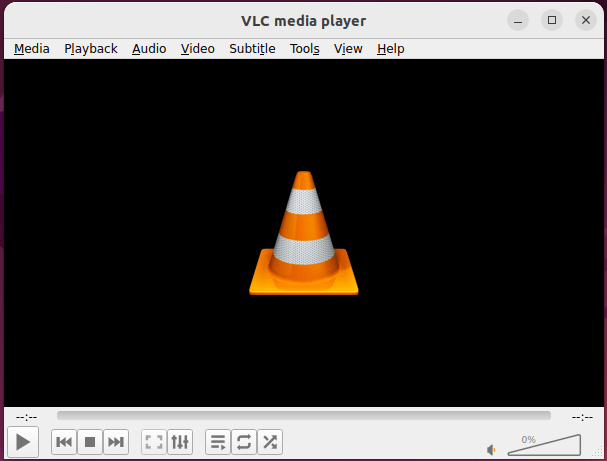
Click the icon to launch VLC. The application window opens, presenting the main interface with menu bars, playback controls, and the media library pane.
To set VLC as your default media player, right-click any video file, select “Properties,” navigate to the “Open With” tab, choose VLC Media Player, and click “Set as Default.”
Launch via Command Line
Open a terminal and type:
vlcFor the Flatpak version, use:
flatpak run org.videolan.VLCFor the Snap version, run:
snap run vlcLaunch VLC with a specific media file:
vlc /path/to/video.mp4Run VLC in the background:
vlc &The ampersand releases the terminal while VLC runs independently.
Post-Installation Configuration
Optimize VLC’s performance on Fedora by configuring hardware acceleration. Navigate to Tools > Preferences, then click “All” under “Show settings” to access advanced preferences. Under “Input/Codecs,” find the “Hardware-accelerated decoding” option and select the appropriate method for your graphics hardware.
For Intel graphics users, install VA-API support for better hardware acceleration:
sudo dnf swap libva-intel-media-driver intel-media-driver --allowerasingThis command installs optimized Intel media drivers that VLC can leverage for efficient video decoding.
Configure your preferred audio output device in Tools > Preferences > Audio. Select your sound card from the “Output module” dropdown. Adjust the “Output” section to match your speaker configuration (stereo, 5.1 surround, etc.).
Set video output preferences in Tools > Preferences > Video. The “Automatic” setting works well for most users, but you can select specific output modules like “X11 video output” or “OpenGL video output” for different performance characteristics.
Customize subtitle appearance, download locations, and default subtitle encoding under Tools > Preferences > Subtitles/OSD. Enable or disable on-screen display notifications according to your preference.
VLC’s plugin ecosystem offers additional functionality. Visit Tools > Plugins and extensions to browse available add-ons. Popular extensions include subtitle downloaders, audio visualizers, and interface customizations.
Testing VLC Installation
Verify VLC works correctly by testing various media formats. Download sample video files in MP4, MKV, AVI, and WEBM formats. Drag and drop each file into VLC’s interface to confirm playback.
Test audio file support with MP3, FLAC, AAC, and OGG samples. VLC should handle all formats smoothly without error messages.
Try streaming capabilities by opening a YouTube URL in VLC. Go to Media > Open Network Stream, paste a YouTube video URL, and click Play. VLC streams the content directly.
Check codec information for playing files by selecting Tools > Codec Information during playback. This dialog displays technical details about the video codec, audio codec, resolution, bitrate, and more.
Test 4K video playback if your hardware supports it. High-resolution content reveals whether hardware acceleration works properly. Stuttering or lag indicates configuration issues requiring attention.
Verify VA-API functionality on Intel systems:
vainfoThis command displays supported hardware acceleration profiles. If VA-API is properly configured, you’ll see a list of video codec profiles your hardware can decode.
Common Issues and Troubleshooting
Issue 1: 4K Video Stuttering or Lag
High-resolution video playback sometimes stutters on Fedora systems. This problem typically stems from insufficient hardware acceleration or missing drivers.
Install ffmpeg-libs and VA-API utilities:
sudo dnf install ffmpeg-libs libva libva-utilsEnable hardware decoding in VLC under Tools > Preferences > Input/Codecs. Select “VA-API video decoder” from the hardware-accelerated decoding dropdown.
Increase VLC’s cache values for better buffering. In Tools > Preferences > Input/Codecs, expand “Advanced” and increase the “File caching” value to 1000 ms or higher.
For NVIDIA graphics cards, ensure proprietary drivers are installed rather than the open-source nouveau drivers. Proprietary drivers provide significantly better video decoding performance.
Issue 2: Audio Issues (Mono Channel Problem)
Audio playing from only one speaker indicates channel configuration problems. Check VLC’s audio device settings first under Tools > Preferences > Audio.
Verify Fedora’s system audio configuration. Install PulseAudio Volume Control for detailed audio management:
sudo dnf install pavucontrolLaunch pavucontrol and check the “Playback” and “Output Devices” tabs while VLC plays media. Ensure the correct output device is selected and channels are balanced.
Reset VLC preferences if issues persist. Go to Tools > Preferences, click “Reset Preferences” at the bottom left, and confirm. This action reverts all settings to defaults, resolving configuration-related problems.
Issue 3: Missing Codecs for H.265/HEVC
HEVC-encoded videos may fail to play or show codec errors. Install the complete multimedia codec suite as described in Method 1, Step 4.
If you prefer installing only H.265 support, use:
sudo dnf install libde265Some HEVC content uses 10-bit encoding requiring additional codec support. The full ffmpeg package from RPM Fusion handles these files properly.
Issue 4: RPM Fusion Repository Not Accessible
Repository download errors or timeouts occasionally occur due to mirror issues. If the primary RPM Fusion URL fails, try an alternative mirror from the RPM Fusion mirror list.
Check your internet connection and DNS settings. Temporarily disable VPN connections during installation, as some VPN configurations interfere with repository access.
Clear DNF’s cache and refresh repository metadata:
sudo dnf clean all
sudo dnf makecache
These commands remove cached data and rebuild the package database, often resolving repository problems.
Updating and Maintaining VLC
Keep VLC Media Player updated to receive security patches, bug fixes, and new features. Update frequency depends on your installation method.
For RPM Fusion installations, update VLC with system updates:
sudo dnf update vlcOr update all packages simultaneously:
sudo dnf upgradeFlatpak users update VLC specifically:
flatpak update org.videolan.VLCOr update all Flatpak applications:
flatpak updateSnap installations update automatically in the background. Manually trigger updates with:
sudo snap refresh vlcVLC stores preferences and settings in your home directory at ~/.config/vlc/. Back up this folder to preserve custom configurations, playlists, and preferences before major system upgrades.
When upgrading to Fedora 44 or later versions, your VLC installation typically continues working without intervention. However, rebuilding the RPM Fusion repository list ensures compatibility with the new Fedora version.
Uninstalling VLC (If Needed)
Remove VLC if you need to free disk space, switch media players, or troubleshoot severe problems.
For RPM Fusion installations:
sudo dnf remove vlcRemove Flatpak VLC:
flatpak uninstall org.videolan.VLCUninstall Snap VLC:
sudo snap remove vlcRemove configuration files and user preferences manually if desired:
rm -rf ~/.config/vlc/Clean up unused dependencies after uninstalling RPM packages:
sudo dnf autoremoveThis command removes packages installed as dependencies that no longer serve any purpose on your system.
Congratulations! You have successfully installed VLC. Thanks for using this tutorial for installing the VLC Media Player on Fedora 43 Linux system. For additional help or useful information, we recommend you check the official VLC website.
