How To Install VSCodium on Fedora 43
If you want a powerful, open-source code editor without Microsoft’s telemetry watching your every keystroke, VSCodium is one of the best decisions you can make as a Fedora developer. Built from the same source code as Visual Studio Code, VSCodium strips away Microsoft branding, proprietary licensing additions, and background data collection — leaving you with a clean, MIT-licensed editor that performs identically to VS Code.
This guide walks you through everything you need: what VSCodium is, why it fits Fedora 43 perfectly, how to install it using two proven methods, and how to configure, update, troubleshoot, and uninstall it. Whether you’re a Python developer, a systems programmer working in Rust, or a web developer juggling multiple projects, this step-by-step tutorial has you covered.
What Is VSCodium?
VSCodium is a community-maintained, freely licensed binary release of Microsoft’s Visual Studio Code. Microsoft develops VS Code as open-source software under the MIT License — but the binaries they distribute include proprietary telemetry, additional licensing terms, and tracking code that isn’t part of the open-source repository.
VSCodium fixes that by compiling the same open-source codebase using dedicated build scripts that disable telemetry at the build level, remove Microsoft-specific branding, and publish the result under a clean MIT license. The result looks and behaves like VS Code but shares none of its closed-source additions.
One important distinction: VSCodium uses the Open VSX registry (open-vsx.org) as its default extension marketplace instead of Microsoft’s proprietary Visual Studio Marketplace. Most popular extensions are available there — Python, GitLens, Prettier, Remote SSH, Rust Analyzer, and thousands more. A small number of extensions with proprietary licensing (like ms-vscode.cpptools) are not offered via Open VSX, but for the vast majority of developers, the selection is more than sufficient.
Why Use VSCodium on Fedora 43?
Fedora 43, released in October 2025, ships exclusively with GNOME 49 on a Wayland-only desktop. It also brings an updated developer toolchain that includes GCC 15.2, LLVM 21, Python 3.14, and Go 1.25. It’s a powerful platform for modern development — and VSCodium slots in naturally.
Here’s why VSCodium is a strong match for Fedora 43 specifically:
- Zero telemetry out of the box — No data is sent to Microsoft servers, aligning with Fedora’s open-source values
- MIT-licensed binaries — No proprietary strings attached to the editor itself
- Frequent upstream updates — VSCodium releases closely follow VS Code’s release cadence, so you’re never behind on features
- Works with Fedora’s modern toolchain — Integrates cleanly with Python 3.14, GCC 15.2, and Git on Fedora 43’s default shell environment
- Two installation paths — Native RPM via DNF or sandboxed Flatpak via Flathub, giving you flexibility
One thing to note upfront: VSCodium is not available in Fedora’s official package repositories. Packaging Electron-based applications under Fedora’s strict packaging guidelines is complex and has not yet been resolved. That means you’ll use either the upstream RPM repository or Flathub — both of which are well-maintained and straightforward to set up.
Prerequisites Before You Begin
Before installing VSCodium, make sure your environment is ready:
- Fedora 43 installed and running (minimum: 2 GHz dual-core CPU, 2 GB RAM, 15 GB free disk space)
- A terminal with sudo access — you’ll run all commands as a privileged user
- An active internet connection for downloading repository keys and packages
- DNF 5 is the default package manager on Fedora 43 — no extra setup needed
- Flatpak comes pre-installed on Fedora Workstation if you’re using Method 2
Start by refreshing your system to prevent dependency conflicts during installation:
sudo dnf upgrade --refreshIf everything is up to date, you’ll see: Nothing to do. Otherwise, confirm the upgrades and let DNF finish before continuing.
Method 1: Install VSCodium via DNF (RPM Repository)
The DNF method installs VSCodium as a native RPM package managed directly by your system’s package manager. Updates happen automatically alongside your regular system updates. This is the recommended approach for most Fedora users.
Step 1 — Update Fedora 43
Run the system upgrade command one more time immediately before installation:
sudo dnf upgrade --refreshThis ensures your system has the latest base packages and avoids version mismatches during the VSCodium install.
Step 2 — Add the VSCodium RPM Repository
Create the repository configuration file using the tee command. This single command writes the complete repo block to /etc/yum.repos.d/vscodium.repo:
sudo tee /etc/yum.repos.d/vscodium.repo << 'EOF'
[vscodium]
name=VSCodium
baseurl=https://paulcarroty.gitlab.io/vscodium-deb-rpm-repo/rpms/
enabled=1
gpgcheck=1
repo_gpgcheck=0
gpgkey=https://gitlab.com/paulcarroty/vscodium-deb-rpm-repo/-/raw/master/pub.gpg
metadata_expire=1h
EOF
After running it, your terminal will echo back the repo block — that confirms the file was written successfully. Notice that repo_gpgcheck=0 is set intentionally. This disables repository-level GPG signature checking for the repo metadata itself, which avoids a known SSL certificate rejection issue on Fedora 43 while still keeping gpgcheck=1 for individual RPM packages.
Step 3 — Import the GPG Key
Import the VSCodium signing key so DNF can verify the authenticity of each downloaded package:
sudo rpmkeys --import https://gitlab.com/paulcarroty/vscodium-deb-rpm-repo/-/raw/master/pub.gpgThis command runs silently when successful. The GPG key confirms that packages come from the official upstream VSCodium project — not a third-party mirror.
Known Fedora 43 issue: If DNF prompts you with Is this ok [y/N]: when importing the key during installation, always answer y. A GPG signature verification error (Librepo error: repomd.xml GPG signature verification error) can appear if the key import step is skipped or if DNF encounters it during install. The manual import above prevents this.
Step 4 — Install VSCodium with DNF
With the repository and GPG key in place, install VSCodium:
sudo dnf install codiumDNF will resolve dependencies, display the package details, and ask for confirmation. Press y and hit Enter. The download and installation typically complete within a minute on a standard broadband connection.
Step 5 — Verify the Installation
Confirm VSCodium installed correctly by checking its version:
codium --versionYou should see output like:
1.106.3The exact version number will vary depending on the current upstream release.
Step 6 — Launch VSCodium
Open VSCodium from the terminal:
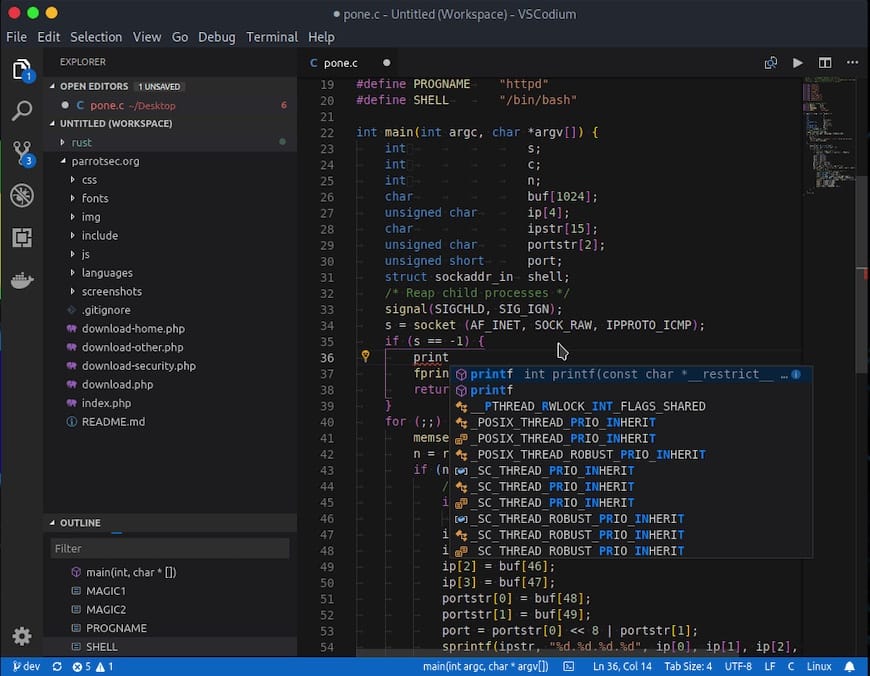
codiumOr navigate via the GNOME desktop: Activities → Show Applications → VSCodium. The editor opens in a familiar VS Code-style interface with no Microsoft branding or telemetry prompts.
Method 2: Install VSCodium via Flatpak (Flathub)
Flatpak sandboxes VSCodium from your system’s core files and libraries. It’s an excellent choice if you already manage Flatpak apps or specifically want filesystem isolation for your editor environment.
Step 1 — Verify Flatpak Is Installed
Fedora 43 Workstation includes Flatpak by default. Check it’s available:
flatpak --versionIf it’s missing for any reason (uncommon on Workstation), install it:
sudo dnf install flatpakStep 2 — Add the Flathub Remote
Add the Flathub repository as a Flatpak source:
flatpak remote-add --if-not-exists flathub https://flathub.org/repo/flathub.flatpakrepoThe command runs silently if successful. If Flathub is already configured, you’ll see: Remote 'flathub' already exists. If it’s present but disabled, re-enable it with:
flatpak remote-modify --enable flathubStep 3 — Install VSCodium from Flathub
Run the Flatpak install command:
flatpak install flathub com.vscodium.codiumFlatpak displays download progress and asks for confirmation. Press Y and let the installation finish.
Step 4 — Verify and Launch
Check the installed version:
flatpak run com.vscodium.codium --versionLaunch VSCodium from the terminal:
flatpak run com.vscodium.codiumOr search for VSCodium in your GNOME application menu and click its icon.
DNF vs. Flatpak: Choosing the Right Method
Both methods install the same VSCodium editor. The difference lies in how they integrate with your system:
| Feature | DNF (RPM Repo) | Flatpak (Flathub) |
|---|---|---|
| Package type | Native RPM | Sandboxed Flatpak |
| Update command | sudo dnf upgrade --refresh |
flatpak update |
| Terminal/shell integration | Full, seamless | Limited (sandbox paths) |
| Extension compatibility | Excellent | Generally good |
| Best for | Most Fedora users | Sandbox/isolation users |
For most developers, the DNF method is the lower-friction option — VSCodium updates alongside your entire system, the integrated terminal sees your actual shell without path workarounds, and there are no sandbox-related file path quirks to deal with. Flatpak suits users who already rely on Flatpak-based workflows or specifically need app isolation.
Post-Installation: Setting Up VSCodium on Fedora 43
Installing Extensions from Open VSX
Press Ctrl+Shift+X to open the Extensions panel. VSCodium queries the Open VSX registry by default — the open alternative to Microsoft’s proprietary marketplace.
Recommended starter extensions for Fedora developers:
- Python — IntelliSense, linting, and debugging for Python 3.14
- GitLens — Enhanced Git integration and repository visualization
- Remote – SSH — Connect to remote servers and edit files directly
- Rust Analyzer — Full language support for Rust development
- Prettier — Automatic code formatting for JavaScript, TypeScript, CSS, and more
Keep in mind: some Microsoft-exclusive extensions with proprietary licensing — notably ms-vscode.cpptools and a handful of others — are not available on Open VSX. For C/C++ development, look for the clangd extension as a well-supported alternative.
Configuring the Integrated Terminal
On a DNF installation, the integrated terminal (Ctrl+`) automatically detects your system shell (Bash or Zsh) and works without any manual configuration.
On the Flatpak version, the sandbox may not see your system shells at the expected paths. If the terminal fails to launch, open VSCodium Settings (Ctrl+,), search for terminal.integrated.shell.linux, and set the full path to your shell — typically /bin/bash or /usr/bin/zsh.
Transferring Settings from VS Code
If you’re migrating from VS Code, VSCodium reads the same JSON settings format. Copy your settings.json from ~/.config/Code/User/ to ~/.config/VSCodium/User/. Themes and keybindings transfer without modification, though extensions will need to be reinstalled from Open VSX.
How to Keep VSCodium Updated on Fedora 43
VSCodium releases new versions frequently, closely tracking VS Code’s update schedule. Staying current ensures you have the latest bug fixes, language server improvements, and security patches.
DNF method:
sudo dnf upgrade --refreshThis updates VSCodium alongside all other system packages — no separate step needed.
Flatpak method:
flatpak updateThis checks VSCodium and all other Flatpak applications for available updates. Run it weekly, or enable automatic Flatpak updates in your GNOME Software settings.
Troubleshooting VSCodium on Fedora 43
GPG Signature Verification Error (DNF)
Symptom: DNF reports Librepo error: repomd.xml GPG signature verification error: Signing key not found during install or update.
Fix: Manually import the GPG key and clean the package cache:
sudo rpmkeys --import https://gitlab.com/paulcarroty/vscodium-deb-rpm-repo/-/raw/master/pub.gpg
sudo dnf clean metadata
sudo dnf upgrade --refresh
Then retry the installation:
sudo dnf install codiumVerify the repo is active:
dnf repolist --all | grep -i vscodiumYou should see: vscodium VSCodium enabled
Flathub Remote Missing or Disabled
Symptom: flatpak install reports it cannot find com.vscodium.codium or the Flathub remote.
Fix: List your remotes, then re-add or re-enable Flathub:
flatpak remotes
flatpak remote-add --if-not-exists flathub https://flathub.org/repo/flathub.flatpakrepo
flatpak remote-modify --enable flathub
SELinux Blocking VSCodium (Flatpak)
Symptom: The Flatpak version crashes unexpectedly. The SELinux Troubleshooter shows AVC denial messages referencing sys_admin capability or systemd-coredump.
Diagnosis:
sudo ausearch -m avc -ts recent | grep -i codiumIf you see AVC denial entries, this is a policy-level or platform bug — not a misconfiguration on your end. Do not disable SELinux to work around it.
Fix: Update your system and Flatpak runtimes:
sudo dnf upgrade --refresh
flatpak update
If the issue persists, switch to the RPM-based installation method until a platform fix is available upstream.
Keyboard/Scroll Issues After Workspace Switch (Wayland)
Symptom: After switching workspaces using keyboard shortcuts on GNOME 49, VSCodium’s cursor starts repeating or scrolling uncontrollably. Native GNOME apps are unaffected.
Cause: A compositor-level bug affecting Electron/XWayland apps on certain Fedora builds.
Fix: Update your system fully with sudo dnf upgrade --refresh and test again. If it continues, search Fedora’s issue tracker for Electron-related workspace-switching bugs. As a temporary workaround, avoid using keyboard shortcuts to switch workspaces while VSCodium is focused, or watch for an upstream GNOME compositor fix.
How to Uninstall VSCodium from Fedora 43
Uninstall via DNF
Remove the VSCodium package:
sudo dnf remove codiumRemove the repository file to stop future updates from the upstream repo:
sudo rm /etc/yum.repos.d/vscodium.repoWarning: The following commands permanently delete all VSCodium user data — settings, extensions, workspace history, and cache. Back up anything important before running them.
rm -rf ~/.config/VSCodium
rm -rf ~/.cache/VSCodium
rm -rf ~/.local/share/VSCodium
Uninstall via Flatpak
flatpak uninstall com.vscodium.codiumRemove sandbox data stored under your user account:
rm -rf ~/.var/app/com.vscodium.codiumCongratulations! You have successfully installed VSCodium. Thanks for using this tutorial for installing VSCodium on Fedora 43 Linux system. For additional help or useful information, we recommend you check the VSCodium website.
