How To Install Vtiger CRM on AlmaLinux 10

Vtiger CRM stands as one of the most powerful open-source customer relationship management solutions for businesses seeking comprehensive tools without enterprise-level costs. This robust CRM platform has earned its reputation through years of helping organizations streamline sales, marketing, and customer service operations. If you’re running AlmaLinux 10, you’re working with an enterprise-grade Linux distribution that provides excellent stability and security for hosting business-critical applications.
This comprehensive guide walks you through every step of installing Vtiger CRM on AlmaLinux 10. You’ll configure Apache web server, set up MariaDB database, install PHP with necessary extensions, and deploy Vtiger through its web-based installation wizard. By the end, you’ll have a fully functional CRM system ready to transform how your business manages customer relationships.
What is Vtiger CRM?
Vtiger CRM is an open-source customer relationship management platform that combines sales automation, marketing tools, customer support features, and inventory management into one unified system. The software has been downloaded over 5 million times and integrates with more than 500 applications, making it one of the most versatile CRM solutions available.
The platform offers both open-source and cloud-hosted versions. The open-source edition provides complete control over your data and infrastructure, perfect for organizations with specific security or compliance requirements. Core features include contact management, lead tracking, opportunity management, email marketing campaigns, help desk ticketing, project management, and detailed analytics dashboards.
Small to medium-sized businesses particularly benefit from Vtiger’s balance between functionality and ease of use. The system scales effectively as your organization grows, supporting multiple users, custom workflows, and extensive customization options.
Prerequisites and System Requirements
Server Requirements
Your AlmaLinux 10 server should meet these minimum specifications for optimal Vtiger CRM performance:
- AlmaLinux 10 operating system (freshly installed or updated)
- Minimum 2GB RAM (4GB recommended for production environments)
- At least 20GB available disk space
- Root or sudo user access with administrative privileges
- Stable internet connection for downloading packages
- Domain name or static IP address for accessing the CRM
Software Requirements
Vtiger CRM requires a complete LAMP stack with specific versions and configurations:
- Apache 2.4 or higher web server
- MySQL 5.7+ or MariaDB 10.3+ database server
- PHP 7.3 or higher (PHP 8.0+ recommended for better performance)
- Required PHP extensions: php-mysqlnd, php-imap, php-curl, php-xml, php-gd, php-mbstring, php-zip
- PHP memory limit set to minimum 256MB
MySQL Configuration Requirements
Your MySQL or MariaDB installation must have these settings configured:
- storage_engine set to InnoDB
- local_infile enabled (set to ON)
- sql_mode configured as NO_ENGINE_SUBSTITUTION
Step 1: Update AlmaLinux 10 System
Before installing any software, update your system packages to ensure you have the latest security patches and bug fixes. Open your terminal and execute:
sudo dnf update -y
sudo dnf upgrade -y
This command updates the package repository cache and upgrades all installed packages to their newest versions. The process may take several minutes depending on your internet connection and the number of packages requiring updates. If kernel updates were applied during this process, reboot your server to ensure all changes take effect properly.
Step 2: Install Apache Web Server
Apache httpd serves as the foundation of your web server infrastructure. Install it using the DNF package manager:
sudo dnf install httpd -y
After installation completes, start the Apache service and enable it to launch automatically on system boot:
sudo systemctl start httpd
sudo systemctl enable httpd
Verify Apache is running correctly:
sudo systemctl status httpd
The status should display “active (running)” in green text.
Configure Firewall for Web Traffic
AlmaLinux’s firewall blocks incoming HTTP and HTTPS connections by default. Open these ports to allow web traffic:
sudo firewall-cmd --permanent --add-service=http
sudo firewall-cmd --permanent --add-service=https
sudo firewall-cmd --reload
The permanent flag ensures these rules persist across system reboots. Test your Apache installation by opening a web browser and navigating to your server’s IP address. You should see the default Apache welcome page confirming successful installation.
Step 3: Install and Configure MariaDB Database
Install MariaDB Server
MariaDB provides a reliable, high-performance database backend for Vtiger CRM. Install the MariaDB server package:
sudo dnf install mariadb-server -y
Start and enable the MariaDB service:
sudo systemctl start mariadb
sudo systemctl enable mariadb
Run the security script to harden your database installation:
sudo mysql_secure_installation
Follow the interactive prompts to set a strong root password, remove anonymous users, disable remote root login, and delete test databases. These security measures protect your database from unauthorized access.
Create Vtiger Database and User
Log into the MySQL shell as root:
mysql -u root -p
Create a dedicated database for Vtiger CRM:
CREATE DATABASE vtigerdb CHARACTER SET utf8mb4 COLLATE utf8mb4_unicode_ci;
Create a database user with appropriate privileges:
CREATE USER 'vtigeruser'@'localhost' IDENTIFIED BY 'SecurePassword123!';
GRANT ALL PRIVILEGES ON vtigerdb.* TO 'vtigeruser'@'localhost';
FLUSH PRIVILEGES;
EXIT;
Replace ‘SecurePassword123!’ with a strong, unique password. Use a combination of uppercase letters, lowercase letters, numbers, and special characters for maximum security.
Configure MySQL Settings for Vtiger
Edit the MariaDB configuration file:
sudo nano /etc/my.cnf.d/mariadb-server.cnf
Add these required settings under the [mysqld] section:
[mysqld]
default-storage-engine = InnoDB
local_infile = ON
sql_mode = NO_ENGINE_SUBSTITUTION
Save the file and restart MariaDB to apply changes:
sudo systemctl restart mariadb
Step 4: Install PHP 8.0+ and Required Extensions
Vtiger CRM requires PHP with multiple extensions for full functionality. Install PHP and all necessary modules:
sudo dnf install php php-cli php-fpm php-mysqlnd php-gd php-xml php-mbstring php-curl php-imap php-zip php-json -y
Each extension serves specific purposes. The mysqlnd extension provides database connectivity, mbstring handles multibyte characters for international support, gd processes image manipulation, xml parses XML data structures, curl makes HTTP requests, imap manages email integration, and zip handles compressed archives.
Verify your PHP installation:
php -v
This command displays the installed PHP version and confirms successful installation.
Configure PHP Settings for Vtiger
Edit the PHP configuration file to optimize settings for Vtiger:
sudo nano /etc/php.ini
Locate and modify these directives:
memory_limit = 256M
upload_max_filesize = 32M
post_max_size = 32M
max_execution_time = 300
date.timezone = Asia/Jakarta
Adjust the timezone to match your geographical location. The memory limit must be at least 256MB for Vtiger to function properly. Higher values improve performance for larger databases and complex operations.
Restart Apache to load the new PHP configuration:
sudo systemctl restart httpd
Step 5: Download and Extract Vtiger CRM
Navigate to the web server’s document root directory:
cd /var/www/html
Download the latest Vtiger CRM release from SourceForge:
sudo wget https://sourceforge.net/projects/vtigercrm/files/latest/download -O vtiger.tar.gz
Extract the downloaded archive:
sudo tar -xzvf vtiger.tar.gz
Rename the extracted directory for cleaner URLs:
sudo mv vtigercrm-* vtigercrm
Set Proper Ownership and Permissions
Configure file ownership so Apache can access and modify necessary files:
sudo chown -R apache:apache /var/www/html/vtigercrm
Set appropriate permissions for directories and files:
sudo chmod -R 755 /var/www/html/vtigercrm
Certain directories require write permissions for the web server:
sudo chmod -R 775 /var/www/html/vtigercrm/storage
sudo chmod -R 775 /var/www/html/vtigercrm/cache
sudo chmod -R 775 /var/www/html/vtigercrm/logs
Step 6: Configure Apache Virtual Host for Vtiger
Create a new virtual host configuration file:
sudo nano /etc/httpd/conf.d/vtigercrm.conf
Add this configuration:
<VirtualHost *:80>
    ServerName vtiger.example.com
    ServerAdmin admin@example.com
    DocumentRoot /var/www/html/vtigercrm

    <Directory /var/www/html/vtigercrm>
        Options Indexes FollowSymLinks MultiViews
        AllowOverride All
        Require all granted
    </Directory>

    ErrorLog /var/log/httpd/vtigercrm-error.log
    CustomLog /var/log/httpd/vtigercrm-access.log combined
</VirtualHost>
Replace vtiger.example.com with your actual domain name or server IP address. The AllowOverride All directive enables .htaccess files, which Vtiger uses for URL rewriting and security rules.
Test the Apache configuration for syntax errors:
sudo apachectl configtest
If the output shows “Syntax OK”, restart Apache to apply the new configuration:
sudo systemctl restart httpd
Step 7: Complete Vtiger CRM Web Installation
Access the Installation Wizard
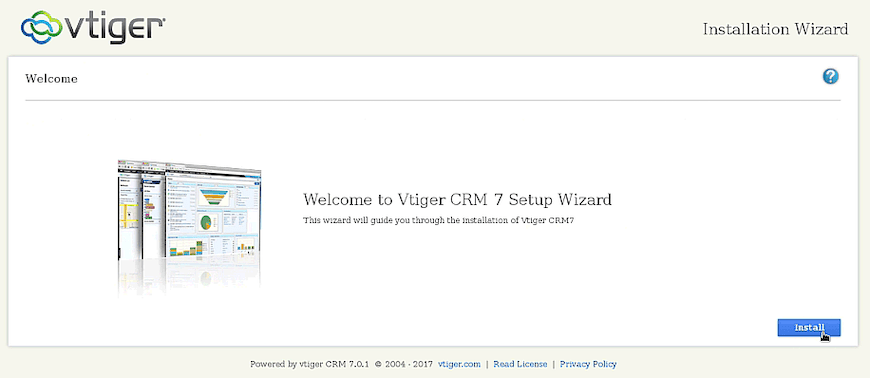
Open your web browser and navigate to your server’s URL. For example, if using a domain name, visit http://vtiger.example.com. If using an IP address, visit http://your-server-ip/vtigercrm. The Vtiger installation wizard automatically launches, displaying the welcome screen.
System Requirements Verification
The first installation screen checks your system configuration against Vtiger’s requirements. Review each item carefully. All requirements should display green checkmarks indicating successful configuration. If any items show red warning icons, return to the relevant installation steps and address the missing dependencies or configuration issues.
Common failures include missing PHP extensions, incorrect file permissions, or insufficient PHP memory limits. The verification screen provides specific error messages to guide troubleshooting.
Database Configuration
Click “Install” to proceed to the database configuration page. Enter your database connection details:
- Database Host: localhost
- Database Name: vtigerdb
- Database Username: vtigeruser
- Database Password: (enter the password you created earlier)
- Database Root User: root
- Database Root Password: (your MySQL root password)
Vtiger needs root credentials during installation to create necessary database tables and indexes. After installation completes, the application uses only the regular database user credentials for security.
Administrator Account Setup
Create your administrator account on the next screen. This account has full system access and manages all CRM functions. Enter a strong password combining uppercase letters, lowercase letters, numbers, and special characters. Avoid common words or easily guessable information.
Configure your company information including organization name, industry type, and currency. These settings affect how Vtiger displays data and generates reports.
Finalize Installation
Click “Finish” to complete the installation process. Vtiger creates database tables, configures default settings, and prepares the system for first use. This process takes several minutes depending on server performance.
After successful installation, you’ll see the login screen. Use your administrator credentials to access the CRM dashboard for the first time.
Step 8: Post-Installation Configuration
Secure the Installation Directory
For security, remove or rename the install directory after completing setup:
sudo mv /var/www/html/vtigercrm/install /var/www/html/vtigercrm/install_backup
This prevents unauthorized users from accessing the installation wizard and potentially compromising your system.
Configure Cron Jobs for Automation
Vtiger uses cron jobs for scheduled tasks like sending email campaigns, updating inventory, and generating recurring invoices. Set up the cron job by editing the crontab:
sudo crontab -e
Add this line:
*/15 * * * * /usr/bin/php /var/www/html/vtigercrm/cron/vtigercron.php
This configuration runs Vtiger’s automated tasks every 15 minutes. Adjust the frequency based on your business needs.
Configure Email Settings
Navigate to Settings > Configuration > Outgoing Server in the Vtiger interface. Configure your SMTP settings for sending emails. Enter your mail server details, port number, authentication credentials, and encryption method. Test the configuration by sending a test email to verify proper setup.
For incoming email, configure IMAP settings under Settings > Configuration > Mail Converter. This allows Vtiger to convert incoming emails into leads, contacts, or support tickets automatically.
Security Best Practices for Vtiger CRM
Install SSL Certificate
Encrypt data transmission between users and your CRM by installing an SSL certificate. Let’s Encrypt provides free SSL certificates. Install Certbot:
sudo dnf install certbot python3-certbot-apache -y
Obtain and install the certificate:
sudo certbot --apache -d vtiger.example.com
Follow the prompts to complete certificate installation. Certbot automatically configures Apache to use HTTPS and redirects HTTP traffic to the secure version.
Implement Strong Password Policies
Navigate to Settings > Configuration > Security in Vtiger. Enable password complexity requirements, set minimum password length to 12 characters, and enforce regular password changes. Enable account lockout after multiple failed login attempts to prevent brute force attacks.
Regular Backup Strategy
Establish automated backups for both database and files. Create a backup script:
sudo nano /usr/local/bin/vtiger-backup.sh
Add this content:
#!/bin/bash
DATE=$(date +%Y%m%d_%H%M%S)
BACKUP_DIR="/backup/vtiger"
mkdir -p $BACKUP_DIR

# Backup database
mysqldump -u vtigeruser -p'SecurePassword123!' vtigerdb > $BACKUP_DIR/vtiger_db_$DATE.sql

# Backup files
tar -czf $BACKUP_DIR/vtiger_files_$DATE.tar.gz /var/www/html/vtigercrm

# Keep only last 7 days of backups
find $BACKUP_DIR -name "vtiger_*" -mtime +7 -delete
Make the script executable and add it to crontab for daily execution.
Additional Security Measures
Keep Vtiger CRM updated to the latest version. Security patches address vulnerabilities discovered in previous releases. Subscribe to Vtiger security notifications to stay informed about critical updates.
Configure SELinux contexts if enabled on your system. Set httpd_sys_rw_content_t context for writable directories to maintain security while allowing necessary access.
Restrict database access to localhost only. Edit MariaDB configuration to prevent remote database connections unless specifically required for multi-server deployments.
Troubleshooting Common Issues
Blank Page After Installation
White screen errors typically indicate PHP configuration problems. Enable error display temporarily by editing php.ini:
display_errors = On
error_reporting = E_ALL
Check PHP error logs at /var/log/php-fpm/www-error.log for specific error messages. Common causes include insufficient memory limits or missing PHP extensions.
Database Connection Errors
Verify MariaDB is running:
sudo systemctl status mariadb
Test database connectivity manually:
mysql -u vtigeruser -p vtigerdb
If connection fails, verify credentials in Vtiger’s config.inc.php file located in the root installation directory.
Permission Denied Errors
Permission issues prevent Vtiger from writing logs, cache, or uploaded files. Verify Apache owns the installation directory and has write permissions on storage, cache, and logs directories. Check SELinux audit logs if using SELinux:
sudo ausearch -m avc -ts recent
500 Internal Server Error
Check Apache error logs for detailed information:
sudo tail -f /var/log/httpd/vtigercrm-error.log
Common causes include .htaccess configuration errors, PHP syntax errors, or insufficient server resources. Review the specific error message to identify the root cause.
Missing PHP Extensions
List currently loaded PHP modules:
php -m
Compare against Vtiger’s requirements. Install missing extensions using dnf and restart Apache to load them.
Performance Optimization Tips
Enable PHP OPcache to cache compiled PHP code, reducing processing overhead. Edit the OPcache configuration:
sudo nano /etc/php.d/10-opcache.ini
Configure these settings:
opcache.enable=1
opcache.memory_consumption=256
opcache.max_accelerated_files=10000
opcache.revalidate_freq=60
Configure MySQL query caching to speed up repeated database queries. Add to MariaDB configuration:
query_cache_type = 1
query_cache_size = 128M
query_cache_limit = 2M
Enable Apache’s mod_deflate to compress HTTP responses, reducing bandwidth usage and improving page load times. Install if not present:
sudo dnf install mod_deflate -y
Implement browser caching by adding cache headers to your Apache configuration. This reduces server load by storing static resources in users’ browsers.
Regular database maintenance keeps Vtiger running smoothly. Schedule weekly database optimization:
mysqlcheck -u root -p --optimize --all-databases
Monitor server resources using tools like htop, netdata, or Glances. Track CPU usage, memory consumption, disk I/O, and network traffic to identify performance bottlenecks before they impact users.
Congratulations! You have successfully installed Vtiger CRM. Thanks for using this tutorial for installing the Vtiger CRM on AlmaLinux OS 10 system. For additional help or useful information, we recommend you check the official Vtiger website.
