How To Install Vuze on Linux Mint 22

If you want a powerful, feature-rich torrent client on your Linux desktop, Vuze is one of the best options available. Learning how to install Vuze on Linux Mint 22 takes only a few minutes, and this guide walks you through three proven methods so you can pick the one that fits your setup best. Whether you prefer the system package manager, Snap packages, or a manual installation from the official archive, you will have Vuze running by the end of this tutorial.
Linux Mint 22 “Wilma,” built on the Ubuntu 24.04 LTS base, comes with a few quirks that trip up new users — most notably, Snap is blocked by default. That means the standard one-liner you might use on Ubuntu will not work here without an extra step. This guide covers everything: prerequisites, all three installation methods, post-install configuration for Vuze on Linux Mint 22 setup, and a troubleshooting section for the most common errors.
What Is Vuze and Why Install It on Linux Mint 22?
Vuze (originally called Azureus) is a free, open-source BitTorrent client written in Java and licensed under the GNU General Public License. It goes well beyond basic torrent downloading. Vuze includes a built-in HD video player, a torrent search engine, a media conversion tool, plugin support, and advanced bandwidth controls.
Linux Mint ships with Transmission as the default torrent client. Transmission works well for simple downloads, but it lacks the depth Vuze offers. If you need features like per-torrent speed limits, encryption, priority-based file selection, proxy/VPN binding, or a subscription system for automatic content delivery, Vuze is the right upgrade.
Vuze also offers three UI modes: Beginner, Intermediate, and Advanced. This makes it genuinely approachable for newcomers while still giving sysadmins and power users access to every setting under the hood.
Prerequisites
Before you start the Linux server tutorial steps below, confirm that your system meets these requirements:
- Operating system: Linux Mint 22 “Wilma” or Linux Mint 22.1 “Xia” (Cinnamon, MATE, or Xfce)
- User privileges: A user account with
sudoaccess - Internet connection: Required for APT and Snap methods; optional for manual install if you pre-download the archive
- Java Runtime Environment: Vuze requires Java 6 or newer; OpenJDK works perfectly
- Terminal access: All methods use the terminal for at least one step
- Disk space: At least 250MB free for the application and its dependencies
- RAM: Minimum 512MB available (1GB+ recommended, since Vuze runs on the Java Virtual Machine)
Check your Java version before proceeding:
java -versionIf Java is not installed, run:
sudo apt update && sudo apt install default-jdk -yThis installs OpenJDK, the open-source Java implementation that Vuze relies on.
Step 1: Update Your System Before Installing Vuze on Linux Mint 22
Always update your package lists first. This prevents broken dependency errors that happen when your local cache is stale.
sudo apt update && sudo apt upgrade -yThe apt update command refreshes the list of available packages from all configured repositories. The apt upgrade -y command applies any pending system updates automatically, answering “yes” to all prompts.
Why This Step Matters
Skipping this step is a common mistake. If your local package cache references an older version of a library that Vuze depends on, the installation will either fail or install an incomplete package. Running apt update first takes less than 30 seconds and saves significant debugging time later.
Step 2: Install Vuze via APT (Recommended Method)
The APT method is the simplest and most maintainable approach. Vuze is available in the Ubuntu 24.04 universe repository, which Linux Mint 22 inherits directly. This method handles all dependencies automatically and integrates with the system’s update manager.
sudo apt install vuze -yWhen the command runs, APT resolves all required dependencies, including Java libraries, and installs them alongside Vuze. The -y flag confirms the installation without prompting.
Verify the Installation
After the install finishes, confirm Vuze is available:
vuze --versionOr launch it directly from the terminal:
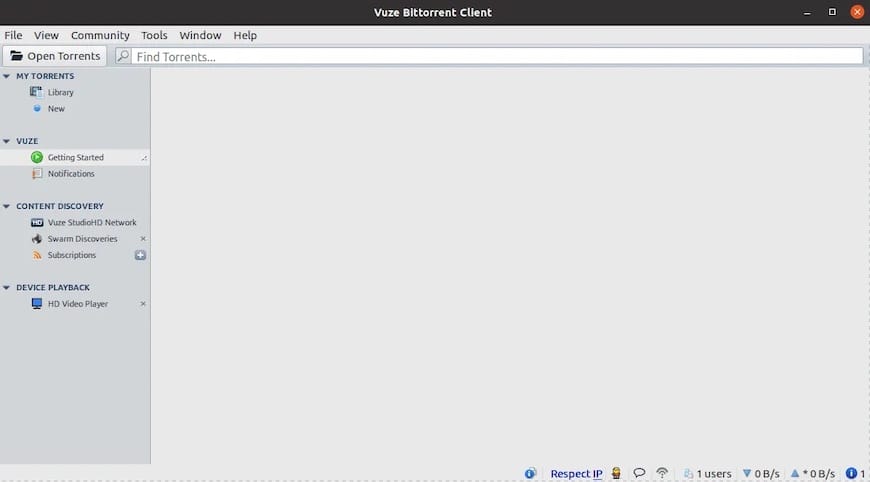
vuzeYou should see the Vuze splash screen appear within a few seconds, followed by the main interface. On the very first launch, Vuze presents a setup wizard that asks which UI mode you want. Choose Advanced if you are an experienced user, or Beginner if you are new to torrenting.
Launch from the Application Menu
After installation, Vuze appears in the Linux Mint application menu under Internet. You can right-click the icon and select “Add to Panel” or “Add to Desktop” for quicker access.
Uninstalling via APT
If you ever need to remove Vuze installed through APT:
sudo apt remove vuze && sudo apt autoremove -yThe autoremove command cleans up orphaned dependencies that were installed alongside Vuze but are no longer needed.
Step 3: Install Vuze via Snap on Linux Mint 22
The Snap method gives you access to a more up-to-date version of Vuze than what APT provides. Snap packages are sandboxed and self-contained, which also means they come with their own bundled runtime libraries.
The trade-off is that Linux Mint 22 intentionally blocks Snap by default. The Mint team prefers Flatpak. However, removing the Snap block is safe, reversible, and takes less than two minutes.
Step 3.1: Remove the Snap Block
Linux Mint places a blocking file at /etc/apt/preferences.d/nosnap.pref that prevents snapd from being installed. Move it to a backup location rather than deleting it, so you can restore it later:
sudo mv /etc/apt/preferences.d/nosnap.pref ~/Documents/nosnap.backupThis command moves the file to your Documents folder as a backup. To restore the block in the future, just move it back:
sudo mv ~/Documents/nosnap.backup /etc/apt/preferences.d/nosnap.prefStep 3.2: Update Package Lists and Install Snapd
With the block removed, refresh your package lists and install snapd, the Snap daemon:
sudo apt update
sudo apt install snapd -y
snapd is the background service that manages Snap packages, handles automatic updates, and maintains sandboxed app environments.
Step 3.3: Reboot Your System
A reboot is not optional here. Without it, Snap application shortcuts do not appear in the Linux Mint Menu, and the snap command may not function correctly.
sudo rebootStep 3.4: Install Vuze via Snap
After the system restarts, open a terminal and install Vuze. Note that the Snap package name is vuze-vs, not vuze:
sudo snap install vuze-vsExpected output:
vuze-vs 5.x.x.x from Vuze Software (vuze) installedStep 3.5: Launch the Application
Find Vuze in the application menu by searching “Vuze,” or launch it from the terminal:
snap run vuze-vsKeep in mind that because Snap apps run in a sandbox, Vuze installed via Snap may have restricted access to directories outside your home folder. If you save downloads to an external drive or a custom path, the APT or manual install method will be more flexible.
Step 4: Install Vuze Manually from the Official Archive
The manual installation method is ideal when you want the exact latest upstream release directly from Vuze’s website, or when neither APT nor Snap fits your workflow. This is also the preferred method on minimal server installations of Linux Mint.
Step 4.1: Download the Vuze Archive
Download the official Linux installer using wget:
wget http://cf1.vuze.com/files/VuzeInstaller.tar.bz2 -P ~/Downloads/The -P flag tells wget to save the file in your ~/Downloads/ directory.
Step 4.2: Extract the Archive
Navigate to your Downloads folder and extract the archive:
cd ~/Downloads/
tar -xvjf VuzeInstaller.tar.bz2
Each flag in this command serves a specific purpose:
-xextracts files from the archive-vdisplays verbose output so you can see what gets extracted-japplies the bzip2 decompression filter (required for.bz2files)-fspecifies the filename of the archive
This creates a folder named vuze in your current directory.
Step 4.3: Move Vuze to the /opt Directory
The /opt directory is the Linux convention for manually installed third-party software. Moving Vuze there keeps it organized and separate from system packages:
sudo mv ~/Downloads/vuze /opt/vuzeStep 4.4: Make the Launcher Executable
The Vuze launcher script needs execute permission before you can run it:
sudo chmod +x /opt/vuze/azureusThe chmod +x command grants the execute bit to the azureus launcher script. The binary is called azureus because Vuze’s internal engine retains its original name.
Step 4.5: Launch Vuze
Run Vuze from the terminal:
/opt/vuze/azureusOr navigate to the directory first:
cd /opt/vuze && ./azureusStep 4.6: Create a Desktop Shortcut
Running Vuze from the terminal every time gets old fast. Create a proper application menu entry:
nano ~/.local/share/applications/vuze.desktopPaste the following content into the file:
[Desktop Entry]
Name=Vuze
Comment=Vuze BitTorrent Client
Exec=/opt/vuze/azureus
Icon=/opt/vuze/vuze.png
Terminal=false
Type=Application
Categories=Network;FileTransfer;
Save and exit with Ctrl + O, then Enter, then Ctrl + X. Make the shortcut executable:
chmod +x ~/.local/share/applications/vuze.desktopVuze now appears in your Linux Mint application menu and can be pinned to the taskbar.
Step 5: Configure Vuze on Linux Mint 22 After Installation
Installing Vuze is only the first part. Taking five minutes to configure Vuze on Linux Mint 22 properly will significantly improve your download speeds, privacy, and overall experience.
Set Your Download and Upload Speed Limits
Leaving Vuze uncapped will saturate your connection and affect everything else on your network. Go to Tools > Options > Transfer and set limits based on roughly 80% of your actual connection speed.
Enable Transport Encryption
Encryption prevents your ISP from identifying and throttling BitTorrent traffic. Go to Tools > Options > Connection > Transport Encryption and select Require Encrypted Transport, then set the level to RC4.
Configure Your Listening Port
Go to Tools > Options > Connection and set your incoming TCP and UDP port. Ports in the range 49160-65534 are recommended to avoid ISP filtering on default BitTorrent ports. Also enable UPnP under Tools > Options > Plugins > UPnP so your router automatically opens the correct port.
Bind to a VPN Interface (Optional)
If you use a VPN, you can force Vuze to route all traffic through it. Under Tools > Options > Connection, set the Bind to Local IP Address field to your VPN adapter’s IP address. This prevents IP leaks if the VPN connection drops.
Step 6: Basic Usage Workflow
Once Vuze is running, the core workflow is straightforward:
- Add a torrent file: Click the folder icon or go to File > Open Torrent. Browse to your
.torrentfile and click OK. - Use a magnet link: Click a magnet link in your browser. Vuze should automatically open and start the download. If it does not, go to Tools > Options and set Vuze as the default magnet link handler.
- Search directly in Vuze: Use the search bar at the top of the interface to query multiple torrent indexes at once without opening a browser.
- Prioritize files within a torrent: Right-click any individual file in a multi-file torrent and assign High, Normal, or Low priority.
- Play media while downloading: Right-click any in-progress download and select Play to stream directly in Vuze’s built-in media player.
Troubleshooting Common Issues
| Problem | Likely Cause | Fix |
|---|---|---|
| Vuze fails to start, no window appears | Java not installed or wrong version | Run sudo apt install default-jdk -y then retry |
sudo apt install snapd fails silently |
nosnap.pref block still active |
Move the file: sudo mv /etc/apt/preferences.d/nosnap.pref ~/Documents/nosnap.backup |
| Vuze not visible in app menu after Snap install | System not rebooted after installing snapd | Run sudo reboot then check the menu again |
| Very slow download speeds despite good connection | Port blocked or ISP throttling | Enable RC4 encryption, enable UPnP, and verify port 49160+ is open in your firewall |
/opt/vuze/azureus: Permission denied |
Missing execute permission | Run sudo chmod +x /opt/vuze/azureus |
| High CPU usage on launch | Java JVM cold-start overhead | Wait 30-60 seconds for JVM initialization. Reduce active plugins under Tools > Plugins to lower ongoing CPU use. |
How to Uninstall Vuze from Linux Mint 22
The uninstall command depends on which method you used to install.
APT install:
sudo apt remove vuze && sudo apt autoremove -ySnap install:
sudo snap remove vuze-vsManual install:
sudo rm -rf /opt/vuze
rm ~/.local/share/applications/vuze.desktop
In all cases, Vuze stores its configuration and download history in ~/.azureus/. Back up this folder before uninstalling if you want to preserve your settings, subscriptions, and torrent queue.
Congratulations! You have successfully installed Vuze. Thanks for using this tutorial for installing the Vuze BitTorrent client on Linux Mint 22 system. For additional help or useful information, we recommend you check the official Vuze website.
