How To Install webERP on Debian 13

Managing business operations efficiently requires robust enterprise resource planning (ERP) software. webERP stands out as a powerful, open-source accounting and business management system designed specifically for small and medium enterprises. This comprehensive guide walks through the complete installation process of webERP on Debian 13, ensuring your business has access to professional-grade financial management tools without the hefty licensing fees of proprietary solutions.
webERP provides a web-based interface that enables multi-user access from anywhere with an internet connection. The system handles everything from general ledger operations to inventory management, purchase orders, and sales analysis. Installing webERP on Debian 13 gives your organization a stable, secure foundation for critical business processes. This tutorial covers all necessary steps, from initial system preparation through final security configuration, providing detailed commands and troubleshooting guidance to ensure successful deployment.
What is webERP?
webERP represents a complete business management solution built on open-source principles. The application runs entirely through a web browser, eliminating the need for desktop client installations on every workstation. This architecture makes webERP particularly suitable for distributed teams and remote work environments.
The system evolved from earlier accounting packages to become a comprehensive ERP solution. Organizations worldwide deploy webERP to manage financial operations, track inventory levels, process customer orders, and generate business intelligence reports. The active development community continuously enhances features and maintains compatibility with modern web technologies.
Small to medium enterprises benefit most from webERP’s balanced feature set. The software provides enterprise-level functionality without overwhelming complexity. Companies transitioning from spreadsheet-based accounting or upgrading from basic bookkeeping software find webERP offers substantial improvements in workflow efficiency and reporting capabilities.
Key Features of webERP
The general ledger module forms the core of webERP’s accounting functionality. Financial transactions automatically update relevant accounts, maintaining accurate balance sheets and income statements. The system supports multiple fiscal periods, enabling year-end processing while maintaining access to current transactions.
Inventory management capabilities track stock levels across multiple warehouse locations. The system monitors reorder points and generates purchase requisitions automatically. Manufacturing operations benefit from bill of materials (BOM) support and work order tracking. Sales orders integrate with inventory to reserve stock and trigger fulfillment processes.
Multi-currency support enables international operations. Exchange rates update automatically or manually, ensuring accurate financial reporting across different monetary systems. The interface supports multiple languages, making webERP accessible to diverse workforces.
User access controls provide granular security. Administrators assign specific permissions to each user account, restricting access to sensitive financial data. The audit trail functionality logs all transactions, supporting compliance requirements and internal controls.
System Requirements and Prerequisites
Hardware Requirements
Adequate server resources ensure smooth webERP operation. Minimum RAM requirements start at 1 GB, though 2 GB or more provides better performance for multiple concurrent users. A dual-core processor handles typical small business workloads effectively. Storage needs vary based on transaction volume and retention periods, but allocating at least 20 GB ensures sufficient space for the application, database, and log files.
Network connectivity requirements depend on deployment architecture. Local installations on a LAN need standard ethernet speeds. Cloud-hosted or remotely accessed installations benefit from higher bandwidth connections to maintain responsive user interfaces.
Software Requirements
Debian 13 (codenamed Trixie) provides the operating system foundation. A fresh installation simplifies the setup process by avoiding conflicts with existing software configurations. The system requires a complete LAMP stack: Linux, Apache, MySQL (or MariaDB), and PHP.
PHP version 8.x delivers the best performance and security updates. Several PHP extensions are mandatory: php-curl handles HTTP requests, php-gd processes graphics, php-mbstring manages multi-byte character encoding, php-mysql provides database connectivity, php-xml parses XML data, and php-zip handles compressed files. These extensions enable all webERP features to function correctly.
Apache web server version 2.4 serves webERP pages to users. The modular Apache architecture allows enabling only necessary modules, reducing attack surface. MariaDB database server stores all webERP data. This MySQL fork provides enhanced performance while maintaining complete compatibility with MySQL commands and syntax.
User Permissions
Administrative access to the Debian 13 server is essential. Either direct root login or a user account with sudo privileges enables executing system commands. SSH access allows remote server management. An active internet connection facilitates downloading packages from Debian repositories and obtaining the webERP installation files.
Step 1: Update System Packages
Beginning with an updated system prevents compatibility issues and security vulnerabilities. Package managers maintain databases of available software versions. Refreshing these databases ensures the latest versions install.
Connect to your Debian 13 server via SSH or access the terminal directly. Execute the following command to update package lists:
sudo apt updateThis command contacts Debian repositories and downloads current package information. Next, upgrade all installed packages to their latest versions:
sudo apt upgrade -yThe -y flag automatically confirms the upgrade process. Review the list of packages being upgraded. Critical system updates occasionally require a reboot. Check if a restart is necessary:
sudo apt dist-upgrade -yThis command handles dependency changes intelligently. If kernel updates occurred, reboot the server:
sudo rebootWait for the system to restart completely before proceeding with the installation.
Step 2: Install LAMP Stack
Installing Apache Web Server
Apache serves as the web server platform for webERP. Install Apache with this command:
sudo apt install apache2 -yThe installation process configures Apache with sensible defaults. Start the Apache service and enable it to launch automatically at boot:
sudo systemctl start apache2
sudo systemctl enable apache2
Verify Apache runs correctly by checking its status:
sudo systemctl status apache2The output should indicate “active (running)” status. Test Apache by accessing the server’s IP address in a web browser. The default Apache welcome page confirms successful installation.
Configure the firewall to allow HTTP and HTTPS traffic:
sudo ufw allow 'Apache Full'
sudo ufw enable
This ensures users can access webERP through standard web ports.
Installing MariaDB Database Server
MariaDB stores all webERP data. Install the MariaDB server package:
sudo apt install mariadb-server -yStart and enable the MariaDB service:
sudo systemctl start mariadb
sudo systemctl enable mariadb
Secure the MariaDB installation by running the security script:
sudo mysql_secure_installationThis interactive script prompts for several security configurations. Press Enter when asked for the current root password (none exists initially). Choose to set a root password and create a strong, unique password. Answer “Y” to remove anonymous users, disallow remote root login, remove test databases, and reload privilege tables.
Installing PHP and Required Extensions
PHP processes webERP’s server-side logic. Install PHP and all necessary extensions with a single command:
sudo apt install php php-mysql php-curl php-gd php-mbstring php-xml php-zip libapache2-mod-php -yThis installs PHP along with the Apache PHP module and required extensions. Verify the PHP installation:
php -vThe output displays the installed PHP version, confirming successful installation. Restart Apache to load the PHP module:
sudo systemctl restart apache2Create a test PHP file to verify PHP processes correctly:
echo "<?php phpinfo(); ?>" | sudo tee /var/www/html/info.phpAccess this file through your browser at http://your-server-ip/info.php. The PHP information page confirms PHP integration with Apache. Remove this test file afterward for security:
sudo rm /var/www/html/info.phpStep 3: Configure MariaDB for webERP
webERP requires a dedicated database and user account. Log into the MariaDB shell:
sudo mysql -u root -pEnter the root password set during the security configuration. Create a database specifically for webERP:
CREATE DATABASE weberp;This command creates an empty database named “weberp”. Create a dedicated database user:
CREATE USER 'weberpuser'@'localhost' IDENTIFIED BY 'your_strong_password';Replace your_strong_password with a secure password containing uppercase letters, lowercase letters, numbers, and special characters. Grant the new user all privileges on the webERP database:
GRANT ALL PRIVILEGES ON weberp.* TO 'weberpuser'@'localhost';This provides the webERP user complete control over the weberp database. Flush privileges to apply the changes immediately:
FLUSH PRIVILEGES;Exit the MariaDB shell:
EXIT;Record the database name, username, and password. These credentials are required during the webERP installation wizard.
Step 4: Download and Install webERP
Navigate to the web server’s document root directory:
cd /var/www/htmlDownload the latest webERP version from the official SourceForge repository:
sudo wget https://sourceforge.net/projects/web-erp/files/webERP_4.15.2.zipAdjust the version number to match the current release. Extract the downloaded archive:
sudo unzip webERP_4.15.2.zipThis creates a “webERP” directory containing all application files. Remove the zip file to conserve space:
sudo rm webERP_4.15.2.zipSet appropriate permissions on the webERP directory. The Apache web server runs under the www-data user account. Change ownership:
sudo chown -R www-data:www-data /var/www/html/webERPSet directory and file permissions:
sudo chmod -R 755 /var/www/html/webERPThese permissions allow Apache to read and execute files while preventing unauthorized modifications. Specific configuration files may require write permissions, which the installation wizard will indicate.
Step 5: Configure Apache Virtual Host
Virtual hosts enable Apache to serve multiple websites from a single server. Create a new virtual host configuration file for webERP:
sudo nano /etc/apache2/sites-available/weberp.confAdd the following configuration, adjusting the ServerName to match your domain or IP address:
<VirtualHost *:80>
    ServerAdmin admin@yourdomain.com
    ServerName yourdomain.com
    ServerAlias www.yourdomain.com
    DocumentRoot /var/www/html/webERP

    <Directory /var/www/html/webERP>
        Options Indexes FollowSymLinks
        AllowOverride All
        Require all granted
    </Directory>

    ErrorLog ${APACHE_LOG_DIR}/weberp_error.log
    CustomLog ${APACHE_LOG_DIR}/weberp_access.log combined
</VirtualHost>
This configuration directs Apache to serve webERP from the correct directory. Save and close the file. Enable the Apache rewrite module, which webERP uses for clean URLs:
sudo a2enmod rewriteEnable the new virtual host configuration:
sudo a2ensite weberp.confDisable the default Apache site to prevent conflicts:
sudo a2dissite 000-default.confTest the Apache configuration syntax for errors:
sudo apache2ctl configtestThe output should show “Syntax OK”. Restart Apache to apply all changes:
sudo systemctl restart apache2Step 6: Complete webERP Web-Based Installation
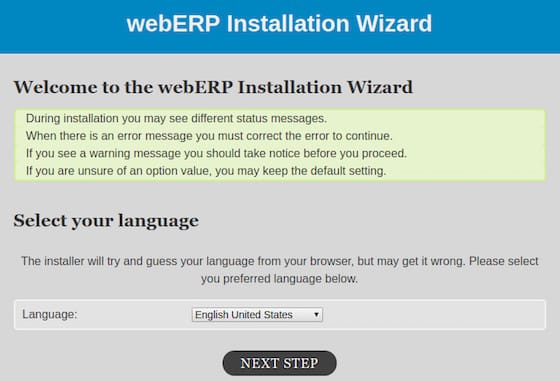
Open a web browser and navigate to your server’s domain or IP address. The webERP installation wizard launches automatically on first access. The welcome screen explains the installation process.
The database configuration page requires the credentials created earlier. Enter the following information:
- Database Host: localhost
- Database Name: weberp
- Database Username: weberpuser
- Database Password: [your password]
Click “Submit Database Information” to proceed. The installer validates the database connection. Successful validation advances to the next step.
The company configuration page requests business details. Enter your company name, address, and contact information. Set the default currency and select your country. These settings affect reporting formats and tax calculations.
Create the administrative user account. Choose a unique username and strong password. This account has full system access, so secure credentials are essential. Provide an email address for password recovery and system notifications.
Review the configuration summary. The wizard creates necessary database tables and inserts initial configuration data. This process takes several minutes. Upon completion, a success message displays with a link to the login page.
Remove or secure the installation directory to prevent unauthorized access:
sudo rm -rf /var/www/html/webERP/installStep 7: Secure webERP Installation
SSL/TLS Configuration
Encrypted communications protect sensitive financial data. Install Certbot for automated SSL certificate management:
sudo apt install certbot python3-certbot-apache -yObtain an SSL certificate from Let’s Encrypt:
sudo certbot --apache -d yourdomain.com -d www.yourdomain.comFollow the prompts to enter an email address and agree to the terms of service. Certbot automatically configures Apache for HTTPS and sets up certificate renewal. Test automatic renewal:
sudo certbot renew --dry-runSuccessful test output confirms certificates will renew automatically before expiration.
Additional Security Measures
Set restrictive permissions on the configuration file containing database credentials:
sudo chmod 640 /var/www/html/webERP/config.phpThis prevents unauthorized users from reading sensitive information. Disable directory listing in Apache by editing the virtual host configuration. Change Options Indexes FollowSymLinks to Options FollowSymLinks.
Configure PHP security settings by editing the PHP configuration file:
sudo nano /etc/php/8.2/apache2/php.iniModify these settings:
expose_php = Off
display_errors = Off
log_errors = On
allow_url_fopen = Off
These changes reduce information leakage and potential attack vectors. Restart Apache to apply PHP configuration changes:
sudo systemctl restart apache2Implement regular backup procedures. Use mysqldump to backup the webERP database:
sudo mysqldump -u root -p weberp > weberp_backup_$(date +%Y%m%d).sqlAutomate this command with cron jobs for consistent backup schedules.
Step 8: Post-Installation Configuration
Log into webERP using the administrative credentials created during installation. The dashboard presents an overview of system status. Navigate to Setup > Company Preferences to configure core business settings.
Set fiscal periods matching your accounting year. Define the number of periods (typically 12 for monthly accounting). Specify the date range for each period. These settings affect financial reporting and transaction posting.
Create user accounts for employees accessing the system. Navigate to Setup > User Accounts. Assign appropriate security permissions to each user. Limit access to sensitive functions like financial reporting and system configuration. The granular permission system ensures users access only necessary features.
Configure email settings to enable notification features. Enter SMTP server details, port numbers, and authentication credentials. Test email functionality by sending a test message. Automated notifications improve workflow efficiency for approval processes and exception reporting.
Define inventory locations if tracking stock across multiple warehouses. Navigate to Setup > Inventory Locations. Add each physical location with identifying codes and descriptions. Assign locations to specific users or departments.
Set up tax codes and rates applicable to your jurisdiction. Navigate to Setup > Tax Groups. Define tax authorities, rates, and calculation methods. Accurate tax configuration ensures compliant invoicing and financial reporting.
Customize the interface with your company logo and color scheme. Upload a logo file through Setup > Company Preferences. Branding creates a professional appearance for customer-facing documents like invoices and purchase orders.
Common Troubleshooting Issues
Database Connection Errors
Failed database connections prevent webERP from functioning. Verify the MariaDB service runs correctly:
sudo systemctl status mariadbIf stopped, start the service:
sudo systemctl start mariadbCheck database credentials in the config.php file. Ensure the username, password, and database name match the values set during database configuration. Test database connectivity from the command line:
mysql -u weberpuser -p weberpSuccessful login confirms credentials work correctly. Connection failures may indicate firewall issues if the database server is remote. Verify port 3306 accessibility.
Permission Errors
File permission errors appear when Apache cannot read or write necessary files. Reset webERP directory permissions:
sudo chown -R www-data:www-data /var/www/html/webERP
sudo chmod -R 755 /var/www/html/webERP
Certain directories require write permissions. Check the companies directory:
sudo chmod -R 775 /var/www/html/webERP/companiesSELinux on some systems enforces additional restrictions. Check SELinux status:
getenforceIf enabled, configure appropriate contexts or temporarily set to permissive mode for testing.
PHP Errors and Missing Extensions
PHP errors typically indicate missing extensions or configuration problems. Check installed PHP modules:
php -mCompare the output against required extensions. Install any missing modules:
sudo apt install php-[extension-name]Review PHP error logs for specific issues:
sudo tail -f /var/log/apache2/weberp_error.logMemory limit errors require increasing PHP’s memory allocation. Edit php.ini and modify:
memory_limit = 256MExecution timeout errors occur with long-running reports. Increase max_execution_time:
max_execution_time = 300Restart Apache after PHP configuration changes.
Apache Configuration Issues
Virtual host misconfigurations prevent webERP access. Verify the virtual host file syntax:
sudo apache2ctl configtestSyntax errors display with line numbers for correction. Ensure the virtual host is enabled:
sudo a2ensite weberp.confCheck which sites Apache currently serves:
sudo apache2ctl -SPort conflicts occur if another service uses port 80 or 443. Identify processes using these ports:
sudo netstat -tlnp | grep :80Stop conflicting services or reconfigure port assignments.
Performance Optimization Tips
PHP performance benefits from opcode caching. Install the PHP OPcache extension:
sudo apt install php-opcacheConfigure OPcache in php.ini for optimal performance:
opcache.enable=1
opcache.memory_consumption=128
opcache.max_accelerated_files=10000
opcache.revalidate_freq=60
Database optimization improves query response times. Regular maintenance tasks include optimizing tables:
sudo mysqlcheck -o weberp -u root -pIndex optimization accelerates common queries. Monitor slow query logs to identify candidates for additional indexing.
Apache performance improves with proper module configuration. Disable unnecessary modules to reduce memory consumption. Enable compression for faster page loads:
sudo a2enmod deflateImplement browser caching by adding headers to the virtual host configuration:
<IfModule mod_expires.c>
    ExpiresActive On
    ExpiresByType image/jpg "access plus 1 year"
    ExpiresByType image/jpeg "access plus 1 year"
    ExpiresByType image/gif "access plus 1 year"
    ExpiresByType image/png "access plus 1 year"
    ExpiresByType text/css "access plus 1 month"
    ExpiresByType application/javascript "access plus 1 month"
</IfModule>
Regular maintenance tasks preserve system performance. Schedule automated cleanups of temporary files and old log entries. Monitor system resources using tools like htop to identify bottlenecks. Database backups should occur during off-peak hours to minimize performance impact.
Congratulations! You have successfully installed webERP. Thanks for using this tutorial to install the latest version of the webERP on Debian 13 “Trixie” system. For additional help or useful information, we recommend you check the official webERP website.
