How To Install Webmin on Fedora 42

Managing a Linux server through command-line interfaces can be challenging, especially when handling multiple configuration files and services simultaneously. Webmin offers a powerful solution by providing a web-based control panel that simplifies server administration tasks. This comprehensive guide walks you through installing Webmin on Fedora 42, from initial setup to advanced configuration and security hardening.
What is Webmin?
Webmin is an open-source web-based system administration tool designed for Unix-like operating systems. It provides administrators with a graphical interface to manage servers remotely through any web browser, eliminating the need for manual configuration file editing or complex command-line operations.
The control panel operates on TCP port 10000 by default and supports SSL encryption when OpenSSL and required Perl modules are installed. With over 110 modules available, Webmin enables management of popular services including Apache HTTP Server, MySQL/MariaDB databases, Postfix mail servers, BIND DNS, and much more.
Built primarily using Perl scripting language, Webmin follows a modular architecture that makes extending functionality straightforward. Each module provides an interface to specific configuration files and system components. This design allows developers to create custom plugins for virtually any administrative task, from desktop environment configuration to complex server cluster management.
The platform supports managing multiple machines through a single interface and enables seamless login to other Webmin servers on the same local area network. With approximately one million yearly installations worldwide, Webmin has become a trusted tool for system administrators seeking efficient server management solutions.
System Requirements and Prerequisites
Before installing Webmin on Fedora 42, verify that your system meets the necessary requirements for optimal performance and compatibility.
Minimum Hardware Requirements
Your Fedora 42 system should have at least a 1 GHz processor or higher for adequate performance. RAM requirements include a minimum of 1 GB, though 2 GB or more is recommended for production environments handling multiple services. Allocate at least 2 GB of available disk space for the Webmin installation and associated modules. Both x86_64 and ARM64 architectures are fully supported.
Software Requirements
A clean installation of Fedora 42 serves as the foundation for Webmin deployment. Root or sudo user access is mandatory for installation and initial configuration. Essential dependencies include Perl, wget, curl, and OpenSSL packages. Additional Perl modules such as libauthen-pam-perl and libio-pty-perl may be required depending on your intended use cases.
Network Requirements
Ensure your server has a valid static IP address or fully qualified domain name (FQDN) configured. TCP port 10000 must be available and accessible for Webmin’s web interface. An active internet connection is necessary during installation to download packages from remote repositories. You’ll also need access to configure your firewall, whether using firewalld or iptables.
Preparing Fedora 42 for Installation
Proper system preparation ensures a smooth Webmin installation process and reduces potential conflicts or compatibility issues.
Update System Packages
Begin by updating all existing packages on your Fedora 42 system. This step ensures you have the latest security patches and software versions.
Execute the following command to refresh your system:
sudo dnf update -yAlternatively, use the upgrade command for a more thorough update:
sudo dnf upgradeThe update process may take several minutes depending on your internet connection speed and the number of outdated packages. This ensures maximum compatibility between Webmin and your system components.
Install Required Dependencies
Several essential packages must be present before installing Webmin. These dependencies enable Webmin to function properly and communicate securely.
Install the necessary packages with this command:
sudo dnf install wget curl perl openssl -yThe wget utility downloads files from web servers, while curl handles data transfers using various protocols. Perl serves as the core scripting language for Webmin’s operation, and OpenSSL provides encryption capabilities for secure HTTPS connections.
Configure Firewall Settings
Opening port 10000 on your firewall is crucial for accessing the Webmin web interface. Fedora 42 typically uses firewalld as its default firewall management tool.
Add port 10000 to your firewall rules:
sudo firewall-cmd --permanent --add-port=10000/tcpReload the firewall configuration to apply changes immediately:
sudo firewall-cmd --reloadVerify that the port has been opened successfully:
sudo firewall-cmd --list-portsThis command displays all open ports, and you should see 10000/tcp in the output. Proper firewall configuration prevents connection issues when accessing Webmin later.
Method 1: Installing Webmin from Official Repository
The repository-based installation method provides the most reliable approach, enabling automatic updates through your package manager.
Step 1: Add Webmin YUM Repository
Creating a dedicated repository file allows DNF to locate and install Webmin packages from official sources.
Open a new repository configuration file:
sudo vi /etc/yum.repos.d/webmin.repoAdd the following repository configuration:
[Webmin]
name=Webmin Distribution Neutral
#baseurl=https://download.webmin.com/download/yum
mirrorlist=https://download.webmin.com/download/yum/mirrorlist
enabled=1
gpgkey=https://download.webmin.com/jcameron-key.asc
gpgcheck=1
Save and exit the editor by pressing Escape, then typing :wq and pressing Enter.
Each configuration parameter serves a specific purpose. The name field provides a human-readable repository description. The mirrorlist URL points to a list of mirror servers hosting Webmin packages, ensuring availability and faster downloads. Setting enabled=1 activates the repository. The gpgkey parameter specifies the location of the GPG key for package verification. Finally, gpgcheck=1 enforces signature verification for security.
Step 2: Import GPG Key
GPG key verification ensures that packages come from legitimate sources and haven’t been tampered with during download.
Download the Webmin GPG key:
sudo wget https://download.webmin.com/jcameron-key.ascImport the key into your system’s keyring:
sudo rpm --import jcameron-key.ascThis cryptographic verification protects against malicious packages and man-in-the-middle attacks. The RPM package manager will now trust packages signed with this key.
Step 3: Refresh Repository Cache
Updating your repository cache enables DNF to recognize the newly added Webmin repository and its available packages.
Execute the update command:
sudo dnf update -yYou can verify that Webmin packages are now accessible:
dnf search webminThis command should display various Webmin packages available for installation.
Step 4: Install Webmin Package
With repositories configured correctly, installing Webmin becomes straightforward.
Run the installation command:
sudo dnf install webminDNF automatically resolves all dependencies and presents a list of packages to be installed. Type ‘y’ and press Enter to confirm the installation. The process typically takes a few minutes depending on your internet connection speed.
Verify successful installation by checking the installed version:
rpm -q webminThis command displays the Webmin version number, confirming proper installation.
Step 5: Start and Enable Webmin Service
After installation completes, manually start the Webmin service and configure it to launch automatically at system boot.
Start the Webmin service immediately:
sudo systemctl start webminEnable automatic startup at boot time:
sudo systemctl enable webminCheck the service status to confirm it’s running:
sudo systemctl status webminThe output should display “active (running)” in green text. Additionally, verify that Webmin is listening on the correct port:
sudo netstat -pnltu | grep 10000You should see an entry showing Webmin listening on port 10000.
Method 2: Installing Webmin Using Automatic Setup Script
Webmin developers provide an automated setup script that streamlines repository configuration for RHEL-based distributions like Fedora.
Download the official setup script:
curl -o webmin-setup-repo.sh https://raw.githubusercontent.com/webmin/webmin/master/webmin-setup-repo.shMake the script executable:
chmod +x webmin-setup-repo.shExecute the script with root privileges:
sudo ./webmin-setup-repo.shThe script automatically configures repositories, imports GPG keys, and prepares your system for Webmin installation. This method is particularly convenient for users who prefer automated configuration over manual setup.
After the script completes, install Webmin:
sudo dnf install webminStart and enable the service as described in Method 1. This automatic method is officially recommended by Webmin developers and reduces the likelihood of configuration errors.
Accessing Webmin Web Interface
Once installation completes successfully, access Webmin through any modern web browser.
For local access on the server itself, navigate to:
https://localhost:10000For remote access from another machine, use your server’s IP address:
https://your-server-ip:10000Replace “your-server-ip” with your Fedora server’s actual IP address.
On first access, your browser displays a security warning about the SSL certificate. This occurs because Webmin uses a self-signed certificate by default. Click “Advanced” and proceed to the site (the exact wording varies by browser).
The login page presents fields for username and password. Enter “root” as the username and your system’s root password as the password. After successful authentication, the Webmin dashboard appears displaying comprehensive system information including CPU usage, memory consumption, disk space, running processes, and system uptime.
Post-Installation Configuration
Optimizing Webmin’s configuration enhances security, usability, and performance for your specific environment.
Change Default Port (Optional)
Changing the default port 10000 can provide additional security through obscurity, though it shouldn’t replace proper security measures.
Edit the Webmin configuration file:
sudo nano /etc/webmin/miniserv.confLocate the line containing port=10000 and change it to your desired port number:
port=20000Save the file and exit the editor. Update your firewall rules to allow the new port:
sudo firewall-cmd --permanent --add-port=20000/tcp
sudo firewall-cmd --reload
Restart Webmin to apply the changes:
sudo systemctl restart webminAccess Webmin using the new port number in your browser URL.
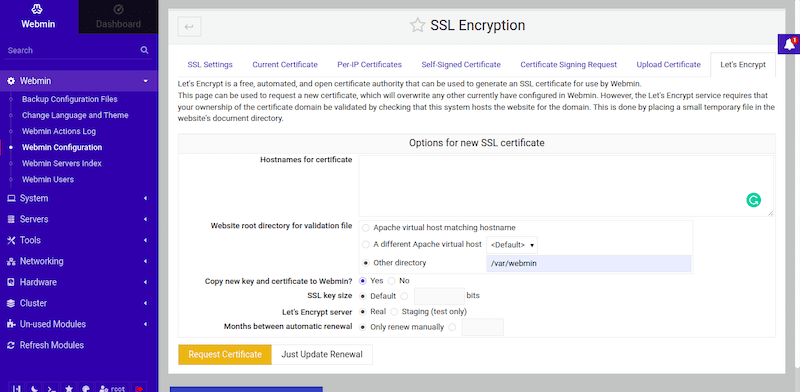
Configure SSL/TLS Certificate
While Webmin includes a self-signed SSL certificate, implementing a trusted certificate improves security and eliminates browser warnings.
Within the Webmin interface, navigate to:
Webmin → Webmin Configuration → SSL Encryption
Here you can generate a new self-signed certificate with custom parameters or configure Let’s Encrypt for a free trusted certificate. For production environments, Let’s Encrypt provides the best balance of security and convenience.
Set Up Two-Factor Authentication
Two-factor authentication (2FA) adds an essential security layer by requiring a time-based one-time password (TOTP) in addition to your regular password.
Navigate to:
Webmin → Webmin Users
Select the user account you want to secure, then enable TOTP authentication. Scan the displayed QR code with an authenticator app like Google Authenticator or Authy. Test the 2FA login functionality before closing your current session to avoid lockouts.
Language and Theme Customization
Personalizing Webmin’s appearance and language improves the user experience.
Access:
Webmin → Webmin Configuration
Select your preferred interface language from the available options. Choose a theme that suits your preferences—modern themes like Authentic Theme offer enhanced usability and mobile responsiveness. Configure your timezone to ensure accurate timestamps throughout the interface.
Security Best Practices
Implementing robust security measures protects your server from unauthorized access and potential attacks.
Restrict Access by IP Address
Limiting connections to specific IP addresses significantly reduces your attack surface.
Edit the Webmin configuration file:
sudo nano /etc/webmin/miniserv.confAdd access control rules:
allow=192.168.1.50
deny=all
This configuration permits access only from IP address 192.168.1.50 while blocking all others. Restart Webmin to apply the restrictions:
sudo systemctl restart webminImplement Strong Password Policies
Weak passwords represent a major security vulnerability in any system.
Use complex passwords containing at least 12 characters with a mix of uppercase letters, lowercase letters, numbers, and special characters. Implement regular password rotation policies for all Webmin users. Immediately disable or remove inactive user accounts to minimize potential entry points.
Configure Firewall Rules
Beyond opening port 10000, implement granular firewall rules to control access.
Consider restricting connections to specific IP ranges if your administrative team operates from known locations. Implement fail2ban or ConfigServer Security & Firewall (CSF) for automated intrusion detection and prevention. These tools automatically block IP addresses after repeated failed login attempts.
Monitor firewall logs regularly:
sudo journalctl -u firewalld -fThis command displays real-time firewall activity, helping identify suspicious access patterns.
Enable Detailed Logging
Comprehensive logging facilitates security audits and troubleshooting.
Webmin logs are stored in:
/var/webmin/miniserv.logEnable logging for all administrative actions within Webmin Configuration settings. Review logs periodically for unusual activity patterns. Consider integrating Webmin logs with centralized monitoring solutions like Nagios, Zabbix, or the ELK stack.
Disable Unused Modules
Each enabled module increases your attack surface and consumes system resources.
Navigate to:
Webmin → Webmin Configuration → Webmin Modules
Disable any modules you don’t actively use. For example, if you’re not running Apache, disable the Apache Webserver module. This practice reduces potential vulnerabilities and improves performance.
Regular Updates and Patches
Keeping Webmin updated ensures you have the latest security patches and features.
Check for updates within Webmin:
Webmin → Webmin Configuration → Upgrade Webmin
Alternatively, update through DNF:
sudo dnf update webminSubscribe to the Webmin security mailing list and regularly check the official security page at https://webmin.com/security/ for advisories.
Managing Webmin Modules and Features
Webmin’s modular architecture provides flexibility for managing diverse server components.
The platform includes over 110 standard modules organized into categories: Webmin, System, Servers, Tools, Networking, Hardware, and Cluster. Popular modules for Fedora administrators include Apache Webserver, MySQL Database Server, Postfix Mail Server, BIND DNS Server, and DHCP Server.
To install additional modules, navigate to:
Webmin → Webmin Configuration → Webmin Modules
Click “Install Module” and select either an uploaded module file or a URL pointing to the module. Third-party modules extend functionality further, with options like ConfigServer Security & Firewall providing advanced security features.
Configure module-level access control to restrict specific users to only the tools they need. This principle of least privilege enhances security by limiting potential damage from compromised accounts.
Useful built-in modules include File Manager for browsing and editing files, System Logs Viewer for monitoring log files, and Disk Quotas for managing user storage limits.
Common Troubleshooting Issues
Even with careful installation, you may encounter occasional problems. These solutions address the most frequent issues.
Webmin Web Interface Not Accessible
When you cannot access the Webmin interface, systematically check several potential causes.
Verify the Webmin service is running:
sudo systemctl status webminIf stopped, start it:
sudo systemctl start webminConfirm port 10000 is open in your firewall:
sudo firewall-cmd --list-portsCheck if another service conflicts with port 10000:
sudo netstat -tuln | grep 10000Review the miniserv.conf file for incorrect port or listen settings:
sudo cat /etc/webmin/miniserv.conf | grep portExamine error logs for specific issues:
sudo tail -f /var/webmin/miniserv.errorWebmin Service Not Starting
Service startup failures typically stem from configuration errors or missing dependencies.
Check for configuration file syntax errors in /etc/webmin/. Review system logs for detailed error messages:
sudo journalctl -xeVerify all required Perl modules are installed. On Fedora 42, SELinux may block Webmin operations. Check for denials:
sudo ausearch -m avc -ts recentIf SELinux issues exist, create appropriate policies or temporarily set SELinux to permissive mode for testing:
sudo setenforce 0Remember to re-enable SELinux after resolving the issue.
SSL/TLS Certificate Issues
Certificate problems prevent secure HTTPS connections.
Verify SSL is enabled in miniserv.conf:
grep ssl /etc/webmin/miniserv.confThe line should read ssl=1. If certificate files are corrupted, regenerate them through Webmin Configuration → SSL Encryption, or manually using OpenSSL commands.
Check certificate file permissions:
ls -l /etc/webmin/*.pemFiles should be readable by the root user. As a temporary troubleshooting step, you can disable SSL by changing ssl=1 to ssl=0 in miniserv.conf, though this compromises security.
Permission and Access Issues
File permission problems prevent Webmin from accessing necessary resources.
Verify ownership of Webmin directories:
sudo chown -R root:root /etc/webmin/Check directory permissions:
sudo chmod 755 /etc/webmin/Review user access control settings within Webmin Users module. If locked out completely, reset the admin password using the command-line tool:
sudo /usr/libexec/webmin/changepass.pl /etc/webmin root newpasswordPort Conflicts
Multiple services attempting to use port 10000 cause conflicts.
Identify the conflicting service:
sudo lsof -i :10000Either stop the conflicting service or change Webmin’s port in miniserv.conf. After changing the port, update firewall rules accordingly and restart Webmin.
Module-Specific Errors
Individual modules may fail due to incompatibilities or bugs.
First, ensure you’re running the latest Webmin version. Check module compatibility with Fedora 42—some older modules may not function properly on newer systems. Review module-specific logs for error details. Try reinstalling problematic modules through Webmin Configuration → Webmin Modules.
Performance Optimization Tips
Optimizing Webmin improves responsiveness and reduces resource consumption.
Access Webmin Configuration to adjust performance-related settings. Disable unused modules to free up memory and reduce startup time. Enable caching mechanisms for frequently accessed data. Configure appropriate session timeouts to free resources from inactive users.
Implement log rotation to prevent log files from consuming excessive disk space:
sudo nano /etc/logrotate.d/webminSelect lightweight themes for faster page rendering, especially on slower connections. Consider running Webmin in minimal mode on resource-constrained servers by limiting concurrent connections.
For large-scale deployments managing multiple servers, consider using Webmin’s clustering features to distribute load effectively.
Webmin User and Group Management
Creating additional administrative users with restricted privileges enhances security and accountability.
Navigate to:
Webmin → Webmin Users
Click “Create a new Webmin user” and specify username, password, and authentication method. Set up Webmin groups for organized access control by grouping users with similar responsibilities.
Configure module-level permissions for each user, granting access only to necessary tools. For example, a database administrator might only need access to MySQL and PostgreSQL modules. Create sub-administrator accounts with limited privileges for junior staff or contractors.
Implement role-based access control (RBAC) by defining roles with specific permissions, then assigning users to appropriate roles. Enable user session monitoring to track who accessed the system and when. You can also sync Webmin users with Unix system users for centralized authentication management.
Congratulations! You have successfully installed Webmin. Thanks for using this tutorial for installing the Webmin web-based system administration tool on your Fedora 42 Linux system. For additional or useful information, we recommend you check the official Webmin website.
