How To Install Wireshark on Debian 13

Whether you are a network administrator chasing down a connectivity fault, a security analyst monitoring suspicious traffic, or a developer debugging application-layer protocols, Wireshark is the tool professionals reach for first. This guide walks you through exactly how to install Wireshark on Debian 13 (Trixie), configure non-root capture permissions, verify the setup, and get capturing immediately — no guesswork required.
What Is Wireshark?
Wireshark is a free, open-source network protocol analyzer — sometimes called a packet sniffer — that captures live network traffic and presents it in fine-grained, human-readable detail. Originally created by Gerald Combs in 1998, it has grown into the world’s most widely deployed network analysis tool, used by millions of professionals across every industry.
At its core, Wireshark intercepts packets flowing through a network interface and decodes them. It supports over 2,000 protocols, ranging from everyday ones like HTTP, DNS, TCP/IP, and TLS to specialized industrial, VoIP, and Bluetooth protocols. That breadth of protocol coverage is one reason no competitor has displaced it.
Core capabilities include:
- Real-time live packet capture from wired, wireless, Bluetooth, and USB interfaces
- Deep packet inspection with full payload visibility
- Powerful display and capture filters to isolate specific traffic
- Color-coded packet rows to visually distinguish protocols and anomalies
- Export of capture data in formats including PCAP, PCAPNG, XML, CSV, and plain text
- Built-in statistics, graphs, and IO charts for traffic trend visualization
On Linux, Wireshark uses the libpcap library to attach to network interfaces and buffer incoming and outgoing packets for analysis. The GUI is feature-rich, but for headless servers, the companion CLI tool tshark provides identical protocol dissection power in a terminal environment.
Prerequisites
Before starting, confirm you meet the following requirements. Missing any of these is the most common reason a Wireshark installation fails silently.
- A running Debian 13 (Trixie) system — physical machine, VirtualBox, VMware, or KVM all work
- A user account with
sudoprivileges - An active internet connection to reach Debian’s APT repositories
- Basic comfort with the Linux terminal and command-line syntax
- At least 1 GB free disk space and 1 GB RAM (Wireshark is lightweight)
- A desktop environment (GNOME, KDE Plasma, Xfce, Cinnamon) if you want the graphical interface, or headless is fine for
tshark-only usage
All commands in this guide were validated on a clean Debian 13 Trixie installation. If you are running Debian 12 (Bookworm) or Debian 11 (Bullseye), the steps are largely the same, but the Wireshark version installed will differ.
Step 1: Update Your Debian 13 System
The first step is always to refresh your package index and upgrade any outdated packages. This ensures APT resolves the correct dependency versions when it installs Wireshark and prevents the most common cause of broken installs: stale package metadata.
Open a terminal and run:
sudo apt update && sudo apt upgrade -yHere is what each part does:
apt updatecontacts Debian’s repositories and downloads the latest package listapt upgrade -yupgrades all currently installed packages that have newer versions available, with-yautomatically confirming every prompt
This step also applies any pending security patches before you introduce new software, which is good operational hygiene. On a fresh Debian 13 install, this may take a minute or two. On a well-maintained system, it is nearly instant. Either way, never skip it.
Step 2: Install Wireshark on Debian 13
Wireshark is available directly from Debian’s official repositories, so no third-party PPA or manual compilation is required. This means automatic security updates, clean package management, and no dependency headaches.
Run the installation command:
sudo apt install wireshark -yAPT resolves and installs all required components automatically, including:
wireshark— the main graphical interfacewireshark-common— shared libraries and core filesdumpcap— the underlying packet capture binary- All required shared libraries and Qt GUI dependencies
The “Non-Superusers Capture Packets” Prompt
Partway through installation, a blue configuration dialog appears asking:
“Should non-superusers be able to capture packets?”
This is a critical decision. Select Yes.
Choosing Yes creates a dedicated wireshark system group and sets Linux capabilities (cap_net_admin and cap_net_raw) on the dumpcap binary. These capabilities allow non-root users to capture packets through dumpcap without needing full root access.
Choosing No means only the root user can capture traffic. Wireshark will launch for regular users but show no interfaces. This is the wrong choice for most use cases, and fortunately it is reversible.
If you accidentally selected No, reconfigure the package at any time:
sudo dpkg-reconfigure wireshark-commonSelect Yes at the prompt and proceed to Step 3.
Step 3: Add Your User to the Wireshark Group
Even after selecting Yes, your current user account does not automatically have packet capture permissions. You must explicitly add your username to the wireshark group.
Run:
sudo usermod -aG wireshark $USERBreaking down the flags:
-ameans append — it adds the user to the group without removing them from any existing groups-G wiresharkspecifies the target group$USERis a shell variable that automatically substitutes your current username
Important: Group membership changes do not apply to your current session. You must log out completely and log back in for the new group to take effect.
If you need access immediately in the current terminal without a full logout, use:
newgrp wiresharkThis opens a new shell with the wireshark group active. Note that this only applies to the current terminal window, not your entire session.
After logging back in, verify your group membership:
groups $USERThe output should include wireshark alongside your other groups:
yourusername sudo wiresharkIf wireshark appears in that list, you are ready to capture traffic.
Step 4: Verify the Wireshark Installation
With installation and permissions configured, confirm everything is working correctly before opening the interface.
Check the installed Wireshark version:
wireshark --versionOr use the CLI tool (more reliable for headless environments):
tshark --versionExpected output on Debian 13:
TShark (Wireshark) 4.4.x (Git v4.4.x packaged as 4.4.x-1)
Copyright 1998-2025 Gerald Combs <gerald@wireshark.org> and contributors.
Licensed under the terms of the GNU General Public License (version 2 or later).
Debian 13 (Trixie) ships Wireshark 4.4.x — the latest stable branch. For context, Debian 12 (Bookworm) provides version 4.0.x and Debian 11 (Bullseye) provides 3.4.x, so you are working with the most current release.
Verify dumpcap capabilities:
getcap /usr/bin/dumpcapA correctly configured system returns:
/usr/bin/dumpcap cap_net_admin,cap_net_raw=eipIf that output is blank, dumpcap is missing the necessary Linux capabilities. Run sudo dpkg-reconfigure wireshark-common and select Yes to fix it.
Step 5: Launch Wireshark on Debian 13
Wireshark can be opened two ways — from the terminal or through your desktop application menu.
Launch from the Terminal
wireshark &The & sends the process to the background, keeping your terminal free for other commands. Without it, the terminal is locked until Wireshark closes.
Launch from the Application Menu
- GNOME: Press the Super key → click Show Applications → search for Wireshark
- KDE Plasma: Open the application launcher → search Wireshark or find it under Internet
- Xfce / Cinnamon: Navigate the application menu to Internet or Network Analysis
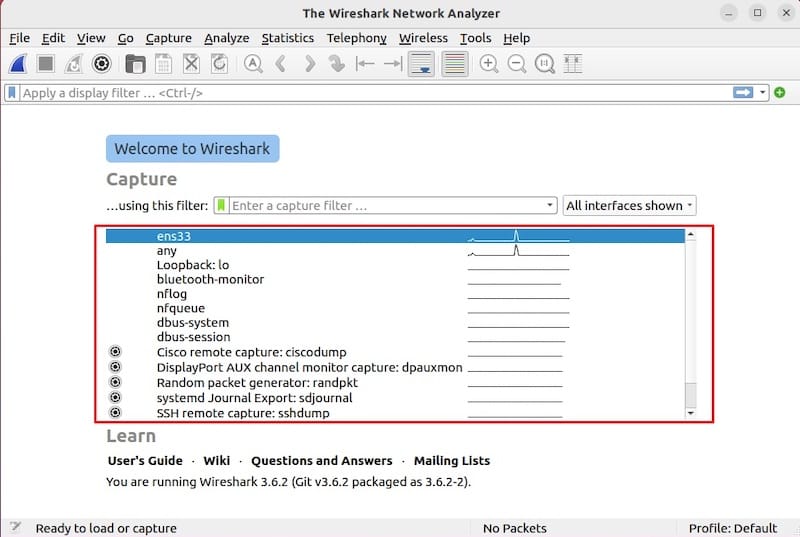
When Wireshark opens, the welcome screen displays a list of available network interfaces with live traffic sparklines beside each one. Common interfaces include eth0 (wired Ethernet), wlan0 (Wi-Fi), and lo (loopback). Click any interface and Wireshark immediately begins capturing live packets.
If no interfaces appear, your user is likely not yet in the wireshark group — see the Troubleshooting section below.
Optional: Install and Use tshark for Command-Line Packet Capture
tshark is Wireshark’s official command-line interface. It ships alongside Wireshark in the same APT package, but can also be installed independently for headless or remote server environments.
If tshark is not already on your system:
sudo apt install tshark -yEssential tshark commands:
List all available capture interfaces:
tshark -DExample output:
1. eth0
2. lo (Loopback)
3. any
4. wlan0
Capture 20 packets on eth0:
tshark -i eth0 -c 20Capture traffic and save to a file for later GUI analysis:
tshark -i eth0 -w capture.pcapngCapture only HTTP traffic using a filter:
tshark -i eth0 -f "tcp port 80"Replace eth0 with your actual interface name from tshark -D. Files saved with -w are fully compatible with the Wireshark graphical interface — you can open them later with File → Open in the GUI for deep inspection. This workflow — capture headlessly with tshark, inspect with GUI — is the standard approach on remote servers.
Troubleshooting Common Wireshark Issues on Debian 13
Even with the correct steps, a handful of issues come up regularly. Here are the four most common problems and their fixes.
No Network Interfaces Visible
Symptom: Wireshark opens but the interface list is empty, or only lo (loopback) appears.
Cause: Your user is not yet a member of the wireshark group, or the session has not refreshed group membership since the change was made.
Fix:
groups | grep wiresharkIf there is no output, add yourself:
sudo usermod -aG wireshark $USERLog out of your entire desktop session, log back in, and relaunch Wireshark. On SSH, disconnect and reconnect.
“Permission Denied” or “You Don’t Have Permission to Capture”
Symptom: Clicking an interface immediately shows an error about insufficient permissions, or tshark returns Operation not permitted.
Cause: The dumpcap binary is missing its required Linux capabilities.
Fix:
getcap /usr/bin/dumpcapIf this returns nothing (blank output), the capabilities are absent. Reconfigure:
sudo dpkg-reconfigure wireshark-commonSelect Yes, then verify the capabilities were restored:
getcap /usr/bin/dumpcapExpected: cap_net_admin,cap_net_raw=eip
“Couldn’t Run dumpcap in Child Process” Error
Symptom: Wireshark launches, interfaces appear, but starting a capture produces “Couldn’t run /usr/bin/dumpcap in child process.”
Cause: This typically happens when newgrp wireshark was used to temporarily activate the group in a terminal, but a full desktop session logout has not occurred. Some processes still run under the old session’s group token.
Fix: Log out of your entire desktop session — not just the terminal — and log back in. For remote SSH sessions, fully disconnect and reconnect rather than relying on newgrp.
Wireshark GUI Won’t Launch
Symptom: Running wireshark in the terminal produces errors like “cannot connect to X server” or “display not set.”
Cause: You are running Wireshark over SSH without X forwarding enabled, or no desktop environment is running.
Fix: Either enable X forwarding in your SSH connection (ssh -X user@host), install a desktop environment, or switch to tshark for all packet capture tasks. For server environments, tshark is almost always the better long-term choice.
How to Update or Remove Wireshark
Updating Wireshark
Wireshark updates ship automatically through Debian’s APT pipeline. To update only Wireshark without running a full system upgrade:
sudo apt update
sudo apt install --only-upgrade wireshark
For a full system update that includes Wireshark along with all other packages:
sudo apt update && sudo apt upgrade -yNo manual steps are needed — Debian handles Wireshark versioning through its standard package management system.
Removing Wireshark
Remove Wireshark and its GUI components:
sudo apt remove wireshark -y
sudo apt autoremove -y
apt autoremove cleans up any orphaned dependencies that were pulled in during Wireshark’s installation but are no longer needed by other packages.
To remove Wireshark’s user configuration and saved capture profiles:
rm -rf ~/.config/wireshark/The wireshark system group remains on the system after package removal. To clean it up:
sudo groupdel wiresharkCongratulations! You have successfully installed Wireshark. Thanks for using this tutorial to install the latest version of the Wireshark network analyzer tool on Debian 13 “Trixie” system. For additional help or useful information, we recommend you check the official Wireshark website.
