How To Install WordPress on Fedora 43

WordPress powers over 43% of all websites on the internet, making it the most popular content management system globally. Fedora 43 provides a cutting-edge foundation for hosting WordPress with its modern kernel, updated toolchains, and strong security model. This comprehensive guide walks through every step required to deploy a fully functional WordPress website on Fedora 43 using the LAMP stack (Linux, Apache, MariaDB, PHP) in a reliable and repeatable way.
Whether setting up a personal blog, business website, or development environment, Fedora 43 offers enterprise-grade stability combined with the latest software packages. The installation process involves configuring the Apache web server, MariaDB database, PHP scripting language, SELinux, and WordPress itself. By following this tutorial, even intermediate Linux users can successfully deploy WordPress on their Fedora 43 server within an hour while keeping performance, security, and maintainability in mind.
Prerequisites and System Requirements
Before beginning the WordPress installation process on Fedora 43, ensure the system meets all necessary requirements. WordPress runs best with a modern PHP version, a supported database server such as MariaDB, and sufficient memory and storage for both WordPress core and your content. Running on an up-to-date Fedora 43 system also reduces compatibility issues and improves security.
The following prerequisites should be in place before starting the installation:
- Fresh Fedora 43 Server or Workstation installation.
- Root or sudo user privileges for administering the system.
- Minimum 1 GB RAM (2 GB or more recommended for production workloads).
- At least 10 GB available disk space (more if storing media-heavy sites).
- Stable internet connection for downloading packages and updates.
- Terminal or SSH access to the server.
- Optional: A domain name pointed to the server IP address for clean URLs and SSL.
Step 1: Update Fedora 43 System Packages
Starting with an updated system prevents dependency conflicts and ensures all security patches are applied. Fedora 43 uses a modern DNF package manager that offers efficient and fast package resolution. Updating the system before installing Apache, MariaDB, PHP, and WordPress reduces the risk of unexpected behavior later.
Open a terminal or SSH session and run:
sudo dnf upgrade -y
sudo dnf update -y
The commands download and install the latest versions of installed packages. Depending on how long ago the system was installed, this may take some time. If the kernel or core system libraries are updated, reboot to load the new versions:
sudo reboot
Step 2: Install Apache Web Server on Fedora 43
Apache HTTP Server is the web server component in the LAMP stack. It listens on HTTP and HTTPS ports, serves static content, and passes dynamic PHP requests to the PHP interpreter. Apache remains a popular choice for WordPress hosting due to its mature ecosystem and flexibility.
Install Apache using DNF:
sudo dnf install httpd -y
Start and enable Apache so it runs at boot:
sudo systemctl start httpd
sudo systemctl enable httpd
sudo systemctl status httpd
Confirm that the status output reports the service as active and running. Next, open HTTP and HTTPS in the firewall so users can reach the web server:
sudo firewall-cmd --permanent --add-service=http
sudo firewall-cmd --permanent --add-service=https
sudo firewall-cmd --reload
To verify Apache is serving pages correctly, open a browser and navigate to the server’s IP address or hostname. You should see the default Fedora test page, indicating Apache is configured and accessible.
Step 3: Install and Configure MariaDB Database Server
WordPress stores posts, pages, settings, and user data in a relational database. MariaDB is a drop-in replacement for MySQL and is widely used in LAMP environments. Setting up a dedicated database and user for WordPress improves security and simplifies management.
Install the MariaDB server package:
sudo dnf install mariadb-server -y
Start and enable the database service:
sudo systemctl start mariadb
sudo systemctl enable mariadb
Secure the MariaDB Installation
Run the interactive security script to harden MariaDB, remove unsafe defaults, and set a root password:
sudo mysql_secure_installation
During the prompts, choose a strong root password, remove anonymous users, disallow remote root login, remove the test database, and reload privilege tables. These steps significantly reduce the attack surface of your database server.
Create the WordPress Database and User
Log in to MariaDB using the root account:
sudo mysql -u root -p
Then create a database and user specifically for WordPress, replacing the placeholder password with a secure one:
CREATE DATABASE wordpress_db CHARACTER SET utf8mb4 COLLATE utf8mb4_unicode_ci;
CREATE USER 'wordpress_user'@'localhost' IDENTIFIED BY 'Your_Strong_Password_Here';
GRANT ALL PRIVILEGES ON wordpress_db.* TO 'wordpress_user'@'localhost';
FLUSH PRIVILEGES;
EXIT;
Using utf8mb4 ensures full Unicode support, while creating a dedicated user with limited privileges follows best practices. Store these credentials securely, as they are needed later during WordPress configuration.
Step 4: Install PHP and Required Extensions
PHP executes WordPress code and generates dynamic HTML content. Running WordPress on a supported and current PHP version is critical for performance and security. Fedora 43 includes up-to-date PHP packages and extensions suitable for a modern WordPress site.
Install PHP and common extensions needed by WordPress and many popular plugins:
sudo dnf install php php-mysqlnd php-gd php-xml php-mbstring php-json php-curl php-zip php-intl php-soap php-opcache -y
These extensions provide capabilities like database connectivity, image processing, XML handling, multibyte string support, cURL-based web requests, ZIP handling, internationalization, SOAP services, and opcode caching. Next, install and enable PHP-FPM for better performance under higher load:
sudo dnf install php-fpm -y
sudo systemctl start php-fpm
sudo systemctl enable php-fpm
Check the PHP version to confirm installation:
php -v
Finally, restart Apache so it can load the PHP module and work with PHP-FPM where relevant:
sudo systemctl restart httpd
Step 5: Download and Extract WordPress
With the LAMP stack prepared, download the latest stable WordPress release from the official project site. Using the official tarball ensures you get a clean, unmodified copy of WordPress core.
Move to the web root directory:
cd /var/www/html/
Download the latest WordPress package:
sudo wget https://wordpress.org/latest.tar.gz
Extract the contents:
sudo tar -xzf latest.tar.gz
This creates a wordpress directory containing WordPress core files and directories such as wp-admin, wp-content, and wp-includes. Clean up the compressed archive to free space:
sudo rm latest.tar.gz
Step 6: Configure WordPress Settings
WordPress uses a configuration file named wp-config.php to define database connection settings, security keys, and other low-level options. Creating and editing this file correctly is essential for a successful installation.
Switch to the WordPress directory and copy the sample config file:
cd /var/www/html/wordpress
sudo cp wp-config-sample.php wp-config.php
Open the configuration file with a text editor:
sudo nano wp-config.php
Update the database section with your own database name, user, and password:
define( 'DB_NAME', 'wordpress_db' );
define( 'DB_USER', 'wordpress_user' );
define( 'DB_PASSWORD', 'Your_Strong_Password_Here' );
define( 'DB_HOST', 'localhost' );
define( 'DB_CHARSET', 'utf8mb4' );
Generate and Add Security Keys
WordPress uses several salt and key values to secure authentication cookies and sessions. Generate a fresh set of keys using the official key generator and replace the placeholder values in wp-config.php. This improves overall login and session security and should be done on every new installation.
Set File Permissions and Ownership
Correct ownership and permissions ensure that WordPress can write where needed while still restricting unauthorized modifications. Assign the Apache user as the owner of the WordPress files and set recommended permission levels:
sudo chown -R apache:apache /var/www/html/wordpress
sudo find /var/www/html/wordpress -type d -exec chmod 755 {} \;
sudo find /var/www/html/wordpress -type f -exec chmod 644 {} \;
Create the uploads directory and apply proper permissions so uploads function without errors:
sudo mkdir -p /var/www/html/wordpress/wp-content/uploads
sudo chown -R apache:apache /var/www/html/wordpress/wp-content/uploads
sudo chmod -R 755 /var/www/html/wordpress/wp-content/uploads
Step 7: Configure Apache Virtual Host
A dedicated Apache virtual host makes it easier to manage one or more sites on the same server. It defines the document root, logging, and directory rules specific to your WordPress site. Using a virtual host is recommended for both production and development environments.
Create a new configuration file for WordPress:
sudo nano /etc/httpd/conf.d/wordpress.conf
Add a basic virtual host block, substituting your own domain or server IP:
<VirtualHost *:80>
    ServerName yourdomain.com
    ServerAlias www.yourdomain.com
    DocumentRoot /var/www/html/wordpress

    <Directory /var/www/html/wordpress>
        AllowOverride All
        Require all granted
    </Directory>

    ErrorLog /var/log/httpd/wordpress_error.log
    CustomLog /var/log/httpd/wordpress_access.log combined
</VirtualHost>
The AllowOverride All directive is important because it allows WordPress to use .htaccess files for permalinks and additional rewrite rules. Check the virtual host configuration for syntax issues:
sudo apachectl configtest
If you see a “Syntax OK” message, restart Apache to apply the new configuration:
sudo systemctl restart httpd
Step 8: Configure SELinux for WordPress
Fedora ships with SELinux enabled in enforcing mode, which adds another layer of security by restricting how processes access files and network resources. For WordPress to operate correctly, SELinux contexts must be set to allow Apache to write to specific directories and connect to the network where needed.
Label the wp-content directory and configuration file for writable access by Apache:
sudo semanage fcontext -a -t httpd_sys_rw_content_t "/var/www/html/wordpress/wp-content(/.*)?"
sudo semanage fcontext -a -t httpd_sys_rw_content_t "/var/www/html/wordpress/wp-config.php"
sudo restorecon -Rv /var/www/html/wordpress
Enable Apache network connectivity and mail-sending capability when required by plugins or updates:
sudo setsebool -P httpd_can_network_connect on
sudo setsebool -P httpd_can_sendmail on
Check contexts to confirm they are applied as expected:
ls -Z /var/www/html/wordpress
Step 9: Complete WordPress Web Installation
With the LAMP stack, virtual host, and SELinux configured, complete the installation via the browser. This step creates the initial administrator account and site settings and finalizes the database schema.
Open a web browser and navigate to your domain or server IP:
http://yourdomain.com
If you installed WordPress in a subdirectory, use a URL like:
http://your-server-ip/wordpress
The WordPress installation wizard guides you through:
- Selecting the language for the dashboard.
- Entering the site title.
- Creating an admin username (avoid generic values like “admin”).
- Choosing a strong password and entering an admin email address.
- Optionally discouraging search engines from indexing the site while in development.
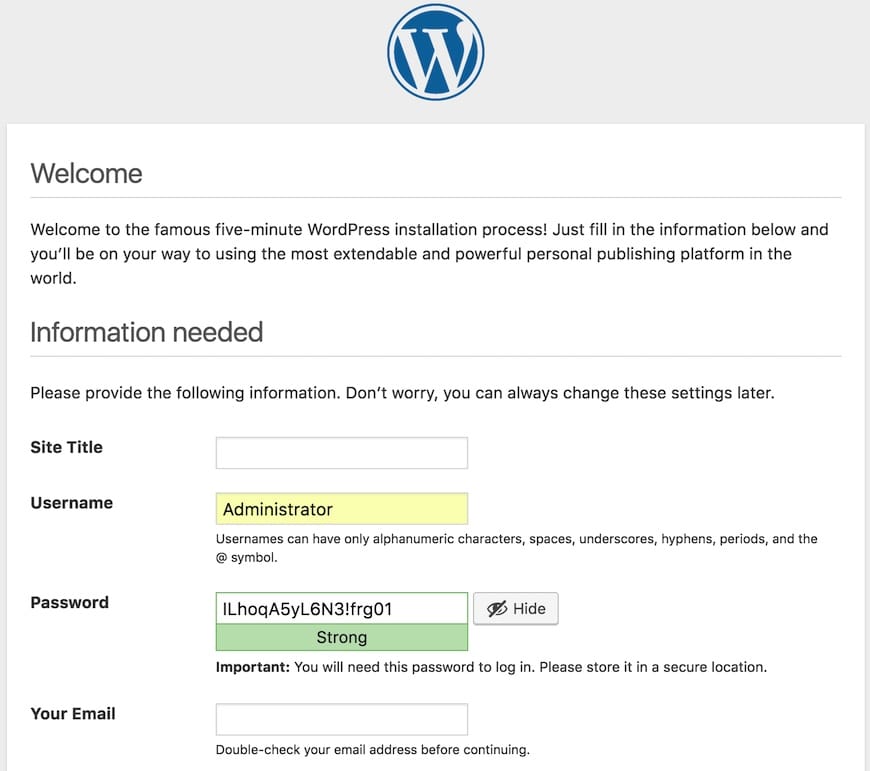
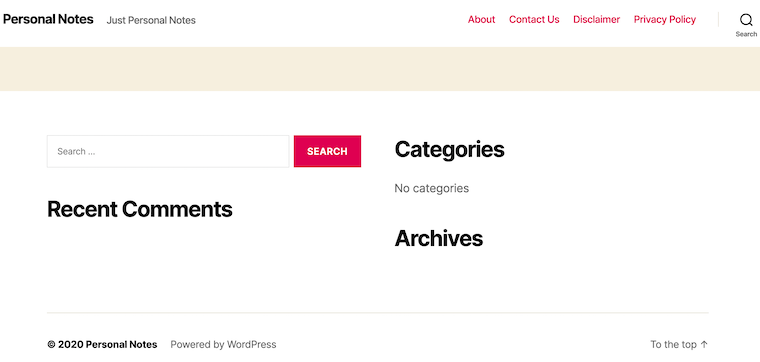
After clicking the install button, WordPress sets up its database tables and redirects you to the login screen. Log in with the admin credentials to access the WordPress dashboard and confirm that everything is working.
Step 10: Post-Installation Security and Optimization
A freshly installed WordPress site on Fedora 43 should be hardened and optimized before going live. This includes configuring clean URLs, enabling HTTPS, setting up backups, and applying security best practices. These steps improve user experience, SEO, and resilience against attacks.
First, set a user-friendly permalink structure. In the WordPress dashboard, go to Settings > Permalinks and select “Post name,” then save the changes. This updates the site URLs to be more readable and search engine friendly.
Enable SSL with Let’s Encrypt
Encrypting traffic with HTTPS protects user credentials and sensitive data. On Fedora 43, install Certbot and the Apache plugin:
sudo dnf install certbot python3-certbot-apache -y
sudo certbot --apache -d yourdomain.com -d www.yourdomain.com
Follow the interactive prompts to request and configure the SSL certificate. Then test automatic renewal with:
sudo certbot renew --dry-run
To force the admin interface to use HTTPS, add this line to wp-config.php:
define('FORCE_SSL_ADMIN', true);
Additional Security Measures
Reduce risks by disabling theme and plugin editing directly from the dashboard. This prevents attackers from easily modifying PHP files if they gain admin access. Add the following line to wp-config.php:
define('DISALLOW_FILE_EDIT', true);
Install reputable security plugins that offer firewall rules, malware scanning, and login protection. Combine this with a backup solution that regularly saves both the database and files to off-site storage. Keeping WordPress core, themes, and plugins up to date is essential to protect against known vulnerabilities.
Troubleshooting Common Installation Issues
Even with careful configuration, issues can arise during or after installing WordPress on Fedora 43. Understanding common error messages and where to look for logs will save troubleshooting time and frustration.
Here are some typical problems and their fixes:
- Error establishing database connection: Double-check the database name, username, password, and host in
wp-config.php. Ensure the MariaDB service is running withsudo systemctl status mariadb. - 403 Forbidden errors: Verify file permissions and ownership on the WordPress directory. Review SELinux contexts and adjust them if Apache is denied access. Check Apache error logs using
sudo tail -f /var/log/httpd/wordpress_error.log. - White screen of death: Enable debugging by adding
define('WP_DEBUG', true);anddefine('WP_DEBUG_LOG', true);inwp-config.php, then review the debug log withinwp-content. - Permalink issues: Ensure
AllowOverride Allis set in the virtual host and that the.htaccessfile exists and is writable by Apache. Restart Apache after configuration changes. - Upload size limits: Edit
/etc/php.inito increaseupload_max_filesize,post_max_size,max_execution_time, andmemory_limit. Restart PHP-FPM and Apache when done.
Performance Optimization Recommendations
Performance tuning ensures that a WordPress site on Fedora 43 remains fast and responsive as traffic grows. Optimizing at the PHP, database, and application levels helps minimize response times and server load, which benefits both users and search engine rankings.
Key optimizations include:
- Installing a caching plugin such as W3 Total Cache or WP Super Cache to cache dynamic pages as static files.
- Ensuring PHP OPcache is enabled to reuse precompiled script bytecode.
- Optimizing databases with tools or plugins that clean up overhead, transients, and revisions.
- Compressing and resizing images before uploading, and considering a CDN for global delivery of static assets.
- Enabling Gzip compression and browser caching via Apache configuration or
.htaccess. - Limiting post revisions by adding
define('WP_POST_REVISIONS', 5);towp-config.php.
Congratulations! You have successfully installed WordPress. Thanks for using this tutorial for installing WordPress on your Fedora 43 Linux system. For additional or useful information, we recommend you check the official WordPress website.
