How To Install WPS Office on Fedora 43

If you work on Fedora 43 and regularly open .docx, .xlsx, or .pptx files from Windows or macOS users, you already know the pain of format mismatches and missing fonts. WPS Office is one of the strongest Microsoft Office alternatives available on Linux, with a familiar ribbon interface and native support for all major Office file formats. This guide walks you through exactly how to install WPS Office on Fedora 43 using three proven methods: the official RPM, Flatpak via Flathub, and Snap. You will also get troubleshooting steps for the most common Fedora-specific errors and clean removal instructions.
What Is WPS Office and Why Use It on Fedora 43?
WPS Office is developed by Kingsoft, a Chinese software company with a long history of building cross-platform office productivity tools. The suite bundles four core applications: WPS Writer (Word-compatible), WPS Spreadsheets (Excel-compatible), WPS Presentation (PowerPoint-compatible), and a WPS PDF Reader.
What makes it a practical choice on Fedora is file format fidelity. WPS handles .docx, .xlsx, and .pptx files with significantly fewer layout surprises than LibreOffice, particularly for complex tables, embedded objects, and advanced formatting.
WPS Office is proprietary, not open-source. The base version is free to use. A Pro tier adds cloud sync and expanded features, but it is entirely optional for local document work. If you require a fully FOSS office suite, LibreOffice is the right call instead.
System requirements for Fedora 43:
- x86_64 processor (no official ARM RPM yet)
- Minimum 2 GB RAM
- At least 2 GB of free disk space
- Active desktop session for GUI launch
Prerequisites Before You Begin
Before running any install command, make sure your system meets these conditions:
- Fedora 43 (Workstation or Server with a desktop environment) is installed and running.
- Your user account has
sudoprivileges. - You have an active internet connection.
- Terminal access is available. Press
Ctrl + Alt + Tor search “Terminal” in the Activities menu.
Update all existing packages first to avoid dependency conflicts:
sudo dnf upgrade --refreshThis refreshes the package cache and applies all pending updates before you bring in any new packages. DNF5 is the default package manager on Fedora 43, and keeping it current prevents unexpected resolution failures.
Step 1: Resolve the Latest WPS Office RPM Download URL
WPS does not publish a static, permanent download URL for its Linux RPM. It exposes live package metadata through an encoded JSON endpoint instead. The command sequence below queries that endpoint, decodes the response, and extracts the current RPM URL automatically. This approach means you never have to hardcode a version number or manually hunt for the latest build.
Open a terminal and run:
cd ~/Downloads
RPM_URL=$(curl -fsSL "https://params.wps.com/api/map/web/newwpsapk?pttoken=newlinuxpackages" \
  | sed -n 's/.*"downloads":"\([^"]*\)".*/\1/p' \
  | base64 -d \
  | grep -o '"linux_rpm":"[^"]*"' \
  | cut -d'"' -f4)
RPM_FILE=${RPM_URL##*/}
printf '%s\n' "$RPM_URL"
printf '%s\n' "$RPM_FILE"
What this does: curl fetches the metadata JSON, sed extracts the encoded downloads field, base64 -d decodes it, grep isolates the linux_rpm value, and cut strips the surrounding quotes. The filename is then extracted from the URL using shell parameter expansion.
Keep this terminal session open. The $RPM_URL and $RPM_FILE variables are used in the next two steps.
Expected output:
https://wdl1.pcfg.cache.wpscdn.com/wpsdl/wpsoffice/download/linux/11723/wps-office-11.1.0.11723.XA-1.x86_64.rpm
wps-office-11.1.0.11723.XA-1.x86_64.rpm
Step 2: Download and Verify the WPS Office RPM Package
With the live URL resolved, download the RPM file into your current working directory:
curl -fsSLO "$RPM_URL"The -fsSLO flags tell curl to fail silently on server errors, suppress progress noise, follow redirects, and save the file under its original remote name. After the download finishes, verify you have the correct x86_64 RPM and not the DEB package:
rpm -qpi "$RPM_FILE" | sed -n '1,8p'Expected output:
Name        : wps-office
Version     : 11.1.0.11723.XA
Release     : 1
Architecture: x86_64
Install Date: (not installed)
Group       : Applications/Editors
Size        : 1436962735
License     : Proprietary
Confirm Architecture: x86_64 and License: Proprietary are both present before proceeding.
Step 3: Install the libXScrnSaver Dependency
Before installing the WPS Office RPM itself, you need one extra dependency that Fedora 43 does not bundle by default: libXScrnSaver. This is a screen saver extension library that WPS Office requires at runtime. Without it, the suite either fails to launch or throws a missing library error immediately after install.
Install it now via DNF:
sudo dnf install libXScrnSaver -yOn a clean Fedora 43 Workstation install, this is the only additional dependency needed before the WPS Office RPM installs and runs cleanly.
Step 4: Install the WPS Office RPM Using the rpm Command (Critical Fedora 43 Note)
This is the most important step in the entire guide. Do not use sudo dnf install wps-office-*.rpm to install the local RPM file. DNF5 (the default package manager on Fedora 43) enforces strict digest metadata checks on local packages. The official WPS Office RPM does not embed this digest metadata, so DNF5 rejects it with the following error:
Transaction failed: Rpm transaction failed.
Warning: skipped OpenPGP checks for 1 package from repository: @commandline
- package wps-office-11.1.0.11723.XA-1.x86_64 does not verify: no digest
The correct install command bypasses those checks by using the rpm command directly:
sudo rpm -ivh --nodigest --nofiledigest "$RPM_FILE"What the flags do:
--nodigestskips the package-level digest check--nofiledigestskips the per-file digest check-ivhinstalls verbosely with a progress bar
Expected output:
Preparing...                          ########################################
Updating / installing...
   wps-office-11.1.0.11723.XA-1      ########################################
The install takes a few seconds. Once the progress bar completes, WPS Office is on your system.
Step 5: Verify the WPS Office RPM Installation
Confirm the package installed correctly and that all four application launchers are available:
rpm -q wps-office
command -v wps
command -v wpp
command -v et
command -v wpspdf
Expected output:
wps-office-11.1.0.11723.XA-1.x86_64
/usr/bin/wps
/usr/bin/wpp
/usr/bin/et
/usr/bin/wpspdf
Note that the RPM does not install a single combined wps-office command. Each application gets its own launcher:
wpslaunches WPS Writeretlaunches WPS Spreadsheetswpplaunches WPS Presentationwpspdflaunches WPS PDF Reader
Step 6: Launch WPS Office on Fedora 43
You can launch WPS Office in two ways after either the RPM or Flatpak install.
From the Activities Menu
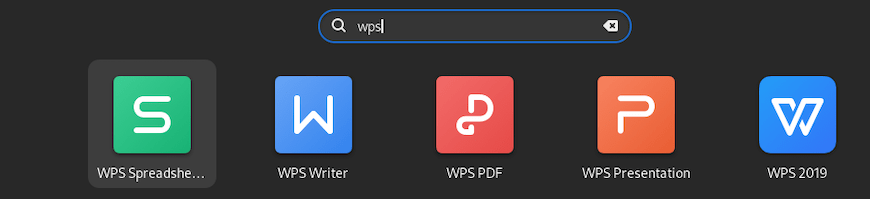
Open Activities, type WPS in the search bar, and click the application you need. Fedora registers all four desktop entries automatically after the install.
From the Terminal (RPM Install)
wps       # Opens WPS Writer
et        # Opens WPS Spreadsheets
wpp       # Opens WPS Presentation
wpspdf    # Opens WPS PDF Reader
From the Terminal (Flatpak Install)
flatpak run com.wps.OfficeFirst launch checklist:
- Accept the End User License Agreement (EULA) before the welcome screen appears.
- Skip the sign-in prompt if you only need local document editing without WPS cloud services.
- Open one existing
.docxor.xlsxfile right away to spot any font or layout differences before this becomes your daily driver.
Method 2: Install WPS Office on Fedora 43 via Flatpak
The WPS Office on Fedora 43 setup via Flatpak is the better choice if you want sandboxed installs and simpler updates. Note that Flathub marks this package as unverified and unsupported by Kingsoft directly.
Step 1: Confirm or Install Flatpak
Fedora 43 Workstation ships with Flatpak pre-installed. On minimal or Server installs, add it first:
sudo dnf install flatpak -yStep 2: Add the Flathub Repository
sudo flatpak remote-add --if-not-exists flathub https://dl.flathub.org/repo/flathub.flatpakrepoVerify Flathub is registered at system scope:
flatpak remotes | grep "^flathub"Expected output:
flathub systemStep 3: Install WPS Office from Flathub
sudo flatpak install flathub com.wps.Office -yThe -y flag auto-accepts runtime and permission prompts. Expect a larger initial download than the RPM because Flatpak also pulls in required runtime components.
Step 4: Verify the Flatpak Installation
flatpak info com.wps.Office | sed -n '1,12p'Expected output:
ID:             com.wps.Office
Ref:            app/com.wps.Office/x86_64/stable
Arch:           x86_64
Branch:         stable
Version:        11.1.0.11719
Origin:         flathub
Installation:   system
The Flatpak version may trail the official RPM slightly. If matching the upstream release version matters, stay with Method 1.
Updating the Flatpak Install
sudo flatpak update com.wps.Office -yMethod 3: Install WPS Office on Fedora 43 via Snap
This is a valid alternative for users who already run snapd on their Fedora system.
Step 1: Install and Enable snapd
sudo dnf install snapd -y
sudo ln -s /var/lib/snapd/snap /snap
Log out and log back in for snap paths to register correctly.
Step 2: Install WPS Office
sudo snap install wps-office-multilangThis installs the multilingual Snap build. Launch it from the Activities menu or with the wps command.
Updating the Snap Install
Snaps update automatically in the background. To force a manual refresh:
sudo snap refresh wps-office-multilangTroubleshooting WPS Office on Fedora 43
Error 1: “does not verify: no digest” During RPM Install
Cause: DNF5 rejects the WPS RPM because it lacks embedded digest metadata.
Fix: Never use sudo dnf install for the local WPS RPM file. Always use:
sudo rpm -ivh --nodigest --nofiledigest "$RPM_FILE"Error 2: WPS Office Fails to Launch After RPM Install
Cause: The libXScrnSaver library is missing.
Fix:
sudo dnf install libXScrnSaver -yThen relaunch WPS Office.
Error 3: “Can’t fetch summary from disabled remote ‘flathub'”
Cause: The Flathub remote got disabled, often after a Fedora update or a manual system change.
Fix:
flatpak remote-modify --enable flathubError 4: WPS Office Cannot Find CUPS Libraries for Printing
Cause: CUPS (Common Unix Printing System) is not installed or is not running on your Fedora system.
Fix:
sudo dnf install cups -y
sudo systemctl enable --now cups
Restart WPS Office after the service starts.
Error 5: WPS Office RPM Will Not Update via dnf upgrade
Cause: Fedora does not track the WPS upstream package in its official repositories. The manually installed RPM is invisible to dnf upgrade.
Fix: Re-run the download and rpm -ivh --nodigest --nofiledigest install steps manually when a new version releases.
How to Remove WPS Office on Fedora 43
Remove the RPM Install
sudo dnf remove wps-office -y
sudo rm -f /usr/local/bin/update-wps-office
rpm -q wps-office
Expected final output: package wps-office is not installed
Remove the Flatpak Install
sudo flatpak remove --delete-data com.wps.Office -y
sudo flatpak uninstall --unused -y
flatpak list --app --columns=application | grep -Fx com.wps.Office || echo NOT_INSTALLED
Remove Leftover User Data
find "$HOME" -maxdepth 4 \( \
  -path "$HOME/.config/Kingsoft" -o \
  -path "$HOME/.local/share/Kingsoft" -o \
  -path "$HOME/.cache/Kingsoft" -o \
  -path "$HOME/.var/app/com.wps.Office" \
\) -print
Delete any paths that the find command returns:
rm -rf ~/.config/Kingsoft
rm -rf ~/.var/app/com.wps.Office
Congratulations! You have successfully installed WPS Office. Thanks for using this tutorial for installing the WPS Office on your Fedora 43 Linux system. For additional help or useful information, we recommend you check the official WPS Office website.
