How To Install XnView MP on Debian 13

XnView MP stands as one of the most versatile image viewing and management applications available for Linux systems. This powerful, free software supports over 500 image formats, making it an indispensable tool for photographers, graphic designers, and anyone who works with digital images regularly. Whether you need to view, organize, convert, or edit images, XnView MP delivers professional-grade functionality without the price tag.
However, installing XnView MP on Debian 13 (Trixie) presents unique challenges that many users encounter. The latest Debian release introduced library changes that conflict with traditional installation methods. This comprehensive guide walks you through three proven installation methods, troubleshooting common issues, and optimizing your setup for the best experience.
By the end of this tutorial, you will have XnView MP running smoothly on your Debian 13 system, regardless of which installation method you choose.
Prerequisites and System Requirements
System Requirements
Before diving into installation, ensure your Debian 13 system meets the basic requirements. XnView MP runs efficiently on most modern hardware, but you will need at least 2GB of RAM for comfortable operation. Storage requirements are minimal — around 100–150MB for the application itself, though you will want additional space for image caching and thumbnails.
Your system should have a functioning desktop environment, whether that is GNOME, KDE Plasma, XFCE, or another DE. XnView MP integrates seamlessly with all major Linux desktop environments.
Before You Begin
You will need terminal access and sudo privileges to complete most installation methods. Do not worry if you are not a command-line expert — this guide provides every command you will need with clear explanations.
Make sure your internet connection is stable. You will be downloading packages and dependencies throughout the process.
Check your system architecture by opening a terminal and running:
uname -mThis command displays whether you are running a 64-bit (x86_64) or 32-bit (i686) system. Most modern Debian installations use 64-bit architecture.
Understanding Your Installation Options
Debian 13 users have three distinct methods for installing XnView MP, each with specific advantages.
DEB Package Installation
The traditional Debian package method offers native system integration and optimal performance. Your application appears in menus automatically, file associations work seamlessly, and updates integrate with your package manager. Unfortunately, Debian 13 introduced a dependency conflict that makes standard DEB installation problematic. You can work around this issue, but it requires additional steps.
AppImage Method
AppImage provides a self-contained, portable executable that runs without installation. Think of it as a universal application format that works across different Linux distributions. The AppImage method bypasses dependency issues entirely, making it the most reliable choice for Debian 13 users who want immediate functionality. The trade-off is slightly slower startup times and manual desktop integration.
Flatpak Installation
Flatpak represents modern Linux package management with sandboxed applications and automatic updates. This method provides clean installation, easy updates, and system isolation. However, the sandboxing sometimes limits integration with external tools.
For most Debian 13 users, AppImage offers the smoothest experience due to the known DEB package conflicts.
Method 1: Installing XnView MP via DEB Package
Downloading the Package
Navigate to the official XnView website at xnview.com and locate the download section. Select the Linux version, then choose the appropriate DEB package for your architecture. Most users need the 64-bit version with a filename ending in x64.deb.
Save the file to your Downloads folder. The filename follows this pattern: XnViewMP-linux-x64-1.9.3.deb (version numbers vary).
Understanding the Debian 13 Dependency Problem
Here is where things get technical. Debian 13 renamed certain system libraries, particularly libgcrypt and libgdk-pixbuf. XnView MP’s DEB package references the old library names, causing installation failures. When you try installing normally, you will encounter dependency errors that prevent completion.
This is not a flaw in XnView MP — it is a compatibility issue between package naming conventions.
Installation Process
First, update your system packages:
sudo apt update && sudo apt upgrade -yNavigate to your Downloads directory:
cd ~/DownloadsAttempt standard installation:
sudo dpkg -i XnViewMP-linux-x64-1.9.3.debWhen errors appear on Debian 13, note the missing dependencies before proceeding.
Fixing the Dependency Conflict
Here is the workaround that actually works. You will need to manually edit package information to match Debian 13’s library names.
First, install the package while ignoring dependency checks:
sudo dpkg --ignore-depends=libgdk-pixbuf2.0-0 -i XnViewMP-linux-x64-1.9.3.debNext, edit the package status file:
sudo nano /var/lib/dpkg/statusSearch for the XnView MP entry using Ctrl+W, then type “xnview”. Locate the “Depends:” line and change any reference from libgdk-pixbuf2.0-0 to libgdk-pixbuf-2.0-0 (note the hyphen placement).
Save the file using Ctrl+O, then Enter, then Ctrl+X.
Finally, resolve any remaining issues:
sudo apt --fix-broken installVerification
Test your installation by launching XnView MP from the terminal:
xnviewThe application should start without errors. Check the application menu — you will find XnView MP listed under Graphics or Multimedia.
Method 2: Installing XnView MP via AppImage
Downloading the AppImage
Return to the XnView download page and select the Linux AppImage option. This single file contains everything needed to run XnView MP.
Create a dedicated directory for AppImage applications:
mkdir -p ~/ApplicationsMove the downloaded file:
mv ~/Downloads/XnViewMP-*.AppImage ~/Applications/Making the AppImage Executable
AppImage files need execution permissions. Grant them with:
chmod +x ~/Applications/XnViewMP-*.AppImageThis command tells your system that the file is an executable program, not just data.
Running XnView MP
Launch the application directly from terminal:
~/Applications/XnViewMP-*.AppImageXnView MP starts immediately. No installation, no dependencies, no complications.
You can also double-click the file in your file manager. Most desktop environments recognize executable AppImage files and run them directly.
Creating Desktop Integration
For permanent menu integration, create a desktop entry file:
nano ~/.local/share/applications/xnviewmp.desktopAdd this content:
[Desktop Entry]
Name=XnView MP
Comment=Image Viewer and Manager
Exec=/home/YOUR_USERNAME/Applications/XnViewMP-*.AppImage
Icon=xnview
Terminal=false
Type=Application
Categories=Graphics;Viewer;
Replace YOUR_USERNAME with your actual username.
Save and update your desktop database:
update-desktop-database ~/.local/share/applicationsXnView MP now appears in your application menu.
Performance Considerations
AppImage files take slightly longer to start than natively installed applications because they mount themselves as temporary filesystems. The difference is typically 1–2 seconds — negligible for most users.
Choose AppImage when you prioritize reliability and simplicity over the last bit of performance optimization.
Method 3: Installing XnView MP via Flatpak
Installing Flatpak
Debian 13 might include Flatpak by default. Verify with:
flatpak --versionIf you see a version number, skip to the next section. Otherwise, install Flatpak:
sudo apt install flatpak -yFlatpak revolutionizes Linux software distribution by providing universal packages that work across distributions.
Adding the Flathub Repository
Flathub serves as the primary repository for Flatpak applications. Add it with:
sudo flatpak remote-add --if-not-exists flathub https://flathub.org/repo/flathub.flatpakrepoReboot your system to ensure complete Flatpak integration:
sudo rebootInstalling XnView MP
After rebooting, install XnView MP from Flathub:
flatpak install flathub com.xnview.XnViewMPConfirm the installation when prompted. Flatpak downloads the application and necessary runtime libraries — this might take several minutes depending on your connection speed.
Launching the Application
Start XnView MP with:
flatpak run com.xnview.XnViewMPThe application also appears in your desktop environment’s application menu, typically under the Graphics category.
Understanding Flatpak Limitations
Flatpak sandboxes applications for security, but this restricts file system access. You might encounter permission issues when accessing certain directories.
Grant additional permissions using Flatseal. Install it via Flatpak:
flatpak install flathub com.github.tchx84.FlatsealLaunch Flatseal, find XnView MP, and adjust filesystem permissions as needed.
Note that the Flatpak version has known limitations with external tools like Exiftool due to sandboxing restrictions. If you need advanced metadata editing, consider AppImage or DEB installation methods instead.
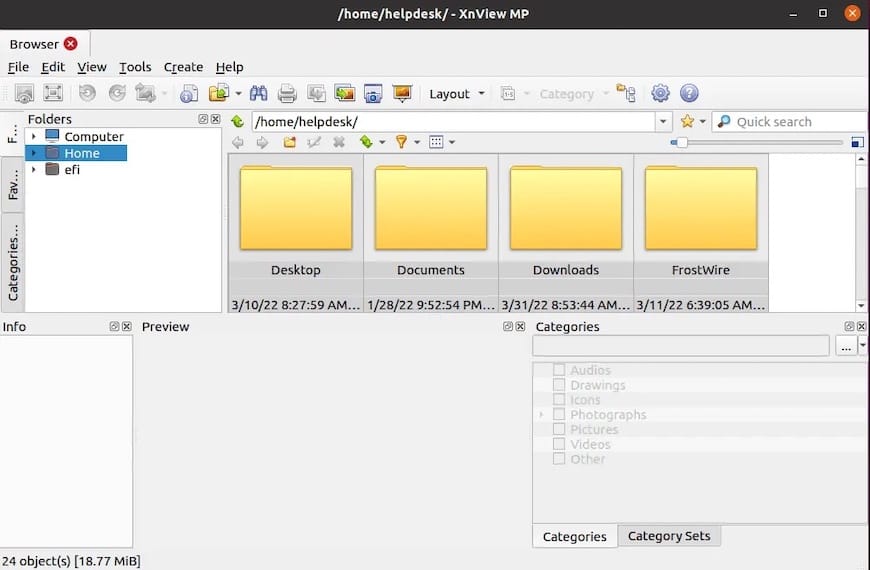
Managing Your Flatpak Installation
Update XnView MP alongside other Flatpak applications:
flatpak updateCheck for updates specifically:
flatpak remote-ls --updatesRemove the application if needed:
flatpak uninstall com.xnview.XnViewMPPost-Installation Configuration
Initial Setup
When you first launch XnView MP, a configuration wizard appears. Select your preferred interface language from the extensive list of supported languages.
The wizard asks about file associations. Decide which image formats you want XnView MP to handle by default. You can always adjust these later in the Preferences menu.
Configure the thumbnail cache location. XnView MP generates preview thumbnails for faster browsing — these consume disk space but dramatically improve performance when navigating large image libraries.
Essential Configuration Options
Access preferences through Edit > Preferences or press Ctrl+K.
Under General settings, adjust the interface theme and toolbar layout to match your workflow. XnView MP offers multiple viewing modes optimized for different tasks.
In the File Operations section, set default save locations and configure automatic backup options. Performance settings let you allocate RAM for caching — more cache means faster browsing, especially with large image libraries.
System Integration
Set XnView MP as your default image viewer system-wide:
xdg-mime default xnview.desktop image/jpeg image/png image/gifThis command associates common image formats with XnView MP across your entire Debian system.
Troubleshooting Common Issues
DEB Installation Failures
If you encounter “Solving dependencies… Error!” messages on Debian 13, you are experiencing the known library naming conflict. Follow the dependency override method detailed in Method 1 above.
For persistent broken package states, completely remove the package and start fresh:
sudo dpkg --purge xnview
sudo apt autoremove
Then retry installation with the dependency workaround.
AppImage Problems
“Permission denied” errors mean the file lacks execution rights. Reapply permissions:
chmod +x XnViewMP-*.AppImageIf AppImage still refuses to run, install the FUSE dependency:
sudo apt install fuse libfuse2Some systems require adding your user to the fuse group:
sudo usermod -a -G fuse $USERLog out and back in for changes to take effect.
Flatpak Issues
Cannot access certain folders? Flatpak’s sandboxing restricts filesystem access. Use Flatseal to grant permissions, or run with an override flag:
flatpak run --filesystem=host com.xnview.XnViewMPThis grants access to your entire filesystem — use it cautiously.
Exiftool integration does not work in the Flatpak version due to sandboxing limitations. If you need this functionality, choose the AppImage or DEB installation method instead.
Getting Help
The official XnView forums provide excellent community support. Search existing threads before posting — your issue has likely been addressed already. For Flatpak-specific problems, check the GitHub repository issues page. Debian community forums also offer assistance with distribution-specific complications.
Updating XnView MP
DEB Package Updates
Manual updates require downloading the new DEB package from the official website and repeating the installation process. The new version overwrites the old installation while preserving your settings and preferences.
AppImage Updates
Download the latest AppImage from xnview.com, then replace your existing file:
rm ~/Applications/XnViewMP-old-version.AppImage
mv ~/Downloads/XnViewMP-new-version.AppImage ~/Applications/
chmod +x ~/Applications/XnViewMP-new-version.AppImage
Update your desktop entry file if the filename changed significantly.
Flatpak Updates
Flatpak handles updates with a single command:
flatpak update com.xnview.XnViewMPThis convenience makes Flatpak an ideal choice for users who prefer low-maintenance software management.
Congratulations! You have successfully installed XnView. Thanks for using this tutorial for installing the XnView MP image organizer and viewer on Debian 13 “Trixie” system. For additional help or useful information, we recommend you check the official XnView website.
