How To Install Zammad on AlmaLinux 10

Zammad is a powerful open-source helpdesk and ticketing system that transforms how organizations manage customer support. Built with modern technologies and designed for scalability, this web-based solution handles email, chat, phone, and social media inquiries from a single unified interface. Installing Zammad on AlmaLinux 10 provides an enterprise-grade foundation for your support infrastructure, combining the stability of Red Hat Enterprise Linux compatibility with the freedom of open-source software.
This comprehensive guide walks you through every step of deploying Zammad on AlmaLinux 10, from initial system preparation to post-installation optimization. Whether you’re setting up a small team helpdesk or an enterprise support platform, you’ll find detailed instructions, practical troubleshooting advice, and security best practices to ensure a successful deployment.
Prerequisites and System Requirements
Before beginning the installation process, verify that your server meets the necessary hardware and software specifications.
Hardware Requirements
Your AlmaLinux 10 server should have at minimum 2 GB of RAM and 10 GB of available disk space. For production environments handling significant ticket volumes, 4 GB of RAM or more is strongly recommended. A 64-bit processor running at 1.1 GHz or faster ensures adequate performance. Network connectivity is essential for downloading packages and, eventually, for users accessing the helpdesk system.
Software Requirements
A fresh or updated AlmaLinux 10 installation serves as the foundation. Root access or sudo privileges are mandatory for installing system packages and configuring services. While optional, having a registered domain name simplifies SSL certificate installation and provides a professional appearance. The installation requires several key dependencies: PostgreSQL for database management, Nginx as the web server and reverse proxy, Redis for caching, Elasticsearch for advanced search functionality, and Node.js for JavaScript processing.
Pre-Installation Steps
Proper system preparation prevents complications during the main installation phase.
Update System Packages
Connect to your server via SSH and elevate to root privileges. Update all existing packages to their latest versions:
dnf update -y
dnf install epel-release -y
dnf install nano wget curl vim net-tools -y
The EPEL (Extra Packages for Enterprise Linux) repository provides additional software packages that Zammad dependencies require. Essential tools like nano, wget, and curl facilitate configuration file editing and downloading necessary components.
Configure Hostname
Set a meaningful hostname that identifies your Zammad server:
hostnamectl set-hostname zammad.yourdomain.com
echo "127.0.0.1 zammad.yourdomain.com" >> /etc/hosts
Replace zammad.yourdomain.com with your actual domain or desired hostname. This configuration ensures proper name resolution and prevents potential service issues.
SELinux Configuration
Security-Enhanced Linux (SELinux) provides additional security layers but can interfere with Zammad operation. Check the current status:
getenforceFor smoother Zammad operation, set SELinux to permissive mode:
setenforce 0
sed -i 's/SELINUX=enforcing/SELINUX=permissive/g' /etc/selinux/config
While this reduces one security layer, it prevents service conflicts. Advanced users can maintain enforcing mode by creating custom SELinux policies for Zammad.
Installing Core Dependencies
Zammad relies on multiple backend services that must be installed and configured properly.
Install PostgreSQL Database
PostgreSQL serves as Zammad’s primary data store, managing tickets, users, and system configurations. Install and initialize PostgreSQL:
dnf install postgresql-server postgresql-contrib -y
postgresql-setup --initdb
systemctl start postgresql
systemctl enable postgresql
These commands install PostgreSQL, initialize the database cluster, and configure automatic startup on system boot. PostgreSQL’s reliability and advanced features make it ideal for helpdesk applications handling mission-critical data.
Install and Configure Elasticsearch
Elasticsearch powers Zammad’s search functionality, enabling rapid ticket searches across large datasets. First, install the Java runtime environment that Elasticsearch requires:
dnf install java-11-openjdk java-11-openjdk-devel -yImport the Elasticsearch GPG key and add the repository:
rpm --import https://artifacts.elastic.co/GPG-KEY-elasticsearch
cat > /etc/yum.repos.d/elasticsearch.repo <<EOF
[elasticsearch-8.x]
name=Elasticsearch repository for 8.x packages
baseurl=https://artifacts.elastic.co/packages/8.x/yum
gpgcheck=1
gpgkey=https://artifacts.elastic.co/GPG-KEY-elasticsearch
enabled=1
autorefresh=1
type=rpm-md
EOF
Install and configure Elasticsearch:
dnf install elasticsearch -yEdit the Elasticsearch configuration file:
nano /etc/elasticsearch/elasticsearch.ymlModify these essential settings:
cluster.name: zammad
node.name: node-1
network.host: 127.0.0.1
http.port: 9200
Start and enable the Elasticsearch service:
systemctl start elasticsearch
systemctl enable elasticsearch
Verify Elasticsearch is running:
curl -X GET "localhost:9200/"A JSON response containing cluster information confirms successful installation.
Install Nginx Web Server
Nginx acts as the reverse proxy, handling HTTP requests and forwarding them to Zammad’s application server:
dnf install nginx -y
systemctl start nginx
systemctl enable nginx
Install Additional Dependencies
Complete the dependency installation with Redis and Memcached for caching, plus development libraries:
dnf install redis memcached -y
dnf install imlib2 imlib2-devel sqlite-devel libyaml-devel -y
systemctl start redis
systemctl enable redis
Adding Zammad Repository and Installation
With dependencies in place, proceed to install Zammad itself.
Import Zammad GPG Key
Package signing ensures software authenticity and integrity. Import Zammad’s GPG key:
rpm --import https://dl.packager.io/srv/zammad/zammad/keyThis cryptographic verification protects against tampered or malicious packages.
Add Zammad Repository
Create the repository configuration for AlmaLinux 10:
cat > /etc/yum.repos.d/zammad.repo <<EOF
[zammad]
name=Zammad Repository
baseurl=https://dl.packager.io/srv/rpm/zammad/zammad/stable/el/9/\$basearch
gpgcheck=1
gpgkey=https://dl.packager.io/srv/zammad/zammad/key
enabled=1
EOF
AlmaLinux 10 uses the el/9 repository path due to its RHEL 9 compatibility foundation.
Install Zammad Package
Execute the installation command:
dnf install zammad -yThis process installs all Zammad components to /opt/zammad, including the application code, systemd service files, and initial configuration templates. Installation typically completes within 5-10 minutes depending on server specifications and network speed.
After installation, fix directory permissions:
chown -R zammad:zammad /opt/zammad/publicConfiguring and Starting Zammad Services
Zammad operates through multiple systemd services that work together.
Enable Zammad Services
Start the core Zammad services:
systemctl start zammad
systemctl enable zammad
The main zammad service actually manages several sub-services including zammad-web (the web interface), zammad-worker (background job processor), and zammad-websocket (real-time updates). Verify all services are running:
systemctl status zammadGreen “active (running)” indicators confirm successful startup. If any service shows failed status, check logs in /var/log/zammad/ for diagnostic information.
Configure Firewall Rules
AlmaLinux 10’s firewalld blocks incoming connections by default. Open necessary ports:
firewall-cmd --permanent --add-service=http
firewall-cmd --permanent --add-service=https
firewall-cmd --reload
Verify the rules:
firewall-cmd --list-servicesBoth http and https should appear in the output. These rules permit web traffic while maintaining security for all other ports.
Completing Web-Based Setup
With services running, complete the configuration through Zammad’s web interface.
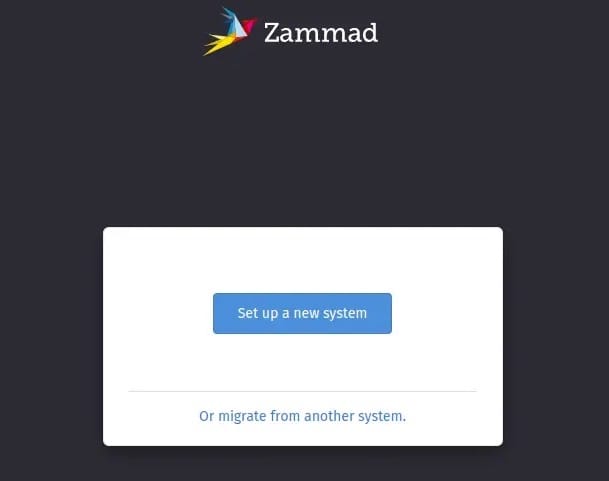
Open your web browser and navigate to http://your-server-ip/. The Zammad setup wizard appears automatically on first access. The initial screen prompts you to create an administrator account. Enter a strong password combining uppercase letters, lowercase letters, numbers, and special characters.
The next screen requests organization details including company name, system URL, and language preferences. Configure email integration by providing SMTP server details for outgoing mail and IMAP or POP3 credentials for incoming ticket creation. This integration transforms customer emails into trackable tickets automatically.
Channel setup allows enabling additional communication methods. Activate the web form for customers to submit tickets directly through your website. Connect social media accounts if you handle support through Twitter or Facebook. Slack integration enables team collaboration within your existing communication workflows.
Branding options let you customize the interface appearance. Upload your company logo, adjust color schemes, and modify the footer text. These cosmetic changes create a professional, branded support environment aligned with your organization’s identity.
Securing Zammad with SSL/TLS Certificate
HTTPS encryption protects sensitive customer data and administrator credentials during transmission.
Install Certbot, the Let’s Encrypt client:
dnf install certbot python3-certbot-nginx -yRequest and install an SSL certificate:
certbot --nginx -d zammad.yourdomain.comCertbot prompts for an email address for renewal notifications and terms of service acceptance. It automatically configures Nginx to use the certificate and redirects HTTP traffic to HTTPS.
Test automatic renewal:
certbot renew --dry-runSuccessful dry-run output confirms that certificates will renew automatically before expiration. Let’s Encrypt certificates expire every 90 days, but Certbot’s systemd timer handles renewal automatically.
Post-Installation Configuration and Optimization
Fine-tuning improves performance and reliability.
Adjust Elasticsearch memory allocation if your server has more than 4 GB RAM. Edit /etc/elasticsearch/jvm.options:
nano /etc/elasticsearch/jvm.optionsModify heap size settings (use half of available RAM, maximum 32 GB):
-Xms2g
-Xmx2g
Restart Elasticsearch after changes:
systemctl restart elasticsearchImplement a backup strategy to protect against data loss. Zammad includes rake tasks for backup creation:
cd /opt/zammad
sudo -u zammad rake zammad:backup:create
Schedule daily backups using cron. Edit the zammad user’s crontab:
crontab -e -u zammadAdd this line for daily 2 AM backups:
0 2 * * * cd /opt/zammad && rake zammad:backup:createConfigure user roles and permissions through the admin interface. Navigate to Manage → Users → Roles to create custom role definitions. Separate agent permissions from administrator capabilities following the principle of least privilege.
Customize email templates to match your brand voice and communication style. Access Templates through the admin panel and modify automated responses, ticket notifications, and escalation messages.
Troubleshooting Common Issues
Even careful installations encounter occasional problems.
Elasticsearch Connection Failures: If Zammad cannot connect to Elasticsearch, verify the service is running and listening on port 9200. Check firewall rules allowing localhost connections. Examine Elasticsearch logs at /var/log/elasticsearch/zammad.log for startup errors. Memory constraints often prevent Elasticsearch from starting; increase available RAM or reduce heap size allocation.
Permission Errors: File permission problems manifest as 403 errors or inability to upload attachments. Reset permissions:
chown -R zammad:zammad /opt/zammad
chmod -R 755 /opt/zammad/public
Service Startup Failures: When zammad services fail to start, review systemd journal entries:
journalctl -u zammad -n 50Database connection issues, port conflicts, or missing dependencies typically cause startup failures. Address the specific error message displayed.
Nginx Configuration Conflicts: If Nginx serves the default page instead of Zammad, verify the Zammad Nginx configuration exists at /etc/nginx/sites-enabled/zammad.conf (or /etc/nginx/conf.d/zammad.conf on RHEL-based systems). Ensure no other server blocks conflict with Zammad’s port 80/443 usage.
SELinux Blocking Issues: If SELinux remains in enforcing mode, check for denials:
ausearch -m avc -ts recentCreate targeted policies for identified issues or switch to permissive mode as described earlier.
Maintenance and Best Practices
Regular maintenance ensures long-term reliability and security.
Update AlmaLinux system packages monthly to receive security patches and bug fixes. Before updating, create a backup to enable rapid restoration if updates cause unexpected issues.
Upgrade Zammad when new versions release by updating the package:
dnf update zammadThe package manager handles database migrations and configuration updates automatically. Always review release notes before upgrading production systems.
Monitor system resources including CPU usage, memory consumption, and disk space. Elasticsearch particularly benefits from adequate RAM allocation. Database size grows with ticket volume; plan storage capacity accordingly.
Implement log rotation to prevent log files from consuming excessive disk space. AlmaLinux’s logrotate typically handles this automatically, but verify configuration exists for /var/log/zammad/.
Security hardening includes keeping all software current, using strong passwords enforced through Zammad’s password policies, enabling two-factor authentication for administrator accounts, and restricting SSH access to key-based authentication only.
Congratulations! You have successfully installed Zammad. Thanks for using this tutorial for installing the Zammad ticketing system on AlmLinux 10 system. For additional help or useful information, we recommend you check the official Zammad website.
