
The landscape of code editors continues to evolve with innovative solutions that push the boundaries of performance and collaboration. Zed Code Editor represents a paradigm shift in modern development environments, combining lightning-fast performance with multiplayer capabilities and native AI integration. Built from the ground up using Rust by the creators of Atom and Tree-sitter, Zed delivers a responsive editing experience that leverages GPU acceleration through Vulkan. This comprehensive guide walks you through multiple installation methods for Zed on Debian 13, ensuring you can harness its full potential on one of Linux’s most stable distributions.
What is Zed Code Editor?
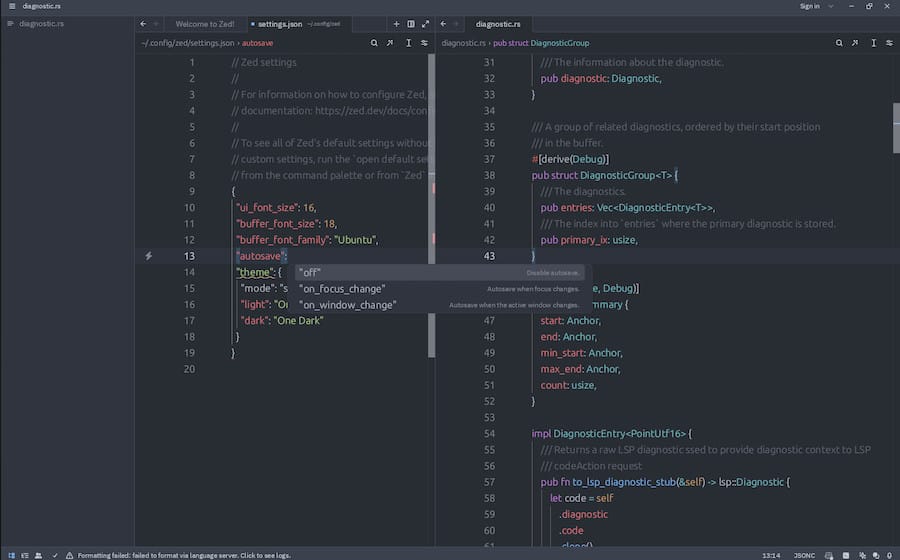
Zed is an open-source, high-performance code editor designed specifically for collaborative development workflows. Unlike traditional editors that treat collaboration as an afterthought, Zed builds multiplayer functionality into its core architecture. The editor’s foundation in Rust provides exceptional speed and memory safety, while its GPU-accelerated rendering ensures smooth scrolling and instant responsiveness even with large codebases.
What distinguishes Zed from competitors like Visual Studio Code or Sublime Text is its native real-time collaboration system. Multiple developers can edit the same codebase simultaneously with integrated chat and screen sharing, eliminating the need for third-party extensions or services. The editor implements Tree-sitter for intelligent syntax highlighting and Language Server Protocol (LSP) support for comprehensive language features including autocomplete, go-to-definition, and refactoring tools.
Zed’s AI integration represents another significant advancement. The editor features agentic editing capabilities that allow developers to delegate entire tasks to AI assistants, inline transformation tools for code modification, and edit prediction powered by the Zeta language model. These features work seamlessly with multiple LLM providers, offering flexibility in choosing your preferred AI backend.
The editor’s architecture prioritizes efficiency. Hardware acceleration ensures minimal resource consumption compared to Electron-based alternatives. Built-in Git support provides first-class version control without external plugins, while remote development capabilities let you run code on servers while maintaining a responsive local UI. The multibuffer feature aggregates code from multiple files into a single editable view, streamlining refactoring across project boundaries.
Key Features of Zed Code Editor
Performance and Speed
Zed’s Rust-based architecture delivers exceptional performance that developers notice immediately. The editor starts in milliseconds and maintains responsiveness with projects containing thousands of files. GPU acceleration offloads rendering tasks to graphics hardware, ensuring smooth scrolling and fluid animations regardless of file size. Memory management remains efficient even during extended editing sessions, avoiding the bloat common in Electron applications.
Multiplayer Collaboration
Real-time collaboration transforms how teams work together on code. Zed’s multiplayer mode enables multiple developers to edit files simultaneously with cursor positions, selections, and edits visible to all participants instantly. The integrated chat system keeps communication contextual without switching applications. Screen sharing functionality allows team members to follow along with complex debugging or architectural discussions. These features work seamlessly over network connections, requiring no additional infrastructure beyond the Zed installation.
AI-Powered Development
Zed’s AI capabilities extend beyond simple autocomplete. Agentic editing lets you describe changes in natural language and delegate implementation to AI assistants that understand your codebase context. The inline assistant transforms selected code based on instructions, whether refactoring, documenting, or optimizing. Edit prediction anticipates your next actions, offering suggestions before you finish typing. Support for multiple LLM models including GPT-4, Claude, and local models provides flexibility in balancing capability with privacy concerns.
Modern Development Workflow
The multibuffer system revolutionizes cross-file refactoring by consolidating related code sections into unified views. Remote development support separates UI rendering from code execution, enabling work on powerful servers while maintaining local responsiveness. The extension system allows customization through community plugins while maintaining core stability. Native Git integration handles staging, committing, pushing, and conflict resolution directly within the editor interface.
Understanding Debian 13 (Trixie)
Debian 13, codenamed “Trixie,” continues the distribution’s tradition of stability combined with modern features. The release incorporates Linux Kernel 6.12 LTS, providing extended support and enhanced hardware compatibility. Notable improvements include native RISC-V architecture support, expanding Debian’s reach to emerging processor designs.
ARM64 platforms benefit from security enhancements including memory tagging extensions and improved cryptographic acceleration. The installer receives usability improvements with better disk partitioning workflows and hardware detection. HTTP Boot support for UEFI systems simplifies network-based installations in enterprise environments.
Debian 13’s stability makes it an ideal foundation for development work. The distribution’s rigorous testing ensures packages work reliably together. Long-term support commitments mean your development environment remains consistent across years of active use. These characteristics complement Zed’s modern features, creating a robust platform for software development.
System Requirements
Debian 13 System Prerequisites
Your Debian 13 installation requires a dual-core processor running at 2 GHz or faster, supporting either AMD64 or ARM architectures. Memory requirements start at 2 GB RAM, though 4-8 GB provides better performance for development workflows. Allocate at least 25 GB disk space for the base system, with additional storage for projects and dependencies. Display resolution should support 1024×768 minimum, though higher resolutions improve productivity.
Zed Code Editor Specifications
Zed demands more specific requirements due to its GPU-accelerated architecture. The CPU should be multi-core with at least 2 GHz speed for optimal responsiveness. RAM requirements begin at 4 GB minimum, with 8 GB recommended for handling large projects with multiple extensions. Disk space needs include approximately 500 MB for the editor itself plus room for extensions and configuration.
GPU requirements deserve special attention. Zed requires Vulkan-compatible graphics hardware, including integrated GPUs found in most modern processors. Dedicated graphics cards are unnecessary; Intel HD Graphics, AMD Radeon integrated graphics, or NVIDIA integrated solutions all suffice. Software-emulated GPU rendering provides fallback support but significantly impacts performance.
System libraries include glibc version 2.31 or newer for x86_64 architectures (Intel/AMD processors) and glibc version 2.35 or newer for aarch64 systems (ARM processors). These requirements ensure access to modern system calls and security features Zed depends on.
Prerequisites Before Installation
Begin by ensuring your Debian 13 installation is current. Open a terminal and update package indexes with system packages using the standard update commands. You’ll need root privileges through sudo access for system-level installations.
Verify your system specifications match requirements. Check CPU information, available memory, and current glibc version through standard Linux utilities. Understanding your hardware capabilities prevents installation issues.
Verifying Vulkan Support
Vulkan compatibility represents the most critical prerequisite. Install Vulkan tools to test GPU support:
sudo apt update
sudo apt install vulkan-tools libvulkan1 mesa-vulkan-drivers
After installation, verify Vulkan availability:
vulkaninfoSuccessful output displays detailed GPU capabilities. Error messages indicate missing drivers or incompatible hardware. Systems lacking physical GPU support can use software emulation, though performance suffers significantly.
For building from source, install development tools including Git for repository management and curl for downloading resources. The build-essential package provides compilers and build tools necessary for compiling Rust applications.
Method 1: Installing Zed Using Official Installation Script (Recommended)
The official installation script provides the simplest path to running Zed on Debian 13. This method automatically handles architecture detection, downloads appropriate binaries, and configures desktop integration.
Step 1: Open Terminal
Launch your terminal emulator from Debian’s application menu or use the keyboard shortcut for your desktop environment.
Step 2: Download and Execute Installation Script
Run the following command to download and execute the official installer:
curl -fsSL https://zed.dev/install.sh | shThe curl flags serve specific purposes: -f fails silently on server errors, -s enables silent mode without progress meters, -S shows errors despite silent mode, and -L follows redirects. The script pipes directly to sh for immediate execution.
The installer automatically detects whether you’re running x86_64 or ARM architecture, downloads the corresponding Zed build, extracts files to ~/.local/bin for the executable, and creates desktop launcher entries in ~/.local/share/applications. This user-level installation requires no root privileges and keeps Zed isolated from system directories.
Step 3: Wait for Installation to Complete
Download and installation typically complete within minutes depending on internet speed. The script displays progress information and confirms successful installation.
Step 4: Refresh Your Shell Environment
Update your current shell session to recognize the new installation:
source ~/.bashrcThis command reloads shell configuration, ensuring the PATH includes Zed’s binary location.
Step 5: Verify Installation
Confirm successful installation by checking the version:
zed --versionLaunch Zed from terminal:
zedThe editor window should appear displaying the welcome screen.
Step 6: Launch Zed from Applications Menu
Find Zed in your desktop environment’s application launcher under the Development or Programming category. Click the icon to launch. Right-click the launcher icon to add it to favorites or create desktop shortcuts for quick access.
This installation method offers significant advantages: simplicity requires minimal user intervention, automatic updates keep Zed current without manual intervention, user-level installation avoids permission complications, and minimal configuration gets you editing quickly.
Method 2: Installing Zed from Release Tarball
Manual installation from release tarballs provides control over installation location and supports system-wide deployment for multiple users.
Step 1: Download Latest Release
Visit the Zed releases page on GitHub to identify the current version. Download the appropriate tarball:
curl -LO https://github.com/zed-industries/zed/releases/download/v0.144.3/zed-linux-x86_64.tar.gzReplace the version number with the latest available release. The -L flag follows redirects while -O saves the file with its original name.
Step 2: Extract to /opt Directory
The /opt directory conventionally stores third-party software on Linux systems. Extract Zed there:
sudo tar -C /opt -xzf zed-linux-x86_64.tar.gzThe -C flag changes to the target directory before extraction, -x extracts files, -z handles gzip compression, and -f specifies the filename.
Step 3: Create Symbolic Link for Binary
Make Zed accessible system-wide by linking the executable to PATH:
sudo ln -s /opt/zed.app/bin/zed /usr/local/bin/zedThe /usr/local/bin directory appears in PATH by default and conventionally holds locally installed software, distinguishing it from distribution-managed packages in /usr/bin.
Step 4: Create Desktop Launcher Link
Enable desktop environment integration:
sudo ln -s /opt/zed.app/share/applications/zed.desktop /usr/share/applications/This symbolic link makes Zed appear in application menus for all users.
Step 5: Update Desktop Database
Refresh desktop environment cache to recognize the new application:
sudo update-desktop-databaseStep 6: Launch and Verify
Test the installation:
zed --version
zed
System-wide availability means any user can launch Zed. Version control becomes explicit since you choose specific releases. Multiple users share a single installation, saving disk space. The trade-off involves manual update procedures and initial root privilege requirements.
Method 3: Building Zed from Source
Building from source provides access to latest development features and enables custom modifications.
Step 1: Install Git
Ensure Git is available for cloning repositories:
sudo apt update
sudo apt install git
Step 2: Install Build Dependencies
Compile Zed requires essential build tools:
sudo apt install build-essential curlThe build-essential package bundles GCC compiler, make, and related tools. Curl downloads additional dependencies during the build process.
Step 3: Clone Zed Repository
Download the complete source code:
git clone https://github.com/zed-industries/zed
cd zed
The repository includes all source files, build scripts, and documentation.
Step 4: Run Dependency Installation Script
Zed’s dependency script automates complex setup:
./script/install-depsThis script installs Rust and its toolchain through rustup, sets up Cargo package manager, configures additional system dependencies, and adds ~/.cargo/bin to your PATH automatically.
Step 5: Source Bashrc and Build
Refresh environment variables and compile:
source ~/.bashrc
script/install-linux
Build time varies based on system performance, ranging from minutes on powerful machines to over an hour on modest hardware. Rust compilation requires significant CPU and memory resources.
Step 6: Verify Installation
The build installs binaries to ~/.local/bin/zed and desktop launchers to ~/.local/share/applications. Verify:
zed --versionBuilding from source grants access to cutting-edge features before official releases, allows code modifications for specific needs, and provides insight into Zed’s architecture. However, expect longer setup time, higher disk space requirements during compilation, and more technical knowledge prerequisites.
Post-Installation Configuration
First launch presents configuration options. Choose your preferred theme from available light and dark variants. Select keymap preferences matching your muscle memory from other editors or accept Zed’s defaults. Configure telemetry settings based on privacy preferences.
Essential configurations include setting default programming language preferences, configuring file associations for common extensions, and adjusting editor preferences like font family and size, line number display, indentation style (tabs versus spaces), and line wrapping behavior.
Installing Extensions
Access the extension marketplace through Zed’s interface. Recommended extensions include comprehensive Python support with syntax highlighting and debugging, JavaScript and TypeScript tools including linters and formatters, Rust integration with cargo support, and enhanced Git visualization tools.
Setting Up AI Features
Configure AI capabilities by connecting to your preferred LLM provider. GitHub Copilot integration requires authentication through GitHub account. Alternative providers need API key configuration. Enable edit prediction features and customize inline assistant behavior to match your development style.
Customizing Themes and Appearance
Explore built-in themes covering various color schemes and contrast levels. Install community themes from the extension marketplace. Configure custom fonts supporting programming ligatures for enhanced readability.
Troubleshooting Common Issues
Issue 1: Vulkan/GPU Compatibility Errors
The “NoSupportedDeviceFound” error indicates Vulkan driver problems. Install comprehensive driver support:
sudo apt install vulkan-tools libvulkan1 libvulkan-dev mesa-vulkan-driversVerify installation:
vulkaninfoSystems lacking GPU support can use software emulation:
export ZED_ALLOW_EMULATED_GPU=1
zed
Understand that emulated GPU rendering significantly reduces performance, causing lag with large files and slower scrolling and rendering.
Issue 2: Zed Won’t Launch After Installation
Check installation paths match expected locations. Verify executable permissions allow running. Review system logs for error messages providing clues. Ensure all dependencies installed correctly.
Issue 3: Performance Issues or Lag
Update GPU drivers to latest versions from Debian repositories. Monitor system resources to identify bottlenecks. Disable unnecessary extensions consuming resources. Close competing applications demanding GPU or memory.
Issue 4: Missing Dependencies
Incompatible glibc versions prevent Zed from running. Check your version matches requirements. Install missing system libraries indicated in error messages. Review error logs for specific dependency names.
Issue 5: Desktop Launcher Not Appearing
Manually update the desktop database:
sudo update-desktop-databaseRefresh cache for your specific desktop environment. Create custom .desktop files if automatic generation fails.
Verifying Successful Installation
Comprehensive verification ensures all components function correctly. Command-line testing includes checking version output, confirming installation path, and opening files successfully.
GUI verification involves finding Zed in applications menu without errors, creating and opening test projects, confirming theme rendering displays correctly, and testing basic editing features like typing and saving.
Feature testing confirms syntax highlighting works for multiple languages, extensions load without conflicts, AI features become accessible after configuration, terminal integration functions properly, and Git integration recognizes repositories.
Getting Started with Zed Editor
Navigate Zed using the command palette accessed with Ctrl+Shift+P for executing commands by name. The file explorer sidebar manages project structure. Quick file switching through Ctrl+P jumps between files instantly. Split panes divide workspace for simultaneous file viewing.
Essential keyboard shortcuts include Ctrl+O for opening files, Ctrl+Shift+F for project-wide searching, Ctrl+D for multi-cursor editing selections, and terminal access through built-in panels.
Opening projects from terminal uses simple syntax:
zed /path/to/projectAlternatively, use File menu and Open option in GUI.
The integrated terminal opens within Zed for running commands without switching applications. Customize terminal appearance and behavior through settings. Execute build scripts, run tests, and manage Git commands in-context.
Collaborative features enable starting sessions, sharing workspace URLs with team members, editing files simultaneously with real-time synchronization, and communicating through integrated chat.
Working with AI assistant involves invoking inline tools with keyboard shortcuts, describing desired changes in natural language, generating code based on specifications, and receiving context-aware suggestions.
Comparison: Zed vs Other Code Editors
Zed excels against Visual Studio Code in raw performance, consuming fewer resources due to native compilation. VSCode offers a more mature extension ecosystem with thousands of plugins. Collaboration in Zed works natively without additional setup, while VSCode requires Live Share extensions.
Comparing with Sublime Text reveals both prioritize speed, but Zed adds modern features like AI integration and multiplayer. Sublime Text requires purchasing licenses while Zed remains fully open-source.
Against Neovim, Zed provides more approachable learning curves for beginners. Neovim offers unmatched customization through Lua configuration. Zed’s GUI-first approach contrasts with Neovim’s terminal-centric philosophy. Multiplayer collaboration represents Zed’s clear advantage.
Choose Zed when projects involve team collaboration, AI-assisted development accelerates workflows, performance-critical scenarios demand efficiency, or modern integrated development experiences match preferences.
Best Practices for Using Zed on Debian 13
Optimize performance by maintaining current GPU drivers through regular Debian updates. Manage extensions judiciously, enabling only necessary functionality. Monitor resource usage to identify problematic plugins.
Security considerations include applying regular updates promptly, vetting extensions before installation from trusted sources, and managing credentials for AI features securely using environment variables or credential managers.
Workflow integration involves optimizing Git workflows with built-in version control, integrating with CI/CD pipelines through terminal commands, and setting up container development with Docker or Podman.
Backup and update strategies include exporting configuration regularly, following appropriate update procedures for each installation method, and maintaining rollback procedures if updates cause issues.
Community resources provide valuable support through official documentation at zed.dev, GitHub discussions for questions and feature requests, community extensions expanding functionality, and bug reporting channels for contributing to development.
Congratulations! You have successfully installed Zed code editor. Thanks for using this tutorial for installing the Zed code editor on Debian 13 “Trixie” system. For additional help or useful information, we recommend you check the official Zed website.
