How To Install Zenmap on Debian 13

Network security starts with visibility. If you cannot see what is running on your network, you cannot protect it. Zenmap is the official graphical user interface for Nmap, and it gives you a visual, beginner-friendly way to perform network discovery and security auditing without memorizing long command flags. In this Linux server tutorial, you will learn exactly how to install Zenmap on Debian 13 (Trixie) using three proven methods: APT, Flatpak, and source compilation. By the end, you will have a fully working Zenmap installation and know how to run your first network scan.
What Is Zenmap and Why Use It on Debian 13?
Nmap (Network Mapper) is the industry-standard open-source tool for network scanning, port discovery, service detection, and OS fingerprinting. It is powerful — but it is entirely command-line based, which can be intimidating for beginners and slow for repetitive tasks.
Zenmap solves that problem. It is a free, cross-platform GUI that wraps Nmap with a clean interface. You get an interactive command builder, saved scan profiles, a visual topology map, and the ability to compare scan results across sessions.
Debian 13, codenamed Trixie, ships with Nmap 7.95 in its official repositories, which bundles Zenmap support. This makes Debian 13 one of the most up-to-date stable distributions for running Zenmap without extra configuration. Whether you are a sysadmin auditing a corporate LAN or a developer testing a home lab, Zenmap on Debian 13 gives you a solid, production-ready platform.
Key reasons to use Zenmap:
- No need to memorize Nmap flags — build commands visually with the GUI
- Save, reload, and schedule scan profiles for regular audits
- Visualize your network topology with the built-in host map
- Compare two scan results side by side to detect new or removed hosts
- Full access to all Nmap scan types: SYN, UDP, OS detection, service versioning
Prerequisites
Before you begin the Zenmap on Debian 13 setup, confirm you meet these requirements:
- Operating system: Debian 13 (Trixie) — bare metal, virtual machine, or VPS
- User privileges: A sudo-enabled user account or root access
- Internet connection: Required to download packages or source code
- Python 3: Must be installed (it is available by default on Debian 13)
- Disk space: Minimum 500 MB free; source compilation needs closer to 1.5 GB
- Terminal access: SSH or local console access to run commands
- Basic terminal familiarity: You should know how to navigate directories and run commands
If you are on a fresh Debian 13 installation, it is also a good idea to update the system before installing anything new. This avoids dependency mismatches and ensures you pull the latest security patches.
Step 1: Update Your Debian 13 System
Always start with a system update. This refreshes the package index and applies pending upgrades so your installation environment is clean and consistent.
sudo apt update && sudo apt upgrade -yThe apt update command pulls the latest package metadata from Debian’s repositories. The apt upgrade -y command applies any available updates automatically without asking for confirmation each time.
You should see output listing packages being upgraded, followed by a summary line like:
0 upgraded, 0 newly installed, 0 to remove and 0 not upgraded.If upgrades are applied, the system may prompt you to restart certain services. Allow it to do so before moving forward.
Step 2: Install Zenmap on Debian 13 via APT (Recommended Method)
This is the fastest and most reliable method for most users. The Zenmap package in Debian 13’s official repositories pulls all required Python 3 GTK dependencies automatically, so you do not need to install anything manually.
Install Nmap and Zenmap Together
Run the following single command to install both Nmap and Zenmap at once:
sudo apt install nmap zenmap -yAPT will resolve and install all required dependencies automatically. The -y flag approves the installation without prompting.
If the Zenmap Package Is Not Found
In rare cases where the zenmap package is not yet in the stable Trixie repos, use the backports channel:
sudo apt install -t trixie-backports zenmapThis pulls the backported package from Debian’s testing stream while keeping the rest of your system on the stable channel.
Verify the APT Installation
After installation completes, confirm both tools are installed:
nmap --version
zenmap --version
You should see output similar to:
Nmap version 7.95 ( https://nmap.org )
Zenmap version 7.95
Launch Zenmap After APT Install
Start Zenmap with root privileges (required for privileged scan types like SYN scans and OS detection):
sudo zenmapThe Zenmap GUI will open. You can now enter a target IP address or hostname and start scanning.
Step 3: Install Zenmap on Debian 13 via Flatpak (Sandboxed Method)
If you prefer the latest Zenmap version in a sandboxed environment — or if you want to avoid system-level package changes — Flatpak is a solid alternative. Flatpak packages are self-contained and do not interfere with your system’s APT packages.
Install Flatpak on Debian 13
sudo apt install flatpak -yAdd the Flathub Repository
Flathub is the primary source for Flatpak applications, including the official Zenmap build:
flatpak remote-add --if-not-exists flathub https://flathub.org/repo/flathub.flatpakrepoThe --if-not-exists flag prevents errors if Flathub is already configured on your system.
Install Zenmap from Flathub
flatpak install flathub org.nmap.ZenmapFlatpak will download the Zenmap runtime and all required libraries into the sandbox.
Launch Zenmap via Flatpak
flatpak run org.nmap.ZenmapImportant limitation: The Flatpak version of Zenmap runs in a restricted sandbox and cannot execute as root. This means privileged scan types — including SYN stealth scans (-sS) and OS fingerprinting (-O) — are unavailable with this installation method.
Use the Flatpak method only if you need a quick desktop installation for basic host discovery and non-privileged scans. For full Nmap capabilities, use the APT or source installation methods.
Step 4: Install Zenmap on Debian 13 from Source (Advanced Method)
Building from source gives you the absolute latest Nmap and Zenmap version, ahead of what Debian’s repositories carry. This is the preferred method for security professionals and sysadmins who need cutting-edge NSE scripts and scanning features.
Install Build Dependencies
Install the required compilers, libraries, and utilities before downloading the source:
sudo apt update
sudo apt install build-essential checkinstall zlib1g-dev libssl-dev \
  libpcap-dev libcurl4-openssl-dev python3-setuptools wget unzip git -y
What each package does:
build-essential— GCC compiler, make, and core development toolscheckinstall— Creates a tracked package from the compiled source for easy removal laterzlib1g-dev— Compression library required by Nmaplibssl-dev— OpenSSL for SSL/TLS service scanninglibpcap-dev— Packet capture library required for raw socket scanspython3-setuptools— Replaces the deprecatedpython3-distutilson Python 3.12+wget/unzip— Download and extract utilities
Download the Nmap Source Code
Create a working directory and download the source:
mkdir ~/Downloads && cd ~/Downloads
wget https://github.com/nmap/nmap/archive/refs/heads/master.zip -O nmap.zip
Alternatively, download a stable tagged release directly from the official Nmap distribution server for production use:
wget https://nmap.org/dist/nmap-7.95.tar.bz2Extract the Archive
unzip nmap.zip
cd nmap-master
If you downloaded the .tar.bz2 release tarball instead:
tar -xjf nmap-7.95.tar.bz2
cd nmap-7.95
Configure the Build
Run the configure script to detect your system’s libraries and prepare the Makefile:
sudo ./configureA successful configure run ends with the Nmap ASCII art banner and this line:
Configured with: ndiff zenmap nping openssl zlib libssh2 lua ncat
Type make (or gmake on some *BSD machines) to compile.
If configure exits with an error about a missing library (e.g., libssl not found), install the corresponding -dev package and re-run ./configure. Every missing dependency will be clearly named in the error output.
Compile and Install
Use all available CPU cores to speed up compilation with the -j$(nproc) flag:
sudo make -j$(nproc)
sudo make install
Compilation typically takes two to five minutes depending on your hardware. When it finishes, you will see:
NMAP SUCCESSFULLY INSTALLEDVerify the Source Build
nmap --version
zenmap --version
which zenmap
The which zenmap command should return /usr/local/bin/zenmap, confirming the binary is installed in the correct location.
Step 5: How to Configure Zenmap on Debian 13 and Run Your First Scan
Once installed, here is how to configure Zenmap on Debian 13 for your first real scan.
Launch Zenmap
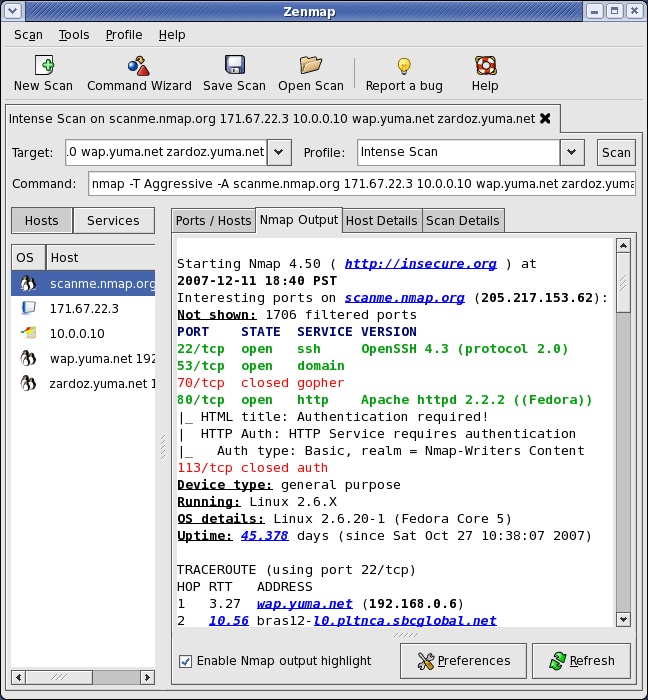
sudo zenmapThe Zenmap window opens with four main areas:
- Target field — Enter an IP address, hostname, IP range, or CIDR block (e.g.,
192.168.1.0/24) - Profile dropdown — Select a pre-built scan profile
- Command field — Shows the Nmap command that Zenmap will execute (you can also edit it directly)
- Output tabs — Nmap Output, Ports/Hosts, Topology, Host Details, Scans
Built-In Scan Profiles Reference
| Profile | Command | Use Case |
|---|---|---|
| Intense scan | nmap -T4 -A -v |
Full OS + service detection |
| Ping scan | nmap -sn |
Discover live hosts only |
| Quick scan | nmap -T4 -F |
Fast scan, top 100 ports |
| Quick scan plus | nmap -sV -T4 -O -F |
Versions + OS, fast |
| Slow comprehensive | nmap -sS -sU -T4 -A -v -PE |
Full stealthy audit |
Run a Ping Scan on Your Local Network
- In the Target field, enter your local subnet:
192.168.1.0/24 - From the Profile dropdown, select Ping scan
- Click Scan
Zenmap will discover all live hosts on your subnet and list them in the Hosts panel on the left. Click any host to view its details.
Save and Compare Scan Results
- Save a scan: File > Save Scan — stores results as
.xmlfor later analysis - Compare scans: Tools > Compare Results — highlights new hosts, removed hosts, and changed open ports between two scan files
This is especially useful for weekly network audits. You can build a baseline scan on Monday and compare it to a Thursday scan to detect new or unauthorized devices on your network.
Step 6: Troubleshooting Common Issues
Problem 1: zenmap: command not found After APT Install
Cause: The package cache was stale or the package name differs slightly.
Fix:
sudo apt update
sudo apt install zenmap
dpkg -l | grep zenmap
The dpkg -l command confirms whether the package is installed and shows its version.
Problem 2: python3-distutils Not Found on Debian 13
Cause: Python 3.12 (shipped in Debian 13) removes python3-distutils entirely.
Fix: Install python3-setuptools as the modern replacement:
sudo apt install python3-setuptoolsThen re-run your installation command.
Problem 3: ./configure Fails — Missing Libraries
Cause: One or more required -dev packages are not installed.
Fix: Read the configure error output carefully. It will name the missing library. Then install the matching dev package:
# Example: missing libssl
sudo apt install libssl-dev

# Example: missing libpcap
sudo apt install libpcap-dev
Re-run ./configure after each fix.
Problem 4: Permission denied When Running a Scan
Cause: SYN scans (-sS) and OS detection (-O) require raw socket access, which only root can use.
Fix: Always run Zenmap with sudo for privileged scan types:
sudo zenmapIf you need to run a non-privileged scan (e.g., TCP connect scan -sT), you can launch Zenmap without sudo, but you will lose access to the most powerful scan types.
Problem 5: Flatpak Zenmap Cannot Run Privileged Scans
Cause: Flatpak’s security sandbox blocks root execution by design.
Fix: Uninstall the Flatpak version and switch to the APT or source install:
flatpak uninstall org.nmap.Zenmap
sudo apt install nmap zenmap -y
Congratulations! You have successfully installed Zenmap. Thanks for using this tutorial to install the latest version of Zenmap Nmap GUI on Debian 13 “Trixie” system. For additional help or useful information, we recommend you check the official Zenmap website.
