
In this tutorial, we will show you how to install Dropbox on Debian 9 Stretch. For those of you who didn’t know, Dropbox is an online storage service that supports Linux distros. Dropbox provides online storage to backup and store data automatically with security. It has both free and paid plans. In the free plan, it provides 2GB of storage if you want more storage then you can buy paid plans
This article assumes you have at least basic knowledge of Linux, know how to use the shell, and most importantly, you host your site on your own VPS. The installation is quite simple and assumes you are running in the root account, if not you may need to add ‘sudo‘ to the commands to get root privileges. I will show you the step-by-step installation of Dropbox on a Debian 9 (Stretch) server.
Prerequisites
- A server running one of the following operating systems: Debian 9 (Stretch).
- It’s recommended that you use a fresh OS install to prevent any potential issues.
- SSH access to the server (or just open Terminal if you’re on a desktop).
- A
non-root sudo useror access to theroot user. We recommend acting as anon-root sudo user, however, as you can harm your system if you’re not careful when acting as the root.
Install Dropbox on Debian 9 Stretch
Step 1. Make sure that your system’s package index is up-to-date by running the following commands:
sudo apt update
sudo apt upgrade
These commands will update your system’s package index and install any available upgrades.
Step 2. Installing Dropbox on Debian.
Run the following commands in Terminal to install Dropbox:
sudo nano /etc/apt/sources.list.d/dropbox.list
Add the following line to this file:
deb [arch=i386,amd64] http://linux.dropbox.com/debian jessie main
Next, import the Dropbox GPG key to your Debian 9 system:
sudo apt install dirmngr
sudo apt-key adv --keyserver pgp.mit.edu --recv-keys 1C61A2656FB57B7E4DE0F4C1FC918B335044912E
Now, update the local package index and install Dropbox. python-gpgme is used to verify the binary signature:
sudo apt update
sudo apt install python-gpgme dropbox
Once installed, You can start the Dropbox GUI installer from your application menu, or start Dropbox from the command line. As a normal user, run the following command. The -i option will attempt to install Dropbox daemon if it’s not installed:
dropbox start -i
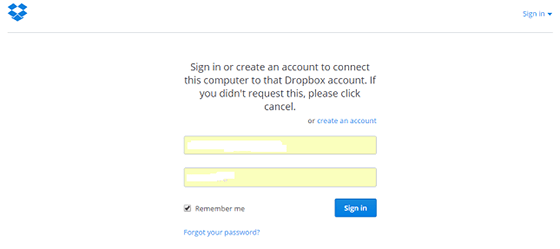
After the Dropbox daemon is installed, a new tab will be opened in your web browser asking you to link your computer to your Dropbox account.
Congratulations! You have successfully installed Dropbox. Thanks for using this tutorial for installing Install Dropbox on Debian 9 Stretch system. For additional help or useful information, we recommend you to check the official Dropbox website.
[su_box title=”VPS Manage Service Offer” style=”bubbles” box_color=”#000000″ radius=”10″]If you don’t have time to do all of this stuff, or if this is not your area of expertise, we offer a service to do “VPS Manage Service Offer”, starting from $10 (Paypal payment). Please contact us to get the best deal![/su_box]


