If you work with microcontrollers on Linux, getting Arduino IDE running on your system is one of the first things you need to do. Debian 13, codenamed Trixie, is the current stable release and comes with a few quirks that can trip up new users during the Arduino IDE setup process. This guide walks you through how to install Arduino IDE on Debian 13 using three proven methods, covering everything from a legacy APT install to the modern Flatpak approach. By the end, you will have a working Arduino IDE on Debian 13 setup, your board permissions configured, and your first sketch ready to upload.
What Is Arduino IDE and Why Does Debian 13 Matter?
Arduino IDE is a free, open-source integrated development environment built specifically for writing, compiling, and uploading code to Arduino microcontroller boards. It supports the AVR architecture and has become the standard tool for both hobbyists and embedded systems developers worldwide.
The jump from Arduino IDE 1.8.x to the modern IDE 2.x series was significant. Version 2.x introduced a Language Server Protocol (LSP) for intelligent code autocomplete, a built-in hardware debugger, a redesigned board and library manager, and a much cleaner interface overall. If you are starting a new project today, IDE 2.x is the right choice.
Debian 13 Trixie matters for one specific reason: it ships with FUSE 3.x by default instead of FUSE 2.x. This change breaks the standard AppImage launch behavior, which relies on FUSE 2. If you try to run an Arduino IDE AppImage on a fresh Trixie system without installing the correct compatibility library, nothing will happen. This guide addresses that directly so you do not waste time debugging a silent failure.
Prerequisites
Before you begin, confirm the following:
- Operating system: Debian 13 (Trixie), fully installed with a desktop environment (GNOME, KDE, XFCE, or similar)
- User privileges: A non-root user account with
sudoaccess - CPU architecture: x86-64 (Intel or AMD). Arduino IDE v2.x AppImage and ZIP do not support ARM. Run
uname -mto verify; the output should readx86_64 - Internet connection: Required for downloading packages and the Arduino IDE board index
- Disk space: At least 1 GB of free space for the IDE and board packages
- Terminal access: Basic comfort with running commands in a terminal
Step 1: Update Your Debian 13 System
Always update your system before installing new software. This step refreshes the local package index and applies any pending upgrades, which prevents version conflicts down the line.
Run the following two commands:
sudo apt update
sudo apt upgrade
apt update fetches the latest package metadata from Debian’s repositories. apt upgrade applies available updates to installed packages. Run both, let them finish, then proceed.
Step 2: Choose Your Installation Method
Debian’s default APT repository includes only the legacy Arduino IDE 1.8.x series. For the modern IDE 2.x, you need to go outside the default repository. Three methods work reliably on Debian 13:
| Method | Version | Best For |
|---|---|---|
| APT (default repo) | 1.8.x (Legacy) | Maximum system stability, classroom use |
| Flatpak (Flathub) | 2.x (Latest) | Most users, automatic updates |
| AppImage | 2.x (Latest) | Portability, running multiple versions |
For most users, Flatpak is the recommended path. It delivers the latest Arduino IDE v2 with automatic updates and no FUSE complications.
Step 3: Install Arduino IDE via APT (Legacy v1.8.x)
If you specifically need the legacy 1.8.x version for compatibility with older projects or a controlled lab environment, APT is the simplest route.
Install via APT
sudo apt install arduinoAPT will automatically pull in all required dependencies. The install takes about one to two minutes depending on your connection speed.
Verify the APT Installation
apt-cache policy arduinoExpected output:
arduino:
  Installed: 2:1.8.19+dfsg1-1
  Candidate: 2:1.8.19+dfsg1-1
If you see the installed version listed, the install succeeded.
Launch Arduino IDE (APT)
From the terminal:
arduinoFrom the GUI: open the Activities menu, click Show Applications, and search for “Arduino IDE.”
Know the Limitations
The APT version does not include the LSP-based autocomplete, built-in debugger, or the improved board/library manager from IDE 2.x. It also does not receive upstream feature updates from Arduino. If you only need basic sketch editing and uploading for well-supported boards like the Arduino Uno or Mega, it works fine. For anything more modern, use the Flatpak or AppImage method.
Step 4: Install Arduino IDE v2 via Flatpak (Recommended)
Flatpak sandboxes applications from your system, which reduces dependency conflicts and keeps your Debian installation clean. The Flathub repository delivers the latest stable Arduino IDE v2 build with automatic update support.
Install Flatpak
If Flatpak is not already installed on your system:
sudo apt install flatpakConfirm the install:
flatpak --versionEnable the Flathub Repository
Flathub is the main app store for Flatpak applications. Add it with this command:
sudo flatpak remote-add --if-not-exists flathub https://flathub.org/repo/flathub.flatpakrepoThe --if-not-exists flag prevents errors if Flathub is already configured.
Install Arduino IDE v2 via Flatpak
flatpak install flathub cc.arduino.IDE2 -yIf you prefer the legacy v1.8.x through Flatpak instead of APT:
flatpak install flathub cc.arduino.arduinoide -yThe -y flag skips the confirmation prompt. The download is around 200-400 MB depending on runtime dependencies.
Verify the Flatpak Installation
flatpak list | grep arduinoExpected output:
Arduino IDE cc.arduino.IDE2 2.x.x stable systemLaunch Arduino IDE (Flatpak)
From the terminal:
flatpak run cc.arduino.IDE2From the GUI: log out and back in after the Flatpak install, then search for “Arduino IDE” in your application launcher.
Update Arduino IDE via Flatpak
flatpak update cc.arduino.IDE2Run this periodically to stay on the latest release.
Step 5: Install Arduino IDE v2 via AppImage (Portable)
The AppImage method gives you a fully portable, self-contained version of Arduino IDE that needs no system-wide installation. It is the right pick if you want to carry the IDE on a USB drive, run multiple versions at once, or avoid Flatpak entirely.
Install the Required FUSE Library (Debian 13 Specific)
This step is critical and specific to Debian 13 Trixie. Debian 13 ships FUSE 3.x by default, but AppImages require the FUSE 2.x libraries to mount and execute. Without this package, the AppImage will silently fail to launch.
Install the correct compatibility package for Trixie:
sudo apt install libfuse2t64Do not install the older libfuse2 package on Debian 13. The package name changed to libfuse2t64 in Trixie. Installing the wrong one will not solve the problem.
Download the Arduino IDE AppImage
Go to the official Arduino IDE releases page:
https://github.com/arduino/arduino-ide/releasesDownload the file named:
arduino-ide_X.X.X_Linux_64bit.AppImageReplace X.X.X with the latest version number shown on the releases page.
Make the AppImage Executable
Navigate to the folder where you downloaded the file and run:
chmod +x arduino-ide_*_Linux_64bit.AppImagechmod +x sets the executable permission on the file. Without this step, Linux will not run it.
Run the AppImage
./arduino-ide_*_Linux_64bit.AppImageThe ./ prefix tells your shell to look in the current directory for the file. Arduino IDE should open within a few seconds.
Create a Desktop Shortcut (Optional)
To integrate the AppImage into your application menu, create a .desktop file:
nano ~/.local/share/applications/arduino.desktopPaste the following content and adjust the path to match your actual file location:
[Desktop Entry]
Name=Arduino IDE
Exec=/home/YOUR_USERNAME/arduino-ide_2.x.x_Linux_64bit.AppImage
Icon=/home/YOUR_USERNAME/arduino.png
Type=Application
Terminal=false
Categories=Development;Electronics;
Save the file, then run:
update-desktop-database ~/.local/share/applications/Arduino IDE will now appear in your application launcher.
Step 6: Grant USB Port Access for Board Uploads
This step applies to all three installation methods and is the most commonly missed configuration. Without it, you will not be able to upload sketches to your board.
Arduino boards communicate over serial ports located at /dev/ttyUSB* or /dev/ttyACM*. On Debian, access to these ports requires membership in the dialout group.
Add your user to the group:
sudo usermod -a -G dialout $USERThe -a flag appends to your existing groups instead of replacing them. The -G dialout specifies the target group. $USER is an environment variable that automatically fills in your current username.
Log out and back in for the change to take effect. A full reboot also works.
Verify your group membership:
groups $USERLook for dialout in the output. If it appears, you are good to go.
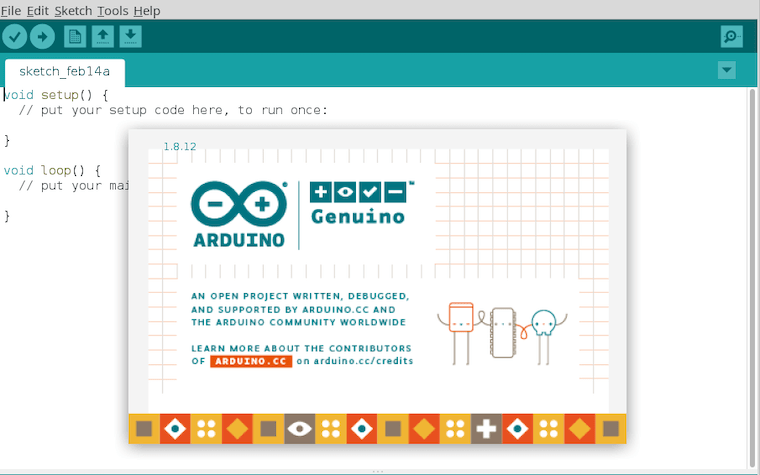
Step 7: First Launch and Configure Arduino IDE on Debian 13
With the IDE installed and your permissions set, here is how to get your first sketch running. This section covers the configure Arduino IDE on Debian 13 workflow to get you operational quickly.
Explore the IDE Interface
Arduino IDE 2.x has five main areas:
- Toolbar: Verify, upload, serial monitor, and serial plotter buttons
- Sketch editor: Where you write your code
- Sidebar: Board manager, library manager, debug panel
- Output console: Shows compile and upload logs
- Status bar: Displays selected board and port
Install a Board Package
Go to Tools > Board > Board Manager. Search for your board’s platform:
- For Arduino Uno, Mega, Nano: search “Arduino AVR Boards” and install it
- For ESP32: search “esp32” by Espressif and install it
- For Raspberry Pi Pico (RP2040): search “Arduino Mbed OS RP2040 Boards”
Click Install next to the correct package. The IDE downloads and installs the toolchain for that board. An active internet connection is required.
Set Your Board and Port
Go to Tools > Board, then select your specific board model. Go to Tools > Port and select the serial port your board is connected to (typically /dev/ttyACM0 for Uno or /dev/ttyUSB0 for clones).
Upload the Blink Example
Go to File > Examples > 01.Basics > Blink. Click the Upload button (the right-facing arrow). Watch the output console for Done uploading. If you see that message, your entire setup works correctly.
Optimize Editor Preferences
Go to File > Preferences and enable:
- Show line numbers (essential for reading error messages)
- Enable code folding (helps manage large sketches)
Troubleshooting Common Issues on Debian 13
AppImage Does Not Launch (FUSE Error)
Symptom: Clicking or running the AppImage does nothing, or the terminal shows a FUSE-related error.
Cause: Missing libfuse2t64 package. Debian 13 Trixie uses FUSE 3.x by default, and AppImage requires FUSE 2.x compatibility.
Fix:
sudo apt install libfuse2t64Then run the AppImage again.
“Cannot Execute Binary File” Error
Symptom: The terminal returns bash: cannot execute binary file when running the AppImage.
Cause: Either a CPU architecture mismatch or a corrupted download. Arduino IDE AppImage only supports x86-64.
Fix: Confirm your architecture:
uname -mIf the output is not x86_64, you cannot run the AppImage. Use the Flatpak method instead.
Serial Port Not Visible or “Access Denied”
Symptom: No port listed under Tools > Port, or the upload fails with a permission error.
Cause: Your user is not a member of the dialout group.
Fix:
sudo usermod -a -G dialout $USERLog out and back in, then retry the upload.
Flatpak Version Cannot Access USB Ports
Symptom: The Flatpak-installed IDE opens correctly but cannot detect your connected Arduino board.
Cause: Flatpak sandboxing restricts access to /dev devices by default.
Fix: Install Flatseal to manage Flatpak permissions:
flatpak install flathub com.github.tchx84.FlatsealOpen Flatseal, select Arduino IDE from the list, and enable access to All device files under the Devices section. Restart the IDE after applying the change.
Board Not Recognized After Connecting USB
Symptom: Board is physically connected but does not appear under Tools > Port.
Cause: Either a charge-only USB cable, a faulty port, or a missing kernel module.
Fix: Try a different cable and a different USB port. Then check whether the kernel recognized the device:
dmesg | tail -20Look for lines mentioning ttyACM or ttyUSB. If nothing appears, the cable or port is the problem.
How to Remove Arduino IDE from Debian 13
Remove APT Version
sudo apt remove arduinoTo also remove leftover configuration files:
sudo apt purge arduinoRemove Flatpak Version
flatpak uninstall --delete-data cc.arduino.IDE2 -y
flatpak uninstall --unused
The --delete-data flag removes user data associated with the app. --unused cleans up orphaned Flatpak runtimes.
Remove AppImage Version
Delete the AppImage file:
rm ~/arduino-ide_*_Linux_64bit.AppImageRemove the desktop shortcut if you created one:
rm ~/.local/share/applications/arduino.desktop
update-desktop-database ~/.local/share/applications/
Congratulations! You have successfully installed Arduino IDE. Thanks for using this tutorial to install the latest version of the Arduino IDE on Debian 13 “Trixie” system. For additional help or useful information, we recommend you check the official Arduino IDE website.

