How To Install Audacious on Ubuntu 24.04 LTS

Audacious stands out as one of the most lightweight and versatile audio players available for Linux systems. This open-source media player combines the nostalgic Winamp-style interface with modern functionality, making it a favorite among Ubuntu users who value simplicity without sacrificing features. Whether you are a casual listener or an audiophile managing an extensive music library, Audacious delivers exceptional performance with minimal resource consumption.
This comprehensive guide walks you through five different installation methods for Audacious on Ubuntu 24.04 LTS, complete with configuration tips, troubleshooting solutions, and plugin recommendations. You will learn which installation method suits your needs best and how to optimize Audacious for the perfect listening experience.
What is Audacious Media Player?
Audacious is a free, open-source audio player designed with efficiency at its core. Unlike bloated media players that consume significant system resources, Audacious runs smoothly even on older hardware while supporting an extensive range of audio formats including MP3, OGG, FLAC, AAC, WAV, and Opus.
The player offers two distinct interface options — GTK and Qt — allowing users to choose their preferred desktop integration. Its plugin architecture enables extensive customization, from visualization effects to advanced audio processing. The latest versions (4.4 and 4.5) bring enhanced PipeWire support, improved lyrics integration with lrclib.net, and sophisticated playlist management features.
What truly sets Audacious apart is its balance. It provides professional-grade features without overwhelming newcomers, making it equally suitable for simple playback and complex audio management tasks.
Prerequisites and System Requirements
Before installing Audacious on Ubuntu 24.04 LTS, ensure your system meets these basic requirements:
- Ubuntu 24.04 LTS installed and running
- Terminal access with sudo privileges
- Active internet connection for downloading packages
- Minimum 512MB RAM (though it runs on less)
- 50–100MB free disk space depending on installation method
- Any modern x86 or x64 processor
Update your system before proceeding to avoid package conflicts and ensure a smooth installation process.
Method 1: Install Audacious via APT (Default Repository)
Understanding the APT Method
The APT (Advanced Package Tool) method installs Audacious directly from Ubuntu’s official repositories. This approach offers maximum stability and seamless integration with your system’s update mechanism. While you might not get the absolute latest version, you will receive a thoroughly tested release that works harmoniously with Ubuntu 24.04 LTS.
Choose this method if you prioritize stability over cutting-edge features.
Installation Steps
First, refresh your package index to ensure you are installing the latest available version:
sudo apt updateNext, install Audacious along with its essential plugins package:
sudo apt install audacious audacious-pluginsThe audacious-plugins package is crucial — it provides codec support, visualizations, and functionality extensions that transform Audacious from a basic player into a comprehensive audio solution. Without it, you will have limited format support and missing features. The installation typically completes within 2–3 minutes, downloading approximately 15–20MB of packages.
Verify Installation
Confirm successful installation by checking the installed version:
audacious --versionYou should see output displaying the installed Audacious version, typically around 4.3 or 4.4 for Ubuntu 24.04 repositories. The program is now ready to launch and use.
Method 2: Install Audacious via PPA (Latest Version)
Understanding PPA Installation
Personal Package Archives (PPAs) provide access to newer software versions not yet available in official Ubuntu repositories. The ubuntuhandbook1/apps PPA maintains updated Audacious packages, often including version 4.5.1 with the latest features and improvements.
This method balances stability with modern functionality, making it ideal for users who want recent features without compiling from source.
Step-by-Step Installation
Add the PPA repository to your system:
sudo add-apt-repository ppa:ubuntuhandbook1/apps -yThe -y flag automatically confirms the addition without prompting. You will see information about the PPA and what it provides.
Update your package list to include the new repository:
sudo apt updateInstall Audacious with all plugins:
sudo apt install audacious audacious-pluginsThe system automatically prioritizes the PPA version over the default repository version due to version numbering.
Verify PPA Version
Check that you are running the PPA version:
audacious --versionThe version number should be higher than the default repository version, confirming successful PPA installation.
Method 3: Install Audacious via Snap
About Snap Installation
Snap packages offer containerized applications that run in isolated environments. This sandboxing enhances security by limiting application access to system resources. Snaps update automatically in the background, ensuring you always run the latest version without manual intervention.
Ubuntu 24.04 LTS includes Snap support by default, making this a hassle-free installation option for most users.
Installation Process
Install Audacious with a single command:
sudo snap install audaciousThe Snap daemon handles all dependencies internally, downloading and installing everything needed for Audacious to function properly. Installation progress appears in your terminal, showing download speed and completion percentage.
Launching the Snap Version
Launch Audacious using:
snap run audaciousAlternatively, find it in your Applications menu. The Snap version maintains separate configuration files, allowing you to run both APT and Snap versions simultaneously without conflicts if needed.
Method 4: Install Audacious via Flatpak
Flatpak Overview
Flatpak provides cross-distribution application packaging with strong sandboxing capabilities. Applications run in isolated environments while maintaining access to necessary system resources through controlled portals. Flathub serves as the primary Flatpak repository, hosting thousands of applications including Audacious.
Install Flatpak (If Needed)
Check if Flatpak is already installed:
flatpak --versionIf not found, install it:
sudo apt install flatpakAdd the Flathub repository:
flatpak remote-add --if-not-exists flathub https://flathub.org/repo/flathub.flatpakrepoThis command safely adds Flathub only if it is not already configured on your system.
Install Audacious via Flatpak
Install Audacious from Flathub:
flatpak install flathub org.atheme.audacious -yVerify installation:
flatpak run org.atheme.audacious --versionRunning the Flatpak Version
Launch Audacious anytime with:
flatpak run org.atheme.audaciousThe desktop integration automatically creates an application menu entry for convenient one-click access.
Method 5: Install Audacious from Source Code
When to Compile from Source
Compiling from source gives you access to the absolute latest development code, often including features not yet released in stable versions. This method suits developers, advanced users, and those needing specific compilation options or customizations. Most users should avoid this method unless they have specific technical reasons for it.
Install Build Dependencies
Install the necessary compilation tools and libraries:
sudo apt install git build-essential cmake libgtk-3-dev libqt5-dev libglib2.0-devCompilation Steps
Clone the official Audacious repository:
git clone https://github.com/audacious-media-player/audacious.gitNavigate into the project directory:
cd audaciousCreate a build directory and compile:
mkdir build && cd build
cmake ..
make
Compilation takes approximately 5–10 minutes depending on your hardware specifications.
Install the compiled binaries to your system:
sudo make installThe application installs to /usr/local/bin/ by default.
Launching Audacious on Ubuntu 24.04
Launch from Terminal
Each installation method uses a slightly different launch command:
- APT/PPA:
audacious - Snap:
snap run audacious - Flatpak:
flatpak run org.atheme.audacious
Launch from the Applications Menu
Press the Super key (Windows key) to open the Activities overview. Type Audacious in the search bar and click the icon to launch the application directly.
First Launch Experience
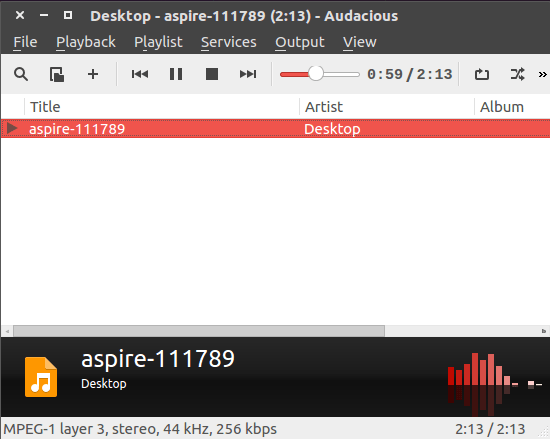
Upon first launch, Audacious presents a clean, minimalist interface. You will see the classic Winamp-style layout by default, though you can switch to modern alternatives. The playlist window occupies the main area, with playback controls elegantly positioned for easy access and quick navigation.
Initial Configuration and Setup
Interface Selection
Access appearance settings through Settings > Preferences > Appearance. Choose between the GTK interface (native GNOME integration) and Qt interface (KDE-friendly). The Winamp Classic skin provides nostalgic appeal, while modern interfaces offer contemporary design aesthetics. Experiment with different skins to find your preferred visual style.
Audio Output Configuration
Navigate to Settings > Preferences > Audio and select your output plugin based on your system’s audio server. Ubuntu 24.04 LTS typically uses PulseAudio or PipeWire. For PipeWire systems, Audacious 4.5 offers improved compatibility and enhanced performance. Adjust the buffer size if you experience audio stuttering — larger buffers improve stability but slightly increase latency. Sample rate settings should match your audio hardware capabilities for optimal playback quality.
Essential Plugins Activation
Open Settings > Preferences > Plugins to explore available extensions. Essential plugins to enable include:
- Status Icon — system tray integration for quick access
- MPRIS Support — desktop media control integration
- Scrobbler — Last.fm track logging
- Search Tool — instant track finding within playlists
Enable plugins by checking their respective boxes. Changes take effect immediately without restarting the application.
Key Features and Plugins
Audio Format Support
Audacious natively handles MP3, OGG Vorbis, FLAC, WAV, AAC, Opus, and numerous other audio formats. This extensive compatibility eliminates the need for format conversion in most real-world scenarios. High-resolution audio formats play without downsampling, preserving the original recording quality throughout playback.
Essential Plugins Worth Installing
The plugin ecosystem extends Audacious capabilities significantly:
- VU Meter Plugin: Provides real-time audio level visualization, letting you watch your music’s dynamics unfold visually.
- Background Music Plugin: Normalizes volume across tracks with different mastering levels, eliminating jarring volume jumps between songs.
- Lyrics Plugin: Fetches synchronized lyrics from lrclib.net so you can follow along in real time.
- ReplayGain Support: Ensures consistent perceived loudness across your entire library using scientific audio analysis.
- Album Artist Tags: Improves metadata organization in APE headers, ensuring compilation albums display correctly.
- MPRIS Plugin: Enables full desktop environment integration for controlling playback through system media controls.
Customization Options
Install additional skins like Glare or Winamp 2.9 for interface variety. The built-in equalizer offers preset curves for different music genres, or you can create custom profiles to match your personal audio preferences. Playlist management features include powerful sorting, intelligent shuffling, and a dynamic queue system for full control over your listening session.
Using Audacious: Essential Operations
Adding Music to Your Library
Click File > Open Files to browse for individual tracks. Use File > Add Folder to import entire directories recursively. Audacious scans folders quickly, building playlists in seconds even with libraries containing thousands of files. Create multiple playlists for different moods or genres, and save or load them through the Playlist menu for organized, efficient music management.
Keyboard Shortcuts
Master these keyboard shortcuts for efficient control:
- Ctrl+P — Play/Pause
- Ctrl+N — Next track
- Ctrl+B — Previous track
- Ctrl+S — Toggle shuffle
- Ctrl+R — Toggle repeat
- Ctrl+Up / Ctrl+Down — Volume adjustment
- Ctrl+J — Jump to Song (instant search)
Customize global shortcuts through Settings > Preferences > Plugins > General > Global Hotkeys to control playback system-wide without focusing the Audacious window.
Basic Playback Controls
Queue tracks by right-clicking and selecting Add to Queue. The Jump to Song dialog provides instant playlist searching for large libraries. Repeat modes include single track, full playlist, and continuous shuffle for varied and flexible listening experiences.
Troubleshooting Common Issues
Permission Denied Errors
NTFS partitions sometimes cause permission problems when accessing files from external drives. If Audacious cannot access files, modify mount options:
sudo mount -o remount,rw,user,umask=0000 /dev/sdX1 /mount/pointReplace /dev/sdX1 with your actual partition identifier and /mount/point with the correct mount location. For persistent access, edit /etc/fstab to include proper NTFS mounting options that apply automatically on every boot.
Audio Output Problems
If there is no sound, first verify the output plugin selection in Settings > Preferences > Audio. Switch between PulseAudio and PipeWire if one fails to produce sound. Check the system volume mixer — Audacious requires its own volume level separate from the master system volume. Increase the buffer size to 500ms or 1000ms if audio stutters or drops unexpectedly during playback.
Plugin Issues
If plugins fail to load, check directory permissions first:
ls -la ~/.config/audacious/Configuration files live in ~/.config/audacious/. If the configuration is corrupted, remove it entirely and let Audacious regenerate defaults:
rm -rf ~/.config/audacious/Use the Rescan button under Settings > Preferences > Plugins if newly installed plugins do not appear in the list immediately.
Updating Audacious
Update via APT/PPA
Standard system updates automatically include Audacious upgrades:
sudo apt update && sudo apt upgradePPA installations receive version updates faster than the default Ubuntu repositories, making it the preferred update channel for users who want recent improvements.
Update Snap or Flatpak
Snap updates run automatically by default. For a manual refresh:
sudo snap refresh audaciousFlatpak requires a manual update command:
flatpak updateThis updates all installed Flatpak applications, including Audacious, in a single operation.
Update from Source
Navigate back to your source directory and pull the latest changes:
cd ~/audacious
git pull
cd build
cmake ..
make
sudo make install
Uninstalling Audacious
Remove APT Installation
sudo apt remove audacious audacious-pluginsFor a complete removal including all stored configuration data:
sudo apt purge audacious audacious-plugins
sudo apt autoremove
Remove PPA Installation
First remove the packages using the commands above, then remove the PPA itself:
sudo add-apt-repository --remove ppa:ubuntuhandbook1/appsRemove Snap or Flatpak
Snap removal:
sudo snap remove audaciousFlatpak removal:
flatpak uninstall org.atheme.audaciousRemove Configuration Files
Clean up lingering user data completely:
rm -rf ~/.config/audacious
rm -rf ~/.var/app/org.atheme.audacious
This permanently removes all Audacious traces, including saved playlists, preferences, and plugin settings.
Congratulations! You have successfully installed Audacious. Thanks for using this tutorial for installing the Audacious media player on Ubuntu 24.04 LTS system. For additional help or useful information, we recommend you check the official Audacious website.
