How To Install Avidemux on Fedora 43

Avidemux stands as one of the most versatile free video editing tools available for Linux users. This open-source video editor handles essential editing tasks like cutting, filtering, and encoding with remarkable efficiency. Whether you’re trimming family vacation footage or preparing content for social media, Avidemux provides a straightforward solution without the complexity of professional-grade software.
The application supports numerous file formats including AVI, MPEG, MP4, and ASF, making it compatible with virtually any video you’ll encounter. Fedora 43 users have multiple installation pathways available, each offering distinct advantages depending on your needs. This comprehensive guide walks you through three proven methods: RPM Fusion repository installation, Flatpak deployment, and portable AppImage usage.
By the end of this tutorial, you’ll have a fully functional video editing environment on your Fedora 43 system. Let’s dive in.
Understanding Avidemux
Avidemux excels at simple cutting, filtering, and encoding tasks. The software operates across multiple platforms—Linux, Windows, and macOS—ensuring your skills transfer seamlessly between operating systems.
What makes Avidemux particularly appealing is its non-linear editing capability combined with a straightforward interface. The editor incorporates visual effects and filters ported from MPlayer and Avisynth, giving you professional-grade tools without the learning curve. You can multiplex and demultiplex audio streams, process subtitles with OCR for DVD content, and even render hard subtitles directly onto video.
Advanced users appreciate the JavaScript engine support for project automation. The command-line interface enables batch processing, perfect for repetitive tasks.
Prerequisites and System Requirements
Fedora 43 System Requirements
Your Fedora 43 installation should meet these baseline specifications for optimal Avidemux performance:
- 2GHz dual-core processor (faster recommended for HD video)
- 2GB system memory minimum (4GB strongly recommended)
- 15GB free disk space (20GB preferred for project files)
- 1024×768 display resolution minimum
Video editing demands considerable system resources. The processor handles encoding and filter application, while memory affects preview smoothness and rendering speed. Graphics hardware acceleration, when available, significantly improves playback performance.
Software Prerequisites
Before installing Avidemux, ensure you have:
- An active Fedora 43 installation
- Terminal access with basic command-line familiarity
- Sudo or root privileges for system modifications
- Stable internet connection for package downloads
Dependencies like FFmpeg for codec support and GTK or Qt for the graphical interface install automatically during the process. The package manager handles these relationships seamlessly.
Checking Your System
Verify your Fedora version by opening a terminal and running:
cat /etc/fedora-releaseCheck available system resources:
free -h
df -h
Confirm sudo access works correctly:
sudo -vEnter your password when prompted. If successful, you’re ready to proceed.
Method 1: Installing Avidemux via DNF and RPM Fusion
Understanding RPM Fusion Repository
Avidemux doesn’t appear in Fedora’s default repositories due to licensing considerations around certain multimedia codecs. RPM Fusion bridges this gap by providing additional software that complies with Fedora’s standards while expanding available applications.
This method offers the most integrated experience. Updates arrive automatically through your normal system update process, and dependency management happens transparently.
Step 1: Enable RPM Fusion Free Repository
Execute this command in your terminal:
sudo dnf install https://download1.rpmfusion.org/free/fedora/rpmfusion-free-release-43.noarch.rpmThis downloads and installs the RPM Fusion repository configuration package. You’ll see download progress followed by an installation confirmation. The system may ask for final approval—type ‘y’ and press Enter.
If the download fails, check your internet connection. Some networks block repository access; try a different network or contact your network administrator.
Step 2: Update System Package Cache
Refresh your package database:
sudo dnf updateThis command synchronizes your local package index with all enabled repositories, including the newly added RPM Fusion. The process typically completes within minutes, depending on how recently you updated your system.
Step 3: Install Avidemux Using DNF
Now install Avidemux with a single command:
sudo dnf install avidemuxDNF automatically resolves dependencies, downloading necessary codec libraries, interface components, and supporting files. The total download size varies but typically ranges between 50-150MB depending on already-installed dependencies.
You’ll see a list of packages to be installed. Review it briefly, then confirm by typing ‘y’ when prompted. Installation progress displays in real-time.
Step 4: Verify Installation
Confirm successful installation:
dnf list installed avidemuxCheck the executable location:
which avidemuxThis should return /usr/bin/avidemux. Launch the application from terminal:
avidemuxThe graphical interface should open immediately. If it does, congratulations—installation succeeded!
Advantages of This Method
The DNF approach provides automatic dependency resolution and seamless system integration. Updates arrive through your regular system update workflow. This method suits most users who want a stable, well-maintained installation with minimal ongoing management.
Method 2: Installing Avidemux via Flatpak
What is Flatpak?
Flatpak delivers applications in isolated containers, separating them from your base system. This approach provides several benefits: access to the latest upstream versions, sandboxed security, and independence from distribution-specific packaging decisions.
Choose Flatpak when you need bleeding-edge features or want applications isolated from system libraries.
Step 1: Install Flatpak
Fedora Workstation typically includes Flatpak by default. Verify with:
flatpak --versionIf absent, install it:
sudo dnf install flatpakStep 2: Add Flathub Repository
Flathub serves as the primary Flatpak application repository. Add it:
flatpak remote-add --if-not-exists flathub https://flathub.org/repo/flathub.flatpakrepoThe --if-not-exists flag prevents errors if Flathub is already configured. This command adds the repository without requiring confirmation.
Step 3: Install Avidemux from Flathub
Execute the installation command:
flatpak install flathub org.avidemux.AvidemuxFlatpak downloads the application plus required runtimes (shared libraries used by multiple Flatpak applications). First-time Flatpak users may see substantial downloads as runtimes install. Subsequent Flatpak installations reuse these runtimes, reducing download sizes.
Accept the prompts to proceed. Installation completes within minutes.
Step 4: Launch Flatpak Version
Run Avidemux:
flatpak run org.avidemux.AvidemuxFor convenience, the application also appears in your desktop application menu after installation. Search for “Avidemux” in your activities overview or application launcher.
Managing Flatpak Version
Update Avidemux along with other Flatpaks:
flatpak update org.avidemux.AvidemuxOr update everything:
flatpak updateRemove Avidemux if needed:
flatpak uninstall org.avidemux.AvidemuxPros and Cons
Flatpak provides the latest features and sandboxed security. The isolation protects your system from potential application issues. However, Flatpak applications consume more disk space due to bundled dependencies and may exhibit slight performance overhead from the containerization layer.
Method 3: Installing Avidemux via AppImage
Understanding AppImage
AppImage represents the ultimate portable application format. No installation necessary—just download, make executable, and run. The entire application lives in a single file.
This approach shines for testing software before committing to installation, maintaining portability across multiple systems, or avoiding system modifications entirely.
Step 1: Download Avidemux AppImage
Visit the official Avidemux website at avidemux.org. Navigate to the downloads section and locate the Linux AppImage for your system architecture (typically x86_64 for modern PCs).
Download the file to your Downloads directory. The filename includes version information and platform details.
Step 2: Make AppImage Executable
Open a terminal and navigate to your Downloads folder:
cd ~/DownloadsGrant execute permissions:
chmod +x Avidemux*.AppImageThe asterisk wildcard matches the full filename regardless of version numbers. The chmod +x command makes the file executable as an application rather than a data file.
Step 3: Run Avidemux AppImage
Launch the application:
./Avidemux*.AppImageThe ./ prefix tells your shell to execute the file in the current directory. Avidemux opens immediately without system integration.
On first run, AppImage may offer desktop integration options. Accept if you want menu entries; decline for complete portability.
Step 4: Organize AppImage (Optional)
For better organization, create a dedicated directory:
mkdir ~/ApplicationsMove the AppImage:
mv ~/Downloads/Avidemux*.AppImage ~/Applications/Update your execution path accordingly when launching.
Managing AppImage Installation
AppImages don’t update automatically. When new versions release, download the updated AppImage and replace the old one manually.
Uninstallation couldn’t be simpler—just delete the AppImage file. No system modifications persist, no package manager involvement needed.
When to Choose AppImage
Select AppImage for testing before system installation, maintaining a portable toolkit on USB drives, or when you lack sudo privileges. It’s perfect for trying different versions without conflicts.
Post-Installation Configuration
First Launch Setup
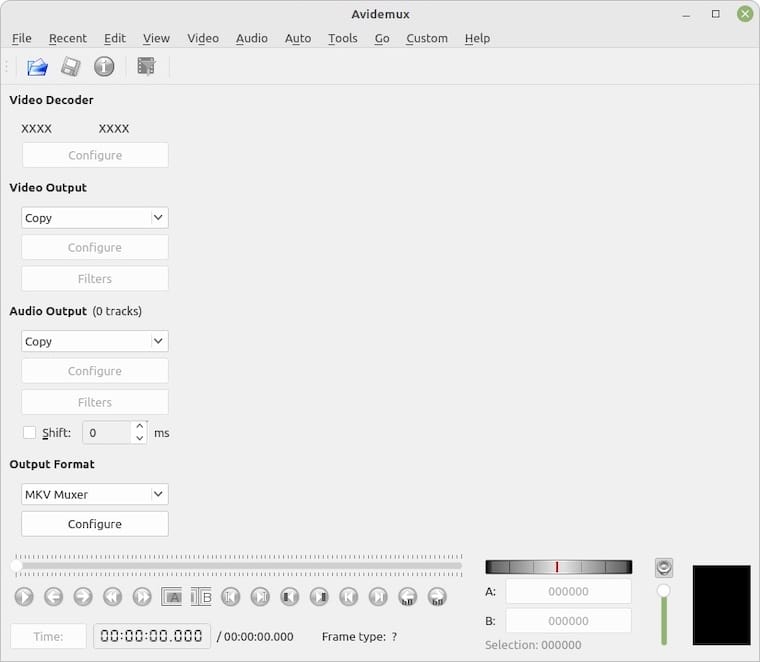
Open Avidemux from your application menu or terminal. The interface presents a clean workspace with menu bars, toolbar, video preview, and timeline. Take a moment to familiarize yourself with the layout.
Configuring Preferences
Access preferences through Edit → Preferences. Several settings deserve attention:
Video Display Settings: The default uses Qt rendering. If you experience crashes or display issues, particularly on systems with NVIDIA graphics, switch from VDPAU to Qt. This single setting resolves most startup crash problems.
Output Format Defaults: Set your preferred default output format and codec. This saves time on repetitive projects.
Temporary Directory: Specify a location with ample space for temporary files generated during editing and encoding. Video projects create substantial temporary data.
Threading Options: Adjust the number of threads for encoding based on your processor core count. More threads accelerate processing on multi-core CPUs.
Verifying Codec Support
Import a test video in a common format to confirm codec functionality. Try various formats like MP4, AVI, and MKV to ensure broad compatibility. The available encoders and decoders appear in the output format selections.
If specific codecs are missing, consider installing additional FFmpeg plugins through your package manager.
Setting Up Project Directories
Create an organized folder structure for video projects. Separate source footage, work-in-progress projects, and final exports. This organization prevents confusion and accidental file overwrites.
Configure default save locations in preferences to streamline your workflow.
Getting Started with Avidemux on Fedora 43
Basic Interface Tour
The main window divides into logical sections. The large preview area displays your video. Below it, the timeline shows the entire clip with position markers. Left-side controls manage video and audio track settings. The right panel accesses filters and effects.
Importing Your First Video
Click File → Open or use Ctrl+O. Navigate to your video file and select it. Avidemux supports numerous formats including MP4, AVI, MKV, MOV, and WebM. The video loads into the preview window with the timeline reflecting its duration.
Video properties appear in the interface, showing resolution, frame rate, codec, and bitrate. Understanding these properties helps you make informed editing decisions.
Basic Editing Operations
Position your playhead where you want to start a cut. Press ‘A’ to set the start marker. Move to the endpoint and press ‘B’ to set the end marker. The selection between A and B markers represents your active editing region.
Use the Delete key to remove the selected section, or Copy (Ctrl+C) and Paste (Ctrl+V) to duplicate segments. These simple operations form the foundation of video editing.
Save your project frequently using File → Save Project. Project files preserve your edits without re-encoding, allowing you to continue work later.
Applying Filters and Effects
Access the filter menu through Video → Filters. Avidemux offers extensive filtering capabilities:
Cropping and Resizing: Remove black bars or adjust dimensions for specific platforms.
Color Correction: Adjust brightness, contrast, saturation, and hue to improve visual quality.
Sharpening and Denoising: Enhance clarity or reduce grain from low-light footage.
Logo and Watermark Addition: Protect your content or brand your videos.
Stabilization: Reduce camera shake for smoother playback.
Each filter provides a preview window. Adjust parameters while watching the effect in real-time. Stack multiple filters to achieve complex results.
Exporting Your Video
When editing completes, configure your output. Select Video → Output Format to choose a container (MP4, AVI, MKV). Then choose Video → Codec to select compression (H.264, MPEG-4, etc.).
Configure Audio → Output similarly, selecting formats and codecs appropriate for your needs.
Click File → Save to render your final video. Choose your destination filename and location. Encoding time varies based on video length, effects applied, system performance, and selected codec settings.
Troubleshooting Common Issues
Installation Problems
RPM Fusion Repository Not Accessible: Verify your internet connection. Some corporate or educational networks block third-party repositories. Try a different network or use a VPN if permitted.
Dependency Conflicts: Update your entire system first with sudo dnf update before attempting Avidemux installation. Outdated packages sometimes cause resolution failures.
Permission Errors: Ensure your user account has sudo privileges. Type groups in terminal to verify membership in the ‘wheel’ group.
Runtime Issues
Avidemux Crashes on Startup: This common issue often relates to video display settings. Launch Avidemux from terminal to see error messages. If it crashes immediately, the preferences file may be corrupted. Delete ~/.avidemux6 to reset all settings.
Change video display from VDPAU to Qt: Edit → Preferences → Display → Video Display. This single adjustment resolves most NVIDIA-related crashes.
Black Screen During Playback: Check post-processing settings in preferences. Disable hardware acceleration if enabled. Verify your video player supports the codec by testing playback before editing.
Audio Sync Problems: Use Tools → Audio Shift to manually adjust timing. Video with variable frame rates sometimes causes sync issues. Consider converting to constant frame rate first.
Performance Issues
Slow Encoding: Adjust threading settings in preferences to match your CPU core count. Enable hardware acceleration if your system supports it. Consider using faster encoding presets at the cost of slightly larger file sizes.
High CPU Usage During Preview: Lower preview quality in preferences. Full-resolution preview strains older systems. Reduced preview quality maintains smooth playback without affecting output quality.
Missing Features or Codecs
H.265/HEVC Support Issues: Install additional codec packages from RPM Fusion. Some codecs require patent-encumbered packages from the non-free repository.
Filter Not Available: Certain advanced filters require compilation from source with development libraries. Most users find the default filter set sufficient.
Uninstalling Avidemux
Removing DNF Installation
If you need to remove Avidemux installed via DNF:
sudo dnf remove avidemuxClean orphaned dependencies:
sudo dnf autoremoveRemoving Flatpak Installation
Uninstall the Flatpak version:
flatpak uninstall org.avidemux.AvidemuxRemove unused runtimes to reclaim disk space:
flatpak uninstall --unusedRemoving AppImage
Simply delete the AppImage file:
rm ~/Applications/Avidemux*.AppImageRemove any desktop shortcuts you created manually. No system modifications require cleanup.
Congratulations! You have successfully installed Avidemux. Thanks for using this tutorial for installing the Avidemux video editor on your Fedora 43 Linux system. For additional or useful information, we recommend you check the official Avidemux website.
