
Fedora 45 shipped on November 3, 2026 after two one-week slips. Many people now have a fresh install and a pile of EPUB, MOBI, and PDF files with no sensible way to manage them. Calibre is still the answer for most of those people, but “just install it” hides a real decision. Fedora gives you three legitimate ways to get Calibre, and each one behaves differently when it comes to updates, dependencies, permissions, and breakage.
Choose carelessly and you can end up with a stale version that mangles a conversion. You might get a sandboxed app that can’t see your USB e-reader. You might also get a root-owned installer script that sits awkwardly beside the package manager you use for everything else. None of these is catastrophic, but all of them are avoidable.
This guide covers each method on a clean Fedora 45 system, with commands you can paste. It also covers verification, updates, a headless content server for a home lab or small office, SELinux and firewall handling, performance tuning for big libraries, and troubleshooting. The commands were checked against upstream and Fedora documentation. Where behavior varies, the text says so.
Which Install Method Should You Pick?
Read this section before touching a terminal. The method you choose decides how Calibre gets patched for as long as the machine lives.
The Fedora package sits in the normal RPM database and updates with dnf upgrade. The Flatpak is managed by Flatpak and runs in its own runtime. The upstream binary installer drops a self-contained build into /opt/calibre, bundling its own Python and Qt rather than using Fedora’s libraries.
Upstream’s position is blunt. The Calibre download page asks users not to use distribution packages because they are often buggy or outdated, and it recommends the binary install. That is the developer’s view. On a workstation where you value tidy dependency tracking, the Fedora package is still a reasonable choice, provided you accept that it may trail upstream by a few releases.
| Method | Updates via | Version freshness | Best for | Main drawback |
|---|---|---|---|---|
DNF (calibre package) |
dnf upgrade |
Behind upstream | Workstations, config-managed fleets | Can lag several releases |
| Flatpak (Flathub) | flatpak update |
Close to upstream | Desktop users already on Flatpak | Broad permissions, path quirks |
| Official binary installer | Re-run installer | Newest | Power users, conversion-heavy work | Lives outside RPM tracking |
One snapshot from Fedora 44 gives a sense of the gaps. DNF provided Calibre 9.6, Flathub provided 9.7, and the official installer provided 9.8. Those numbers drift constantly, so treat them as an illustration of the spread. At the time of writing, upstream lists 9.18.0 as the latest release.
A rule of thumb that holds up in practice:
- Pick DNF if you want predictable, auditable software on a machine you will not babysit.
- Pick Flatpak if your desktop is already Flatpak-first and you rarely plug in a reader device.
- Pick the binary if you convert large books regularly, rely on a recent plugin, or hit a bug already fixed upstream.
Before You Start: Prerequisites and Sanity Checks
A few minutes of prep prevents most of the problems in the troubleshooting section.
First, confirm you really are on Fedora 45 and that the system is current:
cat /etc/os-release | head -n 3
sudo dnf upgrade --refresh
On Fedora 45, dnf is DNF5, which is the default. Its syntax for the commands below is the same as the older tool, so nothing here needs adjusting. Reboot if the upgrade pulled in a new kernel, because Qt applications sometimes misbehave when graphics libraries are updated underneath a running session.
Second, check the architecture. The official binary supports 64-bit Intel and ARM machines. Verify yours:
uname -mYou should see x86_64 or aarch64. Anything else, and the binary route is off the table.
Third, make sure you have disk space. A Calibre install is a few hundred megabytes, but the library is the real consumer. A collection of 20,000 books with covers and multiple formats can reach tens of gigabytes. Check free space where the library will live:
df -h ~Last, decide where the library goes. A path like ~/Calibre Library is the default, but a separate partition or mounted volume is smarter if you expect growth. Spaces in paths are legal, yet they complicate shell scripts later, so ~/calibre-library is friendlier to automation.
Method 1: Install Calibre with DNF
This is the shortest path and the one that fits Fedora’s own update model.
sudo dnf install calibreThe package installs the desktop launcher plus command-line helpers such as ebook-convert and calibre-server. The package description on Fedora’s index calls it a complete e-library solution covering library management, format conversion, news-feed conversion, and e-reader sync.
Check what you got:
calibre --version
rpm -q calibre
command -v ebook-convert
If rpm -q prints a version and command -v returns a path, the install is sound. Launch it from the application grid or run calibre in a terminal. Running from a terminal the first time is a good habit, because any missing library error will print there instead of vanishing silently.
Why DNF still makes sense
Fedora’s package integrates with the system’s Qt and Python stack, so security fixes in those libraries reach Calibre automatically. You also get clean removal with sudo dnf remove calibre, which leaves no stray files in /opt. On a managed machine, that traceability matters. An auditor or a future colleague can see exactly what is installed with a single rpm query.
The tradeoff is staleness. If a site changes its format and a recipe or metadata source breaks, the fix may reach upstream days or weeks before it reaches the Fedora repositories.
Method 2: Install Calibre with Flatpak
Fedora Workstation ships with Flatpak ready to use, though if you use a minimal or server spin you may need to install it first. Fedora’s documentation gives the command as sudo dnf install flatpak, and says you may need to log out and back in afterward.
Add the Flathub remote at system scope:
sudo flatpak remote-add --if-not-exists flathub https://dl.flathub.org/repo/flathub.flatpakrepoConfirm it registered:
flatpak remotes --columns=name,options | grep -E '^flathub[[:space:]]'Then install Calibre using its application ID:
sudo flatpak install flathub com.calibre_ebook.calibreFlatpak will list runtime downloads and permissions before proceeding. Run it with:
flatpak run com.calibre_ebook.calibreAnd update it with:
sudo flatpak update com.calibre_ebook.calibreThe sandbox is looser than it sounds
It is tempting to assume a Flatpak is a tight security boundary. This one is not. The Flathub listing is not verified by Flathub, and it requests broad access such as host filesystem and device permissions. That breadth exists for a reason. Calibre has to read books from anywhere, write to arbitrary library folders, and talk to USB devices. A narrow sandbox would break the program.
So choose Flatpak for update convenience, not for isolation. Fedora 45’s GNOME Software now shows more detailed Flatpak permissions, so you can inspect what the app asks for before approving it. To audit from the command line:
flatpak info --show-permissions com.calibre_ebook.calibreIf you need to restrict it afterward, flatpak override can narrow filesystem access, though doing so will limit what Calibre can import.
Method 3: Install Calibre with the Official Binary Installer
This is the route the developer recommends, and the one that gets you the newest build. It installs into /opt/calibre and creates system command symlinks.
Install the prerequisites
The upstream installer expects xdg-utils, wget, xz, and Python, and it needs GLIBC 2.34 or newer plus a recent libstdc++. Fedora 45 comfortably exceeds both library requirements. The remaining pieces, including the graphics and keyboard libraries Qt needs, are best installed up front:
sudo dnf install wget xdg-utils xz python3 xcb-util-cursor libxkbcommon-x11 mesa-libEGL mesa-libGLThat package list matches what a Fedora 44 walkthrough recommended for the installer. Skipping xcb-util-cursor or the Mesa libraries is a classic cause of a launch failure that says nothing helpful, so it pays to install them now.
Run the installer
The official command, straight from the Calibre download page:
sudo -v && wget -nv -O- https://download.calibre-ebook.com/linux-installer.sh | sudo sh /dev/stdinThe sudo -v at the front refreshes your credentials so the password prompt does not appear mid-download. The installer fetches the correct tarball, verifies it, extracts it to /opt/calibre, and sets up launchers.
A word on piping a script into a root shell
Security-minded admins wince at wget | sudo sh, and fairly so. If your policy forbids it, download the script first, read it, and run it as a separate step:
wget -nv -O calibre-installer.sh https://download.calibre-ebook.com/linux-installer.sh
less calibre-installer.sh
sudo sh calibre-installer.sh
The same two-step approach lets you keep a copy for change records. The download is served over HTTPS, and the installer checks the tarball it fetches, but reading what you are about to run as root is cheap insurance.
Custom locations and non-root installs
You can change the install directory from the default /opt by passing install_dir:
sudo -v && wget -nv -O- https://download.calibre-ebook.com/linux-installer.sh | sudo sh /dev/stdin install_dir=/optThere is also an isolated mode that touches only files inside the install folder and needs no root privileges:
wget -nv -O- https://download.calibre-ebook.com/linux-installer.sh | sh /dev/stdin install_dir=~/calibre-bin isolated=yThis suits shared hosts where you lack sudo, or testing a new release beside a working one. Note that with isolation, system symlinks are not created, so call the binaries by full path, for example ~/calibre-bin/calibre/calibre.
Manual tarball install
When you need an older release, say to roll back after a regression, upstream documents a manual method. Download the tarball, then:
sudo mkdir -p /opt/calibre && sudo rm -rf /opt/calibre/* && sudo tar xvf /path/to/calibre-tarball.txz -C /opt/calibre && sudo /opt/calibre/calibre_postinstallAdjust the tarball path as needed. Be careful with that rm -rf. Double-check the directory before pressing Enter.
Updating and removing
Upgrading is the same command as installing. Re-run the installer and it replaces the existing build. There is no dnf hook, so add a reminder to your calendar or a monthly cron-driven check. Removal is cleanly handled by the bundled uninstaller:
sudo calibre-uninstallVerifying the Installation Properly
“It opens” is not verification. A short checklist catches problems early.
calibre --version
ebook-convert --version
calibredb --version
Then run a real conversion. Grab any small EPUB and convert it:
ebook-convert sample.epub sample.pdfPDF output exercises the Qt WebEngine rendering path, which is the part most likely to fail on a headless or minimal system. If that works, the heavy machinery is intact.
Finally, confirm the GUI can start on your display server. Fedora 45 defaults to Wayland on GNOME. Calibre runs fine under XWayland, but if you see odd scaling, try launching with QT_QPA_PLATFORM=xcb calibre to compare behavior.
First-Run Configuration That Saves Pain Later
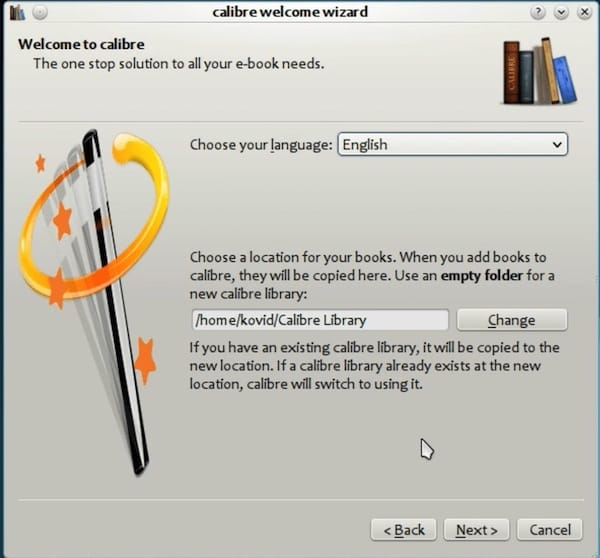
The setup wizard asks for a library location and a default e-reader. Spend a minute thinking about the first answer. Moving a library later is possible but tedious, and the library is a database plus a directory tree, not a single file.
A few settings are worth changing early:
- Preferences > Saving books: Set a filename template so exported files carry author and title consistently.
- Preferences > Adding books: Turn on automatic duplicate detection to avoid importing the same file twice from different folders.
- Preferences > Look & feel > Cover grid: Reduce the cache size on low-memory machines.
- Preferences > Conversion > Common options: Pick sensible defaults for margins and fonts so batch jobs do not need hand-tuning.
The metadata download sources are another quiet time sink. Disable ones you do not trust or that return poor matches for your language. It speeds up bulk metadata fetches noticeably.
Running Calibre as a Headless Content Server
This is where Calibre goes from a desktop toy to something useful in a home lab or small office. The built-in server lets any device on the network browse and read your library through a browser.
Test it manually first:
calibre-server --port 8080 "$HOME/calibre-library"Open http://your-server-ip:8080 from another machine. If that loads, make it permanent with systemd.
Create a dedicated user
Never run a network service as your personal account. Create a system user that owns the library:
sudo useradd --system --create-home --home-dir /var/lib/calibre --shell /usr/sbin/nologin calibre
sudo mkdir -p /srv/calibre-library
sudo chown -R calibre:calibre /srv/calibre-library
Seed the library once, for example by creating an empty database or adding a first book:
sudo -u calibre calibredb add --with-library /srv/calibre-library /path/to/some-book.epubWrite the systemd unit
Create /etc/systemd/system/calibre-server.service:
[Unit]
Description=Calibre Content Server
After=network-online.target
Wants=network-online.target

[Service]
Type=simple
User=calibre
Group=calibre
ExecStart=/usr/bin/calibre-server --port 8080 --enable-auth --userdb /var/lib/calibre/users.sqlite /srv/calibre-library
Restart=on-failure
RestartSec=5
NoNewPrivileges=true
ProtectSystem=full
ProtectHome=true
PrivateTmp=true
ReadWritePaths=/srv/calibre-library /var/lib/calibre

[Install]
WantedBy=multi-user.target
Then add a user and start the service:
sudo -u calibre calibre-server --userdb /var/lib/calibre/users.sqlite --manage-users
sudo systemctl daemon-reload
sudo systemctl enable --now calibre-server
sudo systemctl status calibre-server
The hardening directives are not decoration. ProtectSystem=full makes system directories read-only for the service, PrivateTmp isolates its temporary files, and ReadWritePaths whitelists the only places it may write. If Calibre is ever exploited through a malformed book file, which is a realistic threat model for a service that parses untrusted documents, those fences limit the damage.
If you installed from the official binary, the executable still resolves through /usr/bin/calibre-server thanks to the symlinks, though confirm with command -v calibre-server and adjust ExecStart if your path differs.
Open the firewall deliberately
Fedora uses firewalld. Rather than opening the port to everyone, scope it to your LAN zone or a source range:
sudo firewall-cmd --permanent --add-rich-rule='rule family="ipv4" source address="192.168.1.0/24" port protocol="tcp" port="8080" accept'
sudo firewall-cmd --reload
Adjust the subnet to match your network. If you must expose the server to the internet, do not publish port 8080 directly. Put a reverse proxy such as Nginx or Caddy in front, terminate TLS there, and keep authentication enabled. Plain HTTP with a password is a credential leak waiting to happen.
SELinux without turning it off
Fedora ships with SELinux enforcing, and it will occasionally block a service from reading a custom directory. The lazy fix is setenforce 0. Resist that. Check the denial first:
sudo ausearch -m avc -ts recent
sudo journalctl -u calibre-server --since "10 minutes ago"
If the library sits outside standard locations, label it properly:
sudo semanage fcontext -a -t var_lib_t "/srv/calibre-library(/.*)?"
sudo restorecon -Rv /srv/calibre-library
If semanage is missing, install policycoreutils-python-utils. Labels matter more than most people expect, and a correct one keeps the protection on while letting the service work.
Troubleshooting Common Calibre Problems on Fedora
Calibre will not start and prints a Qt platform plugin error
The usual message mentions the “xcb” plugin failing to load. The cause is almost always a missing library. Install the prerequisite set from the binary section:
sudo dnf install xcb-util-cursor libxkbcommon-x11 mesa-libEGL mesa-libGLThen launch again from a terminal and read the output.
The installer complains about certificates
Upstream notes that an untrusted certificate error means the machine lacks root certificates, and that the --no-check-certificate option exists as a last resort. On Fedora, install ca-certificates rather than disabling verification:
sudo dnf install ca-certificates
sudo update-ca-trust
“Command not found” for calibre after the binary install
The symlinks may not exist if you used an isolated install. Call the binary by full path, or add the folder to your PATH. For a standard install, open a new shell, since the old one cached its command lookup.
The e-reader is not detected over USB
For the DNF or binary builds, check that the device shows up at all:
lsusb
dmesg | tail -n 20
Many readers need to be switched into USB storage mode on the device itself. Flatpak users should confirm the device permission was granted, and may need to restart the app after plugging in the device.
Flatpak Calibre cannot see files in certain folders
This is a sandbox path issue. Grant access to the specific directory rather than the whole disk:
flatpak override --user --filesystem=/srv/books com.calibre_ebook.calibreThe content server starts but is unreachable from other machines
Work through the layers in order. First, is it listening?
ss -tlnp | grep 8080If it only shows 127.0.0.1, the bind is local. Second, is firewalld blocking it? Check with sudo firewall-cmd --list-all. Third, is SELinux denying access? Look at ausearch output as shown earlier. Fixing the layers in this order saves a lot of guessing.
Conversion fails with a cryptic error
Re-run the conversion from the command line with verbose output:
ebook-convert input.epub output.pdf --verboseThe log usually names the failing stage. If the problem is a bug in the packaged version, try the official binary build, since upstream may already have patched it.
A DNF upgrade broke Calibre after moving to Fedora 45
Upgrades can leave third-party repositories or old packages behind. One write-up on the Fedora 45 upgrade notes that --allowerasing is sometimes needed when third-party repos cause unsatisfied dependencies. After upgrading, reinstall to be safe:
sudo dnf distro-sync
sudo dnf reinstall calibre
If you used the binary installer, simply re-run it so the bundled build is refreshed against the new system libraries.