How To Install CyberPanel on Ubuntu 24.04 LTS

Managing a Linux web server without a control panel is not impossible — but it is exhausting. You’re manually configuring Nginx or Apache, handling PHP versions through the command line, wrestling with DNS records, and troubleshooting email delivery issues at 2 AM. There is a much better way. CyberPanel is a free, open-source web hosting control panel powered by OpenLiteSpeed that turns a raw Ubuntu server into a fully functional, high-performance hosting environment in under 15 minutes.
This guide walks you through exactly how to install CyberPanel on Ubuntu 24.04 LTS — from initial server preparation all the way to your first live website. Every step is explained clearly so you understand what you’re doing and why. Whether you’re a developer, a system administrator, or someone managing their first VPS, this tutorial gives you everything you need.
What Is CyberPanel?
CyberPanel is a next-generation web hosting control panel built specifically around the OpenLiteSpeed (OLS) web server. Unlike traditional panels that run on Apache or Nginx, CyberPanel leverages LiteSpeed’s proprietary technology to deliver blazing-fast performance with a significantly lighter server footprint.
It comes in two editions:
- OpenLiteSpeed Edition — Completely free, open-source, supports unlimited domains, and perfect for the majority of developers and hosting scenarios
- LiteSpeed Enterprise Edition — A commercial option with advanced caching, Apache
.htaccesscompatibility, and enhanced performance for high-traffic production environments
The free OpenLiteSpeed edition is more than capable for most use cases. Here’s what it includes out of the box:
- One-click WordPress installer with LiteSpeed Cache pre-activated
- Auto-SSL via Let’s Encrypt including auto-renewal
- Built-in PowerDNS for DNS zone management
- Postfix for outgoing email and Pure-FTPd for FTP access
- Multiple PHP version support from PHP 7.4 through 8.3+
- CSF Firewall and ModSecurity WAF integration
- Built-in Redis and Memcached support
- A clean, modern dashboard for managing all services from a single browser tab
Simply put, CyberPanel replaces what would otherwise require hours of manual Linux configuration with a point-and-click interface that still gives you full control.
Why Install CyberPanel on Ubuntu 24.04 LTS?
Ubuntu 24.04 LTS, codenamed Noble Numbat, was released in April 2024 and will receive security updates until April 2029. That long-term support window makes it the ideal foundation for a production web server — you get five full years of patches without needing to migrate your OS mid-lifecycle.
Pairing Ubuntu 24.04 LTS with CyberPanel is a particularly strong combination for several reasons:
- Performance: OpenLiteSpeed supports HTTP/3 and QUIC protocol, delivering faster page loads than Apache or Nginx-based setups, especially for WordPress sites
- Cost efficiency: CyberPanel is 100% free for the OpenLiteSpeed edition, while commercial alternatives like cPanel can run $15–$45 per month in licensing fees alone
- Resource efficiency: CyberPanel consumes significantly less RAM and CPU compared to cPanel or Plesk, making it an excellent choice for budget VPS plans with 1–2 GB of RAM
- Ease of use: The dashboard covers websites, databases, DNS, email, FTP, backups, and security all under one roof — no separate tool configuration needed
For developers, startup founders, and web hosting enthusiasts who want full-server control without the operational overhead, this combination hits the sweet spot.
System Requirements Before You Begin
Before running a single command, confirm your server meets these requirements. Skipping this check is the leading cause of failed or incomplete CyberPanel installations.
| Requirement | Minimum | Recommended |
|---|---|---|
| Operating System | Fresh Ubuntu 24.04 LTS | Fresh Ubuntu 24.04 LTS |
| RAM | 1,024 MB (1 GB) | 2 GB or more |
| CPU Cores | 1 core | 2 cores or more |
| Disk Space | 10 GB free | 20 GB+ SSD |
| Access Level | Root user | Root user |
| Internet | Stable connection | Stable connection |
Critical note: CyberPanel must be installed on a fresh Ubuntu 24.04 installation. If Apache, Nginx, or MySQL are already running, they will conflict with the CyberPanel installer and cause port binding errors. Remove them before proceeding.
Step 1: Connect to Your Server via SSH
Open your terminal — or PuTTY on Windows — and connect to your server as the root user:
ssh root@your-server-ipUsing sudo is not sufficient for CyberPanel installation. You need a true root session. Once logged in, confirm you’re on the correct OS:
uname -a
lsb_release -a
The output should confirm Ubuntu 24.04 LTS. If the OS version is incorrect, stop here and provision the correct server.
Step 2: Update All System Packages
Always update your server before installing any major software. This ensures package compatibility, applies the latest security patches, and prevents installation conflicts:
apt update && apt upgrade -yThe update flag refreshes the package index from Ubuntu’s repositories. The upgrade -y flag installs all available updates without requiring manual confirmation. This process takes 1–3 minutes depending on server speed.
If a kernel update is applied during this step, reboot your server before continuing:
rebootReconnect via SSH after the server restarts. A fresh kernel session prevents rare but disruptive conflicts during the CyberPanel installation process.
Step 3: Install Required Utilities
The CyberPanel installer requires curl and wget to download installation files. Most Ubuntu 24.04 images include them, but it’s worth verifying:
apt install wget curl -yConfirm both are available:
wget --version && curl --versionBoth commands should return version output. If either fails, re-run the install command above before moving forward.
Step 4: Run the CyberPanel Installation Script
Run the official installer using the following command:
sh <(curl https://cyberpanel.net/install.sh || wget -O - https://cyberpanel.net/install.sh)If you’re logged in as a non-root user with sudo privileges, use this alternative:
sudo su - -c "sh <(curl https://cyberpanel.net/install.sh || wget -O - https://cyberpanel.net/install.sh)"Security warning: Always download the installer directly from the official CyberPanel URL — cyberpanel.net. Never run third-party scripts claiming to install CyberPanel, as they may be compromised.
Step 5: Navigate the Installation Prompts
The installer is menu-driven. Each prompt requires a numeric or letter input. Here is every prompt you will encounter, with the recommended choice for each.
Prompt 1 — Start Installation
CyberPanel Installer
1. Install CyberPanel
2. Exit
Enter: 1 — to begin the installation process. The installer then performs a hardware check and displays your current RAM and disk usage against the minimum requirements.
Prompt 2 — Choose Web Server
1. Install CyberPanel with OpenLiteSpeed
2. Install CyberPanel with LiteSpeed Enterprise
3. Exit
Enter: 1 — OpenLiteSpeed is free, open-source, and delivers outstanding performance. Choose LiteSpeed Enterprise only if you need advanced commercial features or already hold a valid LiteSpeed license key.
Prompt 3 — Full Service Installation
Do you want to install CyberPanel with Full Service? [Y/N]Enter: Y — Full Service installs PowerDNS for DNS management, Postfix for email, and Pure-FTPd for FTP access. Without this, your control panel will manage web hosting only, with no DNS or email capabilities. For a production-ready web server, always choose Full Service.
Prompt 4 — Remote MySQL
Do you want to setup Remote MySQL? [Y/N]Enter: N — Unless you are connecting CyberPanel to an external database server, choose No. The local MySQL instance handles everything a standard hosting environment needs.
Prompt 5 — CyberPanel Version
Please enter the CyberPanel version you want to install [Press Enter for latest]:Press: Enter — Always install the latest stable version unless you have a specific compatibility reason to pin an older release.
Prompt 6 — Set Admin Password
Your current password is: 1234567
Do you want to change it? [s for Strong | r for Random | Enter to skip]
Enter: s — Type s to set your own strong password, then enter a custom password of at least 12 characters including uppercase letters, lowercase letters, numbers, and symbols. Write this down immediately. Losing the admin password requires a manual CLI reset. Never use the default 1234567 password on any production server.
Prompt 7 — Memcached
Install Memcached? [Y/N]Enter: Y — Memcached is a high-performance distributed memory caching system. It stores frequently accessed data in RAM, dramatically reducing database queries and improving response times for dynamic web applications.
Prompt 8 — Redis
Install Redis? [Y/N]Enter: Y — Redis is an in-memory data structure store used for caching, session management, and message queuing. Essential for performance-optimized WordPress and Laravel deployments.
Prompt 9 — WatchDog
Install WatchDog? [Y/N]Enter: Y — WatchDog monitors critical server services and automatically restarts them if they crash or become unresponsive, reducing downtime significantly.
Installation Begins
After the final prompt, the installer proceeds automatically. The full installation takes 5–15 minutes depending on your server’s internet connection speed and hardware. Do not close your SSH session during this process. Interrupting the installer mid-way will result in a broken partial installation requiring a full OS reinstall.
When the installation completes, your terminal displays a summary screen with your CyberPanel URL, admin username, and password. Copy this information to a secure location before exiting the terminal.
Step 6: Access the CyberPanel Dashboard
Open a web browser and navigate to:
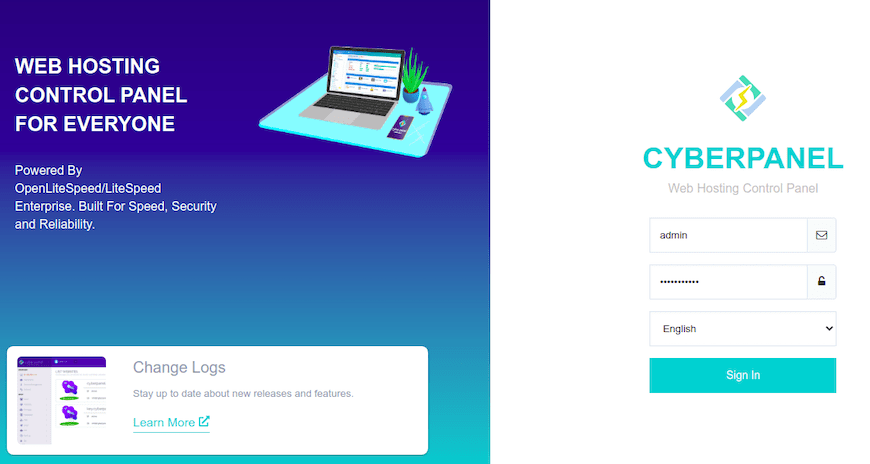
https://your-server-ip:8090Your browser will display a security warning about an untrusted SSL certificate. This is completely normal — the panel hasn’t been issued a domain-based SSL certificate yet. Click Advanced then Proceed Anyway in Chrome, or the equivalent option in your browser.
On the login screen, enter:
- Username:
admin - Password: The password you set during installation
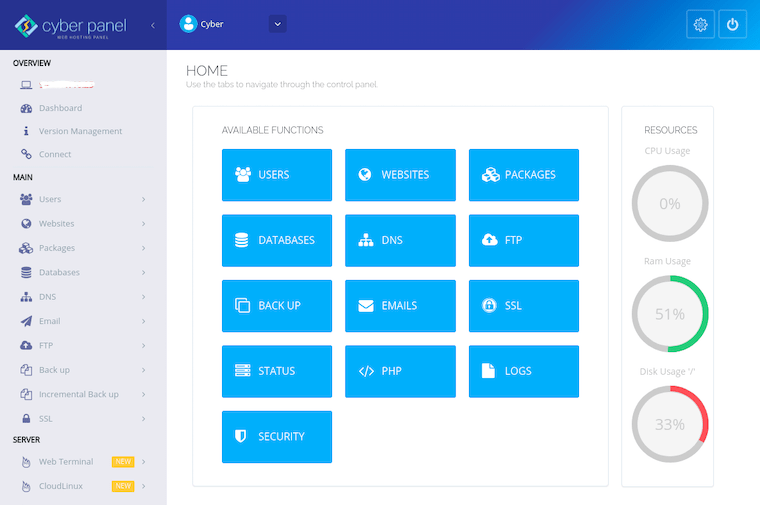
You are now inside the CyberPanel dashboard. Spend a moment familiarizing yourself with the left-hand navigation: Websites, Email, FTP, DNS, Databases, Security, Backup, and Server Status are all accessible from the main menu.
Verify that OpenLiteSpeed is running by executing this command in your SSH terminal:
systemctl status lswsThe output should show active (running) in green.
Step 7: Post-Installation Configuration
Change Admin Password
Navigate to your user icon in the top-right corner, then Edit Profile, then Change Password. Even if you set a strong password during installation, confirm it is saved correctly and change it again for good measure. Enable two-factor authentication (2FA) if your CyberPanel version supports it.
Configure CSF Firewall
Navigate to Security → CSF Firewall → Install CSF. After installation, configure the following essential open ports:
| Port | Service |
|---|---|
| 22 | SSH |
| 80 | HTTP |
| 443 | HTTPS |
| 8090 | CyberPanel Dashboard |
| 21 | FTP |
| 25, 465, 587 | Email (SMTP) |
| 53 | DNS |
| 110, 143, 993, 995 | Email (POP3/IMAP) |
Click Save and then Restart CSF. All other inbound ports are blocked by default, significantly hardening your server’s attack surface.
Issue a Free SSL Certificate
Navigate to Websites → List Websites and click Issue SSL next to your hostname. Select Let’s Encrypt, then click Issue. CyberPanel handles automatic certificate renewal — no cron jobs or manual renewal required. After SSL is issued for your hostname, you can access the dashboard securely via https://yourhostname.com:8090.
Step 8: Create Your First Website
Navigate to Websites → Create Website and fill in the required fields:
- Domain Name: Your registered domain such as
yourdomain.com - Email: Administrative contact email
- PHP Version: Select the latest stable version — PHP 8.3 recommended
- Package: Default
Click Create Website. CyberPanel provisions the directory structure, configures virtual host settings, and assigns PHP-FPM in seconds.
For WordPress, navigate to Websites → List Websites → WP + LS Cache. The installer deploys a fully configured WordPress installation with the LiteSpeed Cache plugin pre-activated — one of the most powerful WordPress caching plugins available. After WordPress is installed, issue SSL for the domain using the same Let’s Encrypt process described above.
Troubleshooting Common Installation Issues
Even on clean servers, issues occasionally arise. Here are the most common problems and their solutions.
Port 8090 not accessible after installation
Run ufw allow 8090/tcp && ufw reload. If UFW is not active, check CSF firewall rules or verify your cloud provider’s security group settings are not blocking the port.
Installation fails mid-way
Confirm RAM is at least 1 GB with free -h and disk space is sufficient with df -h. Ensure you started with a completely fresh Ubuntu 24.04 installation and re-run the installer after resolving resource issues.
Conflicting service already running
If Apache was pre-installed, run systemctl stop apache2 && apt remove apache2 -y, then re-run the CyberPanel installer.
SSH root login denied
Edit /etc/ssh/sshd_config and confirm PermitRootLogin yes is set. Restart SSH with systemctl restart ssh.
Installation script hangs
Test your internet connection with ping google.com. If packets drop, contact your VPS provider about network instability. Once connectivity is restored, re-run the installer.
Forgot admin password
Retrieve the stored password via SSH:
cat /etc/cyberpanel/adminPassCongratulations! You have successfully installed CyberPanel. Thanks for using this tutorial for installing CyberPanel web hosting management on Ubuntu 24.04 LTS system. For additional help or useful information, we recommend you check the official CyberPanel website.
