
Managing logs across multiple servers can quickly turn into a chaotic, time-consuming mess — especially as infrastructure scales. That is exactly why the ELK Stack has become the go-to solution for system administrators and DevOps engineers worldwide. It provides a powerful, open-source platform for centralizing, processing, and visualizing log data in real time.
This guide walks you through exactly how to install ELK Stack on Debian 13 “Trixie” from scratch. You will have Elasticsearch, Logstash, Kibana, and Filebeat fully operational by the end. Every command has been tested on a clean Debian 13 environment running Elastic Stack 9.x, so you can follow along with confidence.
What Is the ELK Stack?
The ELK Stack is a collection of four open-source tools built and maintained by Elastic. Together, they form a complete log management and observability pipeline. Each component has a specific role in the data flow.
- Elasticsearch — A distributed, RESTful search and analytics engine. It stores, indexes, and retrieves all incoming data. By default, it listens on port
9200. - Logstash — A server-side data processing pipeline that ingests data from multiple sources, applies transformations using filters, and ships the results to Elasticsearch.
- Kibana — A browser-based visualization dashboard that allows you to explore, search, and visualize everything stored in Elasticsearch. It runs on port
5601. - Filebeat — A lightweight data shipper installed on remote or local servers. It reads log files and forwards them directly to Logstash or Elasticsearch.
The data flow looks like this:
Server Logs → Filebeat → Logstash (filter & transform) → Elasticsearch → Kibana (visualize)
This tight integration is what makes the Elastic Stack so effective for use cases like infrastructure monitoring, application performance tracking, and security log analysis.
Prerequisites
Before diving in, make sure your server meets these requirements. Skipping this check is a common reason installations fail.
- Operating System: Debian 13 (Trixie) — fresh installation preferred
- RAM: Minimum 4 GB; 8 GB is strongly recommended when running Logstash and Elasticsearch simultaneously
- CPU: 2 or more cores
- Disk Space: At least 50 GB free
- User Access: Root or a user with
sudoprivileges - Open Ports:
9200(Elasticsearch),5601(Kibana),5044(Logstash Beats input),9600(Logstash monitoring API) - Basic comfort with Linux terminal commands
Step 1: Update the System and Install Required Dependencies
Start with a fully updated system. This prevents package conflicts and ensures you are working with the latest Debian 13 base packages.
apt update && apt upgrade -y
Next, install the core dependency packages needed to import GPG keys and communicate over HTTPS repositories:
apt install gnupg2 apt-transport-https curl wget -y
Here is what each package does:
gnupg2— Handles GPG key verification to confirm packages come from a trusted sourceapt-transport-https— Allows APT to download packages from HTTPS-secured repositoriescurl/wget— Needed for downloading keys and testing API endpoints later
Once installed, your system is ready to connect to the official Elastic package repository. Do not skip this step, even on a minimal server install.
Step 2: Add the Elastic GPG Key and Repository
Adding the official Elastic repository ensures you always install verified, version-matched packages. It is more reliable than downloading individual .deb files manually. Let’s set it up now.
First, download the Elastic GPG key and save it to the system keyring directory:
wget https://artifacts.elastic.co/GPG-KEY-elasticsearch \
  -O /etc/apt/keyrings/GPG-KEY-elasticsearch.key
Now add the Elastic 9.x APT repository, which is the current stable branch confirmed compatible with Debian 13 Trixie:
echo "deb [signed-by=/etc/apt/keyrings/GPG-KEY-elasticsearch.key] \
https://artifacts.elastic.co/packages/9.x/apt stable main" | \
tee /etc/apt/sources.list.d/elastic-9.x.list
Finally, refresh your package list so APT recognizes the new Elastic packages:
apt update
You should now see Elasticsearch, Kibana, Logstash, and Filebeat listed as installable packages. If APT throws a GPG error at this stage, double-check that the key was saved to /etc/apt/keyrings/ with the correct filename.
Step 3: Install Elasticsearch
Elasticsearch is the backbone of the entire stack. Install it directly from the Elastic repository — no separate Java installation is required, because a bundled JDK is included automatically:
apt install elasticsearch -y
Pay close attention here. During the installation process, the terminal will print a Security Autoconfiguration block that looks like this:
The generated password for the elastic built-in superuser is : Q_1iL_6EpogFPHYMgMbL
Copy and save this password immediately. It will not be shown again after the installation completes. You will need it to access the API, configure Kibana, and log into the web interface. If you lose it, you can reset it later using:
/usr/share/elasticsearch/bin/elasticsearch-reset-password -u elastic
On servers with limited RAM, reduce the JVM heap size to avoid out-of-memory crashes at runtime:
echo -e '-Xms512m\n-Xmx512m' > /etc/elasticsearch/jvm.options.d/jvm-heap.options
Reload the systemd daemon, then enable and start the Elasticsearch service:
systemctl daemon-reload
systemctl enable --now elasticsearch
Confirm the service is running:
systemctl status elasticsearch
The output should read Active: active (running). If you see a failure here, the most common cause is insufficient memory or a misconfigured JVM heap size.
Step 4: Configure Elasticsearch
The main Elasticsearch configuration file lives at /etc/elasticsearch/elasticsearch.yml. Open it in your preferred editor:
nano /etc/elasticsearch/elasticsearch.yml
Review and configure the following key settings:
cluster.name:— Give your cluster a meaningful name, such aselk-debian13node.name:— Identify this specific node, for examplenode-1network.host:— Use127.0.0.1to restrict access to localhost only. Set to0.0.0.0if remote clients or Kibana on a different host need to connecthttp.port: 9200— Leave this as-is unless another service is already using port 9200discovery.type: single-node— This is required for standalone, non-clustered deployments. Without it, Elasticsearch may fail to bootstrap
Save your changes and restart the service to apply them:
systemctl restart elasticsearch
One important note on security: Elasticsearch 9.x enables TLS encryption and authentication by default. Do not disable these settings in production. The TLS certificate used by the HTTP layer is stored at /etc/elasticsearch/certs/http_ca.crt and is needed for secure API calls.
Step 5: Verify the Elasticsearch Installation
Before installing Kibana, confirm that Elasticsearch is responding to API requests. Use curl with TLS certificate validation and your saved credentials:
curl -u elastic --cacert /etc/elasticsearch/certs/http_ca.crt \
https://127.0.0.1:9200
When prompted, enter the auto-generated elastic password. A successful response returns a JSON object similar to this:
{
  "name": "node-1",
  "cluster_name": "elk-debian13",
  "version": { "number": "9.1.5" },
  "tagline": "You Know, for Search"
}
Also confirm the port is actively listening:
ss -altnp | grep 9200
If the connection is refused, check the service status first, then review the Elasticsearch logs at /var/log/elasticsearch/ for specific error messages. Firewall rules blocking port 9200 are another frequent culprit.
Step 6: Install and Set Up Kibana
With Elasticsearch running, install Kibana from the same Elastic repository:
apt install kibana -y
Kibana must be securely enrolled with Elasticsearch using a time-limited token. Generate that enrollment token now:
/usr/share/elasticsearch/bin/elasticsearch-create-enrollment-token -s kibana
Copy the output — the token expires after 30 minutes, so proceed quickly.
Next, generate the mandatory encryption keys that Kibana uses for saved objects, reporting, and security features:
/usr/share/kibana/bin/kibana-encryption-keys generate
Add the three output keys to the Kibana configuration file:
nano /etc/kibana/kibana.yml
Look for the following lines and add your generated values:
xpack.encryptedSavedObjects.encryptionKey: "your_key_here"
xpack.reporting.encryptionKey: "your_key_here"
xpack.security.encryptionKey: "your_key_here"
Also set the server host so Kibana is accessible from the network:
server.port: 5601
server.host: "your-server-ip"
Now enable and start the Kibana service:
systemctl enable --now kibana
systemctl status kibana
Step 7: Access the Kibana Web Interface
Open a browser and navigate to http://your-server-ip:5601. The Kibana startup screen will prompt you for the enrollment token you generated in the previous step. Paste it in and click Configure Elastic.
Kibana will briefly restart while establishing a secure TLS connection to Elasticsearch. Once the process finishes, you will be redirected to a login screen. Sign in with:
- Username:
elastic - Password: The auto-generated password from the Elasticsearch installation
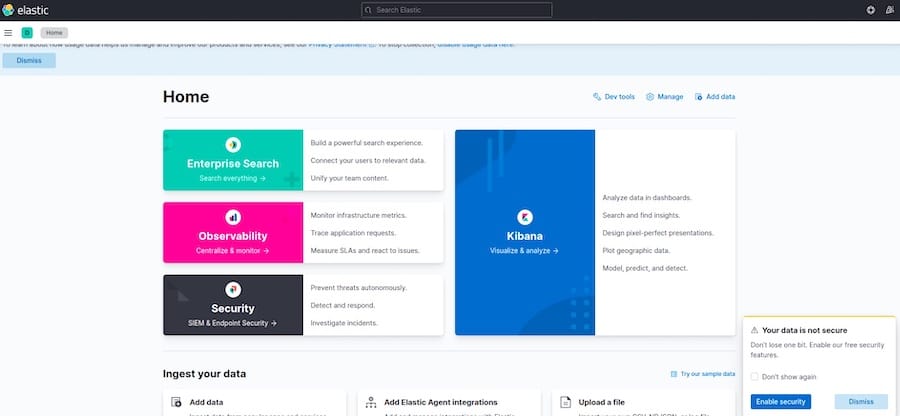
On the welcome screen, click Explore on my own to access the full Kibana dashboard. You will see the main navigation: Discover, Dashboards, Visualizations, and Stack Management. Before data appears in the Discover view, you will need to configure a data view, which you will do after setting up Logstash and Filebeat.
Step 8: Install and Configure Logstash
Logstash is the processing engine. It takes raw log data, applies parsing filters, and routes structured output to Elasticsearch. Install it now:
apt install logstash -y
systemctl enable --now logstash
All pipeline configurations live in /etc/logstash/conf.d/. Create a new pipeline file:
nano /etc/logstash/conf.d/logstash.conf
Add the following three-block configuration:
input {
  beats {
    port => 5044
  }
}

filter {
  grok {
    match => { "message" => "%{SYSLOGTIMESTAMP:syslog_timestamp} %{SYSLOGHOST:syslog_hostname} %{DATA:syslog_program}: %{GREEDYDATA:syslog_message}" }
  }
}

output {
  elasticsearch {
    hosts => ["https://localhost:9200"]
    cacert => "/etc/elasticsearch/certs/http_ca.crt"
    user => "elastic"
    password => "your_elastic_password"
    index => "logstash-%{+YYYY.MM.dd}"
  }
}
Always test the pipeline configuration before restarting to catch syntax errors early:
/usr/share/logstash/bin/logstash --config.test_and_exit \
  -f /etc/logstash/conf.d/logstash.conf
If the output reads Configuration OK, restart Logstash to activate the pipeline:
systemctl restart logstash
Step 9: Install and Configure Filebeat
Filebeat is the lightweight agent that reads log files from the server and ships them to Logstash. Install it from the Elastic repository:
apt install filebeat -y
Enable the built-in system module to start collecting syslog and authentication logs automatically:
filebeat modules enable system
Open the Filebeat configuration file:
nano /etc/filebeat/filebeat.yml
Scroll to the output section and make these two changes:
- Comment out the
output.elasticsearchblock - Uncomment the
output.logstashblock and set the host:
output.logstash:
  hosts: ["localhost:5044"]
Load the Filebeat index template to Elasticsearch to ensure proper data mapping:
filebeat setup --index-management \
  -E output.logstash.enabled=false \
  -E 'output.elasticsearch.hosts=["localhost:9200"]'
Enable and start Filebeat:
systemctl enable --now filebeat
Return to Kibana, navigate to Stack Management → Data Views, and create a new data view using the index pattern logstash-* with @timestamp as the time field. Then go to Analytics → Discover — your log entries should now be flowing in.
Step 10: Configure the UFW Firewall
Securing your ELK Stack server with proper firewall rules is a non-negotiable step. Open only the ports your stack actively uses:
ufw allow 9200/tcp   # Elasticsearch API
ufw allow 5601/tcp   # Kibana web interface
ufw allow 5044/tcp   # Logstash Beats input
ufw allow 9600/tcp   # Logstash monitoring API (optional)
ufw enable
ufw status verbose
In a production environment, restrict port 9200 to trusted IP addresses only using ufw allow from your.trusted.ip to any port 9200. Never expose the Elasticsearch API to the public internet without authentication controls.
Troubleshooting Common ELK Stack Issues
Even a well-planned installation can encounter friction. Here are the most frequent issues and how to resolve them:
- Elasticsearch fails to start — Usually caused by insufficient RAM. Check
/var/log/elasticsearch/forOutOfMemoryError. Lower the JVM heap size to512mif you are on a 4 GB server. - Kibana cannot connect to Elasticsearch — The enrollment token expires after 30 minutes. If Kibana cannot reach Elasticsearch, regenerate the token and re-enter it.
- GPG key error during
apt update— Re-download the key fromhttps://artifacts.elastic.co/GPG-KEY-elasticsearchand confirm it was saved with the exact path and filename expected inelastic-9.x.list. - Port 9200 inaccessible from remote hosts — Check both UFW rules and confirm
network.hostinelasticsearch.ymlis not set to127.0.0.1. - Logstash pipeline fails to start — Always run
--config.test_and_exitafter any config change to catch grok syntax errors before they become runtime failures. - Permission denied on cert files — Verify the
elasticsearchuser owns/etc/elasticsearch/certs/withchown -R elasticsearch:elasticsearch /etc/elasticsearch/certs/. - Version mismatch errors between components — Elasticsearch, Kibana, Logstash, and Filebeat must all be the same version. Mixing versions is the single most common cause of cryptic startup failures in the Elastic Stack.
Congratulations! You have successfully installed ELK Stack. Thanks for using this tutorial for installing the ELK Stack on your Debian 13 “Trixie” system. For additional help or useful information, we recommend you check the official ELK Stack website.

