How To Install Feishin on Debian 13

Feishin represents a modern approach to self-hosted music streaming, offering users complete control over their audio library without sacrificing features or user experience. This open-source music player delivers seamless integration with popular self-hosted music servers like Navidrome and Jellyfin, combining powerful functionality with an intuitive interface. Built on TypeScript and leveraging the robust MPV media player backend, Feishin provides high-quality audio playback, synchronized lyrics, smart playlist editing capabilities, and scrobbling support that rivals commercial streaming services.
The recent release of Debian 13 (codenamed “Trixie”) brings enhanced stability and updated package repositories, making it an excellent foundation for running Feishin. Installing Feishin on Debian 13 opens possibilities for managing extensive music collections through a polished desktop application. Unlike browser-based interfaces, Feishin offers offline caching, desktop integration, and superior performance for everyday music listening. Whether managing a personal music archive or setting up a family media server, Feishin provides the tools needed for comprehensive music library management.
Understanding Feishin and Its Requirements
Feishin operates as a dedicated client application designed specifically for self-hosted music server APIs. The application communicates with backend music servers that store and serve audio files, acting as an interface layer between listeners and their music collections. This architecture allows Feishin to focus exclusively on playback and user experience while delegating storage and file management to specialized server software.
The music player supports three primary server types: Navidrome (a lightweight music server), Jellyfin (a comprehensive media server), and any OpenSubsonic-compatible implementation. Each server type offers distinct advantages, with Navidrome excelling at pure music management and Jellyfin providing broader multimedia capabilities. Feishin adapts its feature set based on the connected server, unlocking smart playlist functionality with Navidrome while offering video capabilities through Jellyfin.
Debian 13 fully supports Feishin across both x86_64 and ARM64 processor architectures, ensuring compatibility with traditional desktop systems and newer ARM-based devices. The MPV media player serves as Feishin’s audio engine, handling format decoding and audio output. This dependency relationship means MPV installation becomes mandatory before Feishin can play any audio content.
Desktop integration capabilities distinguish Feishin from web-based alternatives. The application can pin to taskbars, respond to media keys, and cache content for offline listening. These features transform music listening from a browser-dependent activity into a native desktop experience comparable to commercial applications.
Prerequisites for Installing Feishin on Debian 13
System Requirements
A functioning Debian 13 installation with administrative access forms the foundation for Feishin deployment. The system requires at least 2GB of RAM, though 4GB provides better performance when working with extensive music libraries containing thousands of tracks. Storage needs remain modest, with approximately 200MB of free disk space sufficient for the Feishin AppImage and associated dependencies.
Debian 13 supports installation on x86_64 processors (common in desktop and laptop computers) and ARM64 processors (found in newer single-board computers). Verifying processor architecture ensures downloading the correct Feishin build. An active internet connection enables package downloads and AppImage retrieval during installation.
Updating Your Debian 13 System
System updates ensure all existing packages reach their latest stable versions before introducing new software. Open a terminal and refresh package repository indexes:
sudo apt updateThis command contacts Debian repositories and downloads current package lists. Next, upgrade installed packages:
sudo apt upgrade -yThe -y flag automatically confirms upgrade prompts, streamlining the process. Install essential prerequisite packages:
sudo apt install software-properties-common apt-transport-https ca-certificates curl gnupg -yThese utilities facilitate secure downloads and repository management throughout the installation process.
Installing MPV Media Player
MPV provides the audio playback engine that Feishin relies upon for decoding and playing music files. Without MPV, Feishin cannot output sound despite successfully connecting to music servers. Install MPV through Debian’s package manager:
sudo apt install mpv -yThis command downloads MPV and automatically resolves dependencies. Verify successful installation:
mpv --versionThe output displays MPV’s version number and available codecs. Locate the MPV binary path, which Feishin will request during initial configuration:
whereis mpvTypical output shows /usr/bin/mpv as the installation path. Note this location for later configuration steps.
Method 1: Installing Feishin AppImage on Debian 13
Downloading the Feishin AppImage
AppImage distribution offers the simplest Feishin installation method, bundling all dependencies into a single executable file. Navigate to the official Feishin GitHub releases page to access the latest stable version. The releases page lists available builds organized by version number and release date.
Identify the correct AppImage file for your system architecture. Most Debian 13 installations require the x86_64 build. Download using wget directly from the terminal:
cd ~/Downloads
wget https://github.com/jeffvli/feishin/releases/download/v0.X.X/Feishin-0.X.X-linux-x86_64.AppImage
Replace version numbers with the current release available on the releases page. The download ranges from 150-200MB depending on the version. ARM64 systems require downloading the corresponding ARM64 AppImage instead.
Verify download completion by checking file size:
ls -lh Feishin-*.AppImageCompare the displayed size against the GitHub releases page to ensure complete download.
Making the AppImage Executable
Downloaded AppImages lack execution permissions by default, requiring manual permission modification. Grant execution rights:
chmod +x Feishin-*.AppImageThis command modifies file permissions, enabling the AppImage to run as a program. Confirm permission changes:
ls -l Feishin-*.AppImageThe output shows -rwxr-xr-x permissions, indicating executable status. Alternative permission modification through graphical file managers involves right-clicking the AppImage, selecting Properties, navigating to the Permissions tab, and enabling “Allow executing file as program”.
First Launch and MPV Configuration
Execute the AppImage from the terminal:
./Feishin-*.AppImageFeishin launches and immediately prompts for MPV binary path configuration. This critical step connects Feishin to the audio playback engine. Enter the MPV path discovered earlier:
/usr/bin/mpvFeishin cannot automatically detect MPV installations due to AppImage sandboxing limitations. Manual path specification remains necessary for initial setup. After entering the correct path, Feishin saves this configuration and proceeds to the main interface.
Creating Permanent Installation
Temporary execution from the Downloads folder works but lacks convenience for daily use. Move the AppImage to a permanent location:
mkdir -p ~/.local/bin
mv ~/Downloads/Feishin-*.AppImage ~/.local/bin/feishin.appimage
This organization keeps user-installed applications separate from system packages. Create a symbolic link for simplified terminal launching:
ln -s ~/.local/bin/feishin.appimage ~/.local/bin/feishinLaunch Feishin from any terminal location by typing feishin.
Method 2: Desktop Integration for Feishin
Creating Desktop Entry File
Desktop environments recognize applications through .desktop files containing metadata and launch instructions. Create the applications directory if not present:
mkdir -p ~/.local/share/applicationsGenerate a desktop entry file:
nano ~/.local/share/applications/feishin.desktopPopulate the file with the following content:
[Desktop Entry]
Name=Feishin
Comment=Modern self-hosted music player
Exec=/home/USERNAME/.local/bin/feishin.appimage
Icon=/home/USERNAME/.local/share/icons/feishin.png
Terminal=false
Type=Application
Categories=AudioVideo;Audio;Player;
Replace USERNAME with your actual username. The Exec line points to the AppImage location, while Icon references an icon file created in the next step.
Extracting and Installing Application Icon
AppImages contain embedded resources including application icons. Extract these resources:
cd ~/.local/bin
./feishin.appimage --appimage-extract
This command creates a squashfs-root directory containing extracted files. Copy the icon to the appropriate location:
mkdir -p ~/.local/share/icons
cp squashfs-root/usr/share/icons/hicolor/512x512/apps/feishin.png ~/.local/share/icons/
Standard icon resolution uses 512×512 pixels for optimal display across different desktop environments. Remove the temporary extraction directory after copying required files:
rm -rf squashfs-rootUpdating Desktop Database
Desktop environments cache application information for menu display. Update this cache:
update-desktop-database ~/.local/share/applications/The command scans desktop files and refreshes application menus. Log out and back in, or restart the desktop environment to ensure changes take effect. Feishin now appears in application menus alongside other installed programs.
Desktop environments like GNOME, KDE Plasma, and Xfce each display applications differently, but all recognize standard desktop entry files. Pin Feishin to the taskbar or favorites by right-clicking the menu entry and selecting the appropriate option.
Method 3: Docker Installation (Optional Advanced Method)
Installing Docker on Debian 13
Docker containerization provides isolation and simplified updates for advanced users. Add Docker’s official GPG key:
curl -fsSL https://download.docker.com/linux/debian/gpg | sudo gpg --dearmor -o /usr/share/keyrings/docker-archive-keyring.gpgAdd the Docker repository to Debian’s sources:
echo "deb [arch=$(dpkg --print-architecture) signed-by=/usr/share/keyrings/docker-archive-keyring.gpg] https://download.docker.com/linux/debian $(lsb_release -cs) stable" | sudo tee /etc/apt/sources.list.d/docker.list > /dev/nullUpdate package indexes and install Docker:
sudo apt update
sudo apt install docker-ce docker-ce-cli containerd.io -y
Add your user account to the docker group, enabling Docker commands without sudo:
sudo usermod -aG docker $USERLog out and back in for group membership changes to take effect. Verify installation:
docker --versionDeploying Feishin Docker Container
Docker Hub hosts Feishin container images for streamlined deployment. Run Feishin as a container:
docker run -d \
  --name feishin \
  -p 9180:9180 \
  -v feishin-config:/app/data \
  --restart unless-stopped \
  jeffvli/feishin:latest
This command downloads the latest Feishin image, creates a container, maps port 9180, and establishes persistent storage for configuration. Access the containerized Feishin through a web browser at http://localhost:9180.
Docker Compose Configuration
Docker Compose simplifies container management through declarative configuration. Create a docker-compose.yml file:
version: '3.8'
services:
  feishin:
    image: jeffvli/feishin:latest
    container_name: feishin
    ports:
      - "9180:9180"
    volumes:
      - feishin-config:/app/data
    restart: unless-stopped

volumes:
  feishin-config:
Deploy with Docker Compose:
docker-compose up -dContainerization offers benefits including system independence, easy version rollback, and clean removal without residual files.
Configuring Feishin After Installation
Initial Application Setup
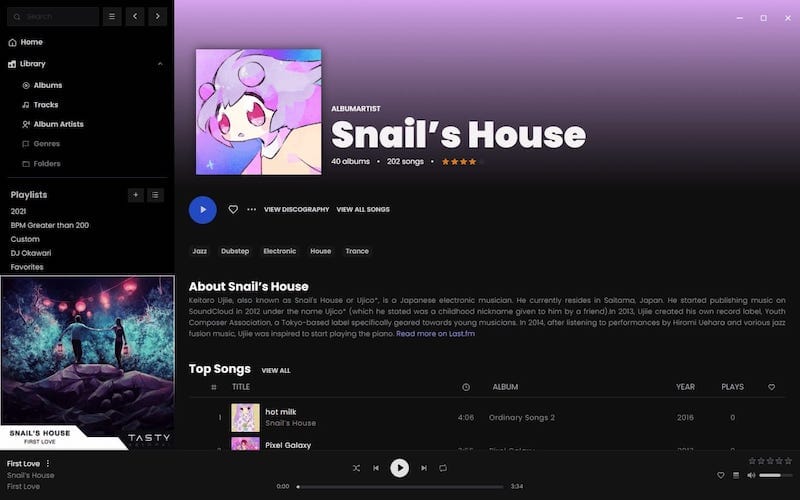
Launch Feishin through the application menu or terminal command. The initial setup wizard presents theme selection options, including light and dark color schemes matching desktop environment preferences. Choose the preferred theme for comfortable extended listening sessions.
Default audio quality settings determine streaming bitrate and format preferences. Higher quality settings consume more bandwidth but preserve audio fidelity, while lower settings conserve network resources. Interface language options accommodate international users, with Feishin supporting multiple locales.
Audio Backend Configuration
Feishin supports two playback backends: MPV (recommended) and Web Audio API. MPV backend delivers superior audio quality through native codec support and advanced audio processing. Navigate to Settings > Playback > Audio Backend and select MPV.
The MPV path field should display /usr/bin/mpv from earlier configuration. If blank or incorrect, manually enter the path obtained from the whereis mpv command. Web Audio backend serves as a compatibility fallback for systems where MPV configuration proves problematic.
General Settings and Preferences
Cache configuration affects offline playback capabilities and application responsiveness. Navigate to Settings > Cache and adjust cache size based on available disk space and listening habits. Larger caches enable more offline content but consume additional storage.
Scrobbling tracks listening history to services like Last.fm for statistics and recommendations. Enable scrobbling in Settings > Scrobbling and enter service credentials. Hotkey customization allows keyboard control of playback without switching windows. Configure shortcuts for play/pause, skip, volume, and other functions in Settings > Hotkeys.
Library scanning preferences determine how frequently Feishin checks for new content on connected servers. Metadata settings control which information displays in the library view.
Connecting Feishin to Music Servers
Setting Up Jellyfin Server Connection
Click the “Add Server” button in Feishin’s main interface. Select “Jellyfin” as the server type from the dropdown menu. Enter the Jellyfin server URL in the format http://serverip:8096, replacing serverip with your server’s IP address or hostname.
Default Jellyfin installations use port 8096 for HTTP connections. HTTPS connections require port 8920 and proper certificate configuration. Enter username and password credentials matching your Jellyfin account. Click “Test Connection” to verify network connectivity and authentication.
Successful connections display available libraries from the Jellyfin server. Failed connections may indicate incorrect credentials, network issues, or server accessibility problems. Address these through systematic troubleshooting covered in later sections.
Configuring Navidrome Server
Select “Navidrome” as the server type when adding a new connection. Navidrome servers typically operate on port 4533, requiring URL format http://serverip:4533. Enter Navidrome credentials for authentication.
Navidrome integration unlocks smart playlist capabilities not available with all server types. These dynamic playlists automatically update based on criteria like play count, rating, or genre. Test the connection before proceeding to ensure proper configuration.
Multiple Server Management
Feishin accommodates multiple music server connections simultaneously. Add additional servers through the same “Add Server” process, regardless of server type. Switch between servers using the server selector dropdown in the main interface.
Each server profile maintains independent settings, credentials, and cached content. This separation allows managing separate music collections across different servers or accessing libraries at multiple locations. Navidrome excels at smart playlist generation while Jellyfin provides integrated video content access, enabling users to leverage each platform’s strengths.
Troubleshooting Common Installation Issues
MPV-Related Problems
The “MPV not found” error represents the most common Feishin installation issue. This message appears when Feishin cannot locate the MPV binary at the specified path. Open Settings > Playback > Audio Backend and verify the MPV path field contains /usr/bin/mpv.
If the path proves correct but errors persist, verify MPV functionality independently:
mpv /usr/share/sounds/alsa/Front_Center.wavThis command attempts playing a system sound file through MPV. Successful playback confirms MPV works correctly, indicating configuration rather than installation problems. Install missing MPV dependencies if playback fails:
sudo apt install --reinstall mpv libmpv1 -yAppImage Execution Issues
Permission denied errors despite proper chmod commands often stem from filesystem mount options. Verify the Downloads folder or AppImage location doesn’t reside on a partition mounted with noexec flag. Check mount options:
mount | grep $(df ~/Downloads | tail -1 | awk '{print $1}')Remount the partition without noexec if necessary.
FUSE2 dependency issues prevent AppImage execution on some Debian 13 configurations. Install the required FUSE library:
sudo apt install libfuse2 -yAppImages rely on FUSE for filesystem operations within the package. System logs provide detailed error information when AppImages fail to launch:
journalctl -xe | grep -i appimageServer Connection Problems
“No server found” errors indicate network connectivity issues between Feishin and music servers. Verify network reachability:
ping serveripSuccessful pings confirm basic network connectivity. Test specific port accessibility:
telnet serverip 8096Replace the port number with your server’s actual port. Firewall rules may block music server ports, requiring adjustment:
sudo ufw allow 8096/tcpAuthentication failures require credential verification through server administrative interfaces. Ensure usernames and passwords match exactly, including case sensitivity. Server URL format validation prevents common configuration errors – HTTP URLs begin with http:// while secure connections require https://.
Playback Issues
Media fails to play despite successful server connections when codec support or transcoding configuration causes problems. Test both playback backends by switching between MPV and Web Audio in Settings > Playback. If Web Audio plays but MPV fails, MPV installation requires troubleshooting.
Audio format compatibility varies between playback methods. FLAC, MP3, and AAC represent widely supported formats, while exotic codecs may require additional MPV plugins. Server-side transcoding converts incompatible formats to supported types automatically, but requires enabling in server settings.
Best Practices and Optimization
Performance Optimization
Cache size significantly impacts Feishin responsiveness and offline listening capabilities. Navigate to Settings > Cache and allocate storage based on library size and usage patterns. Systems with ample disk space benefit from larger caches holding more frequently played tracks.
Streaming quality adjustments balance bandwidth consumption against audio fidelity. Local network connections support maximum quality streaming, while mobile networks benefit from reduced bitrates. Hardware acceleration in MPV settings reduces CPU usage during playback, particularly important for lower-powered systems.
Large music libraries containing tens of thousands of tracks may exhibit slower loading times. Metadata optimization through proper tagging and library organization improves performance. Regular library maintenance keeps response times acceptable.
Security Considerations
Remote server access requires HTTPS encryption protecting credentials and listening habits from interception. Configure music servers with valid SSL certificates before exposing them to the internet. Strong authentication passwords prevent unauthorized access to music libraries.
Firewall configuration balances accessibility with security. Restrict music server ports to trusted networks when possible:
sudo ufw allow from 192.168.1.0/24 to any port 8096This command limits port 8096 access to the local 192.168.1.0/24 network.
Regular Feishin updates address security vulnerabilities and add functionality. Check the GitHub releases page periodically for new versions. AppImage updates involve downloading the latest release and replacing the existing file.
Backup and Maintenance
Feishin stores configuration in ~/.config/feishin/ including server credentials, playback settings, and cache data. Regular backups preserve these settings:
tar -czf feishin-backup-$(date +%Y%m%d).tar.gz ~/.config/feishin/Version updates require downloading the new AppImage release and executing it. Existing configurations persist across updates. Cache cleaning recovers disk space:
rm -rf ~/.config/feishin/cache/*Monitor music server health through administrative dashboards to ensure consistent Feishin performance. Server downtime or configuration changes may affect Feishin connectivity.
Advanced Features and Usage Tips
Smart playlist creation with Navidrome integration transforms static libraries into dynamic, self-updating collections. Create playlists based on criteria including star ratings, play counts, genres, and dates added. These playlists automatically incorporate new music matching defined rules.
Synchronized lyrics display transforms listening experiences by showing time-aligned text alongside audio playback. Feishin supports both synchronized and unsynchronized lyrics formats when available in metadata. Scrobbling to Last.fm or compatible services maintains listening statistics across platforms and enables music discovery recommendations.
Keyboard shortcuts enable efficient library navigation without constant mouse usage. Default bindings cover common operations, but custom shortcuts accommodate individual workflows. Media key support allows controlling Feishin through dedicated keyboard buttons or laptop function keys.
Playlist management tools facilitate organizing large music collections. Create custom playlists for moods, activities, or genres. Star rating systems provide quick quality indicators for library navigation. Queue management controls upcoming playback without modifying playlists. Playback history tracking enables rediscovering previously enjoyed tracks.
Congratulations! You have successfully installed Feishin. Thanks for using this tutorial for installing the Feishin modern self-hosted music player on Debian 13 “Trixie” system. For additional help or useful information, we recommend you check the official Feishin website.
