
Feishin is a modern, self-hosted music player designed for users who want complete control over their music streaming experience. Built as a complete rewrite of Sonixd, Feishin offers a sleek interface with powerful features for managing personal music libraries. This comprehensive guide walks through every step needed to install and configure Feishin on Rocky Linux 10, from initial system preparation to advanced optimization techniques. Whether managing a home music server or setting up a professional audio workstation, this tutorial provides the complete roadmap for getting Feishin running smoothly on the latest Rocky Linux release.
What is Feishin?
Feishin represents the evolution of desktop music players for self-hosted environments. Written in TypeScript and built on the Electron framework, this application delivers a modern streaming experience while maintaining compatibility with popular music server backends. The application supports three major server types: Navidrome, Jellyfin, and any OpenSubsonic-compatible server, making it versatile enough for various deployment scenarios.
The feature set distinguishes Feishin from traditional music players. At its core, the application utilizes MPV as its primary audio backend, ensuring high-quality playback with extensive codec support. A web player backend serves as an alternative for systems where MPV isn’t available. The user interface adapts to different screen sizes while maintaining responsiveness and visual appeal.
Advanced features include a smart playlist editor specifically designed for Navidrome servers, allowing complex filtering and automated playlist generation. Scrobbling support ensures listening history synchronizes with compatible services. Both synchronized and unsynchronized lyrics display within the player interface, enhancing the listening experience. The transition from Sonixd to Feishin brought significant improvements in stability, performance, and feature completeness, making it the preferred choice for self-hosted music enthusiasts.
Prerequisites and System Requirements
Installing Feishin on Rocky Linux 10 requires meeting specific hardware and software requirements. The system needs a 64-bit x86_64 architecture processor, which is standard for modern computers. Memory requirements are modest—at least 2GB of RAM ensures smooth operation, though 4GB or more provides better performance when handling large music libraries. Storage needs depend on cache settings and offline downloads, but reserving 500MB initially covers the application and basic operation.
Rocky Linux 10 must be properly installed and updated before proceeding with Feishin installation. The system requires MPV media player as an essential dependency, as Feishin relies on it for audio playback. Download utilities like wget or curl facilitate retrieving the installation files. A desktop environment—whether GNOME, KDE Plasma, XFCE, or another option—provides the graphical interface needed to run Feishin effectively.
An active internet connection enables downloading packages and connecting to music servers. While Feishin functions as a standalone player, it achieves full potential when connected to a music server running Navidrome, Jellyfin, or an OpenSubsonic-compatible platform. User accounts need sudo or root privileges for installing system-level dependencies, though Feishin itself runs under regular user permissions for security.
Pre-Installation Steps
Updating Rocky Linux 10 System
System updates form the foundation of a stable installation. Outdated packages can cause compatibility issues or security vulnerabilities that affect Feishin performance. Open a terminal and execute the following command to refresh package repositories:
sudo dnf update -yThis command contacts Rocky Linux repositories and checks for available updates. The -y flag automatically confirms installation, streamlining the update process. After repository updates complete, upgrade all installed packages:
sudo dnf upgrade -yVerify the Rocky Linux version and architecture match requirements:
cat /etc/rocky-release
uname -m
The first command displays the Rocky Linux version, which should show “Rocky Linux release 10.x”. The second command outputs the system architecture—expect “x86_64” for 64-bit systems. If kernel updates were installed during the upgrade process, reboot the system to ensure all changes take effect:
sudo rebootInstalling Required Dependencies
MPV media player serves as Feishin’s audio engine. Rocky Linux 10 requires enabling EPEL (Extra Packages for Enterprise Linux) repository to access MPV packages. Install EPEL first:
sudo dnf install epel-release -yWith EPEL enabled, install MPV and its dependencies:
sudo dnf install mpv -yThe installation process downloads MPV along with required multimedia libraries and codecs. Address any dependency warnings immediately—some installations report missing libuchardet or similar libraries. Verify the MPV installation succeeded:
mpv --versionThis command should display version information, confirming MPV installed correctly. Note the binary location for later configuration:
which mpvTypically, this returns /usr/bin/mpv. Install wget if not already present, as it simplifies downloading Feishin:
sudo dnf install wget -yAdditional multimedia codecs may enhance playback compatibility for various audio formats. Install common codec packages:
sudo dnf install ffmpeg-free -yInstallation Method 1: AppImage Installation (Recommended)
Downloading Feishin AppImage
AppImage format offers significant advantages for Rocky Linux users. This self-contained package includes all dependencies except system libraries, eliminating complex installation procedures. AppImages don’t require root permissions for installation and won’t interfere with system packages. They also simplify updates—simply replace the old file with the new version.
Navigate to the Downloads directory:
cd ~/DownloadsDownload the latest Feishin AppImage from GitHub releases:
wget https://github.com/jeffvli/feishin/releases/latest/download/Feishin-linux-x86_64.AppImageThis command fetches the most recent stable release automatically. The download size typically ranges from 150MB to 200MB depending on the version. Monitor the download progress—interrupted transfers require restarting the wget command. Alternatively, visit the Feishin GitHub releases page through a web browser to download manually.
Verify the download completed successfully:
ls -lh Feishin-linux-x86_64.AppImageThe file size should match the expected range. While GitHub doesn’t always provide checksums for Feishin releases, checking the file isn’t corrupted or truncated prevents issues during execution.
Making the AppImage Executable
Linux treats downloaded files as non-executable by default for security. Grant execution permissions through the command line:
chmod +x Feishin-linux-x86_64.AppImageThe chmod command modifies file permissions, and +x adds executable status. Verify permissions were applied:
ls -l Feishin-linux-x86_64.AppImageLook for -rwxr-xr-x at the beginning of the output, indicating executable permissions. Graphical file managers provide an alternative method. Right-click the AppImage file, select Properties, navigate to the Permissions tab, and enable “Allow executing file as program”. Click Apply or OK to save changes.
First Launch and MPV Configuration
Launch Feishin from the terminal initially to monitor startup messages:
./Feishin-linux-x86_64.AppImageThe application opens and immediately requests the MPV binary path. This critical configuration step determines which audio backend Feishin uses for playback. Enter the full path to MPV:
/usr/bin/mpvClick Save or Apply to store this configuration. Feishin remembers this setting for future launches. The main window appears after MPV configuration completes. During first run, the AppImage may prompt about desktop integration—accepting these prompts creates menu entries and file associations automatically.
Watch the terminal output for error messages. Common issues include missing libraries or incorrect MPV paths. If errors appear, verify MPV installation and path accuracy before proceeding.
Creating Permanent Installation and Desktop Integration
Moving the AppImage to a permanent location prevents accidental deletion and organizes applications properly. Create a local binary directory if it doesn’t exist:
mkdir -p ~/.local/binMove the AppImage to this location and rename it for convenience:
mv ~/Downloads/Feishin-linux-x86_64.AppImage ~/.local/bin/feishinThis shortened name simplifies launching from terminal. Ensure the local bin directory is in the system PATH:
echo $PATH | grep -q "$HOME/.local/bin" || echo 'export PATH="$HOME/.local/bin:$PATH"' >> ~/.bashrc
source ~/.bashrc
Now launch Feishin from anywhere by typing:
feishinInstallation Method 2: Manual Desktop Entry Creation
Creating Desktop Entry File
Desktop entries integrate applications into system menus following freedesktop.org standards. Create the applications directory:
mkdir -p ~/.local/share/applicationsOpen a text editor to create the desktop entry file:
nano ~/.local/share/applications/feishin.desktopPaste the following content, replacing USERNAME with the actual username:
[Desktop Entry]
Type=Application
Name=Feishin
Comment=Modern self-hosted music player
Exec=/home/USERNAME/.local/bin/feishin
Icon=/home/USERNAME/.local/share/icons/feishin.png
Categories=AudioVideo;Audio;Player;
Terminal=false
StartupWMClass=feishin
MimeType=audio/mpeg;audio/mp4;audio/flac;audio/ogg;
Each field serves a specific purpose. Type=Application identifies this as an application launcher. Name=Feishin sets the display name in menus. Comment provides tooltip text when hovering over the icon. Exec specifies the full path to the executable—adjust this according to where the AppImage resides. Icon points to the application icon file. Categories determines menu placement under AudioVideo applications. Terminal=false prevents a terminal window from opening. StartupWMClass helps window managers identify running instances.
Save the file by pressing Ctrl+O, then Enter, and exit nano with Ctrl+X.
Extracting and Installing Application Icon
AppImages contain embedded icons that can be extracted. Use the AppImage’s built-in extraction feature:
~/.local/bin/feishin --appimage-extractThis creates a squashfs-root directory containing all AppImage contents. Create an icons directory:
mkdir -p ~/.local/share/iconsCopy the high-resolution icon:
cp squashfs-root/usr/share/icons/hicolor/512x512/apps/feishin.png ~/.local/share/icons/Alternatively, extract just the icon without full extraction:
~/.local/bin/feishin --appimage-offsetThis method is more efficient but requires additional steps. After copying the icon, remove the extraction directory:
rm -rf squashfs-rootUpdating Desktop Database
Register the new desktop entry with the system:
update-desktop-database ~/.local/share/applications/Refresh the desktop environment cache. For GNOME:
killall -HUP gnome-shellFor KDE Plasma:
kbuildsycoca5If the application doesn’t appear in menus immediately, log out and back in, or restart the desktop environment. Some systems require updating icon cache:
gtk-update-icon-cache ~/.local/share/icons/Initial Configuration and Server Setup
Launching Feishin for the First Time
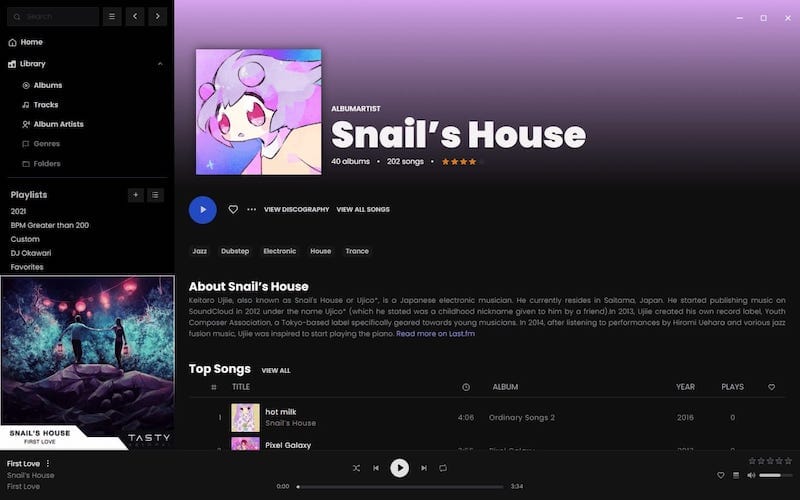
Access Feishin through the application menu or terminal. The welcome screen prompts for server configuration. Feishin cannot browse local files directly—it requires connection to a compatible music server backend. This design ensures library management happens server-side while Feishin focuses on playback and interface.
Three server types are supported. Jellyfin provides comprehensive media server functionality beyond music. Navidrome specializes in music streaming with Subsonic API compatibility. OpenSubsonic-compatible servers offer flexibility through standardized APIs. Choose the server type matching the backend infrastructure.
Connecting to Music Server
Click “Add Server” or the configuration icon. Select the appropriate server type from the dropdown menu. Fill in connection details carefully. The server URL must include the protocol (http:// or https://) and port number if non-standard. For example:
https://music.example.com:4533Enter username and password exactly as configured on the music server. Spaces or capitalization errors cause authentication failures. The server name field is optional but helps identify multiple server configurations.
Click “Test Connection” before saving to verify credentials and network connectivity. A successful test confirms the server responds and accepts the provided credentials. Save the configuration after testing passes. Connection errors require troubleshooting. Verify the server URL accessibility through a web browser. Check firewall rules allow connections on the specified port. Confirm username and password accuracy on the server side.
Switching between servers is straightforward—Feishin supports multiple server profiles simultaneously. Access server management through settings to add, edit, or remove server connections.
Basic Settings Configuration
Navigate to Settings from the main menu. Audio playback configuration appears first. Choose between MPV and web player backends. MPV offers superior quality and performance for most scenarios. The web player serves as fallback when MPV encounters issues.
Theme selection affects interface appearance. Light and dark modes accommodate different lighting conditions and personal preferences. Some versions include additional theme options or custom color schemes.
Audio quality settings balance bandwidth usage and sound fidelity. Higher bitrates consume more network resources but deliver better audio quality. Local network connections typically support maximum quality settings without buffering. Remote connections may require lower bitrates for smooth streaming.
Interface language defaults to system settings but can be changed manually. Cache settings determine how much disk space Feishin uses for temporary files. Larger caches reduce server requests and improve performance but consume storage. Configure download locations if planning to use offline playback features. Keyboard shortcuts customize control schemes—review and modify shortcuts matching workflow preferences.
Optimizing Feishin Performance
MPV Audio Configuration
Advanced MPV settings unlock high-fidelity playback capabilities. Access MPV configuration within Feishin settings. The audio device selection determines which sound output MPV uses. Multiple audio interfaces require specifying the correct device.
Custom MPV parameters accept command-line arguments directly. Add parameters in the designated field:
--audio-device=pulse/alsa_output.pci-0000_00_1f.3.analog-stereoThis example directs output to a specific PulseAudio device. Buffer settings affect latency and stability. Increase buffer size for network streaming:
--cache=yes --demuxer-max-bytes=500MHardware acceleration reduces CPU usage when available:
--hwdec=autoGapless playback eliminates silence between tracks. Enable with:
--gapless-audio=yesAudio format preferences specify output parameters:
--audio-format=s24le --audio-samplerate=96000These advanced configurations require understanding audio fundamentals. Incorrect settings may cause playback failures or quality degradation.
System Resource Optimization
Adjust cache size based on available storage and usage patterns. Larger caches benefit users streaming extensive libraries:
Settings > Playback > Cache Size: 1024 MBNetwork streaming optimization reduces buffering during playback. Enable pre-buffering:
Settings > Playback > Pre-buffer: EnabledLower-end systems benefit from disabling visual effects and animations. Navigate to interface settings and reduce animation complexity. Background playback continues when Feishin window minimizes. Disable this feature to conserve resources when not actively listening.
Library scanning frequency determines how often Feishin checks for new music. Reduce scanning frequency on large libraries:
Settings > Library > Scan Interval: ManualManual scanning provides complete control over when library updates occur, preventing resource consumption during active listening sessions.
Using Feishin Features
Music Library Navigation
Browse music by artists, albums, or individual songs through the navigation menu. List and grid views accommodate different browsing preferences. Grid view displays album artwork prominently, while list view shows more items simultaneously.
Search functionality accepts queries for artists, albums, songs, or composers. Real-time filtering narrows results as typing progresses. Advanced search supports filtering by genre, year, or other metadata fields.
Sorting options organize content by name, date added, release year, or play count. Reverse sort order by clicking column headers repeatedly. Album view modes include standard grid, compact list, and detailed view with extended metadata.
Creating and Managing Playlists
Create new playlists by clicking the plus icon in the playlist section. Name playlists descriptively for easy identification. Add songs through drag-and-drop or right-click context menus.
Smart playlist functionality appears for Navidrome servers. Define rules based on criteria like genre, rating, play count, or last played date. Smart playlists update automatically as library content changes.
Playlist synchronization ensures server-side playlists match Feishin’s local view. Changes made in Feishin propagate to the server and vice versa. Import and export playlists in M3U or PLS formats for compatibility with other applications.
Playback Features
Queue management provides fine control over playback order. Add songs to the end of the queue or play next. Clear queue to start fresh or shuffle queue for randomized playback.
Shuffle mode randomizes playback within the current context—album, artist, or entire library. Repeat modes include repeat all, repeat one, and no repeat.
Lyrics display shows synchronized lyrics when available. Unsynchronized lyrics appear as static text. Not all tracks include lyrics metadata—availability depends on server-side tagging.
Scrobbling records listening history to the music server. Enable scrobbling in settings to track play counts and last played timestamps. Crossfade settings smooth transitions between tracks. Adjust fade duration in seconds:
Settings > Playback > Crossfade: 3 secondsEqualizer options vary depending on the audio backend. MPV supports parametric equalization through custom parameters.
Updating Feishin
Regular updates deliver bug fixes, new features, and security improvements. Visit the Feishin GitHub releases page periodically to check for updates. The releases page lists all versions with changelogs describing changes.
Before updating, backup current configuration to prevent data loss:
cp -r ~/.config/feishin ~/.config/feishin.backupDownload the latest AppImage:
cd ~/Downloads
wget https://github.com/jeffvli/feishin/releases/latest/download/Feishin-linux-x86_64.AppImage
Rename the current version for rollback capability:
mv ~/.local/bin/feishin ~/.local/bin/feishin.oldMove the new version into place:
chmod +x ~/Downloads/Feishin-linux-x86_64.AppImage
mv ~/Downloads/Feishin-linux-x86_64.AppImage ~/.local/bin/feishin
Launch Feishin and verify functionality. User settings and server configurations persist across updates automatically. If issues arise, roll back to the previous version:
mv ~/.local/bin/feishin ~/.local/bin/feishin.broken
mv ~/.local/bin/feishin.old ~/.local/bin/feishin
Remove old versions after confirming the update succeeded:
rm ~/.local/bin/feishin.oldConsider subscribing to GitHub release notifications for automatic update alerts. Click Watch > Custom > Releases on the Feishin repository page.
Troubleshooting Common Issues
MPV-Related Problems
“MPV binary not found” errors indicate incorrect path configuration. Verify MPV installation:
which mpvReconfigure the path in Feishin settings using the output from this command. Some Rocky Linux configurations install MPV to non-standard locations—check /usr/local/bin/mpv if /usr/bin/mpv fails.
MPV dependency issues manifest as crashes or playback failures. Install missing libraries:
sudo dnf install libuchardet libvaAudio device problems prevent sound output despite successful playback. List available audio devices:
mpv --audio-device=helpConfigure Feishin to use a specific device from this list. Codec issues affect certain file formats. Install additional codec support:
sudo dnf install gstreamer1-plugins-good gstreamer1-plugins-bad-freeServer Connection Issues
Connection failures have multiple causes. Verify server accessibility through web browser navigation to the server URL. If the browser can’t connect, the problem lies with server configuration or network connectivity rather than Feishin.
Double-check username and password accuracy. Case sensitivity matters—ensure credentials match exactly. Server URL must include protocol and port:
https://music.domain.com:4533Firewall rules may block connections. Open necessary ports on Rocky Linux:
sudo firewall-cmd --permanent --add-port=4533/tcp
sudo firewall-cmd --reload
SSL certificate problems occur with self-signed certificates. Some server configurations require accepting certificate warnings or installing certificates system-wide. Switching between server types requires selecting the correct API during configuration. Jellyfin and Navidrome use different authentication methods—verify server type selection matches actual server software.
AppImage Execution Problems
Permission denied errors result from missing executable permissions. Reapply permissions:
chmod +x ~/.local/bin/feishinFUSE-related issues prevent AppImage execution on some systems. Install FUSE:
sudo dnf install fuse fuse-libsOlder Rocky Linux versions may require enabling FUSE:
sudo modprobe fuseMissing system libraries cause cryptic error messages. Install common dependencies:
sudo dnf install libXScrnSaver gtk3Desktop integration failures prevent menu entries from appearing. Manually update desktop database:
update-desktop-database ~/.local/share/applications/Check system logs for detailed error messages:
journalctl --user -b | grep -i feishinSecurity Best Practices
Download Feishin exclusively from the official GitHub repository to avoid malware or compromised versions. Verify URLs match exactly:
https://github.com/jeffvli/feishinGitHub provides release authenticity through repository ownership. Check file sizes and compare against previous releases—significant deviations warrant investigation.
Use HTTPS for all server connections to encrypt data in transit. Configure music servers with valid SSL certificates. Self-signed certificates require manual trust establishment but still provide encryption.
Protect server credentials by avoiding password reuse across services. Consider using password managers to generate and store complex passwords. Feishin stores credentials in configuration files—secure these files with appropriate permissions:
chmod 600 ~/.config/feishin/config.jsonKeep Rocky Linux 10 updated with security patches. Enable automatic security updates:
sudo dnf install dnf-automatic
sudo systemctl enable --now dnf-automatic.timer
Configure firewall rules restrictively, allowing only necessary connections. Review open ports regularly:
sudo firewall-cmd --list-allAppImages run in user context, limiting potential damage from vulnerabilities. Avoid running Feishin with elevated privileges—normal user permissions suffice for all functionality. Regularly review configuration files for unexpected changes:
ls -la ~/.config/feishin/Uninstalling Feishin
Complete removal requires deleting multiple files and directories. Remove the AppImage:
rm ~/.local/bin/feishinDelete the desktop entry:
rm ~/.local/share/applications/feishin.desktopRemove the application icon:
rm ~/.local/share/icons/feishin.pngDelete configuration files and cached data:
rm -rf ~/.config/feishinClear any remaining cache directories:
rm -rf ~/.cache/feishinUpdate the desktop database to remove menu entries:
update-desktop-database ~/.local/share/applications/MPV can be removed if no other applications require it:
sudo dnf remove mpvVerify complete removal by searching for remaining files:
find ~ -iname "*feishin*"Any results indicate leftover files that can be manually deleted. Clean package cache to free additional space:
sudo dnf clean allCongratulations! You have successfully installed Feishin. Thanks for using this tutorial for installing the Feishin modern self-hosted music player on Rocky Linux 10 system. For additional help or useful information, we recommend you check the official Feishin website.

