How To Install Geany on AlmaLinux 10

Geany stands out as one of the most efficient lightweight integrated development environments available for Linux systems today. This powerful yet resource-friendly IDE combines the simplicity of a text editor with essential development features that programmers need. AlmaLinux 10, the latest release of this enterprise-grade distribution, provides an excellent platform for running Geany with enhanced stability and long-term support. Whether you’re a system administrator writing shell scripts, a web developer coding PHP applications, or a programmer working with multiple languages, Geany delivers the tools necessary without consuming excessive system resources. This comprehensive guide walks through three proven installation methods, configuration steps, and troubleshooting solutions to get Geany running smoothly on AlmaLinux 10.
What is Geany IDE?
Overview and Purpose
Geany represents a fast, lightweight integrated development environment built on the GTK+ toolkit. Unlike bloated alternatives that demand significant memory and processing power, this IDE maintains a small footprint while delivering robust functionality. The development team designed Geany specifically for users who need more than a basic text editor but don’t want the overhead of heavyweight development platforms.
System administrators appreciate Geany for quick script editing. Developers value its code intelligence features. Content creators use it for markup languages and configuration files. The software launches quickly, responds instantly to commands, and handles large files without performance degradation.
Key Features
Geany supports syntax highlighting for over 50 programming languages, including C, C++, Java, PHP, HTML, Python, Perl, and Pascal. Code completion accelerates development by suggesting function names, variables, and language constructs as you type. Call tips display function signatures and parameter information, reducing the need to reference documentation constantly.
The symbol list sidebar provides instant navigation through functions, classes, and variables defined in your code. Code folding allows collapsing sections of code to focus on specific areas. The embedded terminal emulator eliminates context switching by bringing command-line access directly into your development environment.
A flexible plugin system extends Geany’s capabilities beyond the core features. Plugins add functionality like project management, advanced file browsing, version control integration, and additional language support. The minimal dependencies mean Geany installs cleanly without pulling in dozens of unnecessary packages.
Advantages for AlmaLinux Users
AlmaLinux servers often run with limited resources allocated to desktop environments. Geany excels in these constrained conditions where heavier IDEs struggle or become impractical. The application consumes minimal RAM and CPU cycles, leaving resources available for development tasks and running applications.
Performance remains consistently fast regardless of file size or project complexity. Cross-platform compatibility ensures skills transfer seamlessly if you work across different operating systems. Active development means regular updates, bug fixes, and new features continue to improve the software.
About AlmaLinux 10
AlmaLinux 10, released as a binary-compatible fork of Red Hat Enterprise Linux 10, brings enterprise-level stability to the open-source community. The Purple Lion release represents a significant milestone in the distribution’s evolution. Organizations choose AlmaLinux for production environments because it delivers RHEL’s reliability without licensing costs.
This version ships with updated development tools critical for modern software engineering. GCC 14.2 provides the latest compiler optimizations and language standard support. Python 3.12 introduces performance improvements and new syntax features. Git 2.47 enhances version control capabilities. Apache 2.4.62 updates web server functionality.
Security enhancements protect systems against evolving threats. SELinux policy updates strengthen mandatory access controls. Secure Boot support extends to ARM architectures. Sequoia PGP tools modernize cryptographic operations.
Extended x86-64-v2 architecture support maintains compatibility with older hardware while ensuring 10 years of security updates. The DNF package manager handles software installation, updates, and dependency resolution efficiently. Access to EPEL repositories expands available software beyond the base distribution.
Prerequisites Before Installation
System Requirements
A functioning AlmaLinux 10 installation forms the foundation for this procedure. The system should be fully updated to ensure compatibility with current package versions and security patches. Network connectivity enables downloading packages from repositories.
Geany requires minimal hardware resources. One gigabyte of RAM suffices for comfortable operation. Five hundred megabytes of disk space accommodates the application and plugins with room to spare. Root privileges or sudo access allows installing system packages.
Required Dependencies
GTK+ 3 runtime libraries provide the graphical toolkit foundation that Geany builds upon. The package manager installs these automatically when you install Geany through standard methods. VTE, the Virtual Terminal Emulator library, powers the embedded terminal functionality that integrates command-line access into the IDE. GLib development files support core application functions.
Updating Your System
System updates prevent compatibility issues and security vulnerabilities. Open a terminal and run:
sudo dnf updateThe DNF package manager connects to configured repositories, downloads updated package metadata, and identifies available updates. Review the list of packages that will be updated. Confirm the operation to proceed. This process ensures all system components reach current versions before introducing new software.
Large update batches may require several minutes to download and install. A system reboot becomes necessary if kernel updates occur. Refreshing package metadata keeps your system aware of newly available software versions.
Checking Current Installation Status
Verify whether Geany already exists on your system before attempting installation. Execute:
dnf list installed | grep geanyNo output indicates Geany is not currently installed. Package names appearing in the results show existing Geany components. Check available versions in repositories with:
dnf info geanyThis command displays package details including version number, size, description, and repository source].
Method 1: Installing Geany via DNF and EPEL Repository (Recommended)
Understanding EPEL Repository
Extra Packages for Enterprise Linux (EPEL) extends the software catalog beyond what ships in the base AlmaLinux repositories. Community maintainers curate EPEL packages to maintain compatibility with RHEL-based distributions while offering additional applications that enterprise users need.
EPEL becomes essential when installing development tools, text editors, and specialized software not included in the minimal enterprise distribution. AlmaLinux 10 includes built-in EPEL support optimized for both x86-64-v2 and x86-64-v3 architectures, ensuring broad hardware compatibility.
Enabling EPEL Repository
Install the EPEL release package that configures repository access. Run:
sudo dnf install epel-releaseDNF downloads the repository configuration files and GPG keys needed to verify package authenticity. The system prompts for confirmation before proceeding with installation. Type ‘y’ and press Enter to continue.
Verify successful repository activation by listing enabled repositories:
sudo dnf repolistThe output should include EPEL entries among the configured repositories. Repository priority settings ensure base system packages take precedence over EPEL versions when conflicts arise].
Installing Geany Package
With EPEL enabled, install Geany using a single straightforward command:
sudo dnf install geanyDNF contacts the repositories, searches for the Geany package, and calculates all required dependencies. The dependency resolver identifies GTK+ libraries, VTE components, and supporting packages that Geany needs to function.
Review the installation summary displaying package names, sizes, and total download requirements. The system asks for confirmation before proceeding. Confirm by typing ‘y’ and pressing Enter.
Package download begins, showing progress bars for each file. Installation follows immediately after downloads complete. DNF verifies package signatures, extracts files to appropriate system locations, and configures the application. The VTE library installs automatically as a dependency, enabling terminal emulator functionality within Geany.
Installing Geany Plugins
Extend Geany’s capabilities by installing the plugin collection:
sudo dnf install geany-pluginsThis package bundle includes numerous plugins that enhance functionality. Project management tools organize related files. Advanced file browsers provide enhanced navigation. Version control integration connects to Git repositories. Additional language support extends syntax highlighting capabilities.
Access the Plugin Manager within Geany to enable specific plugins individually. Navigate to Tools menu, then Plugin Manager. Check boxes next to desired plugins to activate them immediately.
Verifying Installation
Confirm successful installation by checking the installed version:
geany --versionThe output displays Geany’s version number along with GTK+ version information. Query package details using DNF:
dnf info geanyThis command shows comprehensive package information including version, release, size, installation date, and file locations. Confirm installation succeeded and note the version installed on your system.
Method 2: Installing Geany via Flatpak
Understanding Flatpak
Flatpak delivers applications in self-contained packages with bundled dependencies. This containerized approach ensures applications run consistently across different Linux distributions. Sandboxing isolates applications from the host system, enhancing security by limiting file system access and system resources.
Automatic updates keep Flatpak applications current without manual intervention. The distribution-agnostic nature means the same Flatpak works identically on Fedora, Ubuntu, AlmaLinux, or any distribution supporting the runtime.
Flatpak suits scenarios where you need the absolute latest Geany version rather than the distribution-packaged release. Isolated environments benefit testing and development work where application conflicts might otherwise occur.
Installing Flatpak on AlmaLinux 10
Install Flatpak support if not already present:
sudo dnf install flatpakAdd the Flathub repository that hosts thousands of Flatpak applications:
flatpak remote-add --if-not-exists flathub https://flathub.org/repo/flathub.flatpakrepoThe --if-not-exists flag prevents duplicate repository additions if Flathub is already configured. Restart your system to complete Flatpak integration with the desktop environment. This restart ensures proper application menu entries and file associations.
Installing Geany via Flatpak
Search Flathub for Geany to confirm availability:
flatpak search geanyResults display available Geany packages including application IDs and versions. Install Geany with:
flatpak install flathub org.geany.GeanyFlatpak downloads approximately 66 megabytes of packages and installs roughly 178 megabytes to disk. The download includes Geany itself plus required runtime components. Progress indicators show download status for each component.
The system requests permission to proceed with installation. Type ‘y’ to confirm. Installation extracts files to the Flatpak application directory, separate from system package locations.
Running Flatpak Geany
Launch the Flatpak version using:
flatpak run org.geany.GeanyAlternatively, find Geany in your application menu under the Development or Programming category. The desktop integration creates menu entries automatically after installation completes.
Flatpak’s application isolation means Geany runs in a sandbox with controlled access to system resources. File system permissions may restrict which directories Geany can access initially. Grant additional permissions through Flatpak’s permission system if needed.
Advantages and Disadvantages
Flatpak advantages include access to the latest Geany releases independent of distribution package cycles. Isolated environments prevent conflicts with system libraries. Automatic update capabilities keep the application current with minimal user intervention.
Disadvantages involve larger disk space consumption compared to native packages. Bundled dependencies duplicate libraries already present on the system. Initial application startup may experience slight delays while the sandbox initializes. System integration limitations can affect file associations and default application behaviors.
Method 3: Building Geany from Source
When to Build from Source
Source compilation provides access to bleeding-edge development features not yet released in stable versions. Custom build configurations enable or disable specific features based on requirements. Testing patches and contributing to development necessitates building from source.
Understand that source builds require more technical knowledge and maintenance effort compared to package manager installations. Updates demand manual compilation rather than simple package updates.
Installing Build Dependencies
Install the Development Tools group containing compilers, build utilities, and essential development libraries:
sudo dnf groupinstall "Development Tools"This command installs GCC, make, autoconf, automake, and related build tools. Add GTK+ development libraries:
sudo dnf install gtk3-develInstall additional dependencies required for Geany compilation:
sudo dnf install gettext autopoint libtool python3-docutilsThe python3-docutils package provides rst2html for building documentation. These development packages include header files and libraries necessary for compiling GTK+ applications.
Downloading Geany Source Code
Clone the official Geany repository from GitHub:
git clone https://github.com/geany/geany.gitThis command downloads the complete source code repository including development history. Navigate into the newly created directory:
cd geanyAlternatively, download a specific release tarball from the Geany website for stable version compilation. Extract the tarball and navigate to the extracted directory.
Verify source code integrity by checking GPG signatures if downloading tarballs directly. The development team signs official releases to prevent tampering.
Compilation Process Using Meson
Modern Geany versions support Meson build system for faster compilation. Create the build directory:
meson buildMeson analyzes dependencies, checks for required libraries, and configures build options. Specify a custom installation prefix if desired:
meson --prefix /usr/local buildCompile the source code:
meson compile -C buildThe compilation process displays progress as source files compile into binary objects and link into the final executable. Compilation time varies based on system performance. Modern systems complete compilation within minutes.
Review compilation output for errors or warnings. Address any missing dependencies before proceeding. Install the compiled binaries:
sudo meson install -C buildAlternative: Compilation Using Autotools
Older Geany versions or preference for traditional build tools utilize Autotools. Run the autogen script:
./autogen.shConfigure the build with options:
./configure --prefix=/usr/localThe configure script checks system capabilities, locates required libraries, and generates Makefiles. Compile using make:
makeInstall compiled files to system directories:
sudo make installPost-Installation Configuration
Update the PATH environment variable if you installed to a non-standard location. Edit your shell configuration file (.bashrc or .bash_profile) to include the installation directory.
Create desktop launcher entries manually by copying .desktop files to the appropriate locations. The installation process typically handles this automatically when installing to standard directories.
Launching and Configuring Geany
Launching Geany from Terminal
Start Geany by typing its name in a terminal:
geanyLaunch in the background to keep terminal access available:
geany &Open specific files directly:
geany filename.pyCommand-line options modify behavior. View available options with geany --help.
Launching from Application Menu
Access Geany through the desktop environment’s application menu. GNOME desktop users find it under Applications, then Development or Programming. KDE Plasma places it in the Applications menu under Development category.
Create desktop shortcuts by right-clicking Geany in the application menu and selecting add to favorites or create shortcut options. Pin frequently used applications to taskbars or docks for quick access.
First-Time Setup
Geany’s interface divides into distinct areas upon first launch. The menu bar across the top provides access to all functions. The toolbar below offers quick access to common operations. The sidebar on the left displays the symbol list and file browser. The main editor pane occupies the central area. The message window at the bottom shows compiler output, search results, and terminal emulation.
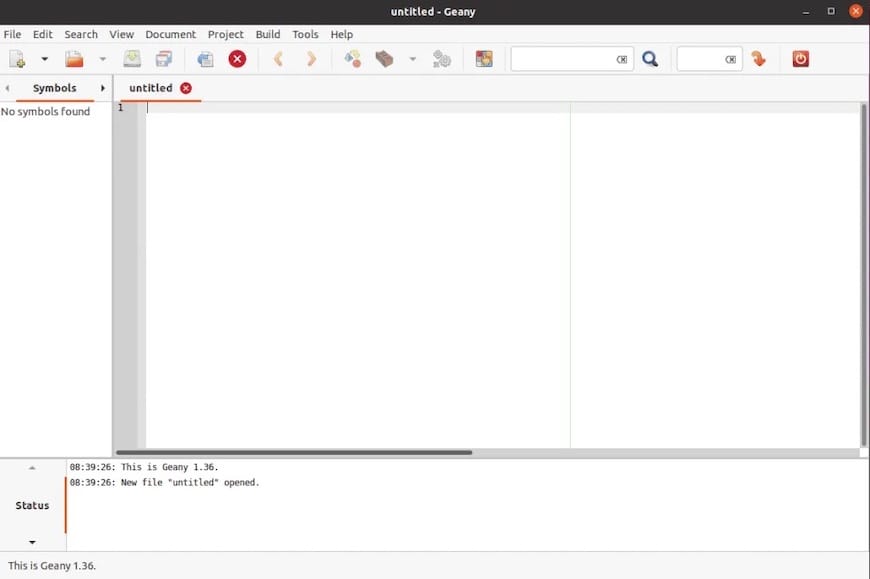
Access preferences through Edit menu, then Preferences. The preferences dialog organizes settings into categories. Editor settings control tab width, indentation style, and line wrapping behavior. Choose spaces or tabs for indentation based on coding standards. Set tab width to match project conventions, typically 2, 4, or 8 spaces.
Select color schemes that reduce eye strain and improve code readability. Dark themes suit low-light environments. Light themes work well in bright conditions. Preview schemes before applying to ensure syntax elements remain clearly distinguishable.
Essential Configuration Settings
Enable line numbers to facilitate code navigation and debugging. Navigate to View menu and check Show Line Numbers. Visual aids like showing white space characters help identify indentation issues.
Configure compiler and build commands for languages you work with frequently. Access Build menu, then Set Build Commands. Define compilation commands, execution commands, and clean operations for each language. Custom build commands accommodate project-specific build systems.
File templates accelerate new file creation by providing boilerplate code. Access Tools menu, then Configuration Files, then filetype templates. Edit templates for different file types to include standard headers, license information, or common code structures.
Terminal emulator configuration adjusts the embedded terminal’s appearance and behavior. Change font size for readability. Set the working directory behavior. Configure shell preferences.
Plugin Management
Open Plugin Manager from Tools menu. The dialog lists all available plugins with descriptions. Check boxes next to plugins to enable them immediately. Uncheck to disable unwanted plugins.
Useful plugins include File Browser for enhanced file system navigation, Project Organizer for managing related files across directories, and Save Actions for automatic formatting or cleanup on file save. Explore available plugins to discover functionality that matches your workflow.
Basic Usage and Features
Creating and Opening Files
Create new files through File menu, then New. The editor opens an empty document ready for content. Geany prompts for file type selection if syntax highlighting is ambiguous.
Open existing files with File menu, then Open, or use the keyboard shortcut Ctrl+O. Navigate the file browser to select files. Geany handles multiple open files using tabs across the top of the editor pane. Switch between files by clicking tabs or using keyboard shortcuts.
Syntax Highlighting
Geany automatically detects file types based on extensions and applies appropriate syntax highlighting. Color coding distinguishes keywords, strings, comments, and other language elements, improving code readability and reducing errors.
Manually override automatic detection through Document menu, then Set Filetype. The submenu lists all supported languages organized by category. Select the appropriate language when working with files having non-standard extensions or when automatic detection fails.
Geany supports over 50 programming and markup languages including C, C++, Java, Python, PHP, JavaScript, HTML, CSS, Shell scripts, and many others.
Code Completion and Navigation
Auto-completion activates as you type, suggesting function names, variables, and language keywords. Press Tab or Enter to accept suggestions, accelerating code entry and reducing typos. Completion draws from language keywords, currently open files, and global tags files.
The symbol list in the sidebar displays functions, classes, variables, and other structures defined in the current file. Click symbols to jump directly to their definitions. This navigation eliminates scrolling through large files searching for specific code sections.
Code folding collapses functions, classes, or code blocks to focus on relevant sections. Click the fold icon in the margin or use keyboard shortcuts to collapse or expand code regions. Bookmark important lines for quick return by clicking the bookmark margin or using the appropriate menu command.
Build and Execute
Configure build commands for compiling and running code. Access Build menu to compile current files, build entire projects, or execute compiled programs. The message window displays compiler output, warnings, and errors. Click error messages to jump directly to problematic code lines.
Custom build commands accommodate complex build systems or specialized compilation requirements. Define multiple build command sets for different project configurations or target platforms.
Terminal Integration
Activate the embedded terminal by opening View menu, then Show Message Window. Select the Terminal tab in the message window area. The terminal provides full command-line access without leaving the IDE.
Execute shell commands, run scripts, manage version control, and perform system administration tasks directly within Geany. The terminal integration streamlines workflows by eliminating context switches to separate terminal windows.
Troubleshooting Common Issues
Geany Package Not Found
If DNF cannot locate the Geany package, verify EPEL repository activation. List enabled repositories:
sudo dnf repolistConfirm EPEL appears in the output. Install epel-release if missing. Refresh repository metadata to update package lists]:
sudo dnf clean all && sudo dnf makecacheCheck network connectivity if downloads fail. Firewall rules or proxy settings may block repository access. Verify DNS resolution functions correctly. Try alternative mirror servers if specific repositories timeout.
Dependency Resolution Errors
Dependency conflicts occur when packages require incompatible library versions. DNF displays detailed error messages explaining conflicts. Read messages carefully to identify problematic packages.
Resolve conflicts by updating conflicting packages or adjusting installation choices. Manually install specific dependency versions if automatic resolution fails:
sudo dnf install package-nameConsult DNF troubleshooting documentation for complex dependency situations. The dnf deplist command shows package dependencies for investigation.
GTK+ or VTE Library Issues
Missing GTK+ libraries prevent Geany from launching. Install GTK+ 3 development libraries:
sudo dnf install gtk3VTE library absence disables terminal emulator functionality. Install VTE components:
sudo dnf install vte291Verify library versions match Geany’s requirements. Incompatible versions cause runtime errors. Check error messages for specific library version requirements.
Geany Won’t Launch
Launch Geany from a terminal to view error messages. Error output identifies specific problems preventing startup. Common issues include missing libraries, configuration file corruption, or desktop environment incompatibility.
Desktop environment compatibility rarely causes problems, but older systems may encounter issues. Verify your desktop environment includes necessary GTK+ support.
Reset Geany configuration by removing the configuration directory:
rm -rf ~/.config/geanyGeany recreates default configuration files on next launch. This resolves issues caused by corrupted settings files. Backup the directory before deletion to preserve custom configurations.
Check file permissions ensure your user account can read Geany’s installation files and write to configuration directories. Permission errors prevent normal operation.
Plugin Loading Failures
Verify geany-plugins package installation if specific plugins fail to load:
dnf list installed | grep geany-pluginsInstall the plugin package if absent. Plugin compatibility depends on matching Geany versions. Mismatched versions cause loading failures. Update both Geany and plugins together.
Plugin installation location affects loading. User-installed plugins reside in ~/.config/geany/plugins. System-wide plugins install to /usr/lib64/geany or similar system directories. Verify plugins exist in expected locations.
Check Plugin Manager for error messages explaining why specific plugins failed initialization. Messages identify missing dependencies or configuration problems.
Performance Issues
Disable unnecessary plugins to reduce resource consumption. Each active plugin consumes memory and processing cycles. Deactivate plugins you don’t actively use through the Plugin Manager.
Adjust editor settings for large file handling. Disable features like code folding or symbol parsing for files exceeding several thousand lines. These features become expensive on massive files.
Terminal emulator resource usage increases with scrollback buffer size and active processes. Reduce terminal buffer size or close the terminal panel when not needed.
Updating and Managing Geany
Updating Geany via DNF
System-wide updates include Geany alongside other packages:
sudo dnf updateUpdate only Geany and its dependencies:
sudo dnf update geanyCheck for available updates before proceeding:
dnf check-update geanyThis command queries repositories for newer versions without performing installation. Regular updates provide bug fixes, security patches, and new features.
Updating Flatpak Version
Update Flatpak applications with:
flatpak update org.geany.GeanyUpdate all installed Flatpak applications simultaneously:
flatpak updateConfigure automatic updates through Flatpak’s settings or desktop environment software centers. Automatic updates ensure timely security patches without manual intervention.
DNF History and Rollback
View installation and update history:
sudo dnf historyThis command lists all DNF transactions with IDs, dates, and actions performed. Review recent changes to identify problematic updates.
Rollback updates if issues arise:
sudo dnf history undo <transaction-id>Replace <transaction-id> with the specific transaction number to reverse. Rollback reverts packages to previous versions, useful when updates introduce bugs or compatibility problems.
Monitoring Geany Releases
Check your installed Geany version:
geany --versionFollow official Geany releases through the project website and GitHub repository. Recent releases include Geany 2.1 with improved UI elements and enhanced file type support.
AlmaLinux package update cycles lag behind upstream releases to ensure stability. Enterprise distributions prioritize reliability over cutting-edge features. Expect delays between Geany releases and AlmaLinux package availability.
Uninstalling Geany
Removing DNF Installation
Remove Geany using DNF:
sudo dnf remove geanyRemove plugin packages separately:
sudo dnf remove geany-pluginsClean orphaned dependencies no longer required by installed packages:
sudo dnf autoremoveThis command removes dependencies that were installed automatically but are no longer needed after removing Geany.
Removing Flatpak Installation
Uninstall Flatpak Geany:
flatpak uninstall org.geany.GeanyRemove unused runtimes and dependencies:
flatpak uninstall --unusedThis cleanup reclaims disk space from runtime components no longer required by any installed Flatpak applications.
Cleaning Configuration Files
Remove personal Geany configuration to fully clean the system:
rm -rf ~/.config/geanyThis deletes customizations, preferences, and session data. Cache files reside in the same location and are removed together. Consider backing up configurations before deletion if you might reinstall later.
Congratulations! You have successfully installed Geany. Thanks for using this tutorial for installing Geany lightweight Integrated Development Environment (IDE) and text editor on AlmaLinux OS 10 system. For additional help or useful information, we recommend you check the official Geany website.
