How To Install GlassFish on AlmaLinux 10

GlassFish stands as a robust, open-source application server that implements the Jakarta EE (formerly Java EE) platform specifications. Developed under the Eclipse Foundation, this powerful server environment provides comprehensive support for Enterprise JavaBeans, Java Persistence API, JavaServer Faces, Java Message Service, and numerous other enterprise Java technologies. Organizations worldwide rely on GlassFish to deploy and manage mission-critical Java applications with confidence.
AlmaLinux 10 serves as an excellent foundation for hosting GlassFish deployments. As an enterprise-grade, RHEL-based distribution, it offers long-term stability, security updates, and production-ready performance. This comprehensive guide walks through the complete installation and configuration process, covering everything from initial system preparation to production-ready security hardening.
Readers will master the essential steps for deploying GlassFish on AlmaLinux 10, including Java installation, systemd service configuration, security best practices, and optional Nginx reverse proxy setup. Whether deploying enterprise applications or setting up development environments, this tutorial provides the knowledge needed for successful GlassFish implementation.
Prerequisites
Before beginning the GlassFish installation process, ensure the following requirements are met:
- A fresh or existing AlmaLinux 10 server installation with root or sudo privileges
- Minimum 2GB RAM (4GB or more recommended for production environments)
- At least 10GB available disk space for the application server and deployments
- Basic familiarity with Linux command-line operations and text editors
- SSH access to the server for remote administration (if applicable)
- A domain name pointed to the server IP address (optional, but recommended for production deployments)
Understanding GlassFish Architecture
GlassFish employs a sophisticated architecture centered around the Domain Administration Server (DAS) concept. Each GlassFish installation can host multiple domains, with each domain representing an independent administrative unit containing its own configuration, applications, and resources.
The default installation creates a domain named “domain1” that operates on standard ports: port 4848 serves the administrative console, port 8080 handles HTTP traffic, and port 8181 processes HTTPS requests. Understanding this port allocation proves crucial when configuring firewalls and network access.
GlassFish 7 represents the latest major release, providing full support for Jakarta EE 10 specifications. This version requires Java 17 or Java 21 as its runtime environment, marking a significant advancement in modern Java technology support. The server’s directory structure includes essential components: the admin console for web-based management, deployment directories for applications, domain-specific configuration files, and comprehensive logging facilities.
Organizations choose GlassFish for its enterprise-grade features including clustering capabilities, load balancing, high availability configurations, and extensive Java technology support. These features make it particularly suitable for mission-critical applications requiring scalability and reliability.
Step 1: System Preparation
Updating the System
Launch the terminal and begin by updating all system packages to their latest versions. This ensures security patches are applied and dependency compatibility is maintained.
sudo dnf clean all
sudo dnf update -y
Installing the EPEL (Extra Packages for Enterprise Linux) repository provides access to additional software packages that may prove useful during development and deployment:
sudo dnf install epel-release -yA system reboot may be necessary if kernel updates were installed during the update process.
Installing Required Dependencies
GlassFish installation requires several utility packages for downloading and extracting the server software:
sudo dnf install unzip wget curl -yThe unzip utility extracts the GlassFish archive, while wget and curl facilitate downloading files from remote servers. These tools form essential components of the installation toolkit.
Step 2: Creating GlassFish System User
Security best practices dictate running application servers under dedicated system accounts rather than the root user. Create a system user named glassfish specifically for running the application server:
sudo useradd -r -m -U -d /opt/glassfish7 -s /sbin/nologin glassfishThis command creates a system user (-r) with a home directory (-m) located at /opt/glassfish7 (-d), creates a matching group (-U), and assigns /sbin/nologin as the shell (-s) to prevent interactive logins.
Running GlassFish under a dedicated user account significantly improves security posture by limiting file system access and isolating the application server from other system services. Should a security vulnerability be exploited within GlassFish, the blast radius remains contained to the glassfish user’s permissions.
Step 3: Installing Java Development Kit
Understanding Java Requirements
GlassFish 7 mandates Java 17 or Java 21 for proper operation. Both OpenJDK and Oracle JDK distributions function correctly, though OpenJDK typically receives preference for open-source deployments due to licensing simplicity and community support.
Installing OpenJDK
AlmaLinux repositories provide OpenJDK packages ready for immediate installation. Install Java 21 using the DNF package manager:
sudo dnf install java-21-openjdk java-21-openjdk-devel -yThe java-21-openjdk package provides the Java Runtime Environment, while java-21-openjdk-devel includes development tools and libraries.
Verify the successful installation by checking the Java version:
java --versionThe output should display OpenJDK version information, runtime environment details, and virtual machine specifications. Example output:
openjdk 21.0.1 2023-10-17 LTS
OpenJDK Runtime Environment (Red_Hat-21.0.1.0.12-1.el10) (build 21.0.1+12-LTS)
OpenJDK 64-Bit Server VM (Red_Hat-21.0.1.0.12-1.el10) (build 21.0.1+12-LTS, mixed mode, sharing)
Setting JAVA_HOME
While GlassFish automatically detects Java installations, some applications may require the JAVA_HOME environment variable. Set this variable system-wide by creating a profile script:
echo 'export JAVA_HOME=/usr/lib/jvm/java-21-openjdk' | sudo tee /etc/profile.d/java.sh
source /etc/profile.d/java.sh
Step 4: Downloading GlassFish
Navigate to the Eclipse GlassFish download page or use direct download links to obtain the latest version. At the time of writing, GlassFish 7.0.x represents the current stable release.
Download GlassFish using wget:
cd /tmp
wget https://download.eclipse.org/ee4j/glassfish/glassfish-7.0.25.zip
Replace the version number with the latest available release from the official Eclipse GlassFish repository. Always download from official sources to ensure authenticity and security.
Optionally verify the download integrity by checking the file size matches the expected value from the download page:
ls -lh glassfish-7.0.25.zipStep 5: Installing and Extracting GlassFish
Extract the downloaded GlassFish archive to the /opt/ directory, which serves as the standard location for optional application software on Linux systems:
sudo unzip glassfish-7.0.25.zip -d /opt/This creates the directory structure /opt/glassfish7/ containing all necessary GlassFish components.
Set proper ownership for the entire GlassFish installation directory, assigning it to the glassfish user and group created earlier:
sudo chown -R glassfish:glassfish /opt/glassfish7/Correct file ownership ensures the GlassFish process can read configuration files, write logs, deploy applications, and perform all necessary operations. The recursive flag (-R) applies permissions to all subdirectories and files.
The directory structure includes several important subdirectories:
- glassfish/ – Core server files and libraries
- glassfish/bin/ – Administrative scripts including asadmin
- glassfish/domains/ – Domain configurations and deployments
- glassfish/domains/domain1/ – Default domain directory
Step 6: Configuring Environment Variables
Adding GlassFish binaries to the system PATH simplifies administrative tasks by allowing execution of asadmin commands from any directory.
Create a shell script in /etc/profile.d/ to set environment variables system-wide:
sudo tee /etc/profile.d/glassfish.sh > /dev/null <<EOF
export GLASSFISH_HOME=/opt/glassfish7/glassfish
export PATH=\$PATH:\$GLASSFISH_HOME/bin
EOF
Apply the new environment variables to the current session:
source /etc/profile.d/glassfish.shThese variables become available to all users upon their next login. The GLASSFISH_HOME variable points to the core GlassFish installation, while the PATH modification enables direct asadmin command execution.
Step 7: Creating GlassFish Systemd Service
Understanding Systemd Integration
Systemd provides modern service management on AlmaLinux, offering automatic startup, process monitoring, logging integration, and restart capabilities. Creating a systemd unit file ensures GlassFish starts automatically after system reboots and integrates seamlessly with system administration tools.
Creating the Service File
Create a new systemd service file for GlassFish:
sudo nano /usr/lib/systemd/system/glassfish.serviceAdd the following configuration:
[Unit]
Description=GlassFish Server
After=network.target

[Service]
Type=forking
User=glassfish
Group=glassfish
ExecStart=/usr/bin/java -jar /opt/glassfish7/glassfish/lib/client/appserver-cli.jar start-domain domain1
ExecStop=/usr/bin/java -jar /opt/glassfish7/glassfish/lib/client/appserver-cli.jar stop-domain domain1
ExecReload=/usr/bin/java -jar /opt/glassfish7/glassfish/lib/client/appserver-cli.jar restart-domain domain1
Restart=on-failure
RestartSec=10

[Install]
WantedBy=multi-user.target
Each directive serves specific purposes:
- Description – Human-readable service name displayed in status outputs
- After – Ensures network services start before GlassFish
- Type=forking – Indicates GlassFish daemonizes itself
- User and Group – Specifies the security context for the process
- ExecStart – Command to start the GlassFish domain
- ExecStop – Graceful shutdown command
- ExecReload – Domain restart command
- Restart=on-failure – Automatic restart on crashes
- WantedBy=multi-user.target – Enables the service for multi-user runlevel
Save the file and exit the editor.
Step 8: Starting GlassFish Server
Reload the systemd daemon to recognize the new service file:
sudo systemctl daemon-reloadStart the GlassFish service:
sudo systemctl start glassfish.serviceEnable automatic startup on system boot:
sudo systemctl enable glassfish.serviceCheck the service status to confirm successful startup:
sudo systemctl status glassfish.serviceA successful startup displays output indicating “active (running)” status with recent log entries showing domain initialization.
Alternative manual startup remains available for troubleshooting purposes using the asadmin command directly:
sudo -u glassfish /opt/glassfish7/glassfish/bin/asadmin start-domain domain1List all configured domains and their current status:
sudo -u glassfish /opt/glassfish7/glassfish/bin/asadmin list-domainsStep 9: Configuring Firewall Rules
AlmaLinux employs firewalld for network security management. Configure firewall rules to allow external access to GlassFish services.
Verify firewalld is running:
sudo systemctl status firewalldAdd firewall rules for the GlassFish admin console (port 4848) and HTTP service (port 8080):
sudo firewall-cmd --permanent --add-port=4848/tcp
sudo firewall-cmd --permanent --add-port=8080/tcp
Reload firewalld to apply changes:
sudo firewall-cmd --reloadVerify the rules were added successfully:
sudo firewall-cmd --list-portsProduction environments should restrict admin console access to specific trusted IP addresses or VPN networks. Implement IP-based restrictions using rich rules:
sudo firewall-cmd --permanent --add-rich-rule='rule family="ipv4" source address="192.168.1.0/24" port port="4848" protocol="tcp" accept'
sudo firewall-cmd --reload
Replace 192.168.1.0/24 with the appropriate trusted network range. Additionally, if SELinux is enforcing, configure appropriate policies to permit GlassFish network operations.
Step 10: Accessing GlassFish Admin Console
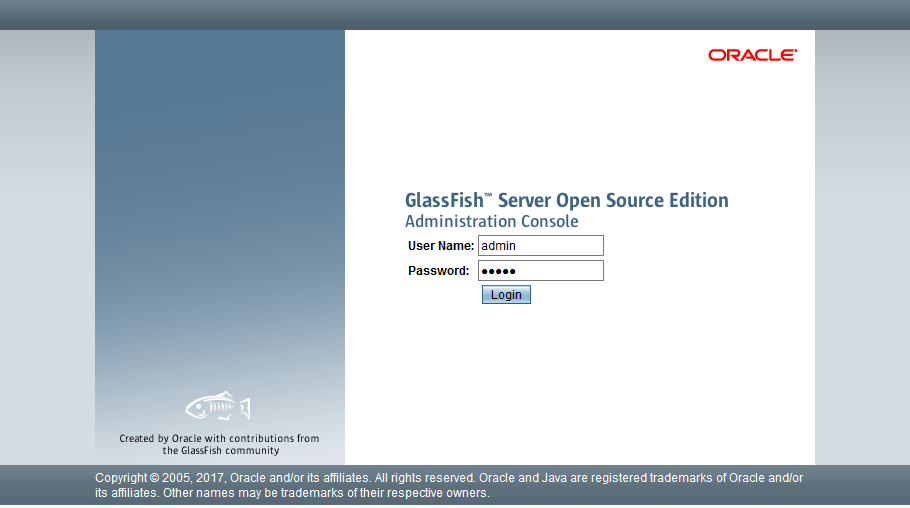
Open a web browser and navigate to the GlassFish administrative console:
http://your-server-ip:4848Replace your-server-ip with the actual IP address or hostname of the AlmaLinux server.
The admin console presents a comprehensive dashboard displaying server status, deployed applications, available resources, and system monitoring information. The interface organizes features into logical categories including Common Tasks, Applications, Configurations, Server, and Monitoring.
Initial installations use default credentials: username admin with a blank password. This unsecured configuration must be changed immediately to prevent unauthorized access. The admin console provides complete control over the application server, including deployment capabilities, configuration management, resource administration, and monitoring functions.
Step 11: Securing GlassFish Admin Password
Understanding GlassFish Security
Leaving the default blank admin password exposes the server to critical security risks. Unauthorized users could deploy malicious applications, access sensitive data, modify configurations, or completely compromise the server.
Changing Admin Password
Execute the password change command as the glassfish user:
sudo -u glassfish /opt/glassfish7/glassfish/bin/asadmin change-admin-passwordThe interactive prompt requests the following information:
- Enter admin user name (default: admin)
- Enter the current admin password (leave blank for initial setup)
- Enter new admin password
- Enter new admin password again
Choose a strong password combining uppercase letters, lowercase letters, numbers, and special characters with a minimum length of 12 characters.
For non-interactive password changes in scripts or automation, create a password file:
echo "AS_ADMIN_PASSWORD=" > /tmp/password.txt
echo "AS_ADMIN_NEWPASSWORD=YourStrongPassword" >> /tmp/password.txt
sudo -u glassfish /opt/glassfish7/glassfish/bin/asadmin --passwordfile=/tmp/password.txt change-admin-password
rm /tmp/password.txt
Enabling Secure Admin
Enable secure administration to require authentication for remote admin console access:
sudo -u glassfish /opt/glassfish7/glassfish/bin/asadmin enable-secure-adminRestart the domain to activate secure admin settings:
sudo systemctl restart glassfish.serviceSecure admin enforces HTTPS for administrative operations and requires valid credentials for all remote connections. This significantly hardens security posture for production deployments.
Step 12: Configuring Admin Console Authentication
After setting a password, configure authentication requirements for the admin console. Navigate to Configurations → server-config → Security in the admin console web interface.
Verify authentication is enabled by attempting to access the admin console, which should now present a login prompt requesting credentials. Enter the username admin and the password configured in the previous step.
GlassFish employs authentication realms to manage user credentials and authorization. The default admin realm stores administrative user accounts. Additional admin users can be created through the console or using asadmin commands for team environments:
sudo -u glassfish /opt/glassfish7/glassfish/bin/asadmin create-file-user --groups asadmin --authrealmname admin-realm newadminuserStep 13: Testing GlassFish Installation
Verifying Server Status
Confirm GlassFish operates correctly by checking the domain status:
sudo -u glassfish /opt/glassfish7/glassfish/bin/asadmin list-domainsThe output should indicate “domain1” is running. Verify the GlassFish process exists:
ps aux | grep glassfishReview server logs for errors or warnings:
sudo tail -50 /opt/glassfish7/glassfish/domains/domain1/logs/server.logAccessing Default Application
Open a web browser and navigate to:
http://your-server-ip:8080The default GlassFish welcome page confirms the HTTP listener functions properly. This page typically displays GlassFish branding and provides links to documentation resources.
Deploying Test Application
Test application deployment functionality by deploying a sample WAR file through the admin console. Navigate to Applications → Deploy in the console, select a WAR file, and click Deploy. Alternatively, use the asadmin command:
sudo -u glassfish /opt/glassfish7/glassfish/bin/asadmin deploy /path/to/application.warAccess the deployed application through the browser to verify successful deployment and functionality.
Step 14: Configuring Nginx as Reverse Proxy (Optional)
Understanding Reverse Proxy Benefits
Nginx reverse proxy configuration provides multiple advantages for production deployments:
- Enhanced performance through caching and connection pooling
- SSL/TLS termination offloading encryption overhead from GlassFish
- Load balancing across multiple GlassFish instances
- Additional security layer filtering malicious requests
- Centralized logging and monitoring
Installing Nginx
Install Nginx from the AlmaLinux repositories:
sudo dnf install nginx -yEnable and start the Nginx service:
sudo systemctl enable nginx
sudo systemctl start nginx
Configuring Nginx for GlassFish
Create a new Nginx configuration file for the GlassFish reverse proxy:
sudo nano /etc/nginx/conf.d/glassfish.confAdd the following configuration:
upstream glassfish_backend {
    server 127.0.0.1:8080;
}

server {
    listen 80;
    server_name yourdomain.com www.yourdomain.com;

    access_log /var/log/nginx/glassfish_access.log;
    error_log /var/log/nginx/glassfish_error.log;

    location / {
        proxy_pass http://glassfish_backend;
        proxy_set_header Host $host;
        proxy_set_header X-Real-IP $remote_addr;
        proxy_set_header X-Forwarded-For $proxy_add_x_forwarded_for;
        proxy_set_header X-Forwarded-Proto $scheme;
        proxy_redirect off;
    }
}
The upstream block defines the GlassFish backend server. Proxy headers preserve client information through the proxy chain:
- Host – Original requested hostname
- X-Real-IP – Client’s actual IP address
- X-Forwarded-For – Complete chain of proxy servers
- X-Forwarded-Proto – Original protocol (HTTP or HTTPS)
Test the Nginx configuration syntax:
sudo nginx -tReload Nginx to apply changes:
sudo systemctl reload nginxConfigure firewall rules for HTTP (port 80) and HTTPS (port 443) traffic:
sudo firewall-cmd --permanent --add-service=http
sudo firewall-cmd --permanent --add-service=https
sudo firewall-cmd --reload
Step 15: SSL/TLS Configuration (Optional)
HTTPS encryption protects data in transit and authenticates server identity. Production deployments should always implement SSL/TLS.
SSL Termination at Nginx
Install Certbot for obtaining Let’s Encrypt certificates:
sudo dnf install certbot python3-certbot-nginx -yObtain and configure SSL certificates automatically:
sudo certbot --nginx -d yourdomain.com -d www.yourdomain.comCertbot modifies the Nginx configuration to enable HTTPS and configure certificate paths. It also sets up automatic certificate renewal through a systemd timer.
Verify the renewal process:
sudo certbot renew --dry-runConfigure automatic HTTP to HTTPS redirection for security. Certbot typically handles this during certificate installation.
Direct GlassFish SSL Configuration
Alternatively, configure SSL directly in GlassFish by importing certificates into the GlassFish keystore:
sudo -u glassfish keytool -import -alias mycert -file /path/to/certificate.crt -keystore /opt/glassfish7/glassfish/domains/domain1/config/keystore.jksConfigure the HTTPS listener through the admin console under Configurations → server-config → HTTP Service → HTTP Listeners → http-listener-2.
Step 16: Performance Tuning
Optimize GlassFish performance based on application requirements and available system resources.
JVM Memory Configuration
Adjust heap memory allocation by editing the domain configuration. Access JVM options through the admin console at Configurations → server-config → JVM Settings → JVM Options:
-Xmx4096m  # Maximum heap size (4GB)
-Xms2048m  # Initial heap size (2GB)
Alternatively, modify these settings using asadmin:
sudo -u glassfish /opt/glassfish7/glassfish/bin/asadmin create-jvm-options -Xmx4096m
sudo -u glassfish /opt/glassfish7/glassfish/bin/asadmin create-jvm-options -Xms2048m
Allocate memory based on application needs and available RAM, leaving sufficient memory for the operating system and other processes.
Connection Pool Optimization
Configure database connection pools through the admin console under Resources → JDBC → JDBC Connection Pools. Adjust pool sizes based on concurrent user load and database capabilities.
Thread Pool Configuration
Optimize thread pools for HTTP listeners under Configurations → server-config → Thread Pools. Increase maximum thread count for high-traffic applications:
sudo -u glassfish /opt/glassfish7/glassfish/bin/asadmin set configs.config.server-config.thread-pools.thread-pool.http-thread-pool.max-thread-pool-size=200Monitoring and JMX
Enable JMX monitoring for performance analysis. Access monitoring through the admin console Monitoring section to track server metrics, application performance, and resource utilization.
Step 17: Log Management
GlassFish maintains comprehensive logging facilities for troubleshooting and monitoring. Log files reside in the domain’s logs directory:
/opt/glassfish7/glassfish/domains/domain1/logs/Key log files include:
- server.log – Main application server events and errors
- access – HTTP request logs
View real-time log output:
sudo tail -f /opt/glassfish7/glassfish/domains/domain1/logs/server.logConfigure log levels through the admin console at Configurations → server-config → Logger Settings. Available levels range from FINEST (most verbose) to SEVERE (errors only).
Implement log rotation to prevent disk space exhaustion. Configure rotation in the admin console under Logger Settings by setting file rotation limits and size thresholds.
Production environments benefit from centralized logging solutions that aggregate logs from multiple servers for analysis and alerting.
Step 18: Basic Troubleshooting
Common Installation Issues
Port Conflicts – Verify no other services occupy GlassFish ports:
sudo netstat -tulpn | grep -E ':(4848|8080|8181)'If conflicts exist, either stop the conflicting service or modify GlassFish port configuration through the admin console.
Permission Errors – Ensure correct file ownership:
sudo chown -R glassfish:glassfish /opt/glassfish7/Java Version Mismatches – Verify Java 17 or 21 is installed and active:
java --versionService Startup Failures
Debug systemd service failures by examining journal logs:
sudo journalctl -u glassfish.service -n 50 --no-pagerVerify systemd service file syntax and permissions:
sudo systemctl cat glassfish.serviceTest manual startup to isolate systemd-specific issues:
sudo -u glassfish /opt/glassfish7/glassfish/bin/asadmin start-domain domain1Admin Console Access Issues
Verify firewall rules permit access to port 4848:
sudo firewall-cmd --list-allCheck GlassFish HTTP listeners are properly configured and bound to the expected interfaces:
sudo -u glassfish /opt/glassfish7/glassfish/bin/asadmin list-http-listenersTest local access versus remote access to isolate network issues:
curl -I http://localhost:4848Step 19: Best Practices for Production
Implement these essential practices for production GlassFish deployments:
Regular Backups – Maintain automated backups of domain configurations and deployed applications:
sudo tar -czf glassfish-backup-$(date +%Y%m%d).tar.gz /opt/glassfish7/glassfish/domains/domain1/Security Hardening – Disable unused services, restrict admin console access to VPN or trusted networks, implement SSL/TLS encryption, and keep systems updated.
Monitoring Setup – Configure application performance monitoring (APM) tools, enable JMX monitoring, set up alerting for critical events, and track resource utilization.
Update Strategy – Plan regular maintenance windows for applying GlassFish and Java security updates. Test updates in staging environments before production deployment.
Resource Limits – Configure appropriate system resource limits using ulimits to prevent resource exhaustion:
echo "glassfish soft nofile 65536" | sudo tee -a /etc/security/limits.conf
echo "glassfish hard nofile 65536" | sudo tee -a /etc/security/limits.conf
Network Security – Implement network segmentation, use VPN for administrative access, configure IP whitelisting for sensitive endpoints, and deploy Web Application Firewall (WAF) protection.
Database Connection Management – Optimize connection pool settings, implement connection validation, and monitor for connection leaks.
Security Audits – Conduct regular security assessments, penetration testing, and vulnerability scanning to identify and address security weaknesses.
Congratulations! You have successfully installed GlassFish. Thanks for using this tutorial for installing GlassFish on your AlmaLinux OS 10 system. For additional help or useful information, we recommend you check the official GlassFish website.
