
If you switched to Linux and still want a solid IPTV experience, finding a player that actually works without endless configuration is harder than it should be. Most Linux users end up juggling VLC playlists, missing EPG support, or fighting codec errors. The good news is that IPTVnator solves all of that in one clean application, and this guide shows you exactly how to install IPTVnator on Ubuntu 26.04 LTS using three different methods, so you pick the one that fits your workflow.
Ubuntu 26.04 LTS, codenamed Resolute Raccoon, shipped on April 23, 2026 with significant under-the-hood changes: it runs Wayland exclusively by default, ships Linux Kernel 7.0, and delivers a faster and improved snap ecosystem. These changes affect how desktop applications behave, and if you follow a generic installation guide written for Ubuntu 22.04 or 24.04, you will run into issues. This guide is written specifically for Resolute Raccoon and tested on a clean installation.
By the end of this tutorial, you will have IPTVnator v0.20 running on your Ubuntu 26.04 desktop, an M3U playlist loaded, EPG configured, and you will know how to fix the three most common errors users hit on this release. Whether you are a beginner running Ubuntu for the first time or a sysadmin deploying this across multiple workstations, there is a method here that works for you.
What Is IPTVnator and Why Does It Work Well on Linux?
IPTVnator is a free, open-source, cross-platform IPTV video player built by developer 4gray and maintained actively on GitHub. It started as an Electron-based app and has grown into one of the most feature-complete IPTV clients available on Linux.
Version 0.20, released in April 2026, is the most significant update in the project’s history. It brings a content-first dashboard, unified navigation across M3U, Xtream Code, and Stalker portals, scope-aware search, and a dedicated external player bar that controls MPV or VLC directly from inside the app.
Here is what IPTVnator supports out of the box:
- M3U and M3U8 playlist files via URL or local file upload
- Xtream Code API for commercial IPTV subscriptions
- Stalker Middleware Portal (STB emulation)
- EPG (Electronic Program Guide) via XMLTV URL
- TV Archive / Catchup / Timeshift for supported providers
- External player support with MPV and VLC
- Global search across all channels and playlists
- Drag-and-drop playlist sorting and custom playlist reordering
- Dark and light themes, following system theme by default
- Download Manager for Xtream and Stalker VOD content
Unlike VLC, which treats IPTV as an afterthought, IPTVnator builds every feature around IPTV workflows. Unlike Kodi, it does not require add-ons, databases, or a 45-minute setup process just to watch a channel.
Prerequisites Before You Install IPTVnator on Ubuntu 26.04 LTS
Before you run a single command, confirm the following:
- Operating System: Ubuntu 26.04 LTS (Resolute Raccoon), 64-bit desktop edition
- Desktop Environment: GNOME 50 (default) or any Wayland-compatible DE
- User Permissions: A user account with
sudoprivileges - Internet Connection: Required for downloading packages and streaming content
- Minimum RAM: 6 GB (Ubuntu 26.04 raised the minimum requirement from 4 GB)
- Free Disk Space: At least 500 MB for the app and dependencies
- Terminal Access: Familiarity with basic terminal commands (copy-paste level is enough)
- Tools:
wgetorcurl(pre-installed on Ubuntu desktop),dpkg(pre-installed)
If you are on Ubuntu Server (no GUI), IPTVnator will not run. It requires a graphical desktop session.
Step 1: Update Your Ubuntu 26.04 LTS System
Always update your system before installing any new application. This is not a formality. Ubuntu 26.04 carries updated libc, libssl, and Electron-related shared libraries. If your system is behind on updates, the IPTVnator installation can fail silently or produce a broken binary that launches and then immediately crashes.
Open a terminal. On Ubuntu 26.04, the default terminal application is Ptyxis (replacing GNOME Terminal). You can also press Ctrl + Alt + T or search “Terminal” in the GNOME Activities menu.
Run the full system update:
sudo apt update && sudo apt upgrade -yWhat this does: apt update refreshes the local package index from Ubuntu’s repositories. apt upgrade -y upgrades all installed packages to their latest versions without asking for confirmation. Running them together in one line saves time.
Why you need the -y flag: Without it, apt upgrade pauses and asks you to confirm before upgrading. The -y flag approves automatically. On a fresh install with no critical services running, this is safe.
After the upgrade finishes, confirm you are on the correct Ubuntu release:
lsb_release -aExpected output:
No LSB modules are available.
Distributor ID: Ubuntu
Description:    Ubuntu 26.04 LTS
Release:        26.04
Codename:       resolute
If the Codename shows anything other than resolute, stop here. The rest of this guide applies only to Ubuntu 26.04 LTS.
If the update installed a new kernel, reboot before continuing:
sudo rebootWhy reboot after a kernel update: The running kernel must match the installed kernel before you install GPU drivers or display-dependent applications. Skipping this step causes conflicts between the old running kernel and new library versions.
Step 2: Choose Your Installation Method
There are three ways to install IPTVnator on Ubuntu 26.04 LTS. Each one suits a different use case.
| Method | Best For | Auto-Updates | Root Required |
|---|---|---|---|
| Snap | Most users, daily desktop use | Yes | Yes |
| DEB Package | Users who want faster app startup | No | Yes |
| AppImage | Portable use, no installation needed | No | No |
Pick one method and follow that section. You do not need to install all three.
Step 3: Install IPTVnator via Snap (Recommended Method)
The Snap method is the easiest and the one Canonical officially supports for Ubuntu. Snap packages bundle all dependencies inside a single container, which means IPTVnator’s specific Node.js and Chromium runtime requirements do not conflict with anything else on your system.
Ubuntu 26.04 ships with an improved snap daemon that starts applications faster and uses less disk space through better compression. This makes Snap a better choice on 26.04 than it was on earlier Ubuntu versions.
Verify snapd Is Running
Check that the snap daemon is active:
systemctl status snapdLook for the line Active: active (running). If it shows inactive, start and enable it:
sudo systemctl enable --now snapdWhy check first: A minimal Ubuntu install or a custom ISO might have snapd disabled. Trying to run snap install on a stopped daemon throws a confusing socket error that looks like a network problem but is actually a service problem.
Install IPTVnator with One Command
sudo snap install iptvnatorWhat this does: Connects to the Snap Store, downloads the latest stable IPTVnator snap, verifies its integrity using a cryptographic signature, and installs it to /snap/iptvnator/.
Why sudo is required: Snaps install into system-wide paths under /snap/, which are owned by root. Your user account cannot write there without elevated privileges.
You will see a progress bar followed by:
iptvnator 0.20.0 from 4gray installedConnect the Wayland Interface
Ubuntu 26.04 runs Wayland exclusively by default. Snap’s security sandbox blocks access to the Wayland display socket unless you explicitly grant permission:
sudo snap connect iptvnator:waylandWhy this step matters: Snap uses a strict permission model. Without connecting the Wayland interface, IPTVnator either shows a blank window or refuses to open a display. This is the most common issue users hit when installing any Snap-packaged GUI app on Ubuntu 26.04.
Launch IPTVnator
From the terminal:
iptvnatorOr open GNOME Activities (press the Super key) and search IPTVnator.
Step 4: Install IPTVnator via DEB Package (Manual Method)
The DEB method installs IPTVnator directly into your system like a traditional Linux application. It starts faster than the Snap version because there is no sandbox overhead, and it integrates fully with your GNOME app menu.
The trade-off is that you manage updates manually by downloading a new .deb and reinstalling.
Download the Latest DEB Package
As of May 2026, the latest stable release is IPTVnator v0.20. Download it directly from the terminal:
wget https://github.com/4gray/iptvnator/releases/latest/download/iptvnator-linux-amd64.debWhat this does: wget downloads the file from GitHub Releases to your current working directory. GitHub automatically resolves the /latest/ path to the most recent stable release.
Why use wget instead of a browser: Command-line downloads are reproducible, scriptable, and give you real-time progress output. If you are deploying across multiple machines, you can put this in a shell script and run it on every workstation without touching a browser.
Verify the download completed without corruption:
ls -lh iptvnator-linux-amd64.debA healthy download should show a file size around 90 to 100 MB.
Install the DEB Package
sudo dpkg -i iptvnator-linux-amd64.debWhat this does: dpkg -i unpacks the .deb archive and copies all files to their correct system locations (/usr/bin/, /usr/share/, etc.).
Why dpkg and not apt install ./file.deb: Both work, but dpkg is more transparent. When it encounters a missing dependency, it lists exactly which library is absent, which makes debugging faster. apt install ./ wraps dpkg but adds its own layer of output that sometimes hides the root cause.
After dpkg -i, immediately run:
sudo apt install -fWhy this step is mandatory after dpkg: dpkg -i installs the package but does not resolve missing dependencies. apt install -f (the -f flag means “fix broken”) detects any unmet dependencies and installs them from Ubuntu’s repositories automatically. On Ubuntu 26.04, Electron applications frequently need transitional packages for libgbm and libnss3 that apt -f handles in seconds.
Verify the Installation
which iptvnator
iptvnator --version
Expected output:
/usr/bin/iptvnator
0.20.0
If which iptvnator returns nothing, the binary did not install correctly. Re-run sudo dpkg -i and check for errors in the output.
Step 5: Install IPTVnator via AppImage (Portable Method)
The AppImage method requires no installation, no root access, and no package manager. You download a single file and run it. This is ideal for sysadmins who want to test IPTVnator without touching system files, or for users who carry their app setup on a USB drive.
Download the AppImage
wget https://github.com/4gray/iptvnator/releases/latest/download/iptvnator-linux-x86_64.AppImageMake the File Executable
chmod +x iptvnator-linux-x86_64.AppImageWhat chmod +x does: Linux does not treat downloaded files as executable by default, regardless of their extension. The +x flag adds the execute permission for the file owner.
Why this security behavior exists: Running arbitrary downloaded binaries is a major attack vector. Linux requires an explicit human action (setting the execute bit) before any file can run. This prevents malicious files from auto-executing when opened in a file manager.
Run the AppImage
./iptvnator-linux-x86_64.AppImageThe ./ prefix tells the shell to look for the file in the current directory rather than in $PATH. If IPTVnator opens successfully, the installation is working.
Optional — Add to System Menu: To create a launcher in GNOME Activities, install the appimaged daemon:
sudo apt install appimagedThen move your AppImage to ~/Applications/ and reboot. appimaged will detect it and create a .desktop entry automatically.
Step 6: First-Time Setup — Add Your IPTV Playlist
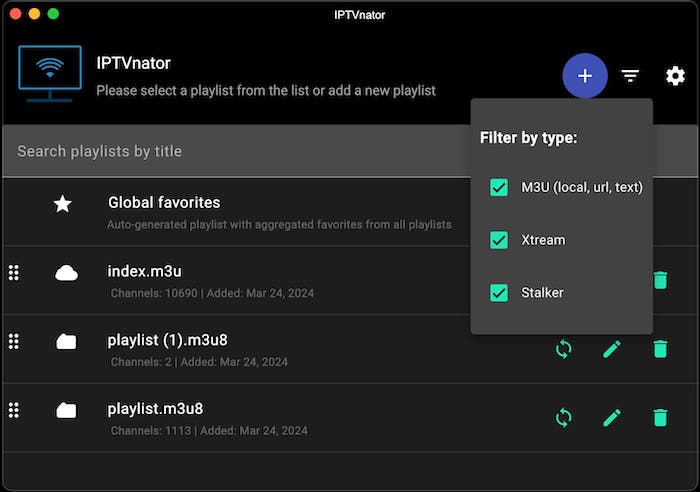
After IPTVnator opens for the first time, it shows an empty dashboard. You need to add a playlist before any channels appear.
Add an M3U Playlist via Remote URL
- Click “Add Playlist” in the center of the dashboard
- Select the M3U tab in the dialog
- Enter a name for your playlist (for example, “My IPTV”)
- Paste your M3U or M3U8 URL into the URL field
- Click “Add Playlist”
Why use a remote URL over a local file: Remote URLs support auto-refresh. Every time IPTVnator starts, it re-fetches the playlist from your provider’s server. This keeps your channel list current without manual re-imports when your provider updates their lineup.
Add an Xtream Code Subscription
If your IPTV provider gave you a portal URL, username, and password (the Xtream Code format):
- Click “Add Playlist”
- Select the Xtream tab
- Enter the Portal URL, Username, and Password
- Click “Add Playlist”
IPTVnator v0.20 uses a unified Add Playlist dialog that handles M3U, Xtream, and Stalker in one flow. You do not need to navigate to a separate settings menu.
Configure EPG (TV Guide)
EPG (Electronic Program Guide) is the TV schedule data that shows what is currently airing and what is coming up next. IPTVnator uses XMLTV format for EPG.
To add an EPG source:
- Open Settings (gear icon, top right)
- Find the EPG section
- Paste your XMLTV URL (your IPTV provider usually supplies this)
- Save settings
Why EPG is configured separately from the playlist: The M3U file defines your channel list. EPG defines the program schedule. They are independent data feeds. This separation lets you use a free public EPG provider with a private playlist, or combine multiple EPG sources for different regions.
Step 7: Configure IPTVnator to Use an External Player (mpv or VLC)
The built-in player in IPTVnator uses an HTML5 video engine. It works fine for most streams, but it does not use hardware video acceleration, which means high-bitrate HD and 4K streams can cause dropped frames on mid-range hardware.
Routing playback to mpv solves this. mpv supports VA-API and VDPAU hardware decoding on Linux, which offloads video decoding from the CPU to the GPU and significantly reduces resource usage.
Install mpv:
sudo apt install mpvThen inside IPTVnator:
- Open Settings
- Find the Player or Video Player section
- Select mpv from the player dropdown
- Save settings
IPTVnator v0.20 adds a dedicated external player bar in the UI that lets you see what is playing in mpv and close the mpv instance directly from inside IPTVnator without switching windows.
Why this matters on machines with 6 GB RAM: Ubuntu 26.04 itself consumes more RAM than previous releases due to its Wayland compositor and GNOME 50 stack. With only 6 GB total, having IPTVnator decode video in software (inside Electron) competes with the desktop for memory. Pushing decode to mpv with hardware acceleration frees both CPU and RAM.
Troubleshooting IPTVnator on Ubuntu 26.04 LTS
Error 1: IPTVnator Opens a Blank White Window on Wayland
Cause: The Snap version lacks permission to access the Wayland compositor socket, or the Electron build defaults to a broken X11 path on a pure Wayland session.
Fix for Snap installs:
sudo snap connect iptvnator:waylandFix for DEB or AppImage installs:
ELECTRON_OZONE_PLATFORM_HINT=auto iptvnatorThis environment variable tells Electron’s Ozone backend to auto-detect the correct display protocol. If it works, make it permanent by adding this line to your ~/.bashrc:
export ELECTRON_OZONE_PLATFORM_HINT=autoThen reload your shell:
source ~/.bashrcError 2: dpkg -i Fails with “Dependency Problems”
Cause: The DEB package requires shared libraries that are not installed on your system. This is common on minimal Ubuntu 26.04 installs.
Fix:
sudo apt install -fIf that does not resolve it, check the specific missing library listed in dpkg‘s error output and install it manually. For example, if libnss3 is missing:
sudo apt install libnss3Then re-run the dpkg -i command.
Error 3: Snap Command Not Found After Installation
Cause: The snap binary paths are not in your current $PATH, or the snap symlinks have not refreshed yet.
Fix:
hash -rThis clears your shell’s command lookup cache. Then try iptvnator again. If it still fails, log out and log back in so the session picks up updated PATH entries from /etc/profile.d/snapd.sh.
Error 4: AppImage Refuses to Launch, Shows “FUSE” Error
Cause: Ubuntu 26.04 uses a newer FUSE version that some AppImages require to be explicitly installed.
Fix:
sudo apt install libfuse2If your AppImage still will not mount, extract and run it without FUSE:
./iptvnator-linux-x86_64.AppImage --appimage-extract
cd squashfs-root
./iptvnator
Error 5: Channels Load But Video Playback Freezes or Buffers Constantly
Cause: The built-in HTML5 player struggles with high-bitrate streams. This is a performance issue, not an installation issue.
Fix: Switch to mpv as the external player using the steps in Step 7 above. Then also check your network connection:
curl -o /dev/null -s -w "%{speed_download}" YOUR_STREAM_URLReplace YOUR_STREAM_URL with one of your M3U channel URLs. A healthy stream should show a download speed above 2,000,000 bytes per second (2 MB/s) for standard definition and above 5,000,000 bytes per second for HD.
How To Update and Remove IPTVnator
Update IPTVnator
Snap (auto-updates, but force immediately):
sudo snap refresh iptvnatorDEB: Download the new .deb from GitHub Releases and re-run sudo dpkg -i. dpkg upgrades in place without creating duplicates.
AppImage: Download the new AppImage file and replace the old one. There is no upgrade command for AppImage.
Remove IPTVnator
Snap:
sudo snap remove iptvnatorDEB (keep config files):
sudo apt remove iptvnatorDEB (remove config files too):
sudo apt purge iptvnatorAppImage: Delete the file.
rm ~/Downloads/iptvnator-linux-x86_64.AppImageThe purge command is what you want in professional environments. apt remove uninstalls the binary but leaves configuration files in /etc/ and ~/.config/. apt purge cleans everything, which matters when you are doing a clean reinstall or handing a machine to another user.
Congratulations! You have successfully installed IPTVnator. Thanks for using this tutorial for installing IPTVnator modern video player based on Electron on Ubuntu 26.04 LTS (Resolute Raccoon) system. For additional help or useful information, we recommend you check the official IPTVnator website.
[su_box title=”VPS Manage Service Offer” style=”bubbles” box_color=”#000000″ radius=”10″]If you don’t have time to do all of this stuff, or if this is not your area of expertise, we offer a service to do “VPS Manage Service Offer”, starting from $10 (Paypal payment). Please contact us to get the best deal![/su_box]
