How To Install Jenkins on Rocky Linux 10

Jenkins stands as one of the most powerful open-source automation servers in the DevOps ecosystem, enabling development teams to build, test, and deploy applications efficiently through continuous integration and continuous delivery (CI/CD) pipelines. Rocky Linux 10, an enterprise-grade operating system designed for 100% bug-for-bug compatibility with Red Hat Enterprise Linux (RHEL), provides a stable foundation for running Jenkins in production environments. This comprehensive guide walks through the complete installation and configuration process of Jenkins on Rocky Linux 10, covering everything from initial system preparation to security hardening and troubleshooting common issues.
Prerequisites
System Requirements
Before proceeding with the Jenkins installation, the system must meet specific hardware and software requirements. The minimum hardware specifications include 256 MB of RAM and 1 GB of available disk space for basic Jenkins operations. However, production environments should allocate at least 4 GB of RAM and 50 GB of disk space to ensure smooth performance, especially when running multiple concurrent builds. Rocky Linux 10 requires x86-64-v3 architecture support, as the distribution has removed support for older x86-64-v2 processors and all 32-bit packages.
A fresh Rocky Linux 10 installation with root or sudo access is essential. The server should have a reliable internet connection for downloading packages and dependencies. Network access to port 8080 is required, as Jenkins uses this port by default for its web interface. Basic command-line proficiency and familiarity with Linux system administration concepts will help navigate the installation process more effectively.
Software Requirements
Jenkins is a Java-based application that requires the Java Development Kit (JDK) to function. Rocky Linux 10 supports Java OpenJDK versions 11 and 17, with OpenJDK 11 being the recommended version for maximum stability. Standard utilities like wget and curl should be available for downloading repository files and GPG keys. The systemd init system manages Jenkins as a service, making it straightforward to start, stop, and enable the automation server at boot time.
Step 1: Update System Packages
Starting with a fully updated system ensures compatibility and security. Connect to the Rocky Linux 10 server via SSH or the console interface. Execute the following command to update all installed packages to their latest versions:
sudo dnf update -yThis command refreshes the package repository metadata and upgrades any outdated packages. The -y flag automatically confirms the update process without requiring manual intervention. Package updates may include critical security patches, kernel improvements, and bug fixes that enhance system stability.
If the update process includes kernel modifications, rebooting the system is recommended to load the new kernel. Check if a reboot is required by examining the output messages. After the update completes successfully, verify the system is running the latest available packages before proceeding with the Jenkins installation.
Step 2: Install Java OpenJDK
Understanding Java Requirements
Jenkins relies entirely on Java to execute its core functionality and run build jobs. The automation server requires either Java OpenJDK 11 or 17 for proper operation. OpenJDK 11 has proven to be highly stable and is widely tested with Jenkins, making it the preferred choice for most deployments.
Installation Steps
Install Java OpenJDK 11 along with its development tools using the DNF package manager. Execute the following command:
sudo dnf install java-11-openjdk java-11-openjdk-devel -yThe java-11-openjdk package provides the runtime environment, while java-11-openjdk-devel includes development libraries and compilers. Installation typically takes a few moments depending on the internet connection speed.
After installation completes, verify the Java version to confirm successful setup:
java -versionThe output should display information about OpenJDK 11 and its build details. Additionally, check the Java compiler installation:
javac -versionBoth commands should return version information confirming Java 11 is properly installed. The JAVA_HOME environment variable is usually set automatically, but in some cases, manual configuration may be necessary for certain Jenkins plugins or build tools.
Step 3: Add Jenkins Repository
Why Use Official Jenkins Repository
The official Jenkins repository is not included in Rocky Linux 10’s default package repositories. Adding the Jenkins-maintained repository ensures access to the latest stable releases directly from the Jenkins project. This approach provides automatic updates through the standard package manager and guarantees compatibility with official Jenkins documentation and support resources.
Repository Configuration Steps
First, ensure wget is installed on the system. If not already present, install it using:
sudo dnf install wget -yDownload the Jenkins repository configuration file and place it in the appropriate directory:
sudo wget -O /etc/yum.repos.d/jenkins.repo https://pkg.jenkins.io/redhat-stable/jenkins.repoThis command fetches the repository definition file from the official Jenkins package server and saves it to the system’s repository configuration directory.
Next, import the Jenkins GPG key to verify package authenticity and integrity:
sudo rpm --import https://pkg.jenkins.io/redhat-stable/jenkins.io-2023.keyThe GPG key validates that packages come from the official Jenkins project and haven’t been tampered with during transmission. Security best practices recommend always verifying package signatures before installation.
Verify the repository was added successfully by listing all configured repositories:
sudo dnf repolistThe output should include an entry for the Jenkins stable repository. This confirmation indicates the system is ready to install Jenkins from the official source.
Step 4: Install Jenkins
With the repository configured and Java installed, proceed with the Jenkins installation. Execute the following DNF command:
sudo dnf install jenkins -yThe package manager downloads Jenkins and all required dependencies, then installs them on the system. The installation process creates a dedicated jenkins user and group for running the service securely. Jenkins files are installed in /var/lib/jenkins, which serves as the JENKINS_HOME directory containing all configuration files, build jobs, and workspace data.
After installation completes, check the installed Jenkins version to confirm success:
jenkins --versionReload the systemd manager to recognize the newly installed Jenkins service:
sudo systemctl daemon-reloadThis command ensures systemd processes the new Jenkins service unit file properly.
Step 5: Start and Enable Jenkins Service
Service Management
Jenkins operates as a systemd service on Rocky Linux 10, allowing centralized management through systemctl commands. Start the Jenkins service with the following command:
sudo systemctl start jenkinsThis initiates the Jenkins server process, which begins listening on port 8080. The service startup may take 30-60 seconds as Jenkins initializes its components and loads plugins.
Enable Jenkins to start automatically whenever the system boots:
sudo systemctl enable jenkinsThis command creates a symbolic link in the appropriate systemd target, ensuring Jenkins launches during the boot sequence.
Verify the Jenkins service is running correctly:
sudo systemctl status jenkinsThe status output should indicate “active (running)” in green text. If the service shows any errors or failed status, review the system logs using journalctl -u jenkins -f to identify the issue.
Understanding Jenkins Service
The systemd service configuration for Jenkins resides in /lib/systemd/system/jenkins.service or /etc/systemd/system/jenkins.service. This configuration file defines how Jenkins starts, which user runs the process, and various environment variables. The default installation configures Jenkins to listen on TCP port 8080, which can be modified if necessary for specific deployment requirements.
Jenkins automatically creates its home directory at /var/lib/jenkins, storing critical data including job configurations, build histories, plugin files, and workspace directories. Understanding this directory structure helps with backup strategies and troubleshooting efforts.
Step 6: Configure Firewall
Firewalld Configuration
Rocky Linux 10 uses firewalld as its default firewall management solution. The firewall must allow incoming connections on port 8080 for users to access the Jenkins web interface. First, verify firewalld is active and running:
sudo systemctl status firewalldIf firewalld is not running, start and enable it using standard systemctl commands.
Add port 8080 to the firewall’s public zone permanently:
sudo firewall-cmd --permanent --zone=public --add-port=8080/tcpThe --permanent flag ensures the rule persists across system reboots. Without this flag, the firewall rule would only apply to the current session.
Reload the firewall to apply the new configuration:
sudo firewall-cmd --reloadThis command activates the firewall changes without disrupting existing connections.
Verify the port was successfully opened:
sudo firewall-cmd --list-portsThe output should display 8080/tcp among the open ports. Proper firewall configuration balances security and accessibility, allowing Jenkins access while protecting the server from unauthorized connections.
Cloud and Alternative Considerations
When running Jenkins on cloud platforms like AWS, Azure, or Google Cloud, configure security groups or network firewall rules in addition to the operating system firewall. Cloud providers typically require explicit inbound rules allowing TCP port 8080 from trusted IP ranges. Organizations using iptables instead of firewalld should adapt the commands accordingly to achieve equivalent protection.
Step 7: Configure SELinux
Security-Enhanced Linux (SELinux) provides mandatory access controls that enhance system security on Rocky Linux 10. By default, SELinux runs in enforcing mode, which may require additional configuration for Jenkins to function correctly. Check the current SELinux status:
getenforceThe command returns either Enforcing, Permissive, or Disabled. In enforcing mode, SELinux blocks unauthorized actions based on defined policies. Some administrators temporarily set SELinux to permissive mode during initial Jenkins setup:
sudo setenforce 0Permissive mode logs policy violations without enforcing them, allowing Jenkins to operate while identifying potential SELinux conflicts.
To make SELinux changes permanent, edit the configuration file:
sudo nano /etc/selinux/configChange SELINUX=enforcing to SELINUX=permissive if needed. However, security best practices recommend keeping SELinux in enforcing mode whenever possible. For production environments, develop proper SELinux policies for Jenkins rather than disabling this critical security feature entirely.
Step 8: Access Jenkins Web Interface
Initial Access
With Jenkins running and firewall rules configured, access the web interface using a browser. Navigate to the server’s IP address followed by port 8080:
http://your-server-ip:8080Replace your-server-ip with the actual IP address of the Rocky Linux 10 server. For local installations, use http://localhost:8080 instead.
The Jenkins unlock screen appears, requesting the initial administrator password. This security measure prevents unauthorized access during the initial setup phase.
Retrieve Initial Admin Password
Jenkins generates a unique administrator password during installation and stores it in a secure location. Retrieve this password from the server:
sudo cat /var/lib/jenkins/secrets/initialAdminPasswordThe command displays a long alphanumeric string, which is the one-time administrator password. Copy this password carefully, ensuring no extra spaces or characters are included. Paste the password into the Jenkins web interface and click “Continue” to proceed with the setup wizard.
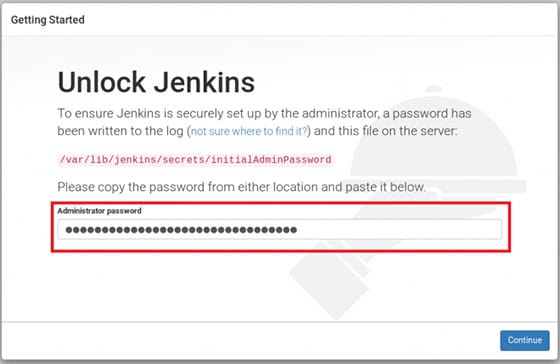
This initial password mechanism ensures only someone with server access can complete the Jenkins configuration, preventing potential security breaches during the vulnerable setup period.
Step 9: Install Jenkins Plugins
The setup wizard presents two plugin installation options: “Install suggested plugins” or “Select plugins to install”. For most users, especially those new to Jenkins, selecting “Install suggested plugins” is the recommended approach. This option installs a curated collection of essential plugins that provide core functionality for common CI/CD workflows.
Jenkins begins downloading and installing the selected plugins, which typically takes several minutes depending on internet speed and server performance. The suggested plugins include version control integrations, build tools, notification systems, and authentication mechanisms. Jenkins has over 1,800 plugins available in its ecosystem, enabling integration with virtually any development tool or platform.
Advanced users who know their specific requirements can choose “Select plugins to install” to customize the initial plugin set. Additional plugins can always be installed later through the Jenkins plugin manager interface, providing flexibility as project requirements evolve.
Step 10: Create First Admin User
After plugin installation completes, Jenkins prompts for the creation of the first administrative user account. Fill in the required information fields:
- Username: Choose a memorable username for daily Jenkins access
- Password: Create a strong password following security best practices
- Confirm password: Re-enter the password for verification
- Full name: Enter the administrator’s full name
- Email address: Provide a valid email address for notifications
Strong password requirements typically include a minimum of 12 characters with a mix of uppercase letters, lowercase letters, numbers, and special characters. This administrative account differs from the initial unlock password and will be used for ongoing Jenkins management.
Click “Save and Continue” to create the admin user. Proper user management and strong authentication form the foundation of Jenkins security, especially in multi-user environments. The administrative account has full permissions to configure Jenkins, create jobs, manage plugins, and control all aspects of the automation server.
Step 11: Configure Jenkins URL
The Jenkins Instance Configuration screen displays the automatically detected Jenkins URL, typically showing http://your-server-ip:8080. This URL setting determines how Jenkins generates links in email notifications, build logs, and webhook callbacks.
For basic installations accessible only by IP address, the default URL works correctly. Organizations using domain names or implementing reverse proxy configurations should update this URL to reflect the actual access method. For example, if Jenkins will be accessed through https://jenkins.example.com, enter that URL instead of the default IP-based address.
Click “Save and Finish” to complete the initial configuration. Jenkins displays a “Jenkins is ready!” message, indicating successful installation and configuration. Click “Start using Jenkins” to access the main dashboard and begin creating automation pipelines.
Security Best Practices
Operating System Security
Maintaining system security requires regular updates and patch management. Configure automatic security updates for Rocky Linux 10 to ensure critical vulnerabilities are addressed promptly. Implement strong password policies for all system accounts, not just Jenkins users. The firewall configuration should follow the principle of least privilege, allowing only necessary ports and services.
SELinux policies provide an additional security layer when properly configured. Rather than disabling SELinux entirely, develop custom policies that allow Jenkins operations while maintaining mandatory access controls. Regular security audits help identify potential vulnerabilities before they can be exploited.
Jenkins-Specific Security
Enable Jenkins security features through the “Configure Global Security” section in the Jenkins dashboard. Configure appropriate authorization strategies such as Matrix-based security or Role-based access control to limit user permissions based on their responsibilities. Regular plugin updates are critical, as plugins often receive security patches addressing newly discovered vulnerabilities.
Disable unnecessary plugins to reduce the attack surface. Production Jenkins installations should implement HTTPS/SSL encryption to protect sensitive data transmitted between users and the server. Establish comprehensive backup strategies for the Jenkins home directory, ensuring rapid recovery in case of system failures or security incidents.
Performance Optimization
Java Heap Memory Settings
Jenkins performance depends heavily on proper Java heap memory allocation. The default heap size may be insufficient for production environments running multiple concurrent builds. CloudBees recommends setting the initial heap size (-Xms) and maximum heap size (-Xmx) to 4 GB for traditional deployments.
Configure heap settings by creating a systemd override file:
sudo systemctl edit jenkinsAdd the following configuration:
[Service]
Environment="JAVA_OPTS=-Xms4G -Xmx4G"
Save the file and restart Jenkins to apply the new settings:
sudo systemctl restart jenkinsVerify the changes by checking the Jenkins process:
ps aux | grep jenkinsThe output should display the updated heap allocation values. Be cautious not to allocate excessive heap memory, as this reduces available memory for the operating system and can cause performance degradation through excessive paging.
Workspace Management
Jenkins stores build workspace data in /var/lib/jenkins/workspace/, with each job maintaining its own subdirectory. Over time, workspace directories accumulate considerable disk space. Regular cleanup of old workspace data prevents disk space exhaustion and improves performance. Configure build discarders in job settings to automatically remove old builds and their associated workspace files.
Common Troubleshooting Issues
Jenkins Won’t Start
Service startup failures typically relate to Java configuration issues or port conflicts. Verify Java is correctly installed and the version is compatible with Jenkins. Check if another process is using port 8080:
sudo lsof -i :8080If port 8080 is occupied, either stop the conflicting service or configure Jenkins to use an alternative port.
Review Jenkins logs for detailed error messages:
sudo journalctl -u jenkins -fInsufficient disk space can prevent Jenkins from starting. Verify adequate free space on the partition containing /var/lib/jenkins.
Cannot Access Web Interface
Connection issues often stem from firewall misconfigurations. Double-check firewall rules allow port 8080 traffic. Confirm Jenkins service is running using systemctl status jenkins. Verify the correct IP address and port number are being used to access Jenkins.
Network connectivity problems between the client and server can block access. Test basic network connectivity using ping and ensure no intermediate firewalls or routers are blocking traffic. SELinux may block Jenkins network operations; check audit logs at /var/log/audit/audit.log for denials.
Performance Issues
Slow Jenkins performance often indicates insufficient memory allocation. Increase Java heap size as described in the performance optimization section. Running too many concurrent builds overwhelms system resources; configure executor limits based on available CPU and memory.
Database and workspace cleanup removes accumulated data that degrades performance. Update the Jenkins URL configuration if builds are experiencing unusual delays. Plugin conflicts occasionally cause performance problems; disable recently installed plugins to identify the culprit.
Congratulations! You have successfully installed Jenkins. Thanks for using this tutorial for installing Jenkins open source automation server on your Rocky Linux 10 system. For additional help or useful information, we recommend you check the official Jenkins website.
